This feature is available with Invicti API Security Standalone or Bundle.
Integrate Kong Konnect
Integrating Kong Konnect with Invicti Enterprise allows you to fetch Swagger2 and OpenAPI3 specification files from Kong Konnect and provide them as inputs to our DAST scanners. The imported specification files are used to build an inventory of API endpoints that can be scanned for vulnerabilities.
This document explains how to set up an integration between Kong Konnect and Invicti Enterprise.
- A Kong Konnect account that contains your API specification files published through the API Products Dashboard.
Integrate Invicti Enterprise with Kong Konnect
Before configuring the integration in Invicti Enterprise, you need to generate a personal access token in Kong Konnect that is used to authorize the retrieval of your API specification files. Follow the steps to integrate Invicti Enterprise with Kong Konnect.
Only Swagger2 and OpenAPI3 specification files are imported.
Step 1: Generate a personal access token
- In Kong Konnect click the profile icon in the top-right corner, then select Personal Access Tokens.
- Click + Generate Token.
- Enter a Name for the token and set an Expiration period, then click Generate.
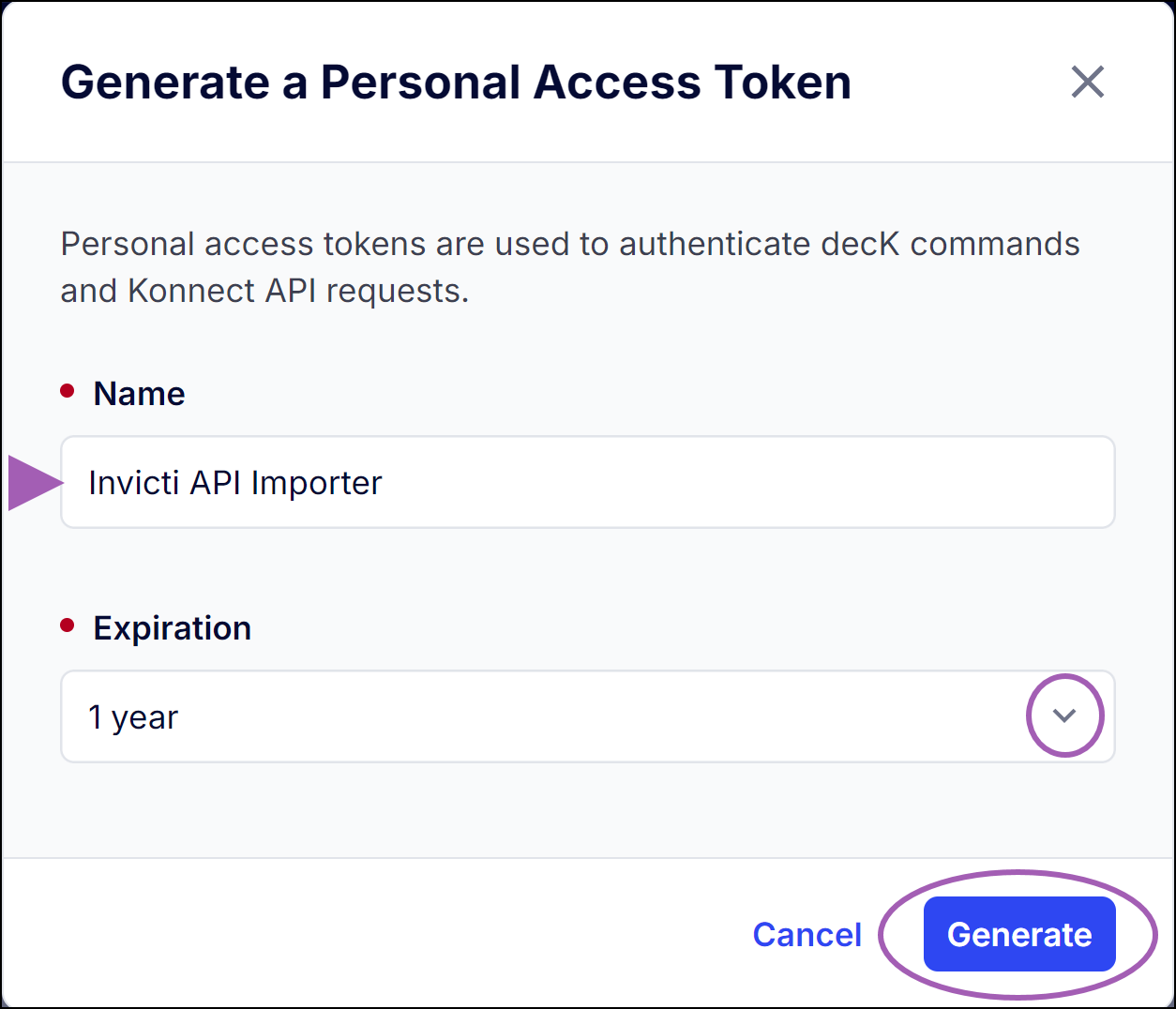
- Click Copy.
You now have the necessary information to configure the integration in Invicti Enterprise. Continue with the steps in the next section.
Step 2: Configure Invicti Enterprise
-
Select APIs > Sources from the left-side menu.
-
Click Add New Source.
-
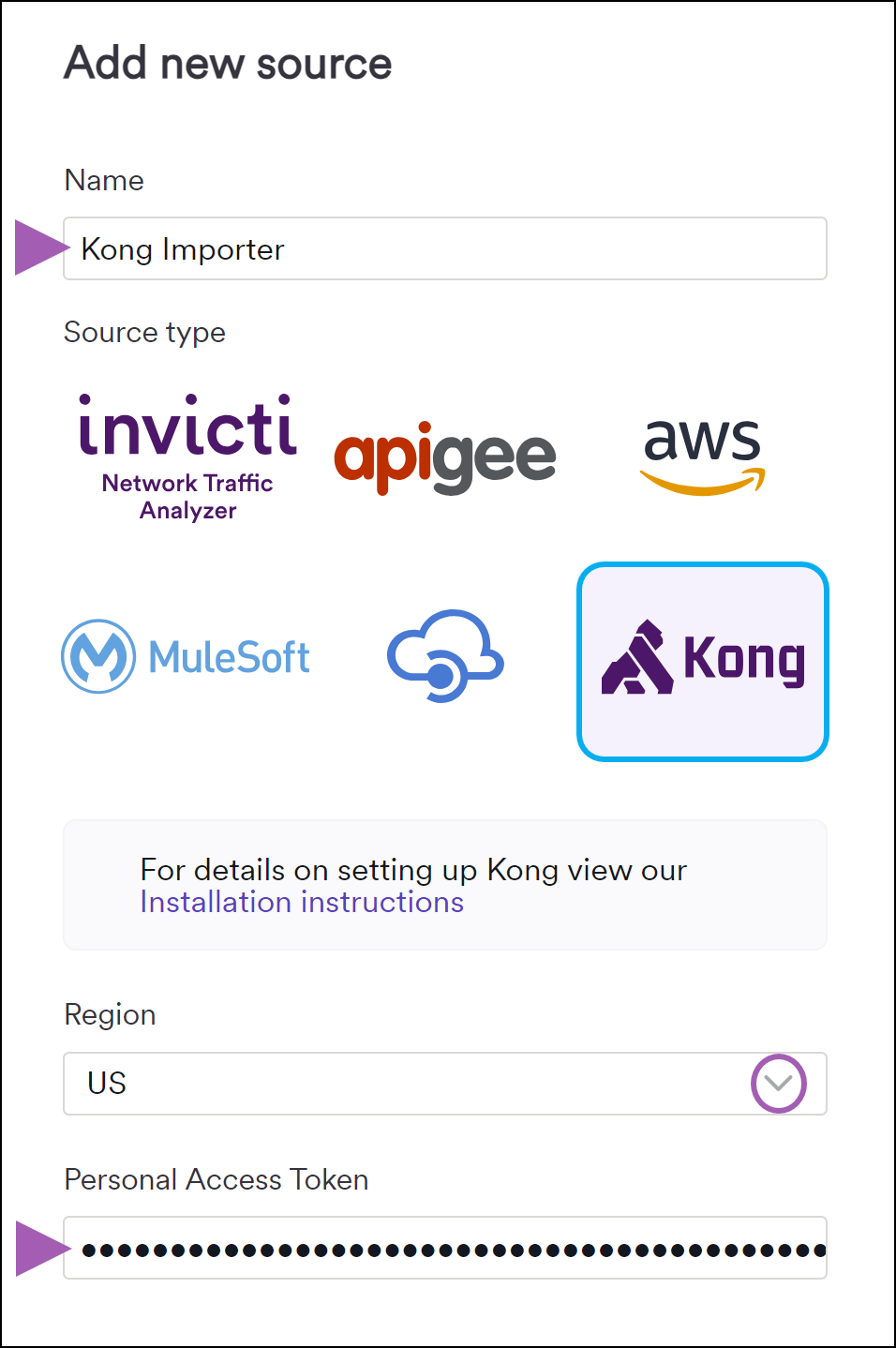
Enter a Name for the API integration and select Kong Konnect as the Source type.
-
Select the Region that corresponds with the region used for your Kong Konnect account. (This is visible in the bottom-left corner of the Kong Konnect user interface after selecting API Products.)
-
Paste your Personal Access Token into the corresponding field.
-
Click Authenticate and Save.
An Authorization successful message is displayed and the integration appears on the APIs > Sources page in Invicti Enterprise. Continue with the final step to synchronize the API import.
Step 3: Synchronize the API import
-
On the APIs > Sources page in Invicti Enterprise, click the sync icon to start importing your API specification files from Kong Konnect into your Invicti Enterprise API Inventory.

-
When the sync is complete, your API specification files is displayed on the API Inventory page in Invicti Enterprise. From this page, you can link your API specification files to targets so they can be scanned for vulnerabilities. For more information, refer to the Linking and unlinking discovered APIs to targets document.
Kong Konnect is now integrated with Invicti Enterprise. After the initial synchronization, the integration automatically syncs your API specifications once every 24 hours.
To synchronize API specifications on demand, click the sync icon on the APIs > Sources page. To turn off automatic synchronization, click the toggle in the Sync Automatically column on the APIs > Sources page.
Need help?
Invicti Support team is ready to provide you with technical help. Go to Help Center