This feature is available with Invicti API Security Standalone or Bundle.
Link APIs with targets
Associating your discovered and imported APIs with targets enables you to scan those APIs for vulnerabilities. Whenever the target is scanned, the linked API is also be scanned automatically. This guide shows you how to link and unlink APIs with targets from your API Inventory in Invicti Enterprise.
Access to API Discovery in Invicti Enterprise requires either an Account Administrator role or the View API Inventory permission added to a new or existing role.
Link an API to a target
Once you have some APIs in your API Inventory, you can link each API specification file to an existing target or create a new target to link to if the API base URL isn't yet set up as a target in Invicti Enterprise.
- When linking an API to a target, the API base URL must be a subset of the target URL.
- For example, if www.example.com is the target URL you are linking to, then the base URL for the API needs to be www.example.com/api/v1.
- When the API base URL is different from the target URL, a new target needs to be added.
- For example, if the API base URL is api.example.com and your target URL is www.example.com, then you would need to add a new target for api.example.com.
To link an API from your API Inventory to a target:
- Select APIs > API Inventory from the left-side menu.
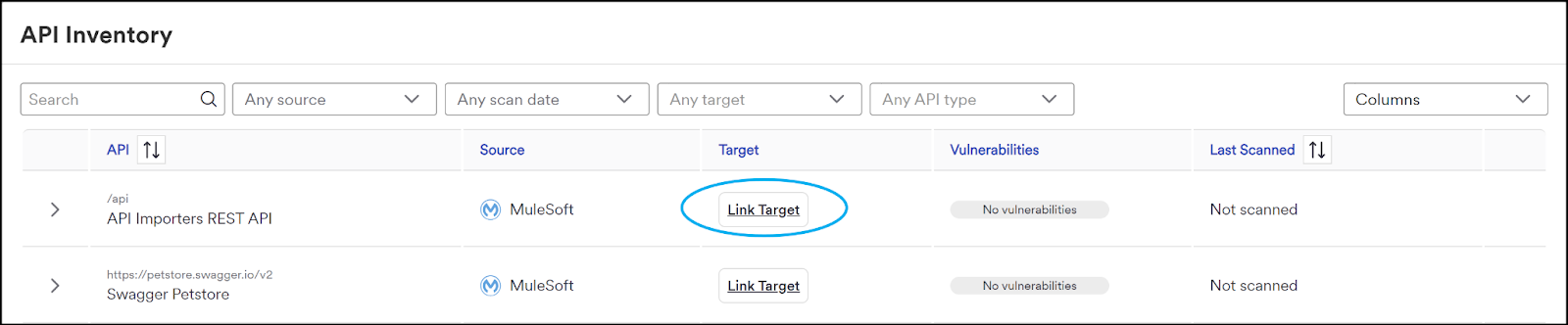
- From your API Inventory, locate the API you want to link and select Link Target.
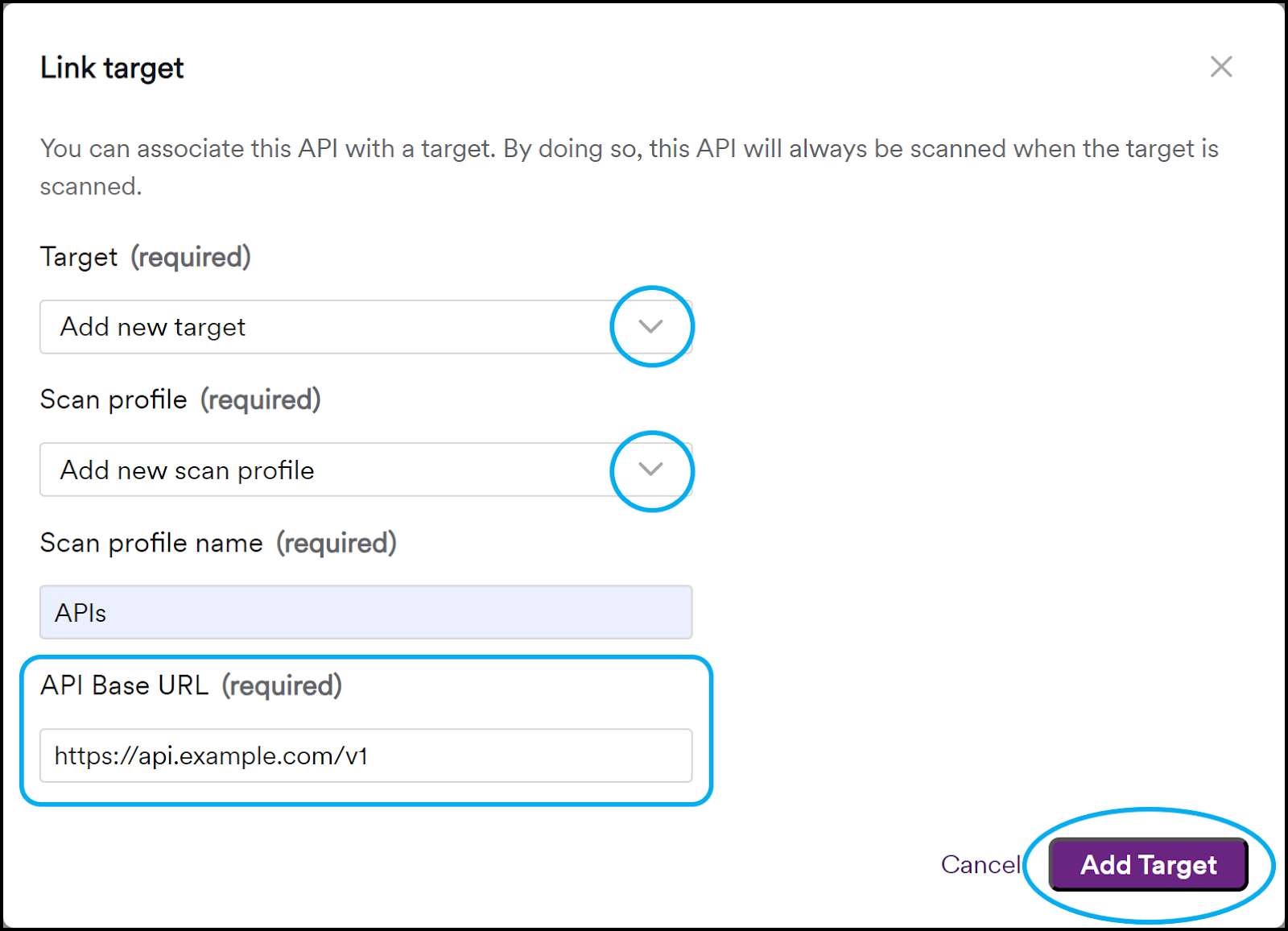
- Click the Target drop-down and choose your preferred option:
- Select an existing target from the list if you already have a target that matches your API base URL.
- Select + Add new target if you need to add a new target to match your API base URL.
Adding a new target uses one of your available license seats.
- Click the Scan profile drop-down and choose your preferred option:
- Select an existing scan profile from the list.
- Select + Add new scan profile, then enter a name for the new scan profile.
- Enter the API base URL of the API you are linking.
- Select Link target or Add Target.
The URL of the linked target is now displayed in the Target column of your API Inventory. The next time the linked target is scanned, the associated API specification is also be scanned automatically.
Unlink an API from a target
To unlink an API in your API Inventory from a target:
- From the main menu, go to APIs > API Inventory.
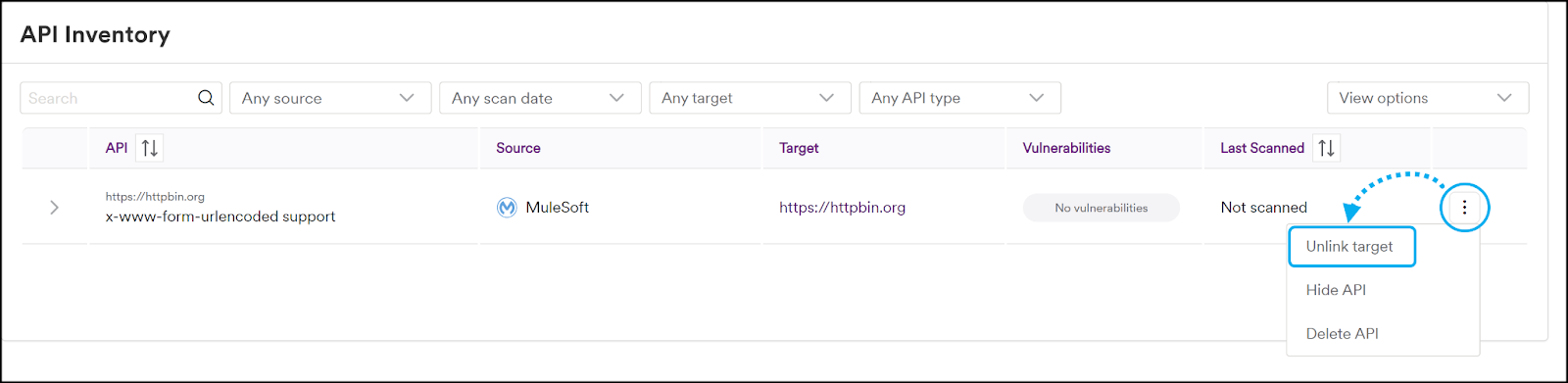
- From your API Inventory, locate the API you want to unlink, select the three-dot menu icon (⋮) on the right, and select Unlink target.
- Select Unlink target to confirm the action.
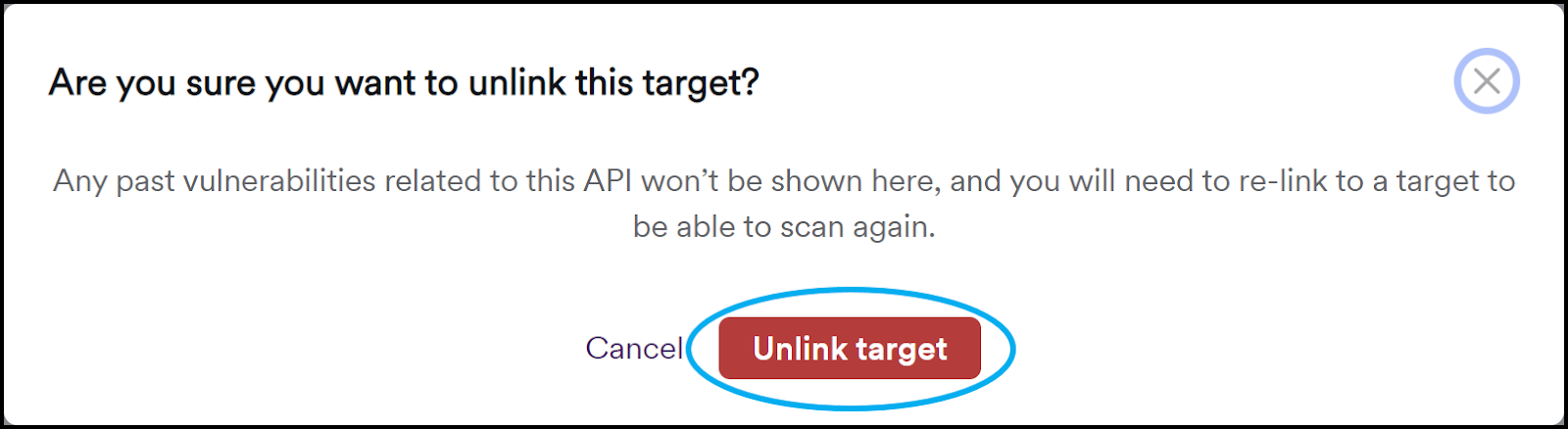
The API is no longer linked to a target and can't be scanned unless you link it to a target again. Any previously identified vulnerabilities related to the API are no longer shown in the API Inventory.
Need help?
Invicti Support team is ready to provide you with technical help. Go to Help Center