This feature is available with Invicti API Security Standalone or Bundle.
Manage API inventory
This document explains what information is available on the API Inventory page, how to view API endpoints, and how to hide or delete API specs from your API Inventory. For information about linking and unlinking APIs with targets or API Management integrations, refer to the following documentation:
Access to API Discovery in Invicti Enterprise requires either an Account Administrator role or the View API Inventory permission added to a new or existing role.
View your API Inventory
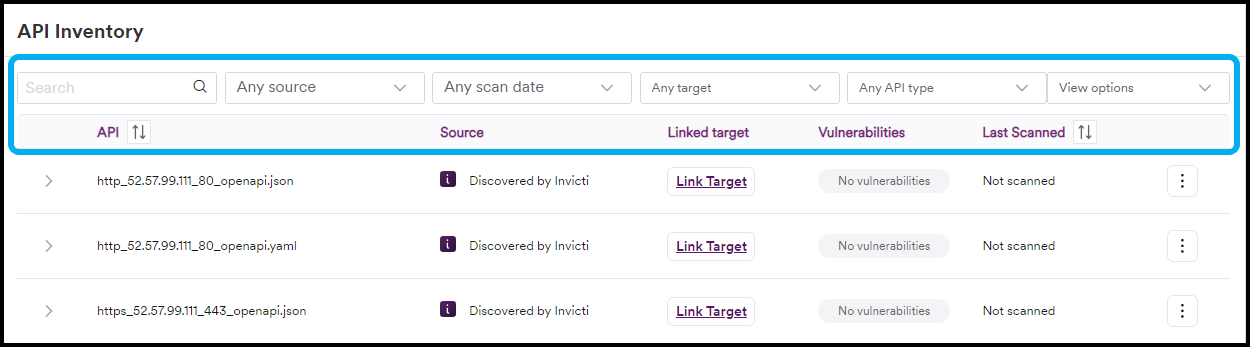
After importing or discovering APIs, you can view all your API specifications and endpoints on the API Inventory page: select APIs >API Inventory from the left-side menu.
The following information is displayed for each API:
- API: The name/URL of each API.
- Source: How the API was discovered or imported (for example, via an integration, Invicti NTA, or zero-config crawling).
- Linked target: Whether the API is linked to a target for scanning capability.
- Scan profile: The selected scan profile for APIs that are linked to a target.
- Vulnerabilities: The overall vulnerability count for the API (after it has been scanned).
- Last Scanned: The date and time that the API was last scanned by Invicti Enterprise.
Use the search field or filter options at the top of the table to view your APIs by source, scan date, target, or API type.
View endpoints
To view the endpoints of an API spec in your API Inventory:
- Select the arrow next to an API in your API Inventory. Each endpoint is now visible.
- Use the search field to locate a specific endpoint or the operation filter to view all endpoints for a specific operation.
- You can also order the Operation column alphabetically by endpoint or the Vulnerabilities column by criticality.
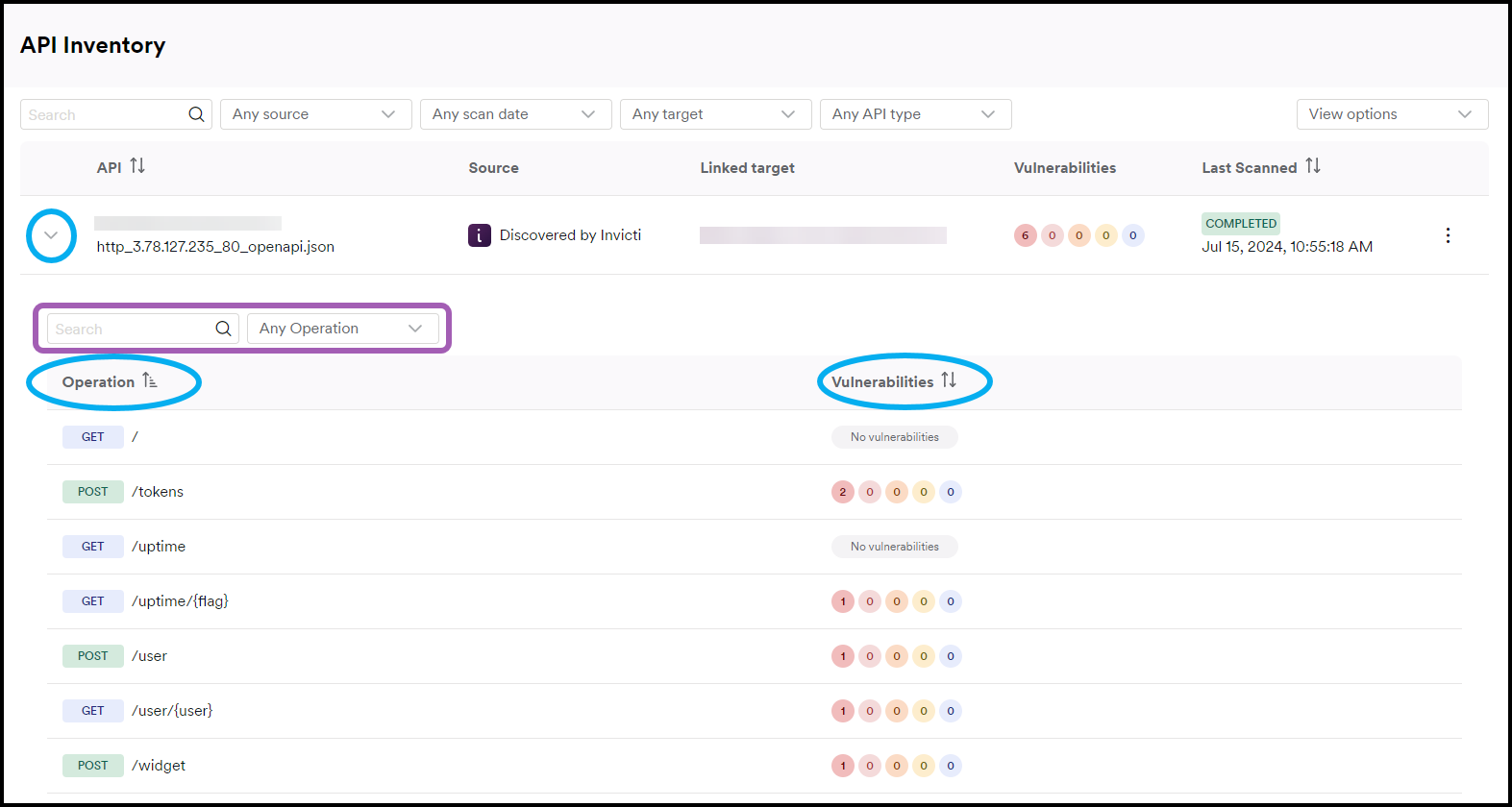
When new endpoints are discovered, they appear in the list with a New label to identify them.
Hide and unhide discovered APIs
If you decide a discovered API is irrelevant and don't want to scan it, you can hide it from your API Inventory. If you later change your mind, you can unhide previously hidden APIs.
Hiding an API unlinks it from the attached target and permanently delete all associated statistics. Any found vulnerabilities from previous scans of a hidden API remain on the vulnerabilities page.
Hide an API
To hide an API in your API Inventory:
- Select the three-dot menu (⋮) to the right of the API you want to hide, then select Hide API.
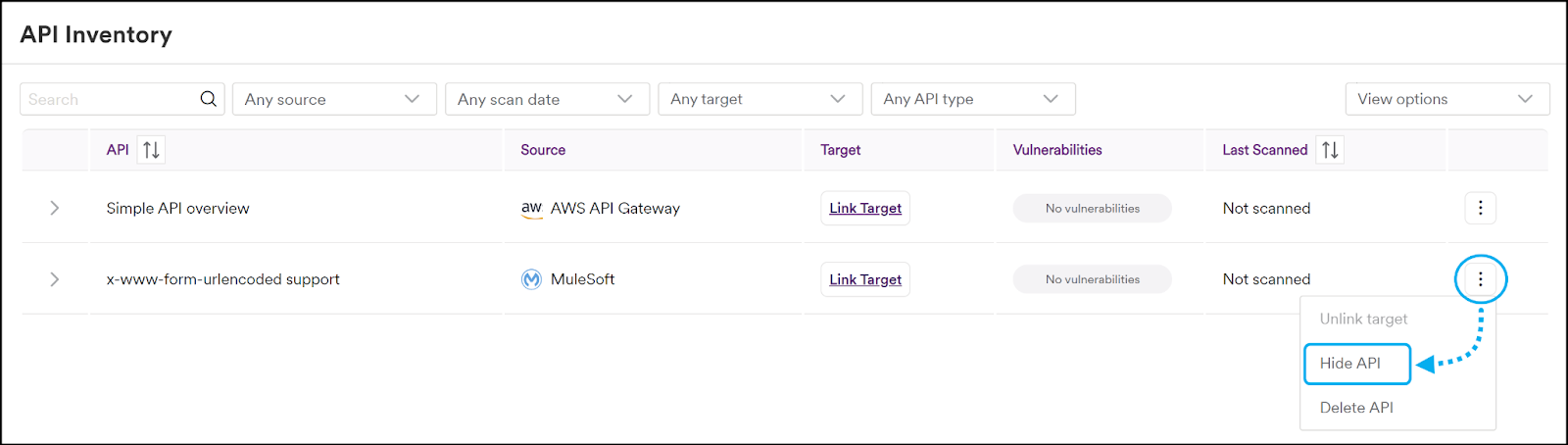
- Select Hide API to confirm the action.

The API is now grayed out and marked with a Hidden label.
When updated endpoints are discovered for hidden APIs, they are still added and become visible when you view the hidden API.
Unhide an API
To unhide an API in your API Inventory:
- Select the View options dropdown and select Show hidden APIs.
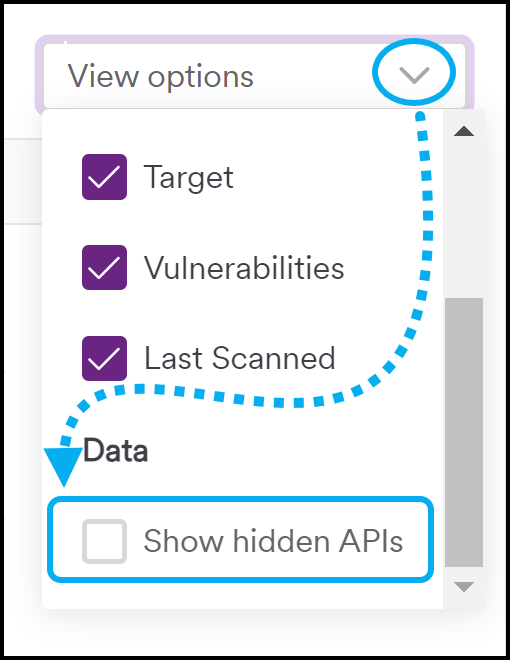
- Locate the API you want to unhide, then select the three-dot menu (⋮) and select Unhide API.
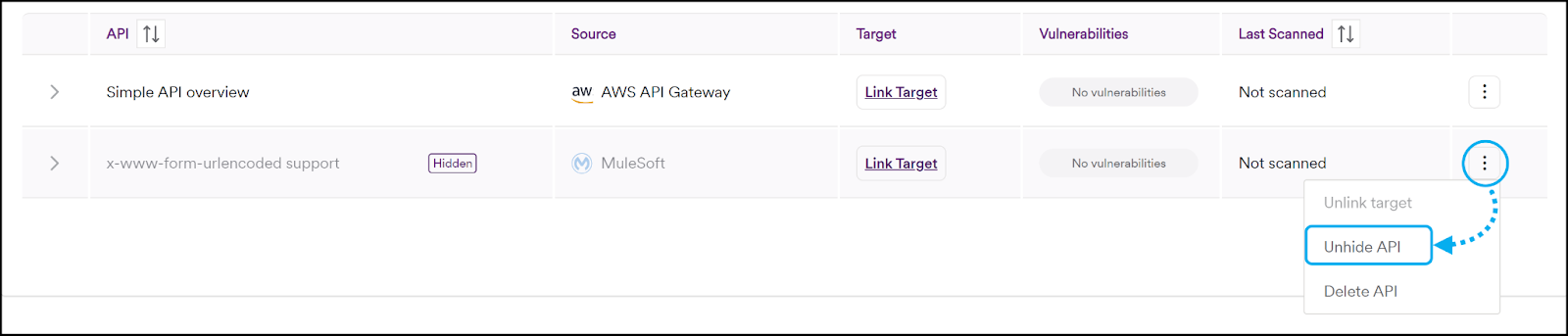
The API now appears in the normal view of your API Inventory.
Delete an API
If you want to completely remove an API from your API Inventory you can choose to delete it. However, if the source of the API is enabled (for example, a MuleSoft integration), the deleted API might reappear in your API Inventory the next time the source synchronizes. In this situation, you may prefer to hide the API instead so that it's ignored each time a source synchronization occurs.
Deleting an API permanently removes all associated statistics and the action can't be undone.
To delete an API from your API Inventory:
- Select the three-dot menu (⋮) to the right of the API you want to delete, then select Delete API.
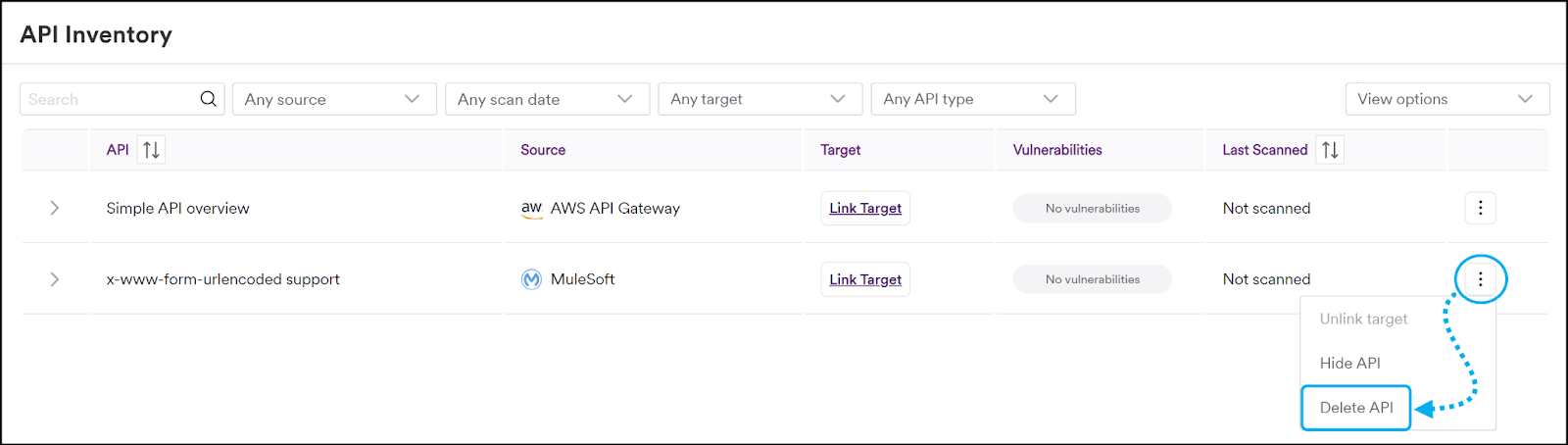
- Select Delete API to confirm the action.
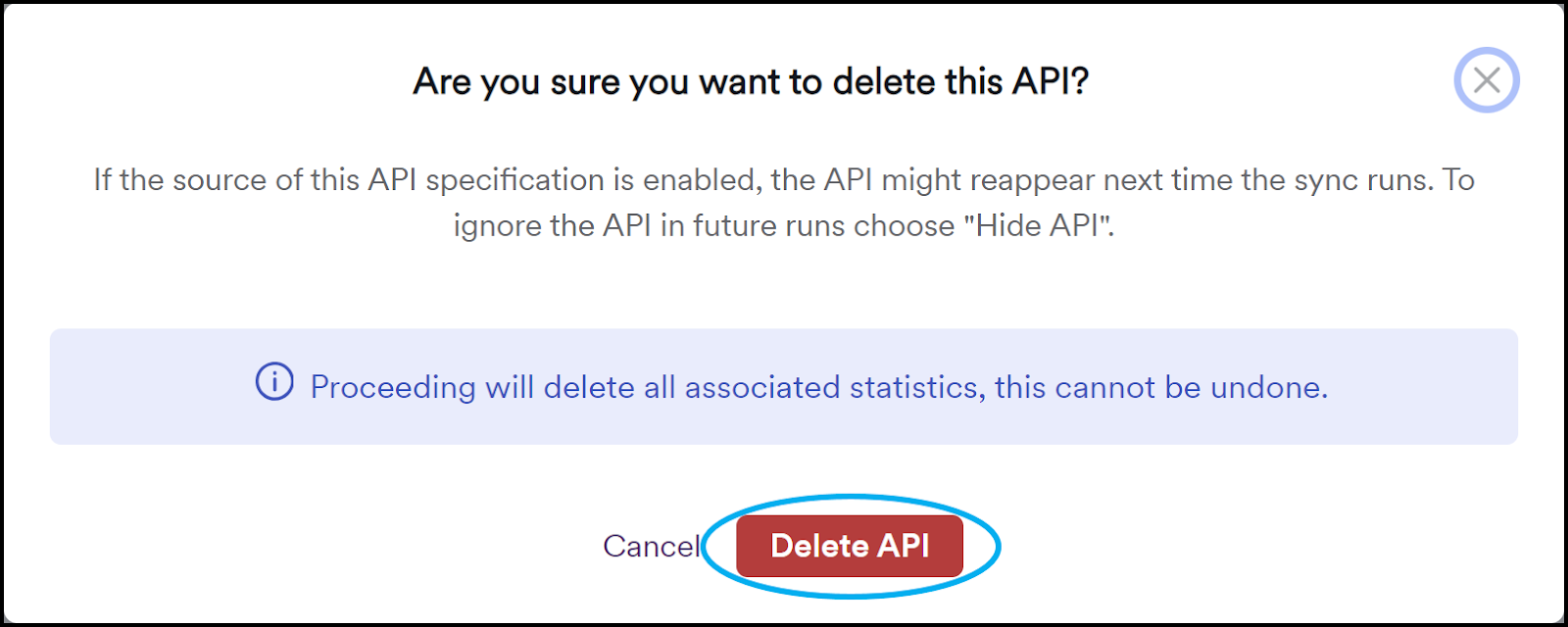
The API and all associated statics are now deleted and the API is no longer visible in your API Inventory.
Need help?
Invicti Support team is ready to provide you with technical help. Go to Help Center