Generate ModSecurity WAF rules from Invicti Standard
If you can't immediately fix all vulnerabilities that Invicti has detected, you can cover them up and defer fixing them until another time. You do this by exporting Invicti's findings as rules for ModSecurity WAF.
It's possible to either export the information about a single vulnerability as a ModSecurity rule or export information about all the vulnerabilities identified during the scan.
After you import the rules, the ModSecurity web application firewall (WAF) blocks any requests made by malicious hackers.
For more information, refer to the Web application firewalls document.
ModSecurity WAF fields
The following list describes the ModSecurity WAF fields in the Web Application Firewall tab:
- Add: click to add an integration.
- Delete: click to delete the integration and clear all fields.
- Test settings: click to confirm that Invicti Standard can connect to the configured system.
- Action: this section contains general fields about the Send To Action.
- Display name: the name of the configuration that appears on menus.
Types of ModSecurity rules Invicti scanners export
The export can include three types of ModSecurity rules:
- Denial of access to a URL with a vulnerable parameter
- Denial of access to a URL that can be attacked with a payload
- Denial of access to an exact URL
Invicti scanners automatically choose the type of rule depending on the vulnerability, so you don't have to configure anything.
Types of vulnerabilities Invicti scanners export as ModSecurity rules
Not all vulnerabilities can be covered up by blocking access to a specific URL with a web application firewall, therefore not all vulnerabilities can be exported as ModSecurity rules. For example, security flaws related to HTTP Cookies, sensitive comments in source code, application source code disclosure and other similar vulnerabilities aren't exported.
Configure ModSecurity WAF rules in Invicti Standard
- In the Home tab, click Options. The Options dialog is displayed.
- Click Web Application Firewall.
- From the Add dropdown, choose ModSecurity.
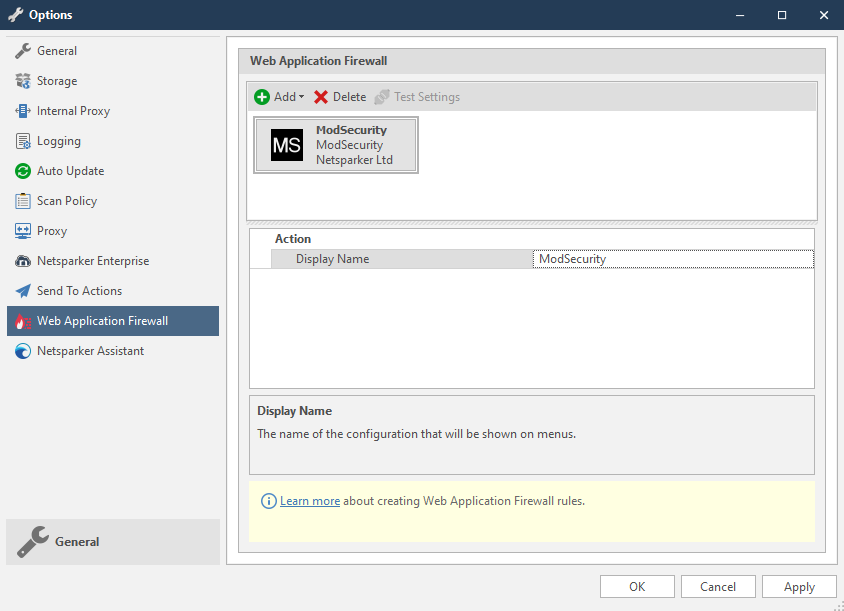
- Click OK.
Export Invicti Standard scan results as ModSecurity WAF rules
Rules can be exported in two ways from Invicti Standard:
- All vulnerabilities: export rules for all vulnerabilities found in the scan.
- Single vulnerability: export a rule for one specific vulnerability.
Export all vulnerabilities
- From the Reporting tab, click ModSecurity WAF Rules.

- In the File name field, enter a name, then choose Save. The Export Report dialog is displayed with the Path (generated from the location and filename from the previous step) already populated.
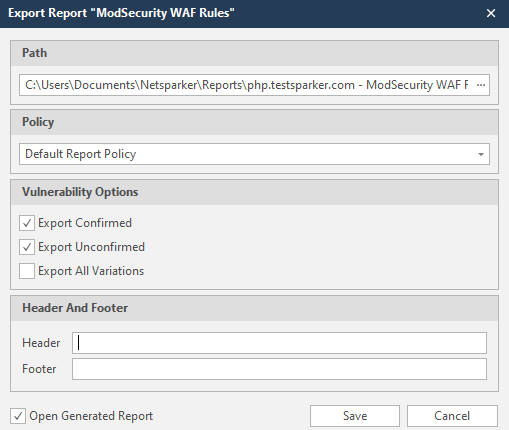
- From the Policy drop-down, choose an option.
- The Open generated report checkbox is already selected (which opens the report on completion). Deselect this option if required.
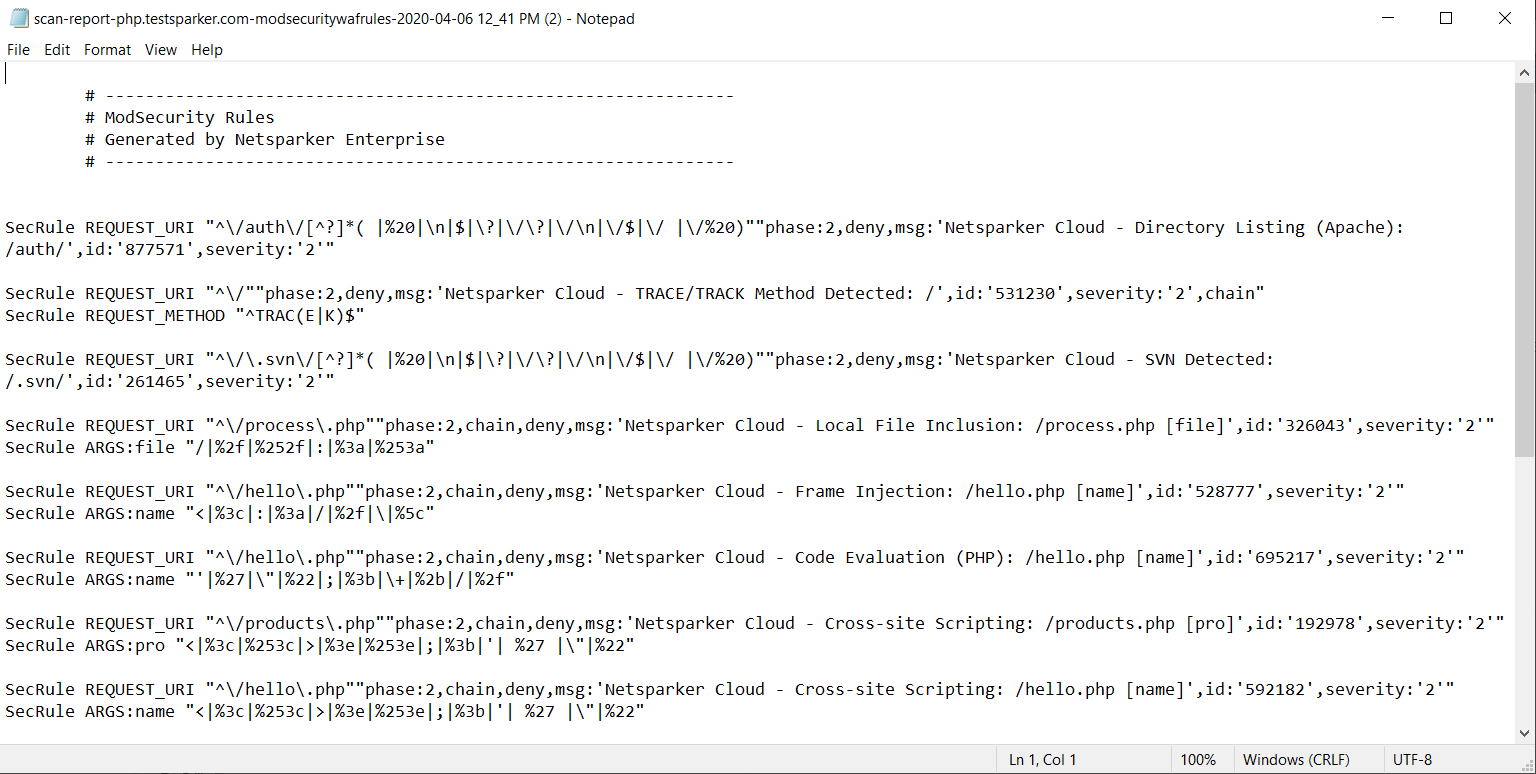
- Click Save. The ModSecurity WAF Rules report opens in your default text editor (this example shows Notepad).
Export a single vulnerability
- In the Issues pane, select a single vulnerability (in this example, Cross-site Scripting).
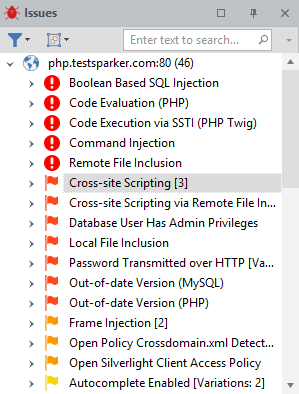
- From the Vulnerability tab, click ModSecurity WAF Rules. The Save Report As dialog is displayed.
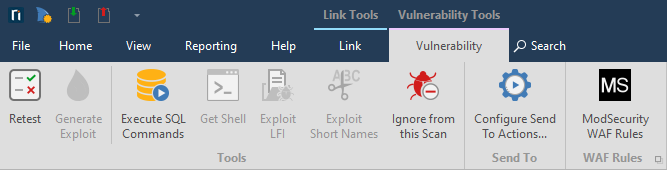
- In the File name field, enter a name, then choose Save.
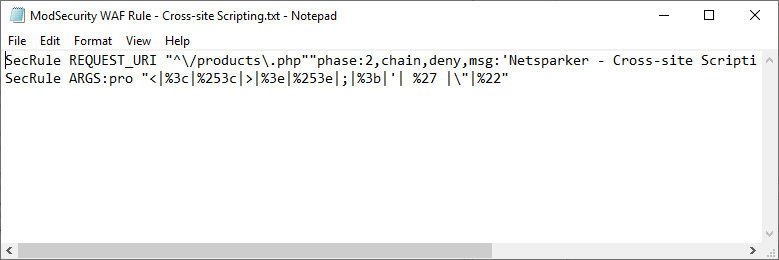
- The exported rule file can be opened in any text editor as shown.
Need help?
Invicti Support team is ready to provide you with technical help. Go to Help Center