ModSecurity WAF rules report
Invicti scans your system to identify vulnerabilities that may have a critical or high severity level. If you can't fix these vulnerabilities immediately, attackers can exploit them and take control of your website. Invicti helps prevent attackers from exploiting these vulnerable URLs in your system by allowing you to export rules for ModSecurity Web Application Firewall (WAF).
By generating Invicti's findings as ModSecurity WAF rules:
- You can immediately block requests to a resource if the requests contain malicious payloads that would exploit it.
- Developers gain time in fixing these vulnerable points.
- Your system remains secure until a fix is found and patched.
Note that you can't cover all security flaws by blocking access to a specific resource using a web application firewall. For example, application source code disclosure can't be exported as a ModSecurity WAF rule.
Both Invicti products allow the export of scan results as ModSecurity WAF rules.
For other reports available in Invicti, refer to the Overview of reports, Report templates, Built-in reports and Web application firewalls documents.
Generate a ModSecurity WAF rules report in Invicti Enterprise
- Select Scans > Recent Scans from the left-side menu.
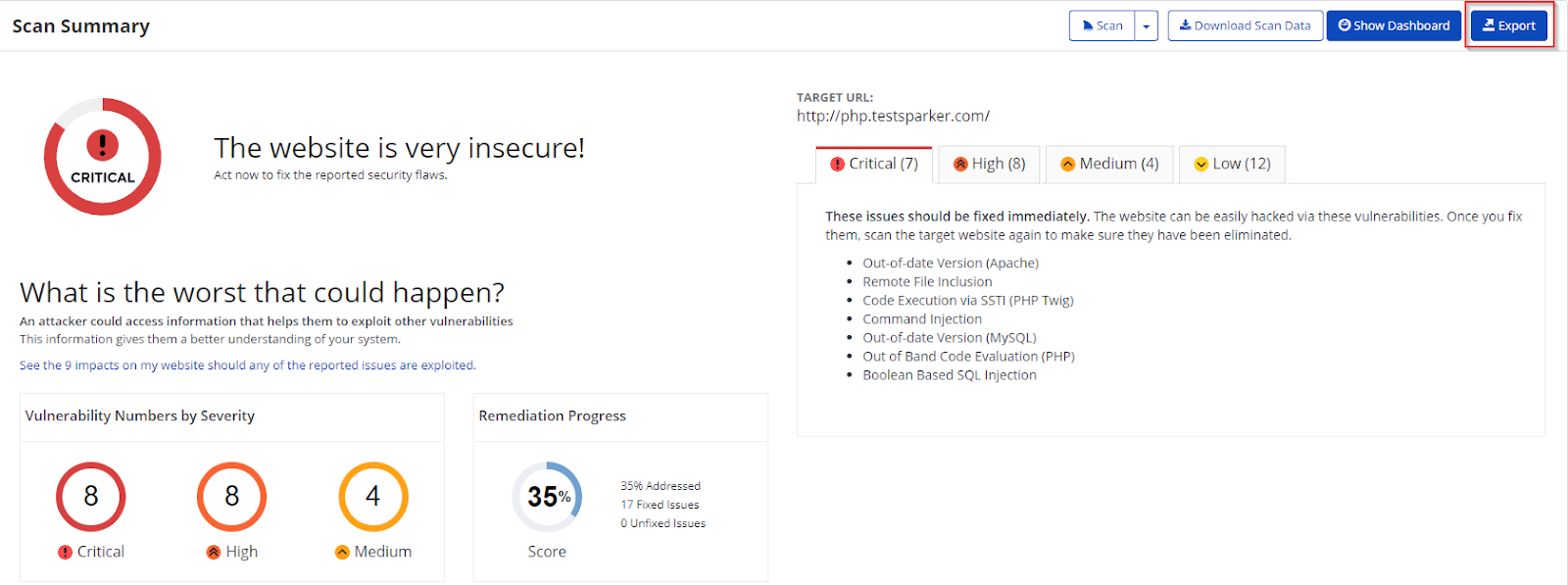
- Next to the relevant scan, choose Report. The Scan Summary window is displayed.
- Click Export. The Export Report dialog is displayed.
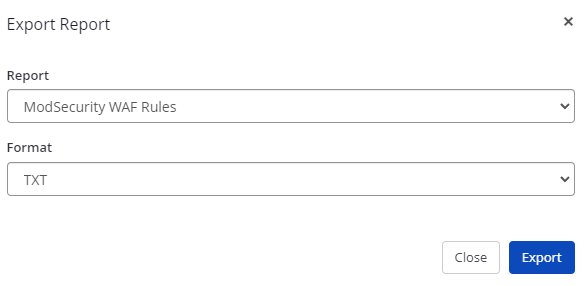
- From the Report drop-down, choose ModSecurity WAF Rules.
- From the Format drop-down, choose an option.
- Click Export.
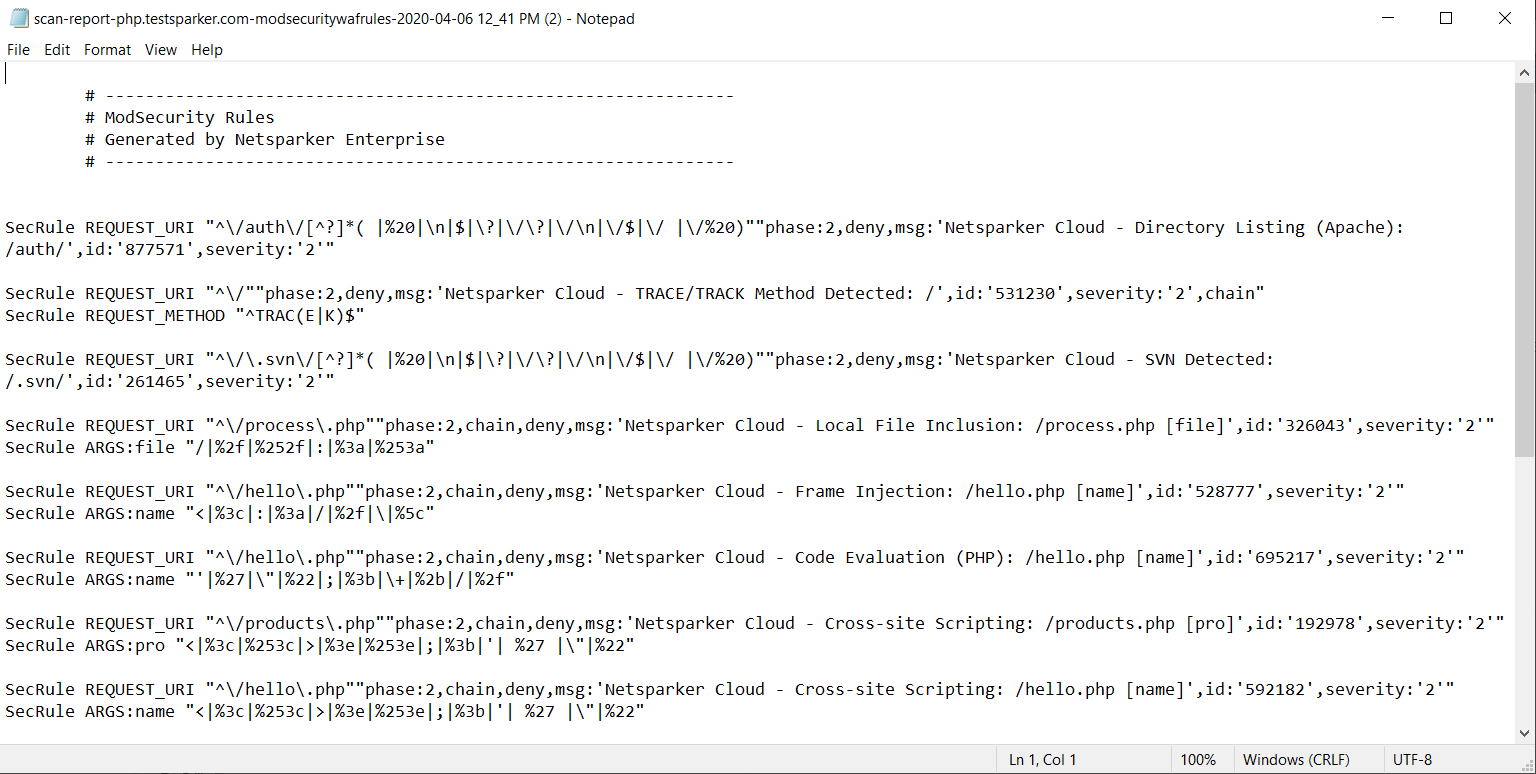
You can view the report in the saved location.
Generate a ModSecurity WAF rules report in Invicti Standard
- From the Reporting tab, click ModSecurity WAF Rules. The Save Report As dialog is displayed.

- Choose a save location, then choose Save.
- The Export Report dialog is also displayed at this point, with the Path field already populated from the previous dialog.
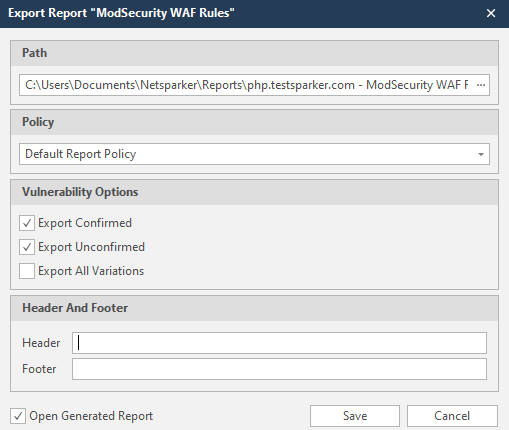
- From the Export Report dialog, you can decide on the following:
- Policy: choose the default report policy or customized report policy (refer to the Custom report policies document).
- Vulnerability options (choose one or all):
- Export confirmed: when selected, the report includes confirmed vulnerabilities.
- Export unconfirmed: when selected, the report also includes unconfirmed vulnerabilities.
- Export all variations: variations mean that if Invicti identified some passive or Information level issues in more than one page, it doesn't show all these variations. However, users can change this by enabling or disabling this option.
- Header and Footer: enter relevant information that appears in the header and footer section of the report.
- Open generated report: when selected, your reports are shown when you choose Save.
- Choose Save.
Need help?
Invicti Support team is ready to provide you with technical help. Go to Help Center