Web application firewall support in Invicti
The scan results in both Invicti Enterprise and Invicti Standard can be exported as rules for web application firewalls (WAFs).
Invicti WAF rule generation can be achieved in two ways:
- Exporting the WAF rule into a file: in this case, Invicti creates a rule file.
- Creating a WAF rule via the REST API: in this case, Invicti can connect WAF applications via their REST API endpoints and authenticate them with tokens, and create a rule immediately without any import or export actions.
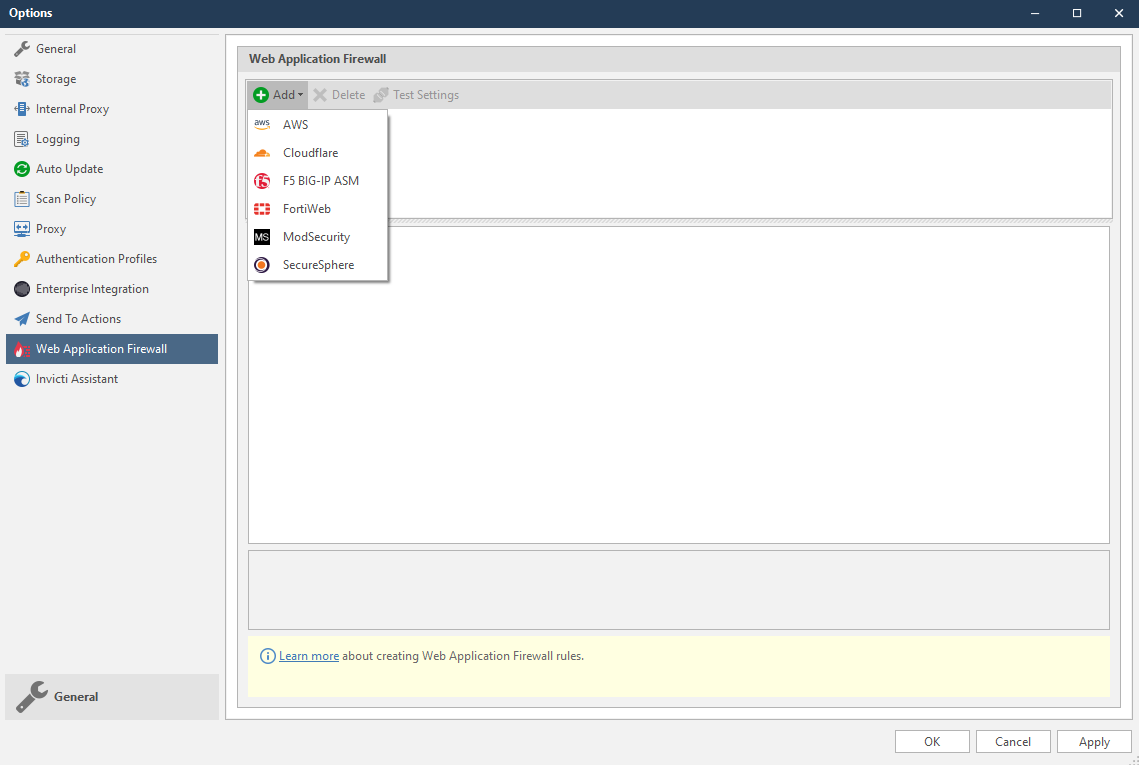
Invicti currently supports the following web application firewall software:
For Invicti Enterprise:
For Invicti Standard:
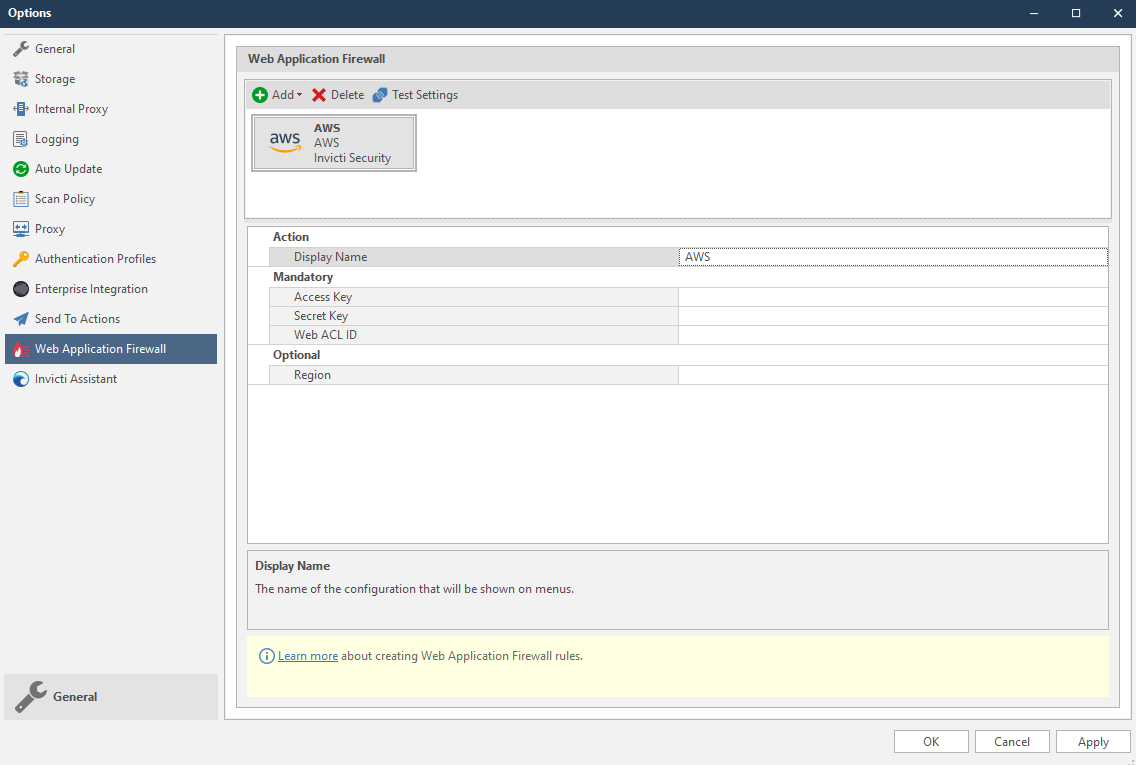
Other WAFs are integrated via a Rest API, so Invicti needs to store connection, authentication, or other information to create a WAF rule. This screenshot illustrates sample configuration fields for the AWS WAF.
Vulnerabilities and WAFs
Blocking the identified vulnerability via WAF rule generation only acts as a temporary 'band-aid' applied only at the identified vulnerable point. It's not a proper fix for the issue, but gives you time to find and eliminate the root cause of the vulnerability.
Creating a WAF rule for a Blind SQL Injection is allowed.
Creating a WAF rule for Sitemap Detection is not allowed.
It's not possible to block every vulnerability defined in Invicti with WAF rules as some vulnerabilities may not be supported by WAFs (for example, DOM XSS can't be blocked using a WAF). Also, some WAF rules may not have the corresponding filters to check where the vulnerable are (for example, request body, custom headers). When that's the case for the selected vulnerability, the WAF rule button is turned off in Invicti.
When a custom vulnerability template is being added to the Report Policy, Firewall Compatible input should be checked to determine whether the vulnerability is a WAF Rule generation compatible one.
How Invicti creates rules for vulnerabilities
Since vulnerable payloads can be used in different locations such as cookies, query strings and XML bodies for example, proper rule creation is critical. While integrating WAFs, Invicti focused on creating rules to block only vulnerable requests. For this reason, RegEx patterns are used for each vulnerability or vulnerability family. But RegEx patterns may sometimes not be possible, or in some cases they may have limited use for WAFs.
For RegEx pattern usage details, refer to the linked WAF documents.
Where it's not possible to use RegExes, Invicti creates rules containing the HTTP Method and Request URL. But this causes requests that don't have vulnerable inputs to be blocked. So vulnerable endpoints should be fixed as soon as possible and the WAF rule should be removed so as not to block every user.
WAF rules that don't have RegEx patterns may block the requests that don't contain vulnerable inputs.
How Invicti creates WAF rules automatically
WAF Rule factories can be automatically triggered when a vulnerability is found. Web Application Firewalls can be configured to trigger only for certain vulnerability severity levels, or only for confirmed vulnerabilities rather than for possible vulnerabilities.
Once the Web Application Firewall is configured, users can then configure Auto WAF Rules.
This document explains how to configure Auto WAF Rule in Invicti Standard.
Automatic WAF rule fields
The following list explains the fields in the Automatic WAF Rules section:
- Web application firewall: a Web Application Firewall that is configured in the Options dialog.
- Severities: the vulnerability severity level drop-down: Select All, Best Practice, Information, Low, Medium, High, Critical.
- Only confirmed: select to create rules only for confirmed vulnerabilities.
Configure auto WAF rules in Invicti Standard
- In the Home tab, click Scan Policy Editor. The Scan Policy Editor dialog is displayed.
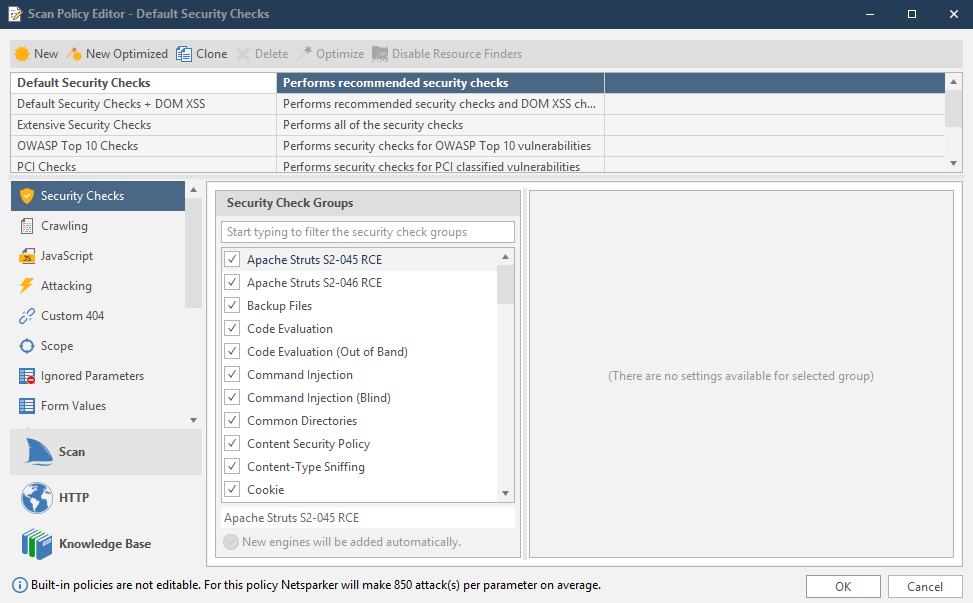
- Click the Auto WAF Rules tab. The Automatic WAF Rules section is displayed.
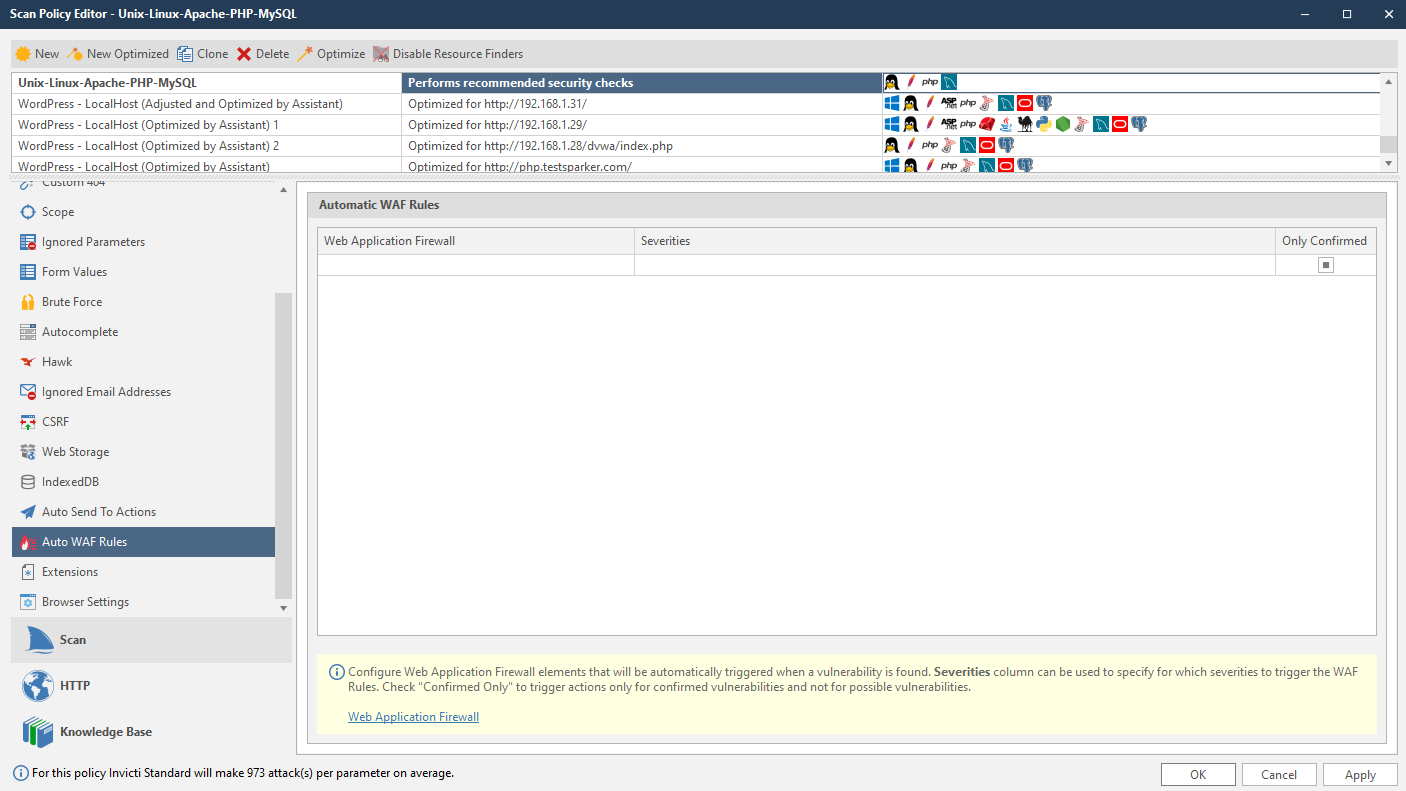
Auto WAF Rules can't be configured for built-in policies because they are read-only policies. Either create a new policy or clone an existing one.
- Click into the Web Application Firewall list, and from the drop-down, select an item.
- From the Severities drop-down, select one or more levels.
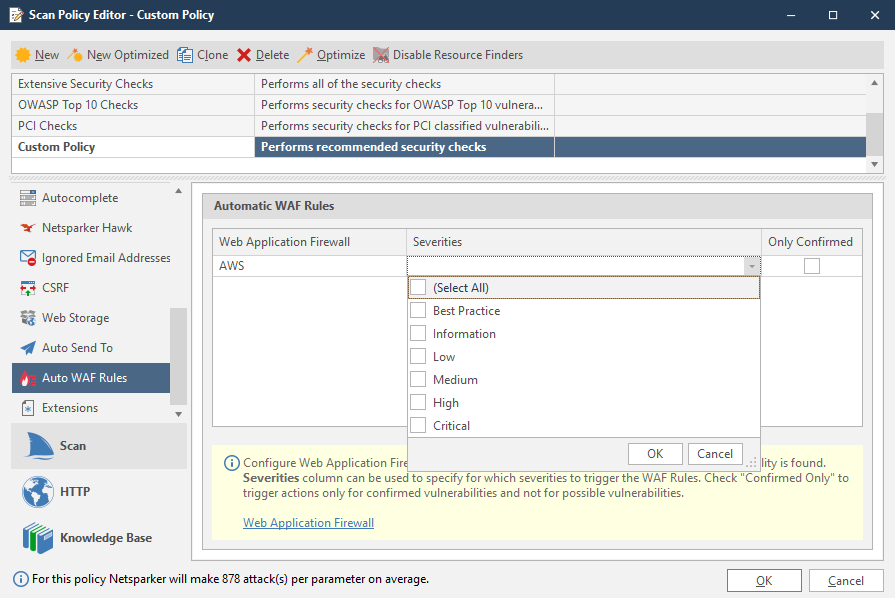
- If required, enable the Only Confirmed checkbox.
- Click OK.
Need help?
Invicti Support team is ready to provide you with technical help. Go to Help Center