Suspending, pausing, and resuming scans
You can manage your scans in Invicti Enterprise thanks to a scan control center. This center allows you to suspend scans, pause all active scans, and resume all paused scans with a single click.
This topic explains how to suspend all active scans, pause active scans, and resume all paused scans.
Administrator and account owner can access this setting. OR, team members with the Edit General Settings and Edit Scan State permissions can access this setting.
How to access the Scan Control options
- Log in to Invicti Enterprise.
- From the main menu, select Settings > General.
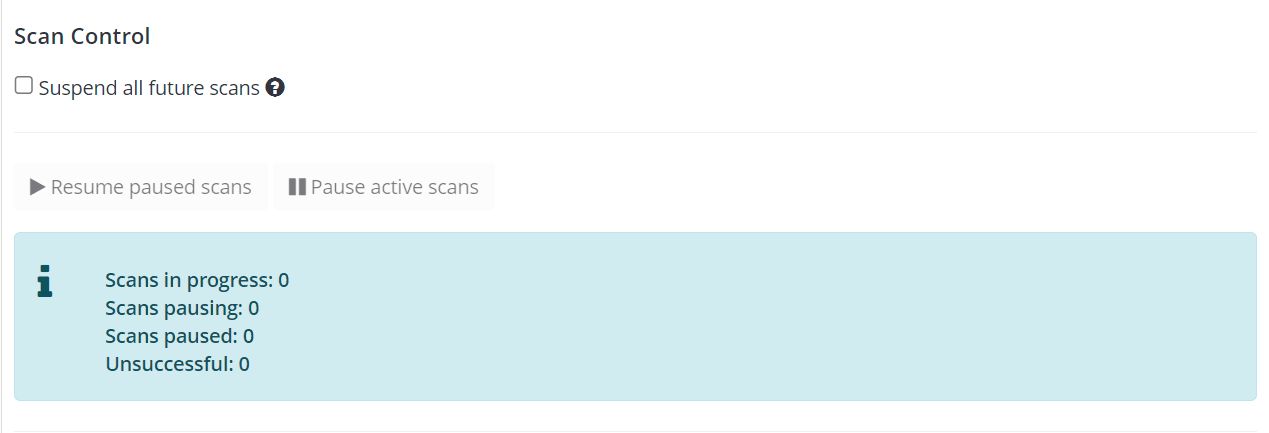
How to suspend all future scans
- Log in to Invicti Enterprise.
- From the main menu, select Settings > General.
- Select Suspend all future scans.
- Select Save to apply the change.
When selected, all new and scheduled scans will be queued. All active scans will be completed. No team member can launch any scans until the option is deselected.
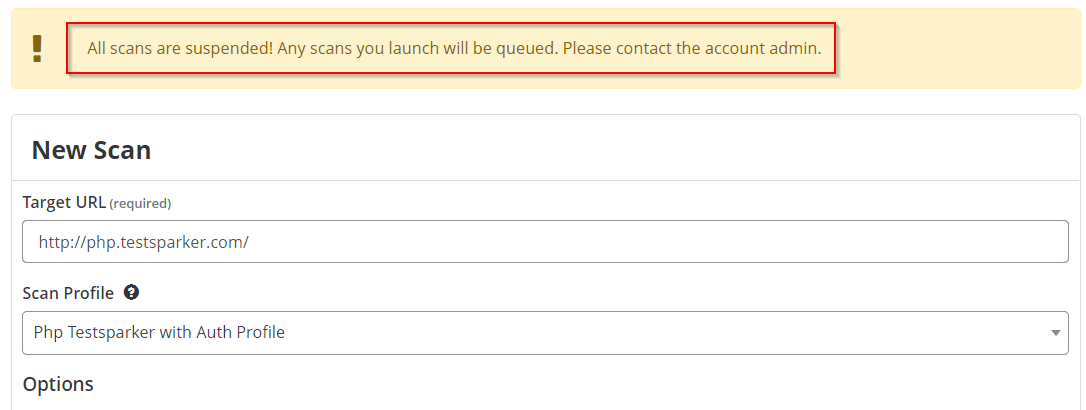
How to pause active scans
- Log in to Invicti Enterprise.
- From the main menu, select Settings > General.
- Select Pause active scans.
- From the Pause Active Scans dialog, select Yes to pause scans.
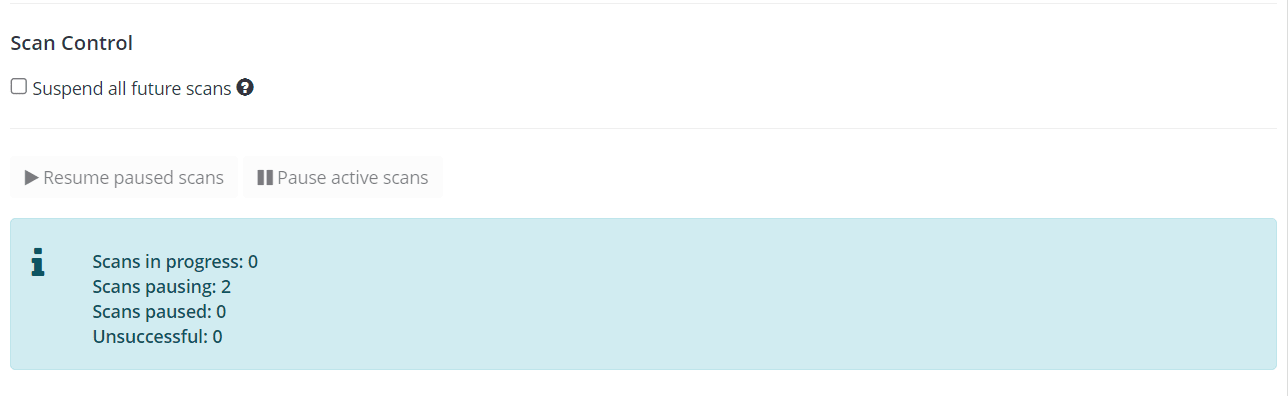
Invictimoves all active scans to the pausing stage and eventually pauses them. The information box provides all information in real time.
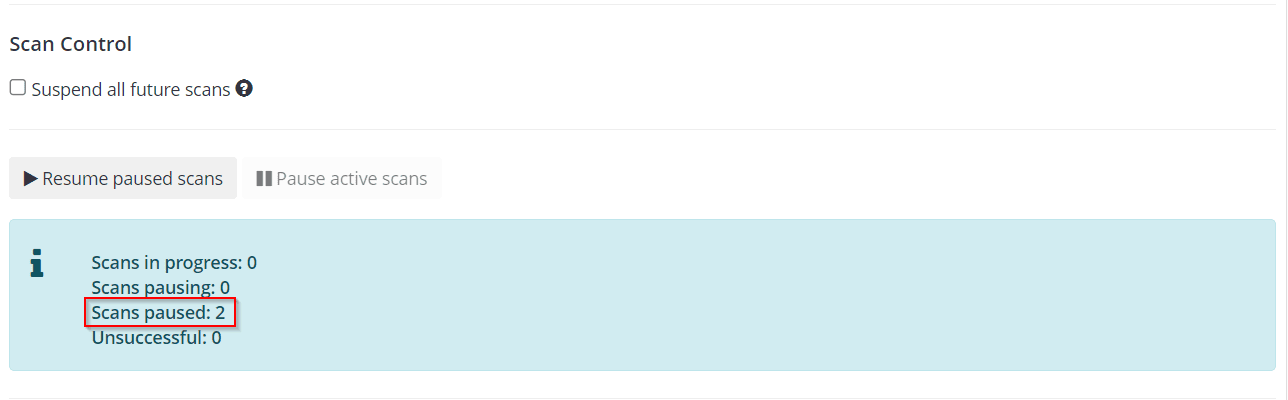
When you pause all scans, the Pause active scans button is disabled.
How to resume paused scans
- Log in to Invicti Enterprise.
- From the main menu, select Settings > General.
- Select Resume paused scans.
- From the Resume Paused Scans dialog, select Yes to resume scans.
Invictistarts resuming all paused scans. Go to Scans > Recent Scans to view your scans resuming.
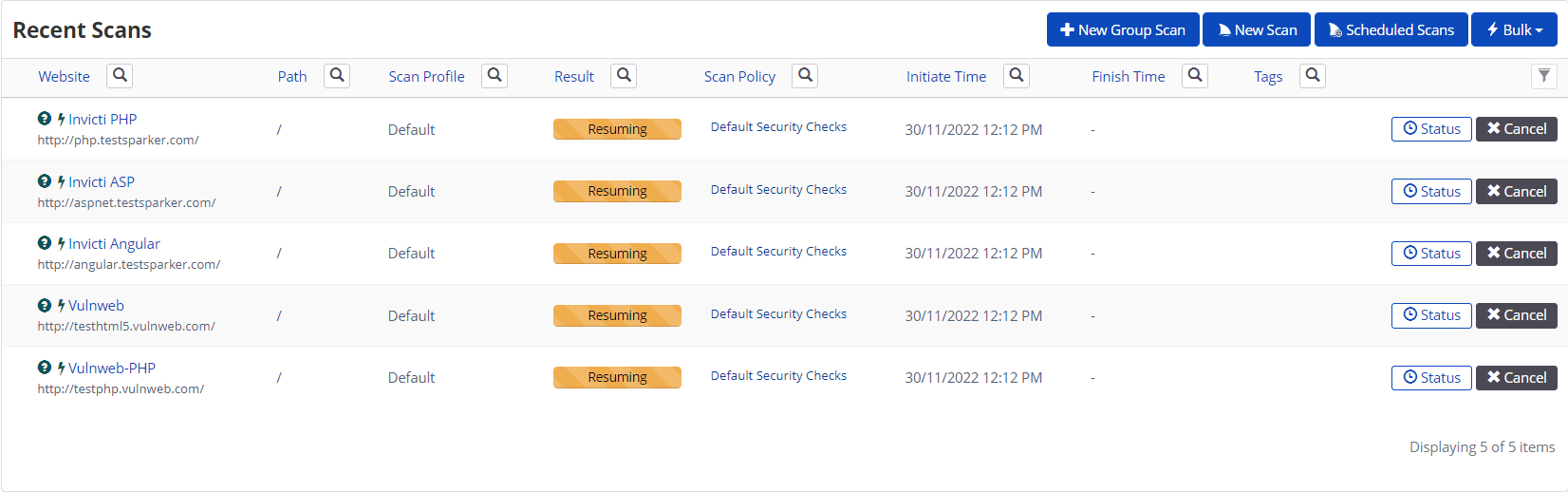
When you resume all paused scans, the Resume paused scans button is disabled.
Need help?
Invicti Support team is ready to provide you with technical help. Go to Help Center