Deployment: Invicti Platform on-demand, Invicti Platform on-premises
Access requirements: access to API Security in Invicti Platform requires either an Administrator, Owner, Security Analyst, Security Manager role, or a custom role with the API Security permission.
IDOR/BOLA authentication
Set up several sets of API credentials at different privilege levels so Invicti can run multi-session scans and detect access control vulnerabilities such as IDOR, BOLA, and BFLA. By signing in as more than one user, Invicti compares what each account can reach and flags cases where a user accesses data or functions that should be off limits.
This document explains how to configure IDOR/BOLA authentication in an API target's Authentication settings in Invicti Platform. You enter the credentials once, and Invicti sends them to the scan preparator when you save the target configuration. To manage the same credentials from the API catalog instead, refer to the Add, edit or delete API authorization document.
The IDOR / BOLA authentication method appears only for API targets. To create one, refer to add an API target.
Why this matters
Access control vulnerabilities consistently rank at the top of the OWASP API Security Top 10, with BOLA as the leading API security risk. Single-session scans can't catch them, because detecting an access control flaw means comparing what one user can reach against what another user should be allowed to reach. Providing credentials for both standard and administrator accounts is what enables that comparison, so Invicti can surface horizontal and vertical access control issues before an attacker does.
Step 1: Select the IDOR / BOLA authentication method
- Select Inventory > Targets from the left-side menu.
- Click the three-dot menu (⋮) > Edit target by your API target.
- Under Target Settings, select Authentication.
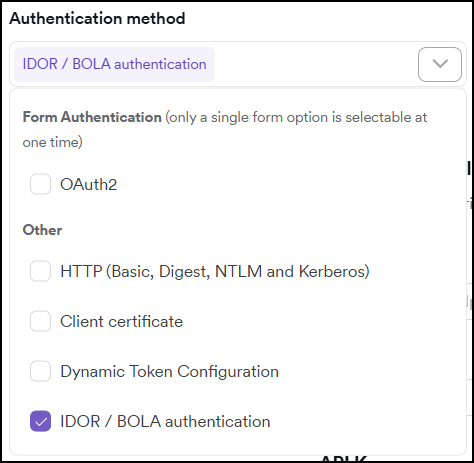
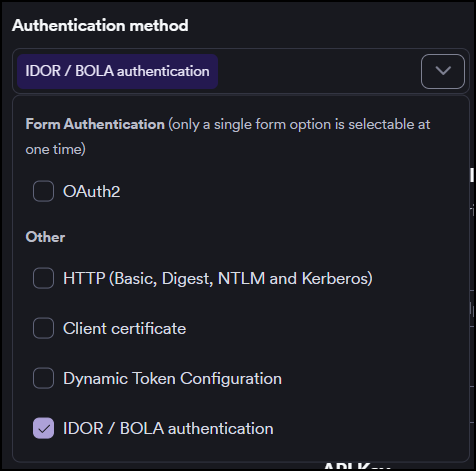
- Open the Authentication method dropdown and, under Other, select IDOR / BOLA authentication.
Step 2: Enter user credentials
Selecting the method opens a step-by-step form for entering one set of credentials per user. By default the form includes one Admin user and two Standard users:
- Admin - a role with higher privileges and access to administrator or equivalent permissions.
- Standard - a role with standard privileges and limited access below administrator level.
These roles let Invicti test access control in two directions: comparing two Standard users detects horizontal issues (one user reaching another user's data), while comparing a Standard user against the Admin user detects vertical issues (a low-privilege user reaching privileged data).
For each user, complete the following fields:
- Name - a label that helps you identify the credential set.
- Authorization type - select the method your API uses. The fields below change to match the selection:
- API key - enter the Key and Value.
- Basic authentication - enter the Username and Password.
- Bearer token - enter the Token. The token field accepts up to 4096 characters, which accommodates JWTs with large claims payloads.
Invicti generates the authorization header automatically when it sends the request, so you don't need to format the header yourself.
Click Next to move to the next user. To leave a user without credentials, click Skip user.
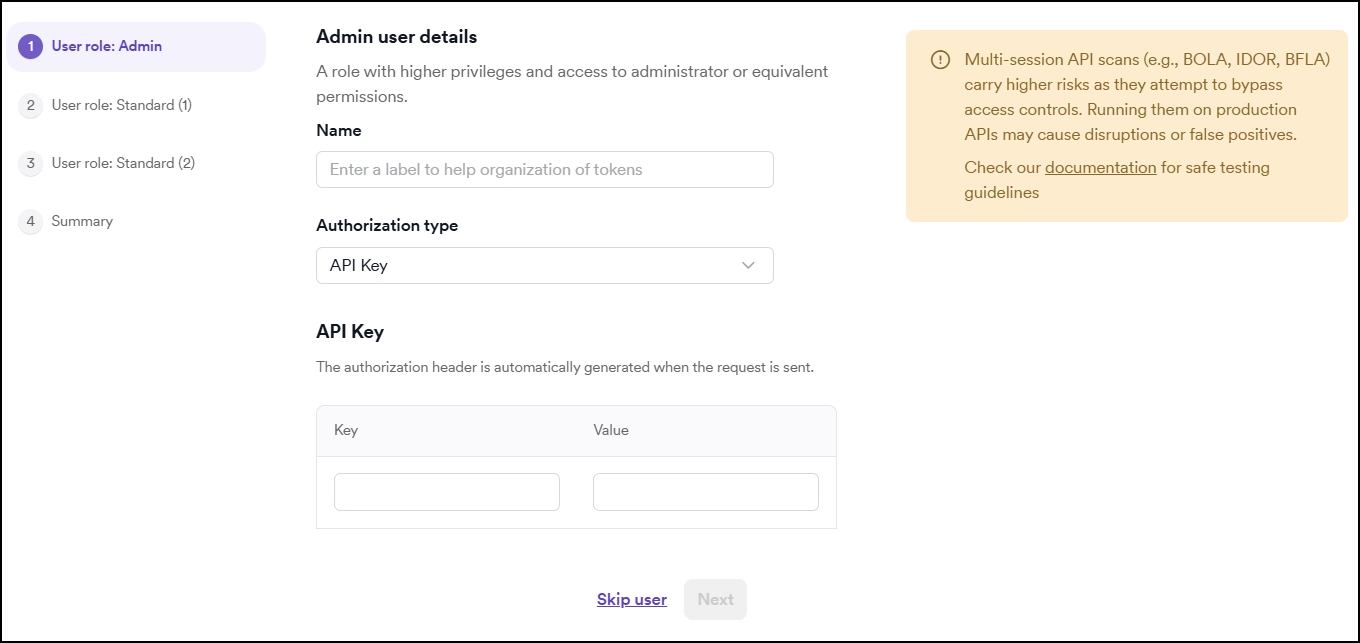
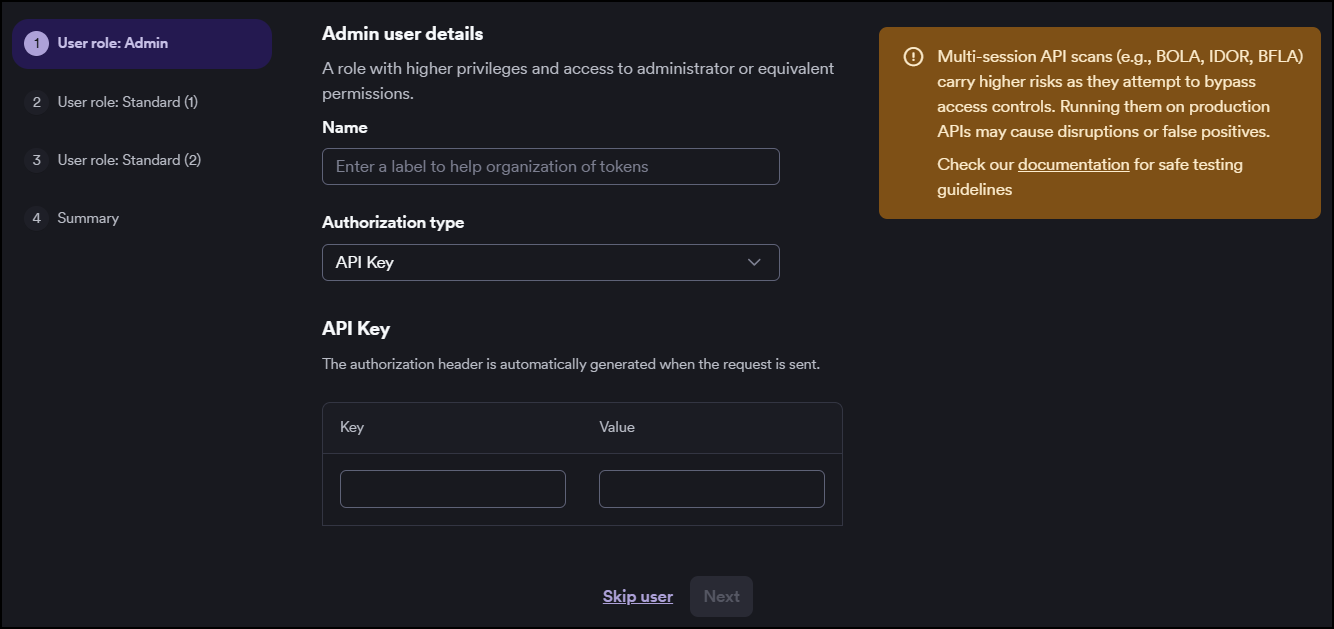
Multi-session API scans (such as BOLA, IDOR, and BFLA tests) attempt to bypass access controls and carry a higher risk than standard scans. Running them against production APIs can cause disruptions or false positives. Run them against a staging or test environment whenever possible.
Step 3: Review and save
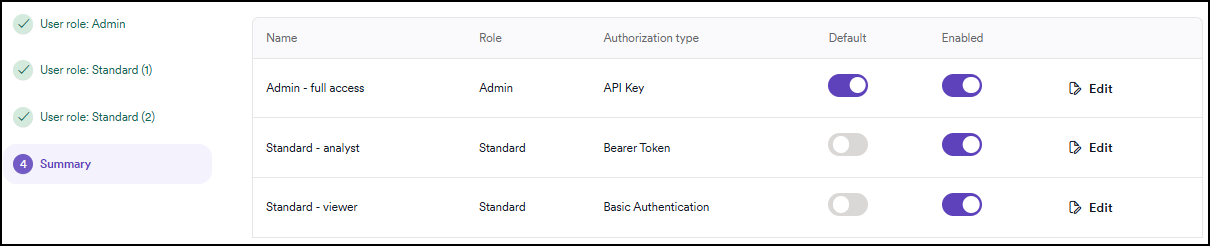
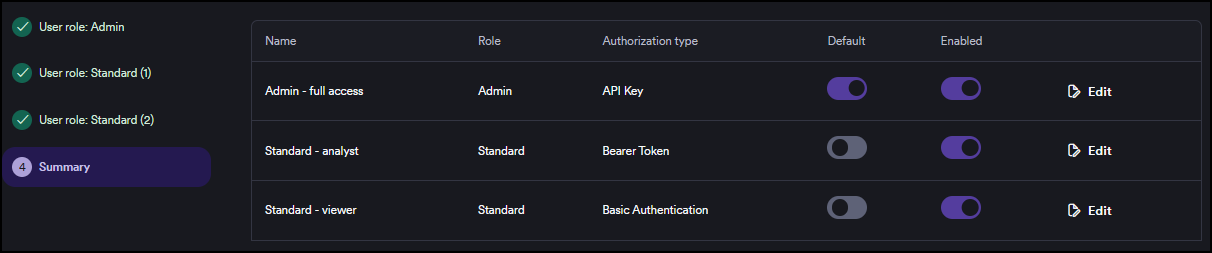
The Summary step lists every credential set you configured. Each row shows the Name, Role (Admin or Standard), and Authorization type you selected, along with the following controls:
- Default - turn on the toggle for the credential Invicti uses as the primary session. You must set exactly one credential as the default.
- Enabled - turn a credential on or off without deleting it.
- Edit - reopen a credential set to change its details.
Click Save target configuration to store the credentials and send them to the scan preparator.
Step 4: Edit or delete credentials
To edit credentials, reopen the target's Authentication settings, select IDOR / BOLA authentication, then use the Edit button on the Summary step. To deactivate a single user without deleting it, turn off its Enabled toggle. To remove all IDOR/BOLA credentials, deselect the IDOR / BOLA authentication method, then click Save target configuration.
- Configure API authorization for access control testing - plan the credential sets for horizontal and vertical testing.
- API access control testing overview - the full IDOR, BOLA, and BFLA testing journey.
- Add, edit or delete API authorization - manage the same credentials from the API catalog.
Troubleshooting
The IDOR / BOLA authentication option doesn't appear in the Authentication method dropdown
The IDOR / BOLA authentication method is available only for API targets. Confirm the target is an API target - see add an API target. For non-API targets, use a form or other authentication method instead.
I can't save the target configuration after entering IDOR/BOLA credentials
Exactly one credential set must be marked as the Default on the Summary step. If no credential is set as the default, the configuration can't be saved. Turn on the Default toggle for one credential, then save again.
Saving fails when I enter a long Bearer token (JWT)
The Bearer token field accepts up to 4096 characters. If your JWT exceeds this limit - which can happen with tokens carrying large claims payloads - the save fails with a validation error. Paste the token into a text editor and check its character count. If it exceeds 4096 characters, contact the service that issues the token to request a token with a reduced claims payload.
The scan runs but reports no access control vulnerabilities
Detecting IDOR, BOLA, and BFLA depends on comparing what different users can reach. If Invicti has valid credentials for only one user, or every user has the same privilege level, there's nothing to compare and no access control findings appear. Confirm that at least two credential sets are Enabled on the Summary step and that they represent different privilege levels (for example, one Admin and one Standard). For guidance on planning the credential sets, refer to Configure API authorization for access control testing.
Need help?
Invicti Support team is ready to provide you with technical help. Go to Help Center