Convert Selenium scripts to Invicti LSR files
Selenium is a tool that allows you to automate browser actions. It's often used by QA engineers to automatically and efficiently test the functionality of web applications. You can create Selenium scripts that examine the specific functionality of a web application, ensuring that it produces the expected results.
One of the types of pages that you need to test in the case of most web applications are login pages. Selenium scripts are often used to ensure that changes in the web application don't break the login. These Selenium scripts can be converted and used by Invicti Platform to log in to the site as part of the security scan.
The pre-recorded login sequence setting in Invicti supports Selenium Login Scripts. The login actions are taken from the Selenium script and the simple form feature is used to identify any restricted links, such as Logout links, and the session detection pattern. This document explains how to convert a Selenium script into an Invicti LSR file via the Invicti UI and via the Command Line.
Prepare the Selenium login script
- Confirm that the Selenium Login Script is working as expected. You can do this in Selenium using the Play button to confirm that all the steps are executed correctly. Use the Timer drop-down to configure the playback speed.
- Save the Selenium Login Script to a file.
Convert a Selenium script using Invicti UI
- Select Inventory > Target > Edit target for the asset to which you want to add the Selenium Script.
- In Authentication > Authentication method drop-down select Login Sequence Recorder.
- Click New sequence drop-down > from Selenium and choose the Selenium script saved earlier.

- The Login Sequence Recorder opens the Selenium script, converts it to a login sequence, and runs through the actions identified. In addition, it automatically identifies any logout links and the session detection pattern. Click OK on the pop-up stating that the script was imported successfully.
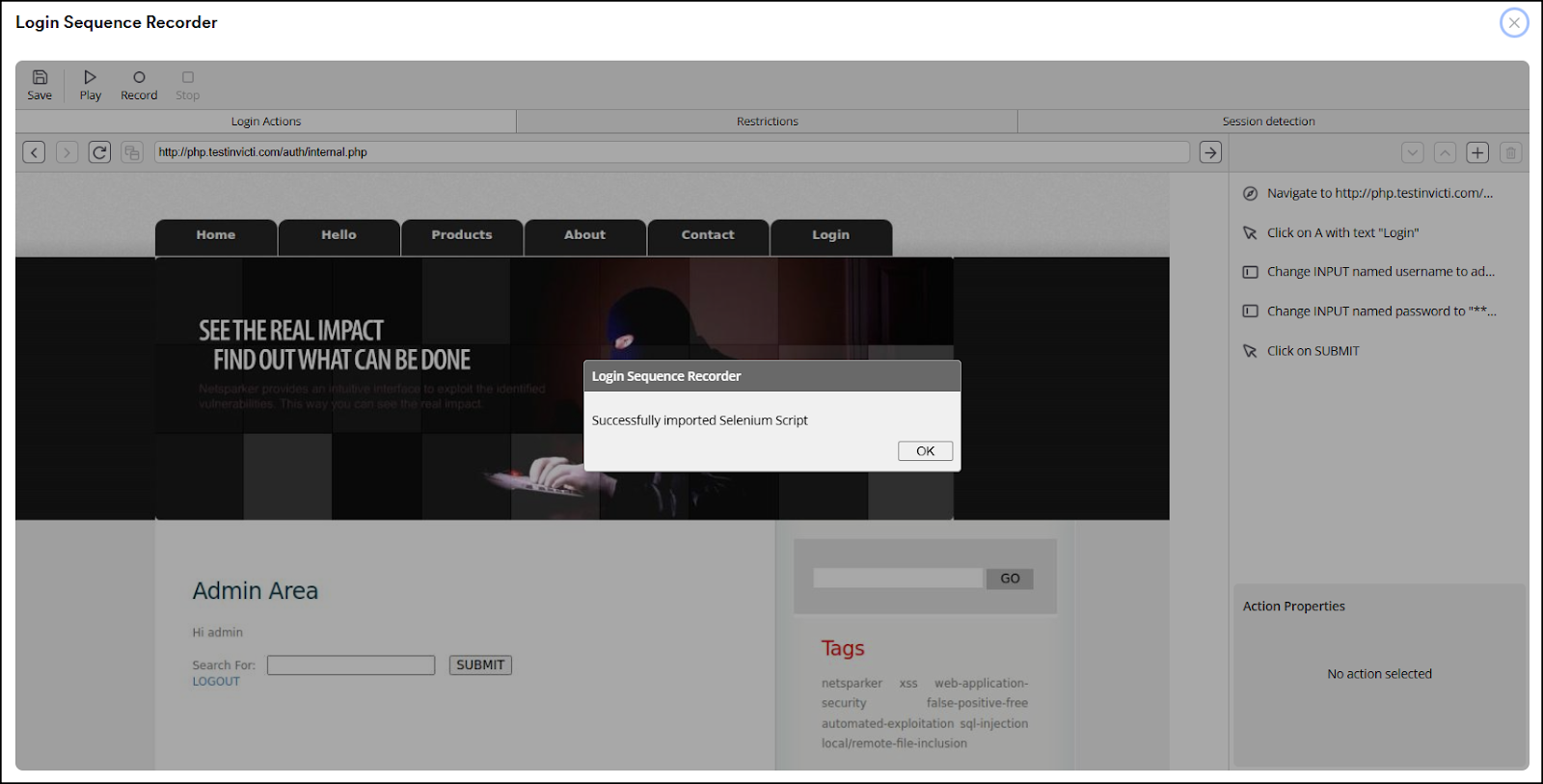
- Confirm the restricted links and the identified session detection pattern. Click Save at the top of the LSR window when done.
- You are taken back to the Target Settings page and the new LSR file is attached to the target. Click Save target configuration to confirm the changes or Save and scan to launch the new scan.
Convert a Selenium script using Standalone LSR
You can also convert Selenium Login Script files to Login Sequence Recorder files using the Standalone LSR. For more information on installation of the Standalone LSR, refer to the following documents: Install the standalone LSR on Windows or Install the standalone LSR on Linux.
Convert a Selenium script to LSR file using Standalone LSR UI
- Open Invicti LSR Login Sequence Editor.
- Click the Selenium Import button and upload your Selenium script file.

- The Login Sequence Editor opens the Selenium script, converts it to a login sequence, and runs through the actions identified. In addition, it automatically identifies any logout links and the session detection pattern. Click OK on the pop-up stating that the script was imported successfully.
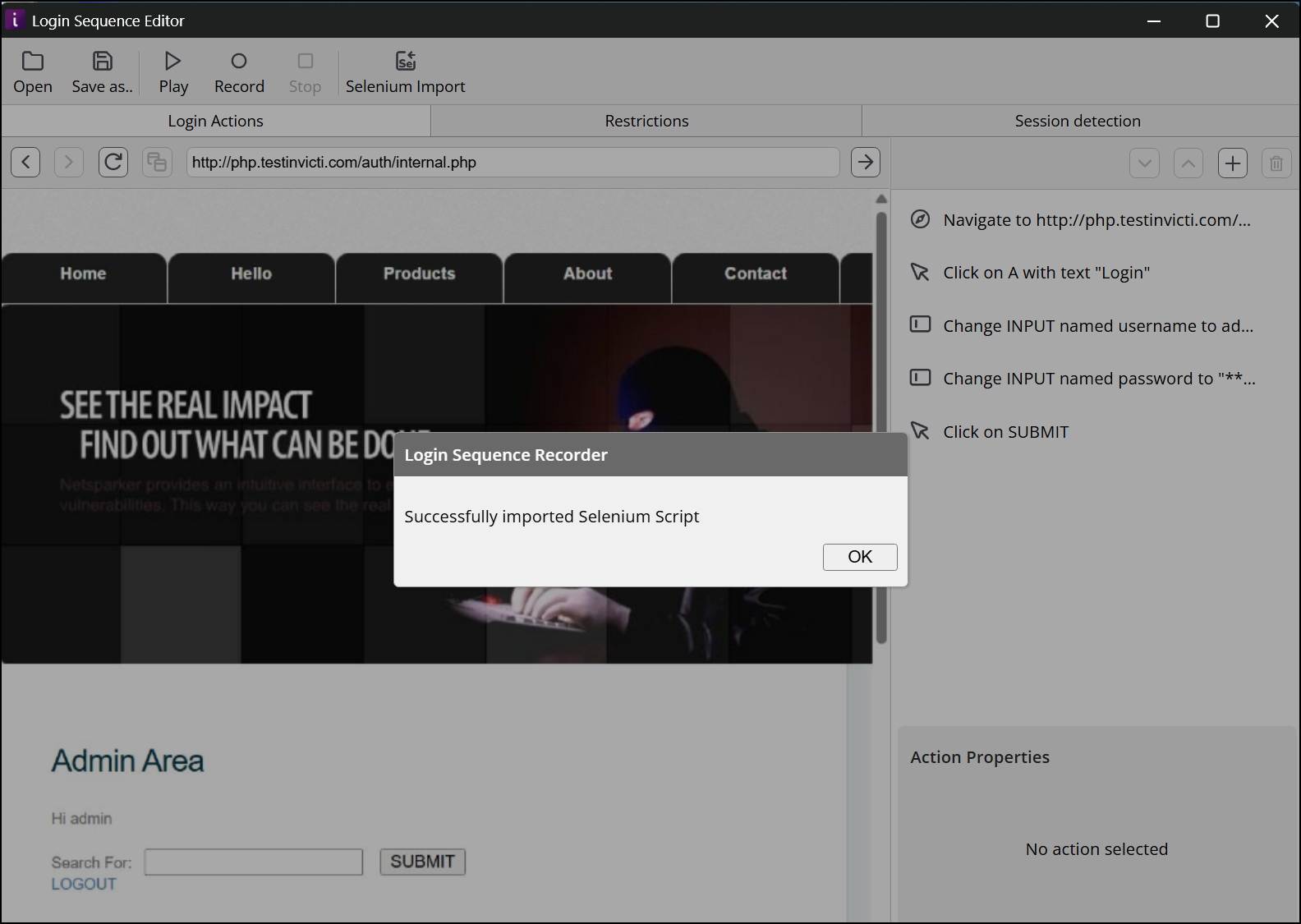
- Click Save as at the top of the screen.
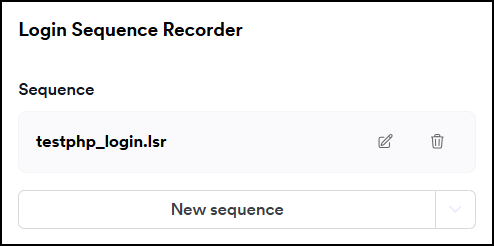
- You can now upload the .lsr file to your Invicti Target settings page in the Authentication > Login Sequence Recorder section.
Convert a Selenium script to LSR file from the command line
This method can be useful if you need to convert many Selenium scripts into LSR files. You can then use the Invicti Platform API to auto-attach the scripts to targets.
- Open Command Prompt or Terminal.
- Change the directory to the Invicti LSR installation path (for example,
C:\Program Files (x86)\Invicti LSR\). - Execute the
node lsr generatecommand:
- Windows
- Linux
node lsr generate --sourcetype selenium --source your_source_selenium_file --destination the_destination_LSR_file
./node lsr generate --sourcetype selenium --source your_source_selenium_file --destination the_destination_LSR_file
For example:
node lsr generate --sourcetype selenium --source "C:\users\admin\Downloads\testphp_login.side" --destination "C:\users\admin\Downloads\testphp_login.lsr"
- The Login Sequence Recorder loads the Selenium file and creates login actions. It then proceeds with verifying login actions as well as identifying restricted links and a valid session detection pattern. This might take some time to complete. Progress is visible in the command prompt window.
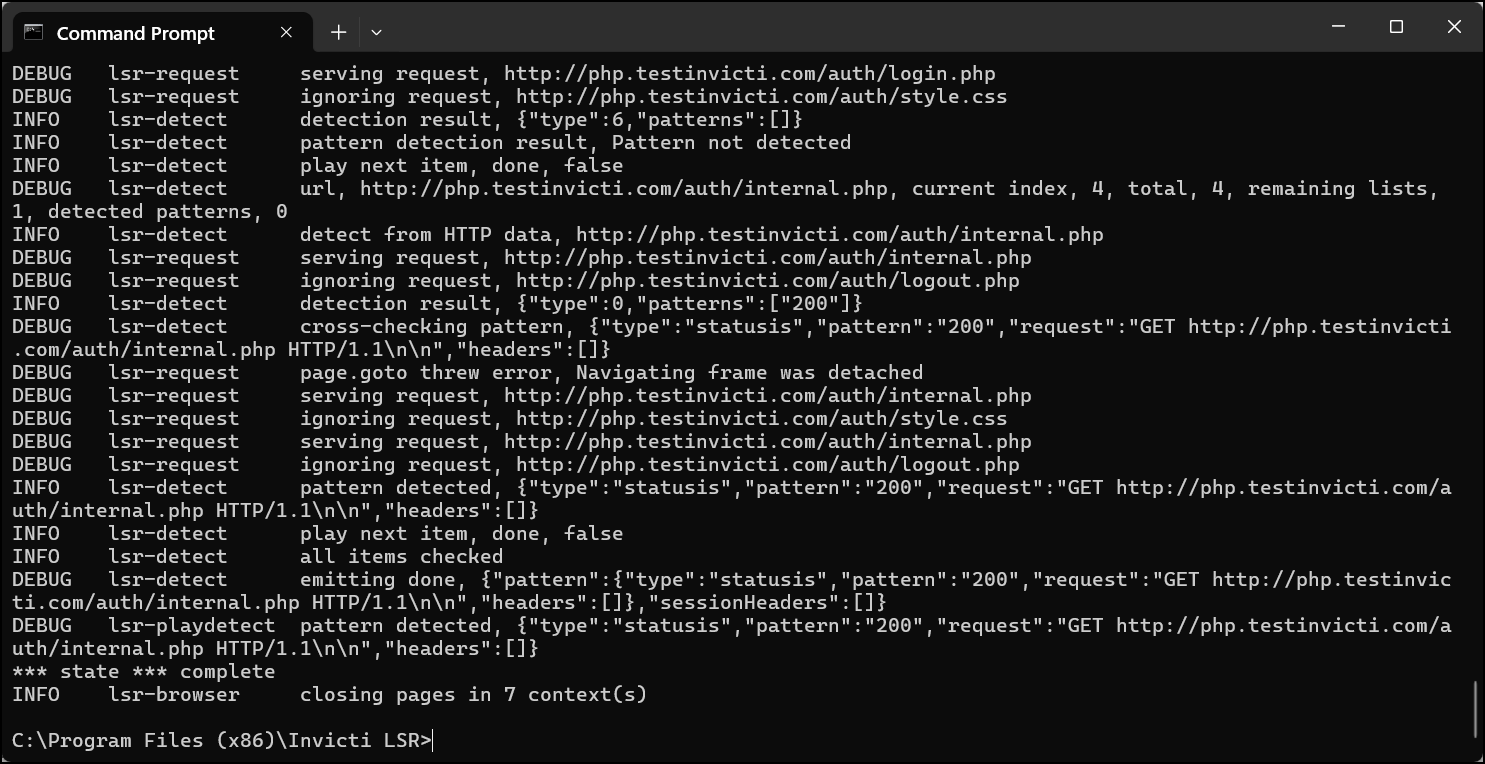
- You can now upload the resulting .lsr files to the Authentication > Login Sequence Recorder section in a Target settings page for different targets or use the Invicti API to attach the LSR to a specific target.
Need help?
Invicti Support team is ready to provide you with technical help. Go to Help Center