Package: Invicti AppSec Core (on-demand)
Email Integration
Email is a universal notification channel that allows Invicti AppSec to send security event notifications via SMTP to any email address. The Email integration supports multiple authentication methods, including plain credentials, OAuth2, and anonymous (no-auth) delivery, making it compatible with any SMTP-capable mail server — including Gmail, Microsoft Exchange, Outlook, and custom corporate mail servers.
Purpose in Invicti AppSec
Email is used in Invicti AppSec as a Notification Tool — enabling automated email alerts about security events to be sent to configured recipients.
| Use Case | Description |
|---|---|
| Vulnerability notifications | Send email alerts when new vulnerabilities are discovered or severity thresholds are reached |
| Scan completion alerts | Notify recipients when a security scan finishes |
| Status change updates | Send emails when vulnerability statuses change (e.g., opened, resolved, re-opened) |
| Team reporting | Deliver scheduled security summaries to security leads or stakeholders via email |
Where It Is Used
| Page | Navigation Path | Purpose |
|---|---|---|
| Integrations — Notification Tools | Integrations › Notification Tools | Admin activation and global configuration |
| Project Settings | Project › Settings › Alerts | Link email notifications to a specific project |
Prerequisites
Before activating the integration, gather the following from your mail server:
| Field | Description | Required |
|---|---|---|
| Authentication Type | The authentication method used by your SMTP server (None, Plain, or OAuth2) | Yes |
| Username | The email address of the sending account (required for Plain and OAuth2 auth types) | Conditional |
| Password / Secret | The account password (Plain) or OAuth2 client secret (OAuth2 auth type) | Conditional |
| From | The sender email address that will appear in the "From" field of outgoing emails (e.g., invicti@acme.com) | Yes |
| To | The recipient email address that will receive the notifications (e.g., security-team@acme.com) | Yes |
| SMTP | The SMTP server address including the port (e.g., smtp.gmail.com:587) | Yes |
| TLS | Enable to use TLS encryption for the SMTP connection | No |
| Insecure | Enable only if the mail server uses a self-signed SSL certificate | No |
How to Obtain Credentials (by Authentication Type)
None (Anonymous / No Authentication):
- No credentials required. The SMTP server must be configured to allow unauthenticated relay.
- Provide only the From, To, and SMTP fields.
Plain (Username + Password):
- Use the credentials of the email account that will send notifications.
- For Gmail: Enable App Passwords under Google Account › Security (requires 2-Step Verification to be enabled). Use the generated App Password instead of your regular Gmail password.
- For Outlook/Microsoft Exchange: Use the account's email address as the Username and its password.
- Ensure that SMTP access is enabled for the sending account in your mail server settings.
OAuth2 (Client Secret):
- Register an application in your identity provider (e.g., Microsoft Entra ID / Azure AD for Exchange Online, or Google Cloud Console for Gmail).
- Generate a Client Secret for the application.
- Use the application's client email or service account email as the Username.
- Use the generated Client Secret as the Secret field.
- Ensure the application has the required mail-sending permissions (e.g.,
Mail.Sendfor Microsoft, orhttps://mail.google.com/scope for Google).
SMTP Address:
- Format:
hostname:port(e.g.,smtp.gmail.com:587orsmtp.office365.com:587) - Common ports:
587— STARTTLS (recommended)465— SSL/TLS25— Unencrypted (not recommended)
Activation Steps
Step 1: Navigate to Integrations
From the left sidebar, click Integrations.
Step 2: Open the Notification Tools Tab
On the Integrations page, click the Notification Tools tab.
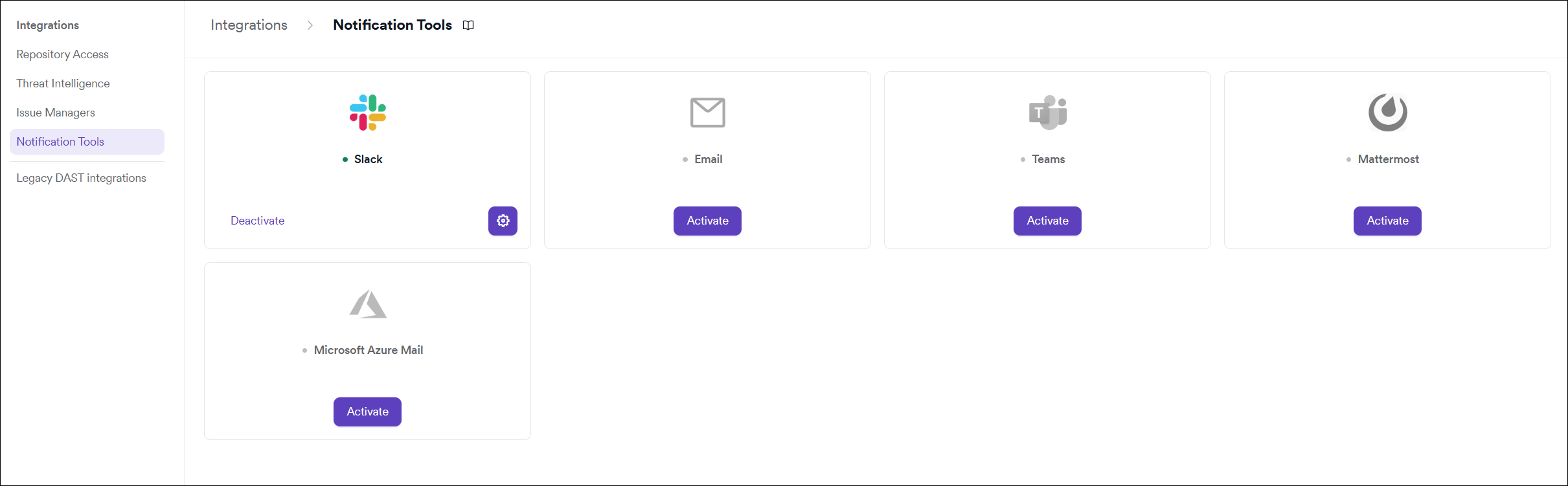
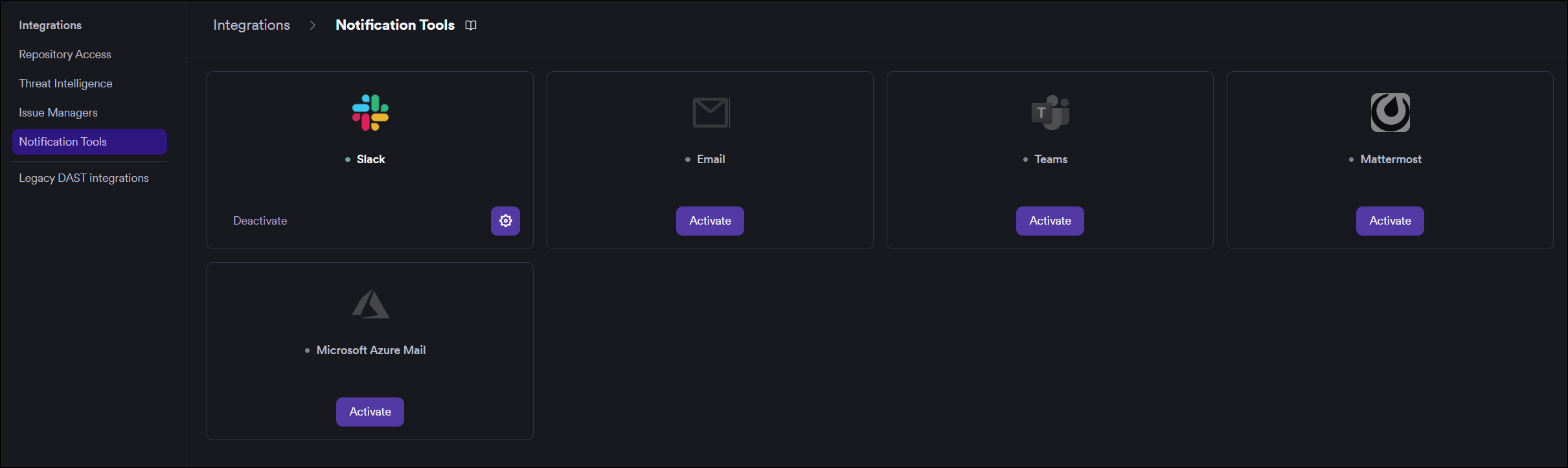
Step 3: Find and Activate Email
Locate the Email card.
- If it is not yet activated, click Activate to open the settings drawer.
- If it is already activated, click the gear icon to reconfigure.
Step 4: Fill In the Required Fields
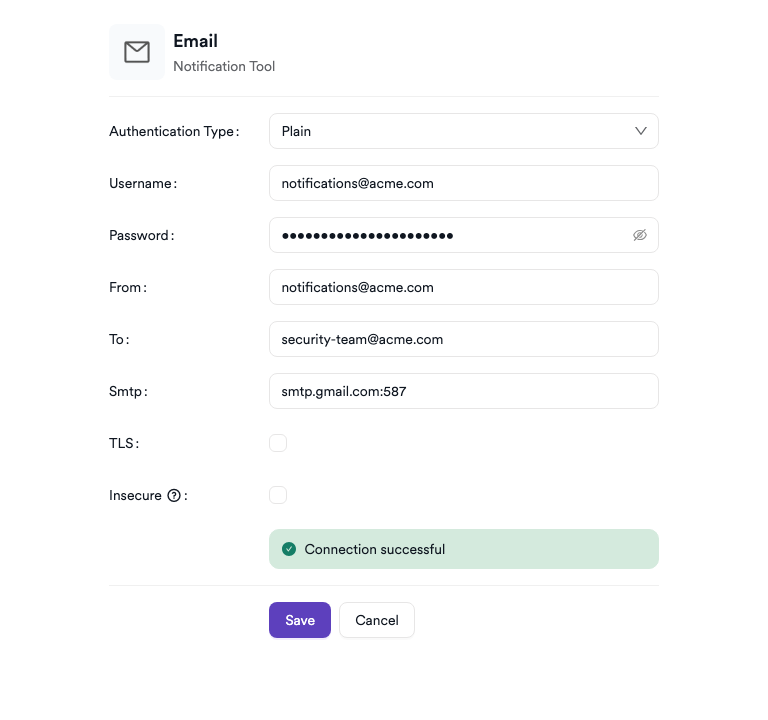
In the settings drawer, enter the required details:
| Field | Description | Required |
|---|---|---|
| Authentication Type | Select None, Plain, or OAuth2 | Yes |
| Username | Sending account email address (Plain and OAuth2 only) | Conditional |
| Password / Secret | Account password or OAuth2 client secret (Plain and OAuth2 only) | Conditional |
| From | Sender email address (e.g., invicti@acme.com) | Yes |
| To | Recipient email address (e.g., security-team@acme.com) | Yes |
| SMTP | SMTP server and port (e.g., smtp.gmail.com:587) | Yes |
| TLS | Enable TLS for the SMTP connection | No |
| Insecure | Enable for self-signed SSL certificates | No |
Step 5: Test the Connection
Click Test Connection. A green "Connection successful" message confirms that Invicti AppSec can send email via the configured SMTP server.
Step 6: Save
Click Save to complete the activation.
Summary
| Step | Action |
|---|---|
| 1 | Navigate to Integrations from the sidebar |
| 2 | Select the Issue Managers tab |
| 3 | Find Email and click Activate (or the gear icon) |
| 4 | Select the Authentication Type and fill in credentials, From, To, and SMTP |
| 5 | Click Test Connection — verify the success message |
| 6 | Click Save |
Troubleshooting
| Issue | Resolution |
|---|---|
| Connection failed | Verify that the SMTP address and port are correct and reachable from the Invicti AppSec network. Check firewall rules for outbound SMTP traffic. |
| Authentication failed | For Plain auth, verify the username and password. For Gmail, ensure App Passwords are enabled and used. For OAuth2, confirm the client secret and permissions are correct. |
| Emails not received | Check the recipient email address (To field) for typos. Verify the email is not being filtered by spam filters. Check the sending account's sent folder to confirm the message was sent. |
| SMTP format invalid | The SMTP field must follow the format hostname:port (e.g., smtp.gmail.com:587). Do not include https:// or any protocol prefix. |
| TLS handshake error | Try toggling the TLS checkbox or using a different port (587 vs 465). Enable Insecure for self-signed certificates. |
| Port 25 blocked | Many cloud environments block outbound connections on port 25. Use port 587 (STARTTLS) or 465 (SSL/TLS) instead. |
Need help?
Invicti Support team is ready to provide you with technical help. Go to Help Center