Package: Invicti AppSec Core (on-demand)
Mattermost Integration
Mattermost is an open-source, self-hostable team messaging platform designed for secure enterprise collaboration. The Invicti AppSec integration with Mattermost enables security teams to receive real-time notifications about vulnerability events — such as new critical findings, scan completions, or status changes — directly in Mattermost channels via a bot token.
Purpose in Invicti AppSec
Mattermost is used in Invicti AppSec as a Notification Tool — enabling automated security event notifications to be delivered to Mattermost channels.
| Use Case | Description |
|---|---|
| Vulnerability notifications | Receive alerts in a Mattermost channel when new vulnerabilities are discovered or when severity thresholds are crossed |
| Scan completion alerts | Get notified in Mattermost when a security scan completes |
| Status change updates | Receive updates when vulnerability statuses change (e.g., opened, resolved, re-opened) |
Where It Is Used
| Page | Navigation Path | Purpose |
|---|---|---|
| Integrations — Notification Tools | Integrations › Notification Tools | Admin activation and global configuration |
| Project Settings | Project › Settings › Alerts | Link Mattermost to a specific project for project-level notifications |
Prerequisites
Before activating the integration, gather the following from your Mattermost instance:
| Field | Description | Required |
|---|---|---|
| Token | A personal access token or bot token with permission to post messages to channels | Yes |
| URL | The base URL of your Mattermost server (e.g., https://mattermost.acme.com) | Yes |
| Insecure | Enable this option if your Mattermost server uses a self-signed SSL certificate | No |
How to Obtain Credentials (on the Mattermost Side)
Token (Personal Access Token):
- Log in to your Mattermost instance.
- Click your profile picture in the top-right corner and select Profile.
- In the left sidebar, click Security.
- Under Personal Access Tokens, click Create Token.
- Give the token a descriptive name (e.g.,
invicti-appsec) and click Save. - Copy the generated token — it will not be shown again after closing the dialog.
Personal access tokens must be enabled by your Mattermost system administrator. If the option is not visible, ask your admin to enable it under System Console › Integrations › Integration Management.
Bot Token (Alternative):
- In Mattermost, go to Main Menu › Integrations › Bot Accounts.
- Click Add Bot Account and configure the bot with a username and display name.
- Copy the generated token. Ensure the bot is added to the channels where it should post notifications.
URL:
- Use the base URL of your Mattermost server, for example:
https://mattermost.acme.comorhttp://mattermost.internal:8065.
Activation Steps
Step 1: Navigate to Integrations
From the left sidebar, click Integrations.
Step 2: Open the Notification Tools Tab
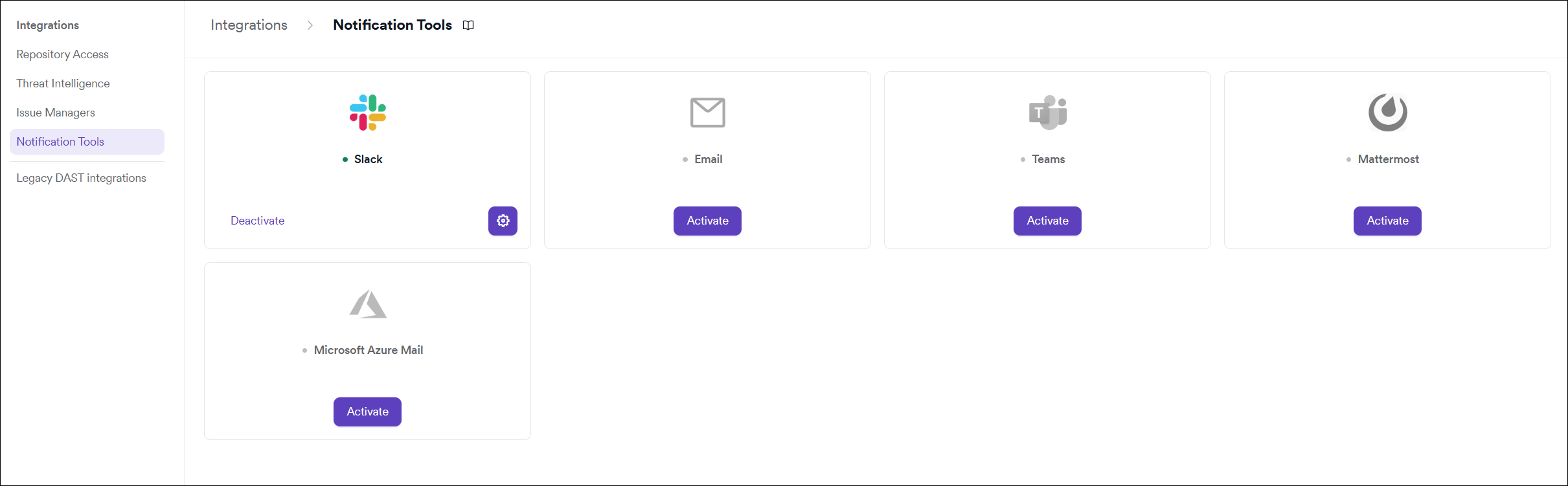
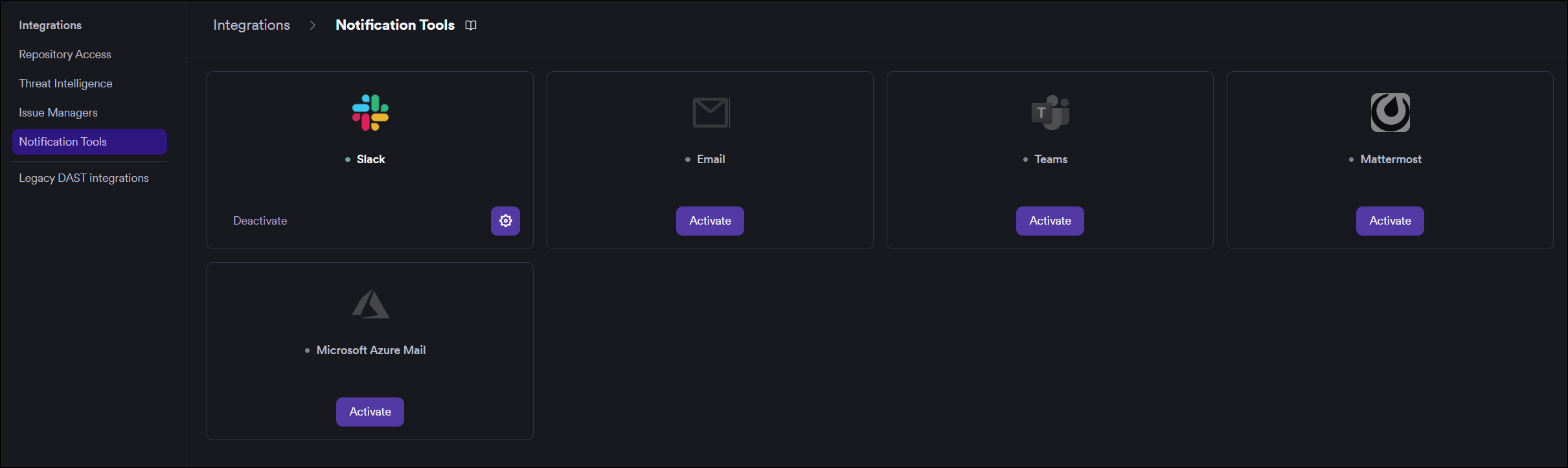
On the Integrations page, click the Notification Tools tab.
Step 3: Find and Activate Mattermost
Locate the Mattermost card.
- If it is not yet activated, click Activate to open the settings drawer.
- If it is already activated, click the gear icon to open the settings drawer and reconfigure.
Step 4: Fill In the Required Fields
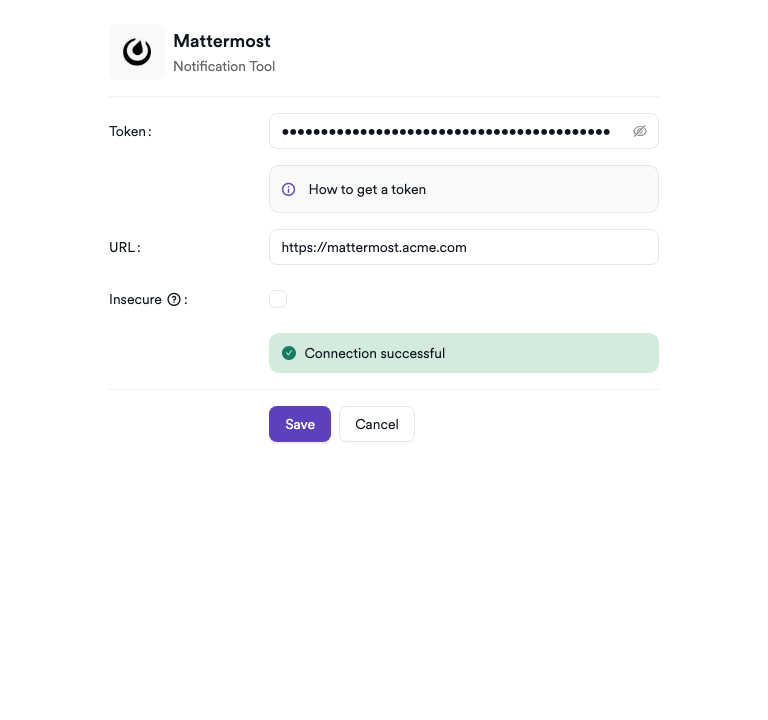
In the settings drawer, enter the following:
| Field | Description | Required |
|---|---|---|
| Token | Your Mattermost personal access token or bot token | Yes |
| URL | The base URL of your Mattermost server | Yes |
| Insecure | Check this box if your server uses a self-signed SSL certificate | No |
Step 5: Test the Connection
Click Test Connection. A green "Connection successful" message confirms that Invicti AppSec can reach your Mattermost instance with the provided credentials.
Step 6: Save
Click Save to complete the activation.
Summary
| Step | Action |
|---|---|
| 1 | Navigate to Integrations from the sidebar |
| 2 | Select the Notification Tools tab |
| 3 | Find Mattermost and click Activate (or the gear icon) |
| 4 | Enter your Token and URL |
| 5 | Click Test Connection — verify the success message |
| 6 | Click Save |
Troubleshooting
| Issue | Resolution |
|---|---|
| Connection failed | Verify the token is valid and the URL is correct and reachable from the Invicti AppSec network. |
| Token invalid or expired | Regenerate the personal access token or bot token in Mattermost and update the configuration in Invicti AppSec. |
| SSL / certificate error | Enable the Insecure option if your Mattermost server uses a self-signed certificate, or add the certificate to your trust store. |
| 403 Forbidden | Ensure the token belongs to a user or bot that has permission to post in the target channels. |
| Personal access tokens not available | Ask your Mattermost system administrator to enable personal access tokens under System Console › Integrations › Integration Management. |
Need help?
Invicti Support team is ready to provide you with technical help. Go to Help Center