Package: Invicti AppSec Core (on-demand)
Slack Integration
Slack is a cloud-based team messaging and collaboration platform widely used for real-time communication within engineering and security teams. The Invicti AppSec integration with Slack enables security teams to receive automated notifications about vulnerability events — such as new findings, scan completions, or status changes — directly in Slack channels.
Purpose in Invicti AppSec
Slack is used in Invicti AppSec as an Notification Tool — enabling automated security event notifications to be delivered to Slack channels or direct messages.
| Use Case | Description |
|---|---|
| Vulnerability notifications | Receive alerts in a Slack channel when new vulnerabilities are discovered or severity thresholds are reached |
| Scan completion alerts | Get notified in Slack when a security scan finishes |
| Status change updates | Receive updates when vulnerability statuses change (e.g., opened, resolved, re-opened) |
| Channel-based routing | Route notifications to specific public or private channels relevant to each project or team |
Where It Is Used
| Page | Navigation Path | Purpose |
|---|---|---|
| Integrations — Notification Tools | Integrations › Notification Tools | Admin activation and global configuration |
| Project Settings | Project › Settings › Alerts | Link Slack to a specific project for project-level notifications |
Prerequisites
Before activating the integration, gather the following from your Slack workspace:
| Field | Description | Required |
|---|---|---|
| Token | A Slack Bot Token (OAuth token) with the required scopes to post messages to channels | Yes |
How to Obtain the Bot Token (on the Slack Side)
- Go to
https://api.slack.com/appsand click Create New App. - Choose From scratch, give the app a name (e.g.,
Invicti AppSec), and select your workspace. - In the app settings, go to OAuth & Permissions.
- Under Bot Token Scopes, add the following scopes:
chat:write— to post messages to channelschannels:read— to list public channels (required if Include Public Channels is enabled)groups:read— to list private channels (optional)
- Click Install to Workspace and authorize the app.
- Copy the Bot User OAuth Token (starts with
xoxb-). This is the token to use in Invicti AppSec. - Invite the app to the Slack channel(s) where notifications should be sent by running
/invite @YourAppNamein the channel.
Activation Steps
Step 1: Navigate to Integrations
From the left sidebar, click Integrations.
Step 2: Open the Notification Tools Tab
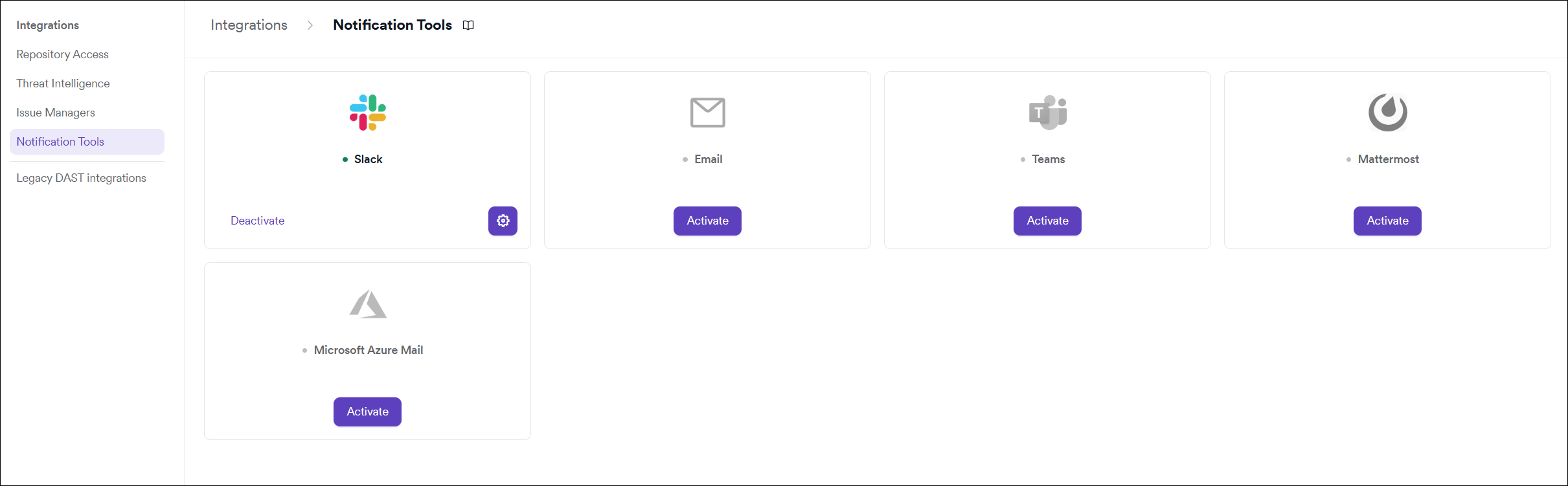
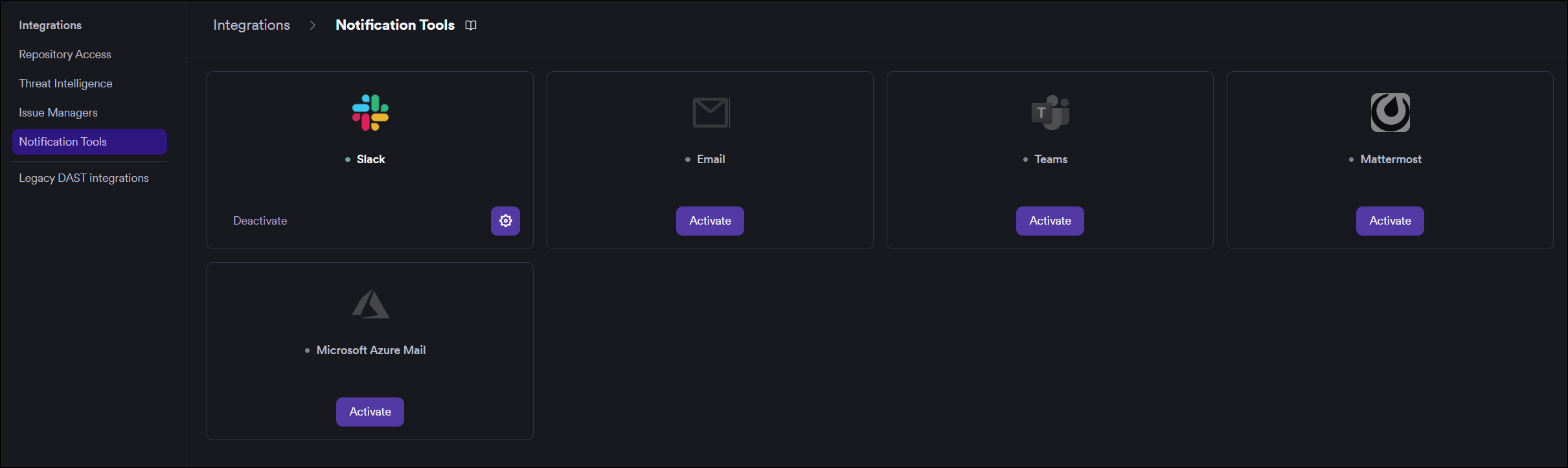
On the Integrations page, click the Notification Tools tab.
Step 3: Find and Activate Slack
Locate the Slack card.
- If it is not yet activated, click Activate to open the settings drawer.
- If it is already activated, click the gear icon to reconfigure.
Step 4: Fill In the Required Fields
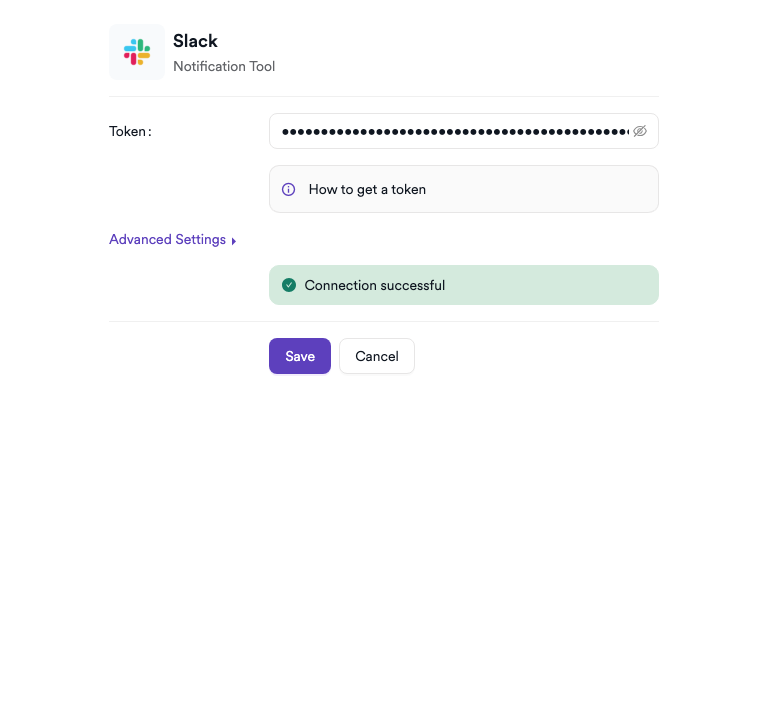
In the settings drawer, enter the required credentials:
| Field | Description | Required |
|---|---|---|
| Token | Slack Bot User OAuth Token (starts with xoxb-) | Yes |
Step 5: Test the Connection
Click Test Connection. A green "Connection successful" message confirms that Invicti AppSec can authenticate with Slack using the provided token.
Step 6: (Optional) Configure Advanced Settings
Click Advanced Settings to access additional configuration:
| Setting | Description | Default |
|---|---|---|
| Include Public Channels | When enabled, Invicti AppSec will include public Slack channels in the channel selection dropdown when configuring project-level notifications | Off |
Click Save within the Advanced Settings section to apply changes.
Step 7: Save
Click Save to complete the activation.
Summary
| Step | Action |
|---|---|
| 1 | Navigate to Integrations from the sidebar |
| 2 | Select the Issue Managers tab |
| 3 | Find Slack and click Activate (or the gear icon) |
| 4 | Paste the Bot User OAuth Token |
| 5 | Click Test Connection — verify the success message |
| 6 | (Optional) Enable Include Public Channels in Advanced Settings |
| 7 | Click Save |
Troubleshooting
| Issue | Resolution |
|---|---|
| Connection failed | Verify the Bot Token is valid and starts with xoxb-. Ensure slack.com is reachable from the Invicti AppSec network. |
| Invalid token | The token may be expired or revoked. Reinstall the Slack app in your workspace to generate a new token. |
| No channels listed | Ensure the bot is invited to at least one channel using /invite @YourAppName. Enable Include Public Channels in Advanced Settings to see public channels in the dropdown. |
| Missing scope | If certain channels are not accessible, check that channels:read and groups:read scopes are added to the Slack app. |
| Bot not posting messages | The bot must be a member of the target channel. Use /invite @YourAppName in the Slack channel to add it. |
Need help?
Invicti Support team is ready to provide you with technical help. Go to Help Center