Analyzing software composition with Invicti Shark (IAST)
You can use Invicti Shark (IAST) to run software composition analysis (SCA). It analyzes your web application's software composition and lists all components.
- More and more web applications rely on third-party components, so your web application's security also depends on the security of these components.
- It takes a lot of time and effort, however, to manually track whether these components have vulnerabilities and any update to address these issues.
Invicti can detect technologies used in your web application. It tracks and reports on problems, such as whether any of the technologies are out-of-date or whether a specific version has any issues.
- The technology feature relies on the HTTP headers/responses while Invicti Shark (IAST) works inside of your application, so it can identify all of your technology stack.
- It can also detect whether these components are secure by using a vulnerability database.
This document explains how to analyze software composition with Invicti Shark (IAST).
Prerequisites
- Deploy Invicti Shark (IAST)
If you already have installed the Shark (IAST) on your environment, it's highly recommended you re-download your Shark files and redeploy them to use the SCA capabilities.
Software composition analysis in Invicti Enterprise
Follow these steps to analyze software composition with Invicti Shark (IAST) in Invicti Enterprise:
- Configure a scan policy for Software Composition Analysis (SCA)
- Scan your application with the scan policy created in the first step
- Review the scan result
Step 1: Configure a scan policy for SCA
- Select Policies > New Scan Policy from the left-side menu.
- On the New Scan Policy page, enter a name and a description for your new scan policy.
- From the Security Checks section, enable the Software Composition Analysis checkbox.
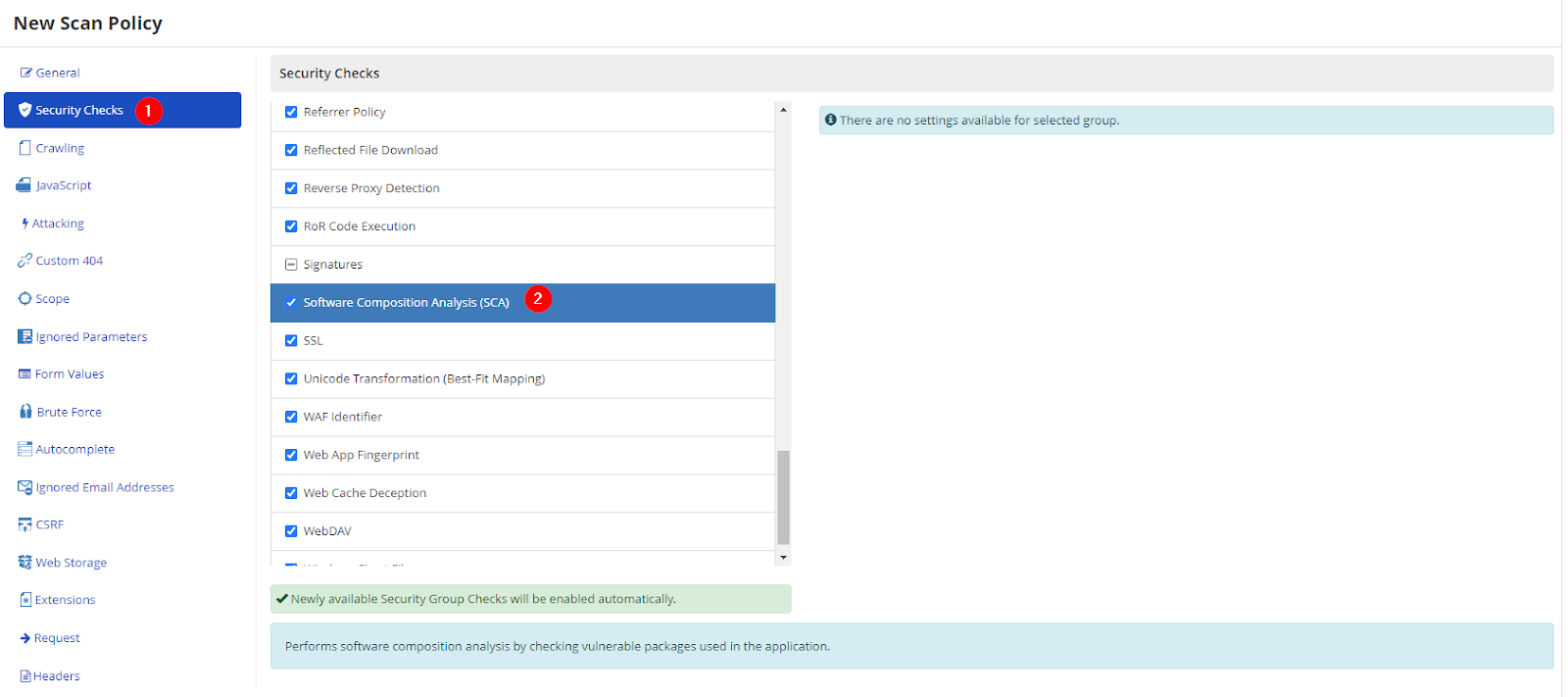
- Click Save.
Step 2: Scan your application with the custom scan policy
After you create a custom scan policy that includes the Software Composition Analysis selection, you can now launch a scan to detect whether your technology stack has any vulnerability.
Scan a single website
- Select Scans > New Scan from the left-side menu.
Before scanning your website in Invicti Enterprise, make sure you have added a website (Adding a website in Invicti Enterprise).
- In the Target URL field, enter the URL.
- From the Scan Policy dropdown, choose your custom policy created in Step 1.
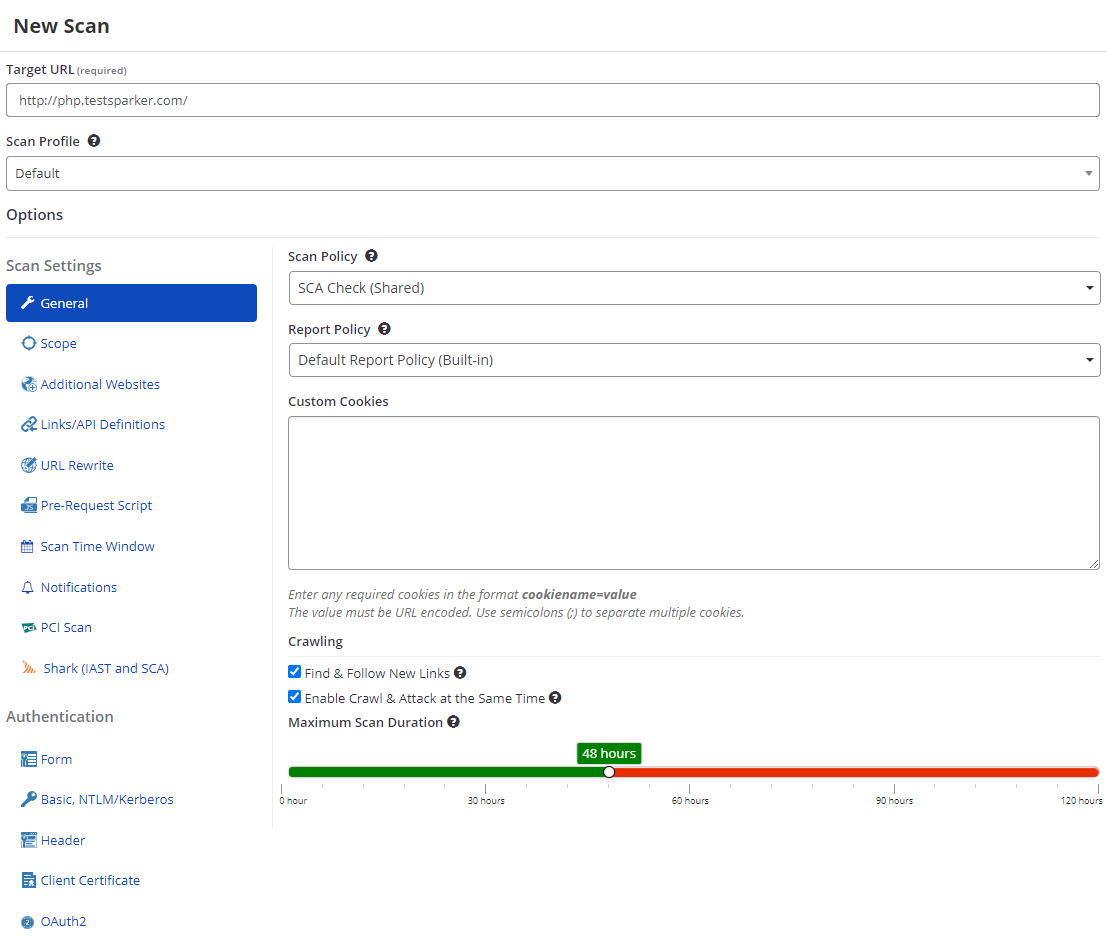
Make sure you enable Shark (IAST) and deploy the related Shark sensors. For more information, refer to the Downloading Shark Sensors in Invicti Enterprise document.
- Click Launch to scan.
Run a group scan
- Select Scans > New Group Scan from the left-side menu.
- From the New Website Group Scan page, choose the Website Group from the dropdown menu.
- From the Scan Policy dropdown, choose your custom scan policy created in Step 1.
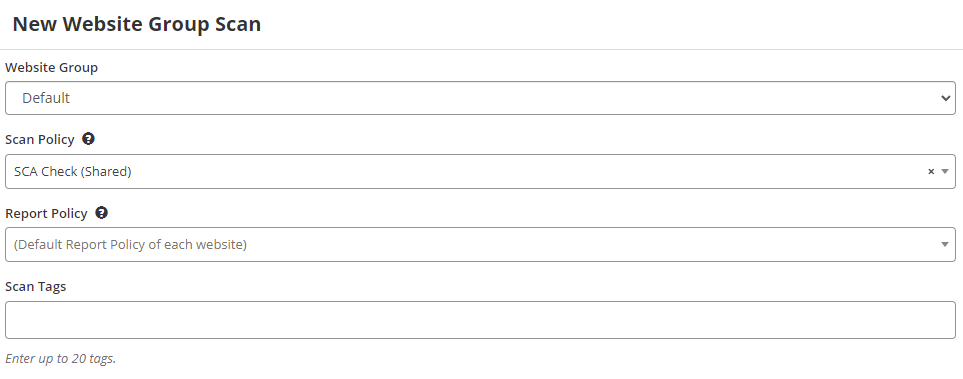
- Click Launch to scan.
Step 3: Review the scan result
When you launch the scan, Invicti Enterprise crawls and attacks your web application to identify vulnerabilities.
Once Invicti completes the scanning, the application sends an email containing the link to the report. If you didn't configure an email notification, you can log in to Invicti Enterprise and review your report. Or, you can review the Technology dashboard to view all vulnerable components identified.
Access your scan report
- Select Scans > Recent Scans from the left-side menu.
- Next to the relevant scan, click Report.
- On the Scan Summary page, scroll to the Technical Report section to view your scan report.
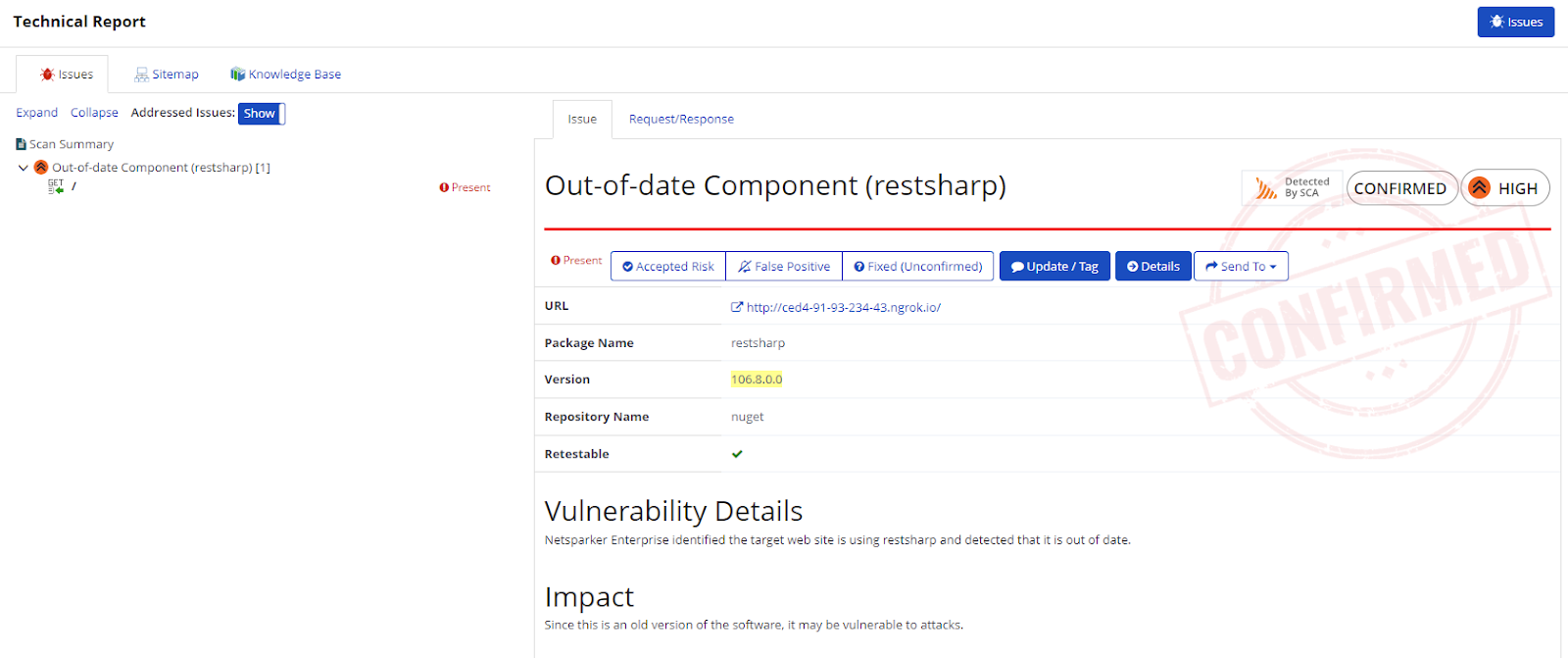
From the Technical Report, you can also go to the Knowledge Base tab, then Software Composition Analysis (SCA) to view all your vulnerable components identified in that security scan. For more information, refer to the Software Composition Analysis (SCA) Node document.

In addition to these, you can visit the Technology Dashboard to see vulnerable components identified in all scans.
Technology dashboard view
- Select Technologies > Dashboard from the left-side menu.
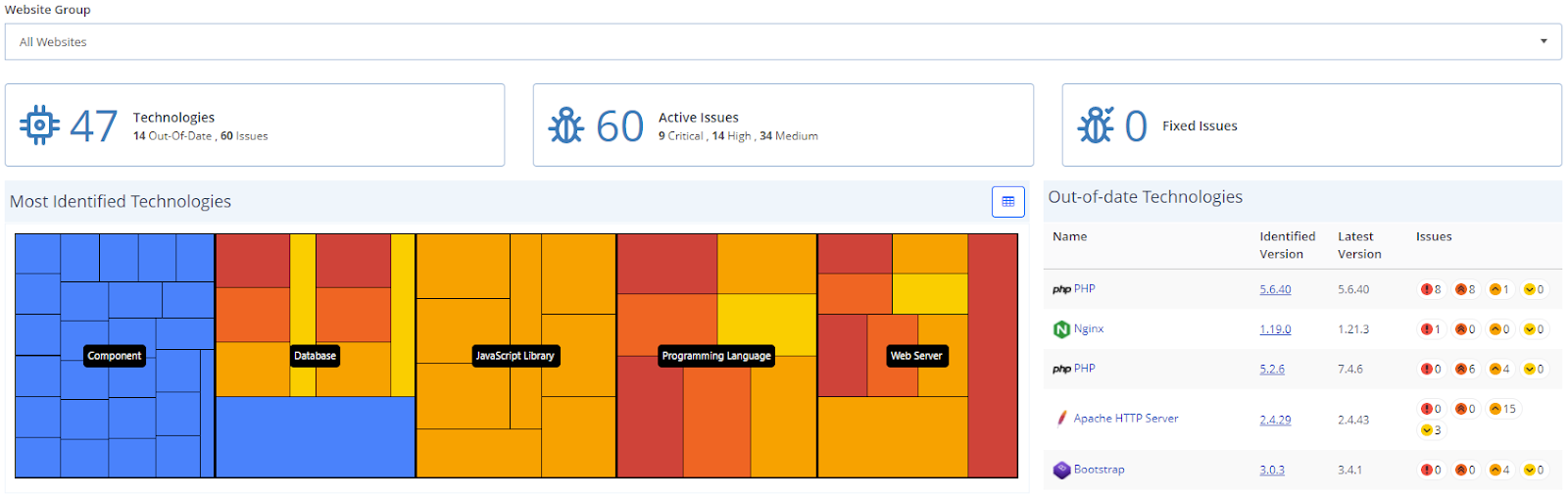
For more information, refer to the Technologies document.
Software composition analysis in Invicti Standard
Follow these steps to analyze software composition with Invicti Shark (IAST) in Invicti Standard:
- Click New in the Home tab.
- In the Target Website or Web Service URL field, enter the URL of the website you want to scan.
- Configure the Scan Policy, Invicti Standard Scan Options Fields, and Authentication as required.
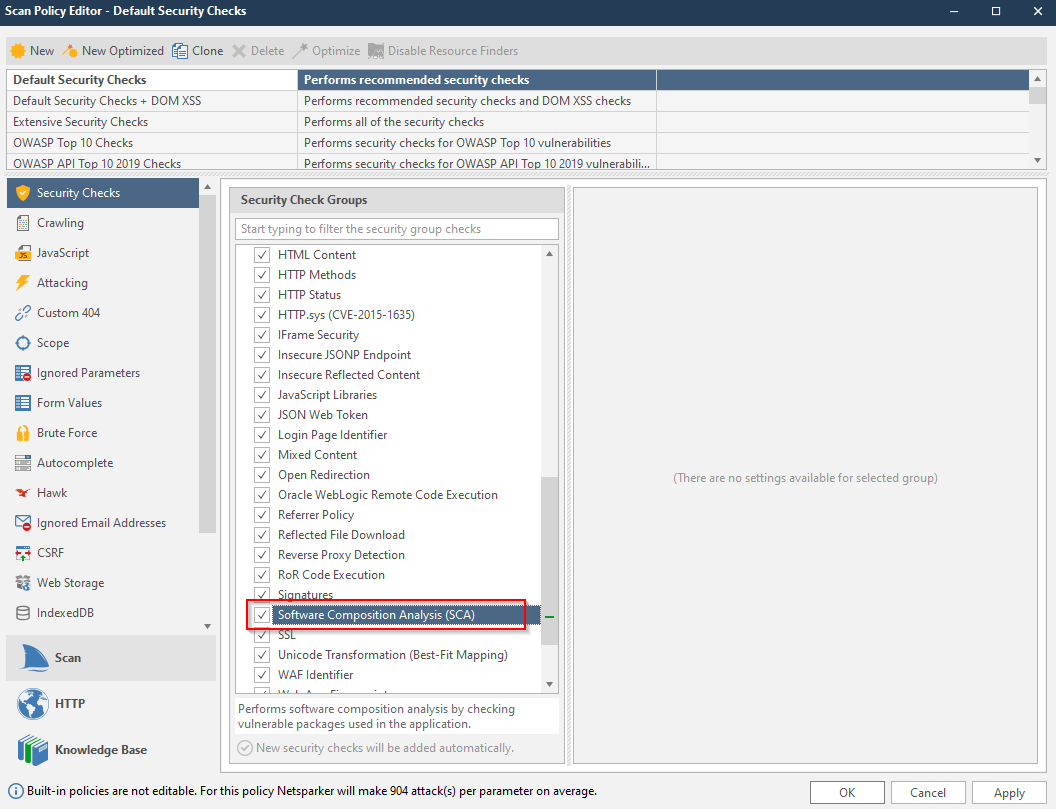
Make sure to enable Software Composition Analysis from the Security Checks.
- Click Start Scan.
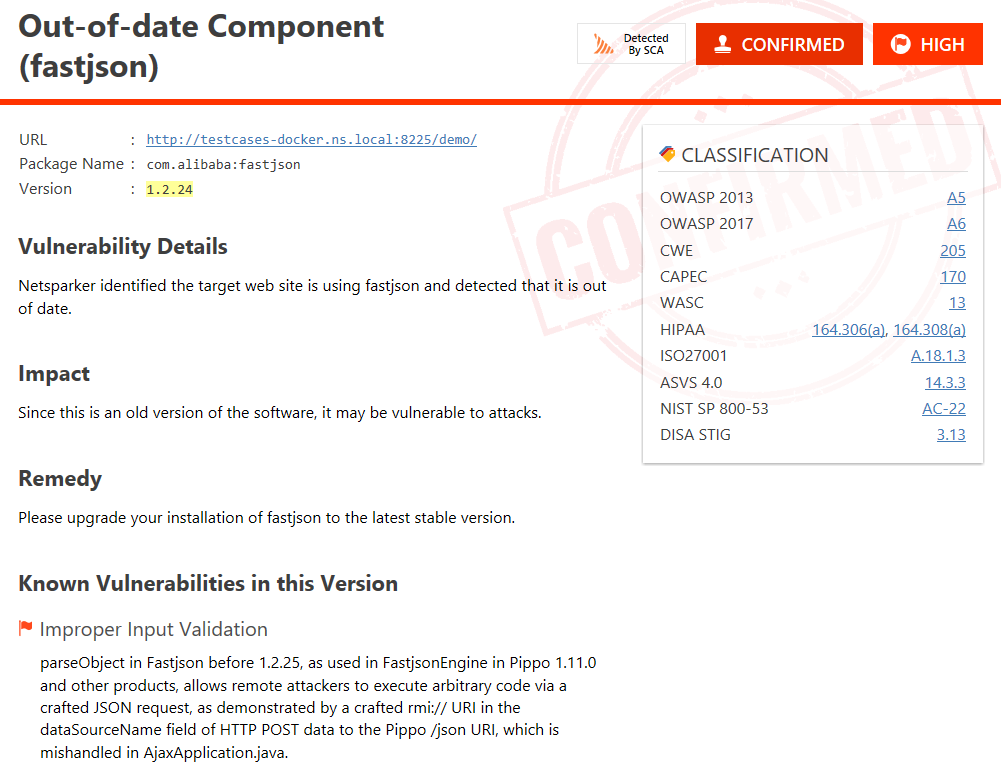
When Invicti scans your web application, it lists all identified vulnerabilities in your web application on the Issues panel.
From this panel, you can reach all vulnerable third-party components identified by Invicti Shark (IAST). You can see the vulnerability details, its impact, remedy, and related information when you choose any vulnerability from the Issues panel.
In addition to the Issues panel, you can see the list of all third-party components in the Knowledge Base panel.
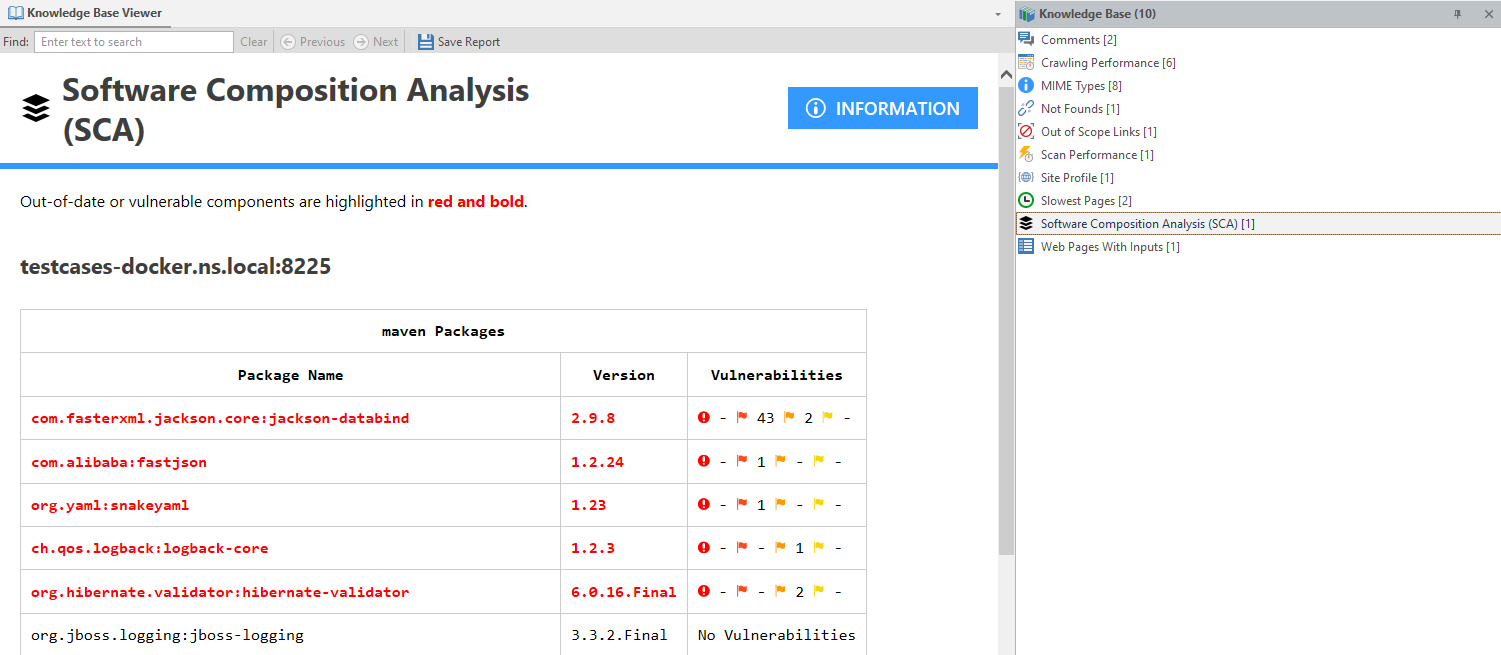
Invicti highlights all out-of-date and vulnerable components in red. It provides the package name, its version, and its vulnerabilities.
Need help?
Invicti Support team is ready to provide you with technical help. Go to Help Center