Managing Notifications
Notifications in Invicti Enterprise allow you to stay informed about important events, such as scan statuses and detected vulnerabilities.
By default, there are some built-in notifications that can be cloned and edited. If you want to create a brand new notification rather than clone an existing one, refer to Creating notifications external documentation. There is a separate document for technology notifications that describes how to turn specific technology notifications on or off, and how to manage built-in, out-of-date notifications.
This document provides instructions on managing and customizing notifications to ensure you receive the correct alerts. It covers:
- How to view notifications
- How to clone notifications
- How to edit notifications
- How to delete notifications
How to View All Notifications
Follow these steps to view all configured notifications in your system:
- Select Notifications > Manage Notifications from the left-side menu.
- Review the list to see all configured alerts, including their status, triggering event, and target scope.
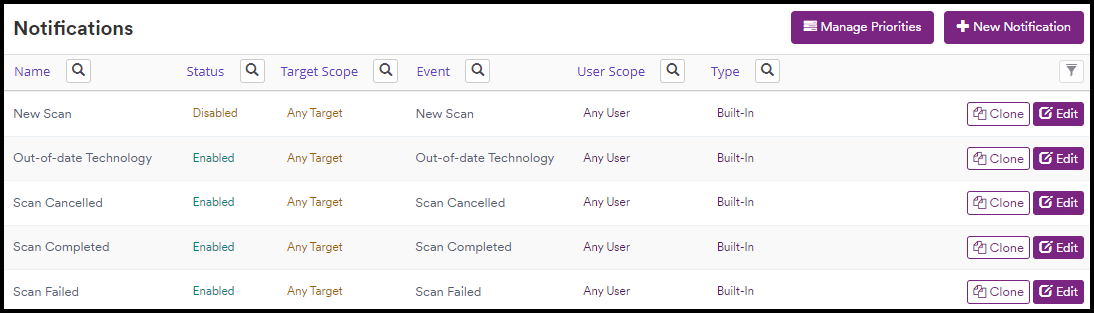
- Search for the desired notification or use the filters to narrow down the results. Filtering options include:
- Name: The notification's name
- Status: Indicates if the notification is Enabled or Disabled
- Target Scope: Shows if the notification applies to a target or target group
- Event: The scan event that triggers the notification
- User Scope: Specifies who receives the notification
- Type: Indicates the creator of the notification. Displays built-in for system-generated notifications or mine for your personal notifications
Use the available filters to quickly locate specific notifications based on their properties and configuration settings.
How to Clone Notifications
Cloning allows you to create a new notification based on an existing one:
-
Select Notifications > Manage Notifications from the left-side menu.
-
Select Clone next to the notification you want to clone.

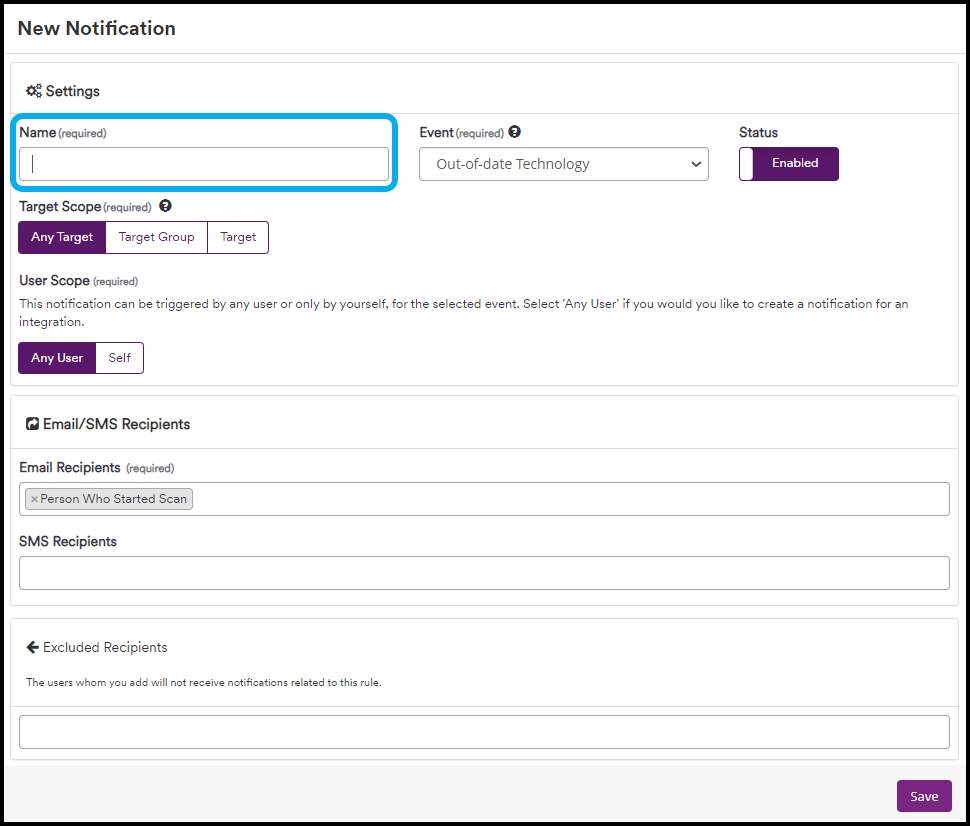
- Enter a name for the new notification.
-
Edit the other fields as needed. For explanations of the various fields, refer to Creating notifications external documentation.
-
Click Save. An information strip will appear to confirm the notification has been created.

- Check and adjust the notification priorities if needed by following the instructions in managing notification priorities external documentation.
How to Edit Notifications
Modify existing notifications to update their configuration:
-
Select Notifications > Manage Notifications from the left-side menu.
-
Select Edit next to the notification you want to edit.

- Edit any of the fields as needed. Refer to Creating notifications external documentation for information about each of the fields.
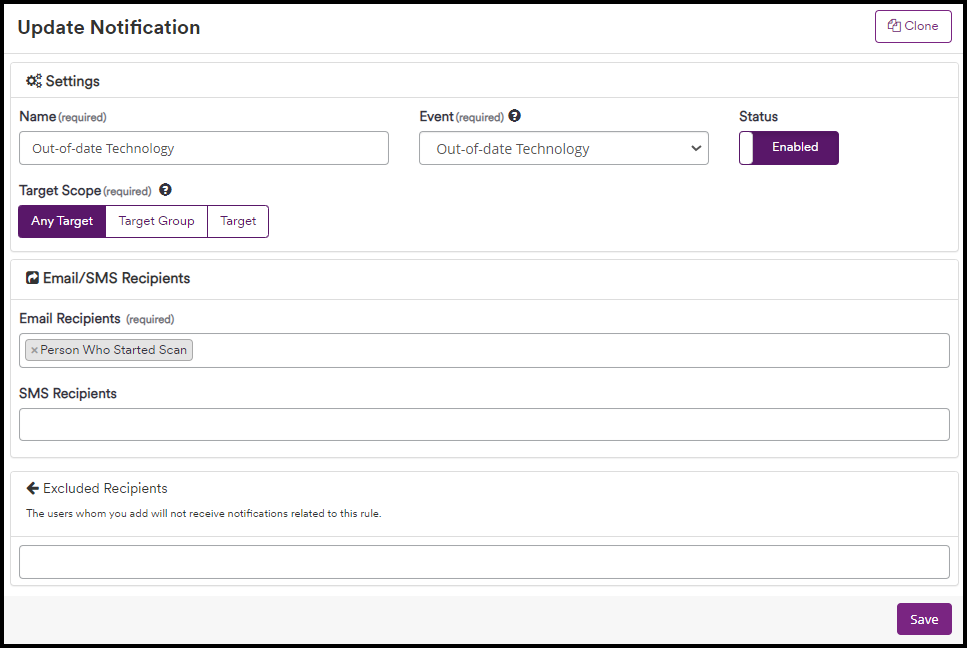
- Click Save. An information strip will appear to confirm the notification has been updated.

The notification will now operate according to the new configuration.
How to Delete Notifications
Remove notifications that are no longer needed:
-
Select Notifications > Manage Notifications from the left-side menu.
-
Select Delete next to the notification you want to delete.

- Click Delete to confirm the action.
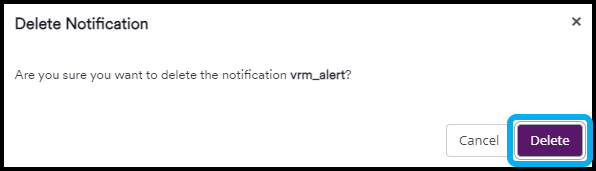
An information strip will appear to confirm the notification has been deleted.

Need help?
Invicti Support team is ready to provide you with technical help. Go to Help Center