API Settings Overview
The Invicti Enterprise API lets client applications view and manipulate scan tasks, view issues, create scan agents, and much more. This article explains how to access your API credentials, including your User ID and API Token, and how to reset the API Token. It also provides a quick start guide to help you build and make an API call, along with information about rate limits, status codes, and errors.
To understand how the APIs work, it is highly recommended that you familiarize yourself with the Invicti workflow for scanning web applications. For more information, refer to Web Application Security Scanning Flow.
Accessing the API documentation
The API documentation is built with the OpenAPI (formerly Swagger) specification. To view all endpoints and parameters, refer to Invicti Enterprise API Documentation.
Base URL
The base URL is https://www.netsparkercloud.com/api/1.0.
The path and query parameters depend on the endpoint of your request. For example, the scan list is reachable with the following API call: https://www.netsparkercloud.com/api/1.0/scans/list.
Authentication
When you make any calls to the API, you need to provide your User ID and API Token. You can find your user ID and authentication token in your user profile. Authentication to the API occurs via HTTP Basic Access Authentication.
The following is an example using the authentication token through cURL:
curl -u "USERID:API-TOKEN" https://www.netsparkercloud.com/api/1.0/scans/list
How to access your API credentials
- Log in to Invicti Enterprise.
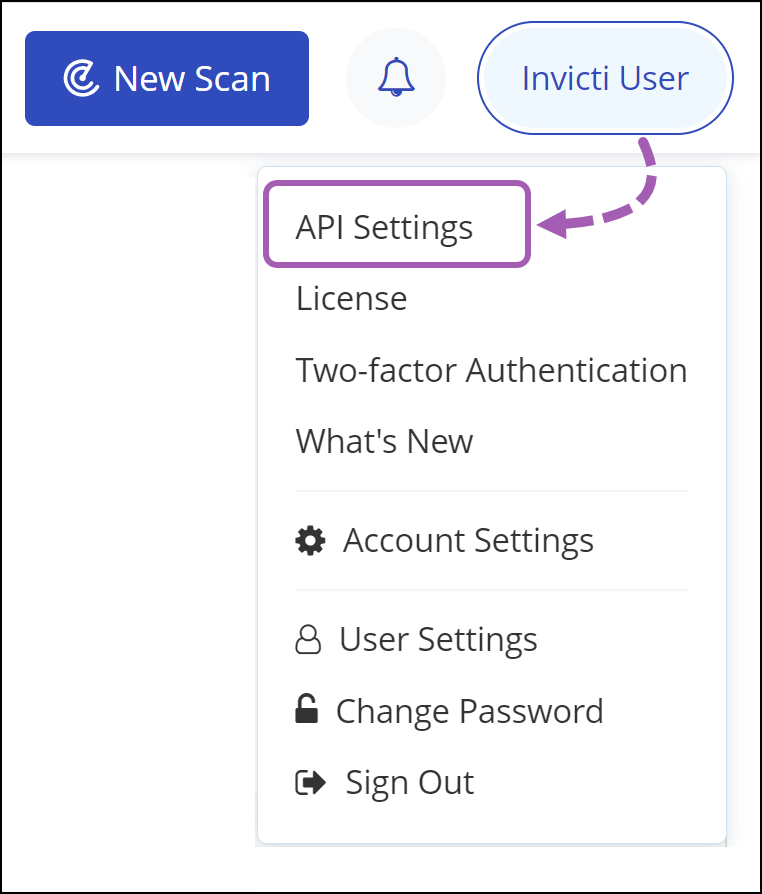
- Select [Your Name] (top right of the window) > API Settings.
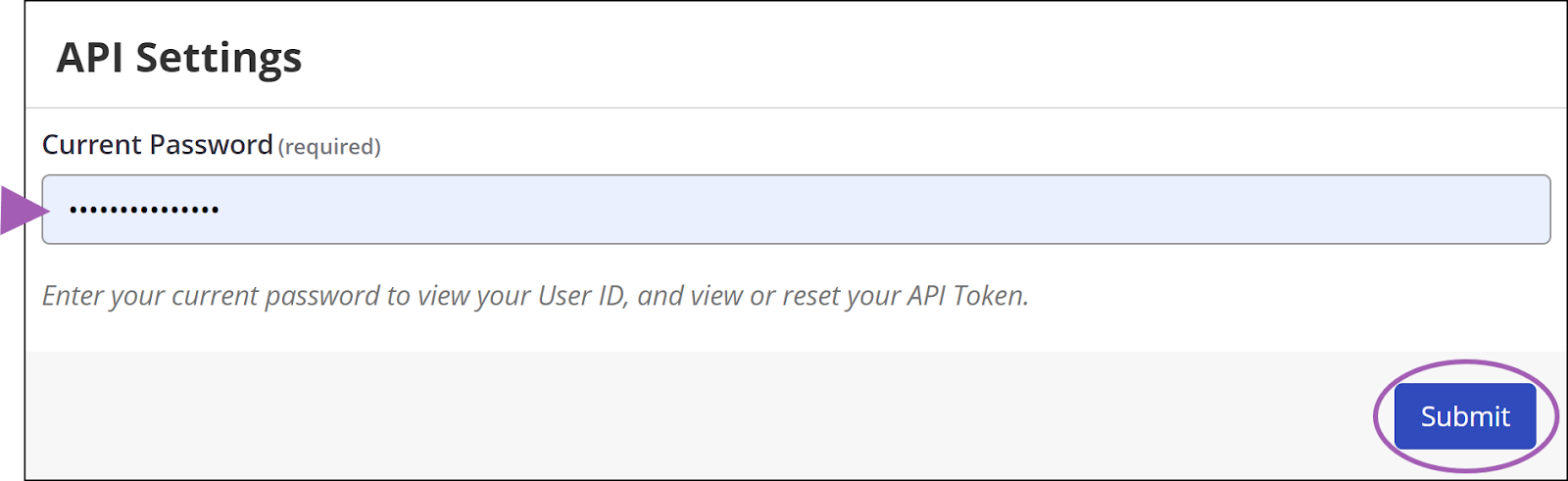
- Enter your Current Password.
If you are using Single Sign-On, Invicti Enterprise displays the API Settings page without asking for your password. If Single-Sign-On is enabled but you are still prompted to enter a password on the API Settings page then you need to adjust your Single Sign-On Settings.
- Go to Settings > Single Sign-On.
- Select the Enforce to authenticate only with single sign-on checkbox.
- Click Submit to view your User ID and Token.
How to reset the API token
- Log in to Invicti Enterprise.
- Select [Your Name] (top right of the window) > API Settings.
- Enter your Current Password, then click Submit.
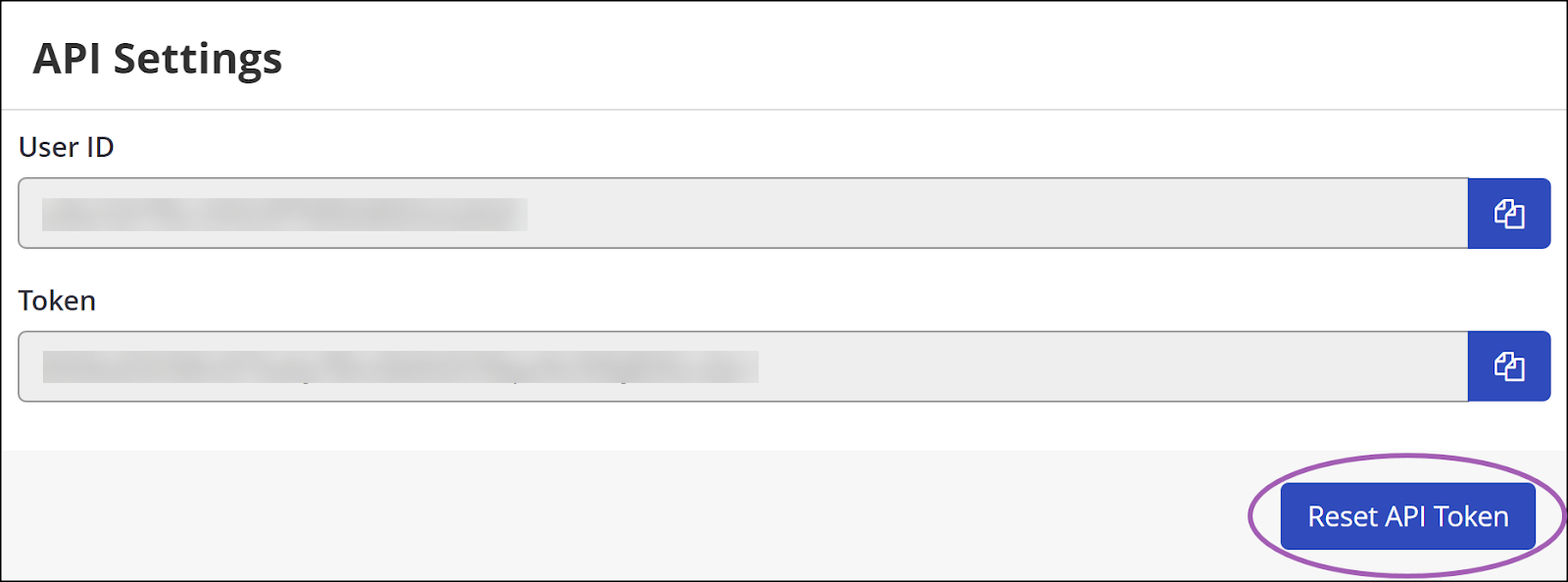
- Click Reset API Token.
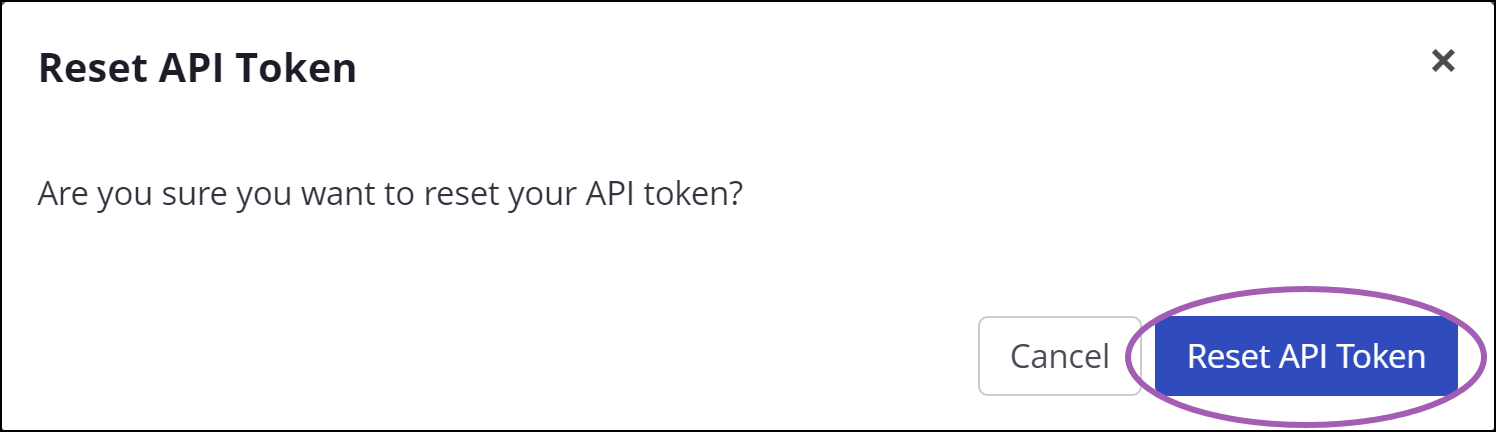
- Select Reset API Token to confirm.
Quick Start Guide
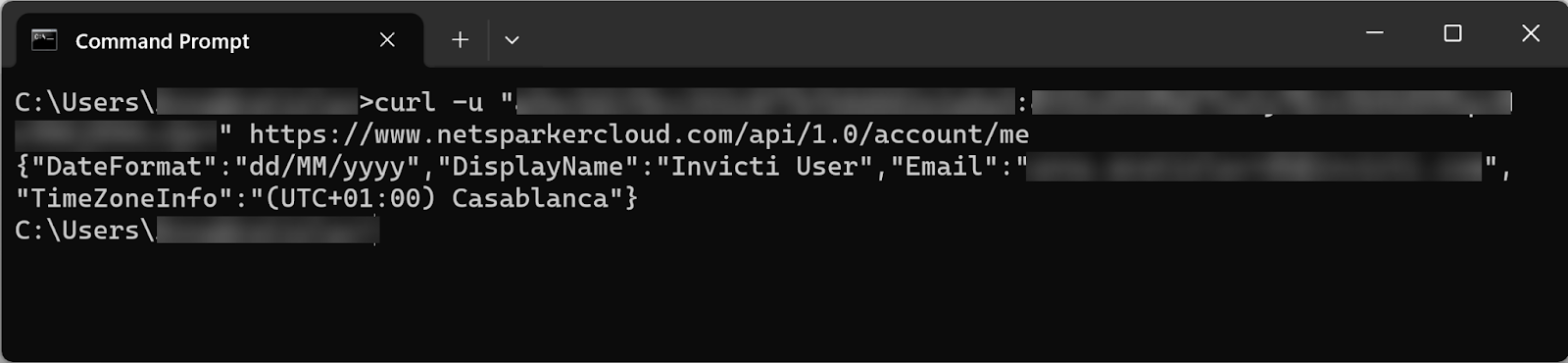
For this quick start guide, we make an API call to /api/1.0/account/me to get details about the user.
Before you can start using the API, you need the following:
- An Invicti Enterprise account.
- Your User ID and Token.
- Ensure you have curl installed on your machine.
How to get your information via an API call
Build your API call
Your API call must have the following components:
- The base URL:
https://www.netsparkercloud.com/api/1.0 - An Authentication: User ID and Token.
- A request.
Make the API call
curl -u "User ID:Token" https://www.netsparkercloud.com/api/1.0/account/me
- Copy the curl example above.
- Open your favorite text editor.
- Paste the curl example into the text editor.
- Get your User ID and Token. For further information, refer to Authentication.
- In the curl example, replace the User ID and Token with your credentials.
- Copy the API call that has your authentication information.
- Open a command prompt window.
- Into the command prompt, paste the API call.
- Press Enter.
Methods
Invicti Enterprise supports the following methods in API calls:
- GET — This method is for retrieving information.
- POST — This method is for creating new resources, updating the status, or deleting.
Rate limits
There is a throttling limit for API endpoints. All endpoints share the same rate limit, except for the allissues and summary endpoint.
The following table shows the rate limits:
| Throttle Limits | Minute Limit | Hourly Limit | Daily Limit |
|---|---|---|---|
| All endpoints | 200 | n/a | n/a |
/issues/allissues /issues/summary | 10 | 600 | 14400 |
Tips and troubleshooting
Invicti Enterprise does not support partial API calls. To update any object, for example, a scan profile object, do the following:
- Make a GET request for the scan profile you want to update.
- Update parameters.
- Make a POST request to update the scan profile with new parameters.
Status codes and errors
| Code | Description | Explanation |
|---|---|---|
| 200 | OK | Success. |
| 201 | Created | The request succeeded and a new resource was created. |
| 400 | BadRequest | The server could not understand the request because of the invalid syntax. |
| 401 | Unauthorized | Access is denied. |
| 403 | Forbidden | The client does not have access rights to the content. It is unauthorized. |
| 404 | NotFound | The server cannot find the requested resource. |
| 429 | Too Many Requests | The user has sent too many requests in a given amount of time ("rate limiting"). |
| 500 | Internal Server Error | The server has encountered a situation it does not know how to handle. |
Need help?
Invicti Support team is ready to provide you with technical help. Go to Help Center