Configuring URL Rewrite Rules
Web application developers employ URL Rewrite Rules to hide parameters within the URL path structure. This practice facilitates comprehensive indexing by search engines while presenting URLs to web browsers in a user-friendly format. For example, when navigating an online hardware store, the URL typically appears as http://www.example.com/tools/hammer/.
Through a URL rewrite rule, the web server transforms this URL into a specific format, such as http://www.example.com/library.php?tools=hammer. This enables the retrieval of data from the backend database to display tool details to visitors.
In this scenario, the subdirectory ("/tools") in the initial URL functions as a parameter within the library.php file, accommodating inputs like the tool name ("hammer"). Invicti conducts scans by sending standard HTTP requests to simulate attacker behavior, ensuring the web application accepts such requests and appropriately scans all parameters within the URLs. Furthermore, it can scan pages with multiple parameters in the URL.
For more information on how URL Rewrite rules work in Invicti, refer to How Invicti handles URL rewriting.
Invicti automatically detects URL rewrites on the target website using heuristic methods and offers automatic configuration of settings. Nevertheless, manual configuration of URL Rewrite Rules, as detailed in this document, can enhance the efficiency of the scan.
How to Configure URL Rewrite Rules in Invicti Enterprise
- Select Scans > New Scan from the left-side menu.
- Specify the Target URL and Scan Profile.
- In the Scan Settings section, select URL Rewrite.
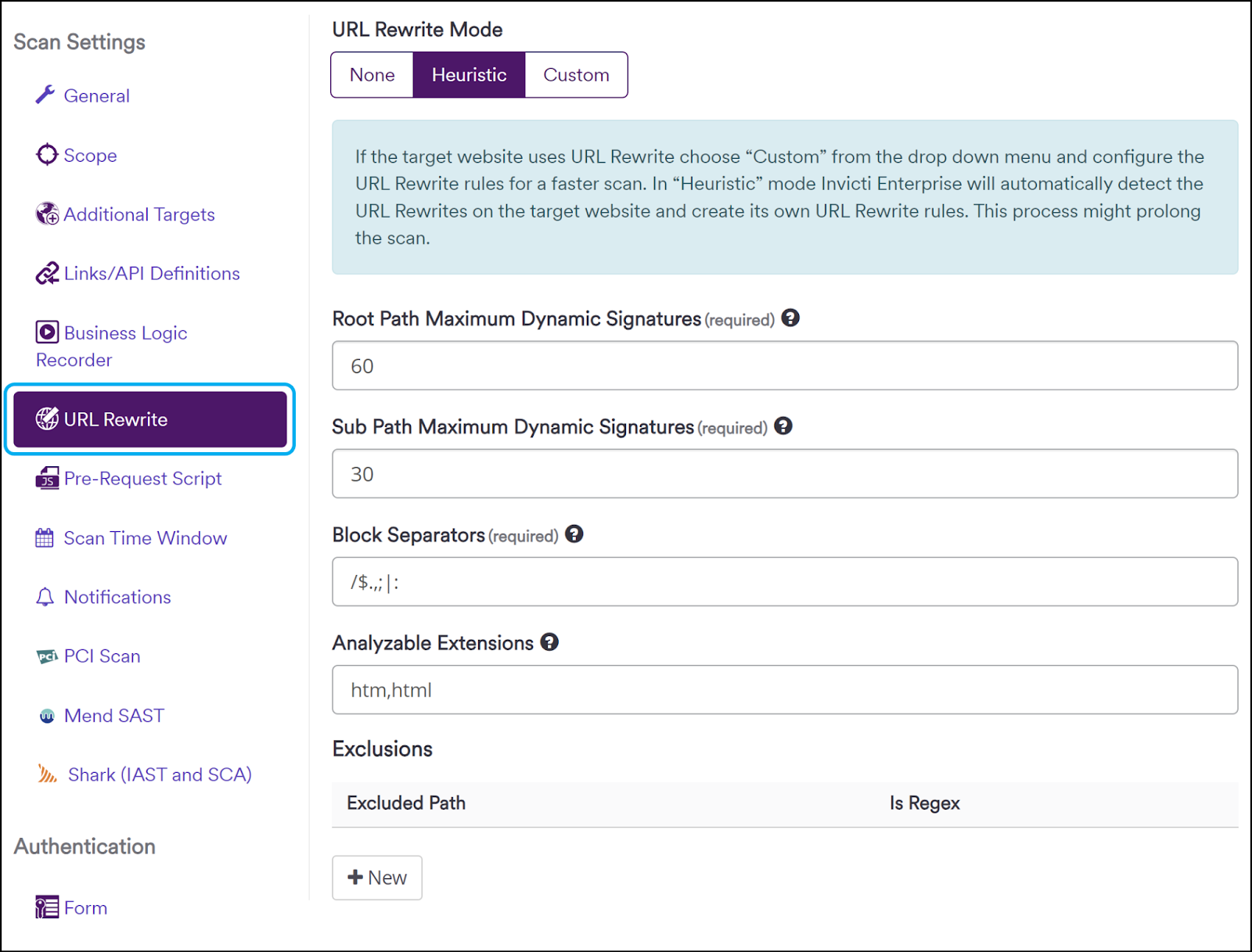
- Under URL Rewrite Mode, select from the options: None, Heuristic, or Custom.
Refer to the URL Rewrite Fields information at the end of this document for more information about these settings.
-
Heuristic is the default mode and automatically populates these fields:
- Root Path Maximum Dynamic Signatures
- Sub Path Maximum Dynamic Signatures
- Block Separators
- Analyzable Extensions
-
None applies no rules.
-
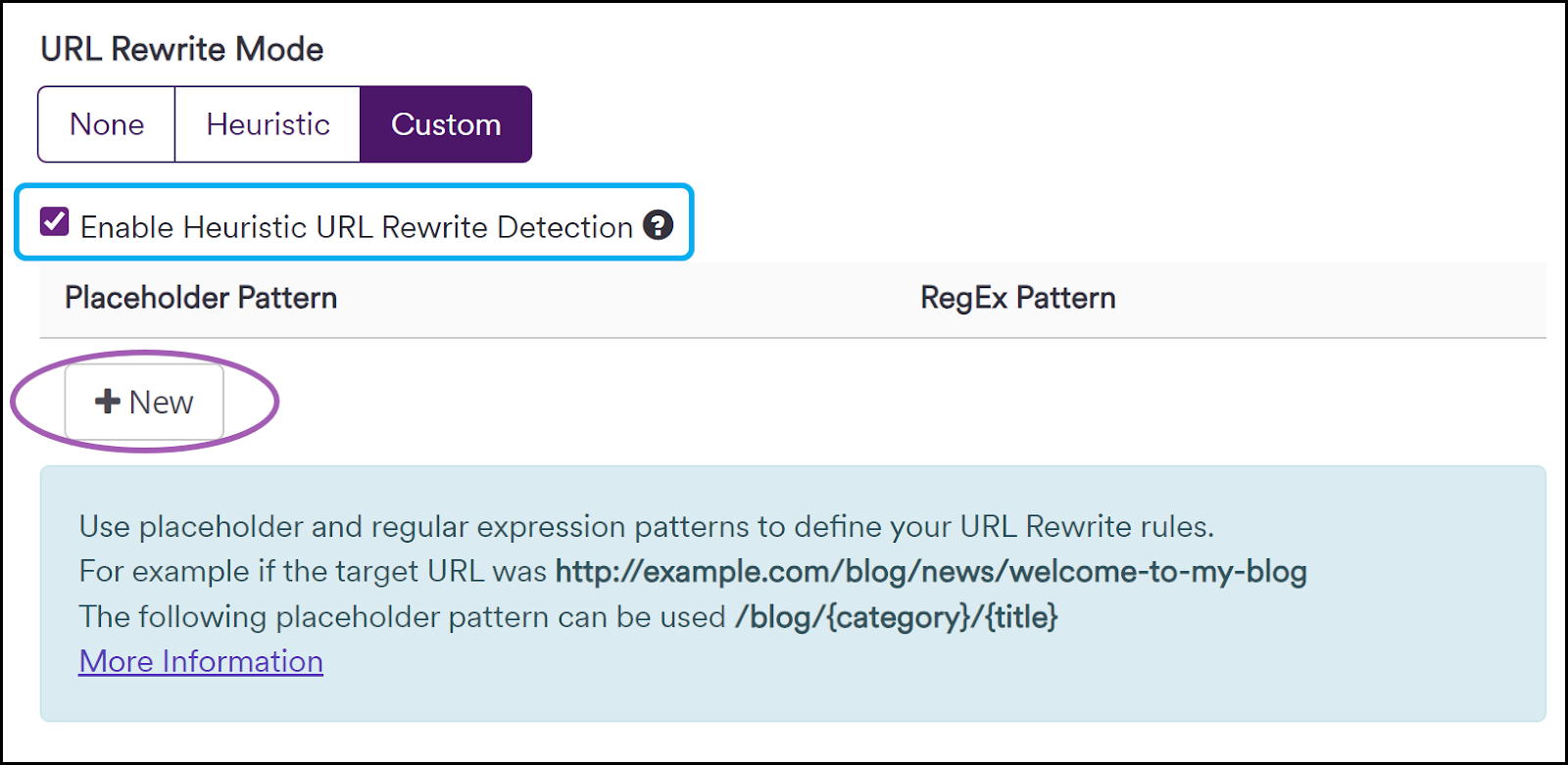
Custom requires the following configurations:
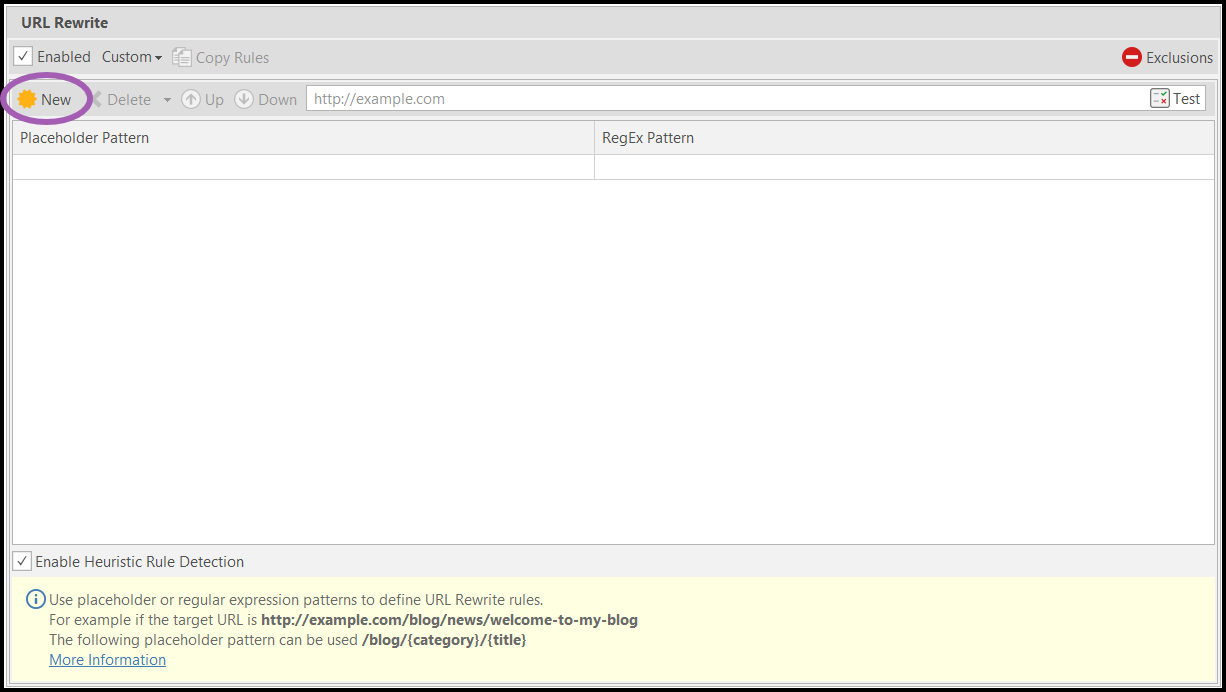
- Select the checkbox to Enable Heuristic URL Rewrite Detection to automatically determine additional URL rewrite rules. When enabled, both custom and heuristic rules will apply. If disabled, only the custom rules will apply.
- Click + New to add a new Placeholder Pattern and RegEx Pattern.
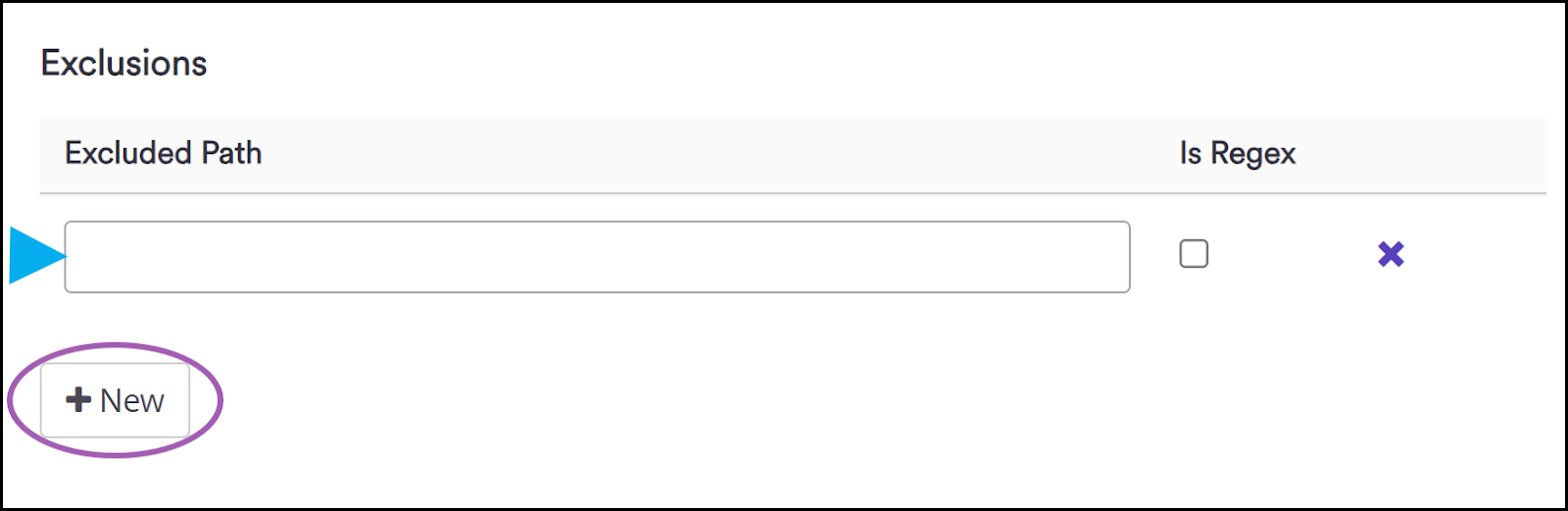
- Optionally, click + New in the Exclusions section to enter an Excluded Path and mark it as Is Regex if applicable.
- Configure other Scan Settings as required, then click Launch to start a scan with these settings. Alternatively, click Save Profile to save these settings for use on a future scan.
How to Configure URL Rewrite Rules in Invicti Standard
- Open Invicti Standard and click New
- On the Start a New Website or Web Service Scan window, specify the Target URL and click the down arrow to expand the Options menu

- Click on the URL Rewrite option
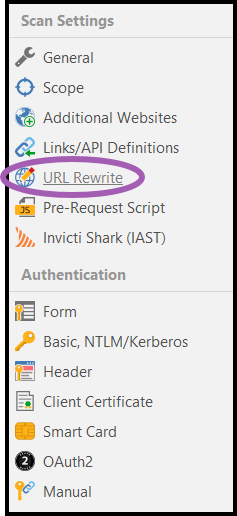
- The Heuristic mode is the default option. Change this to Custom.
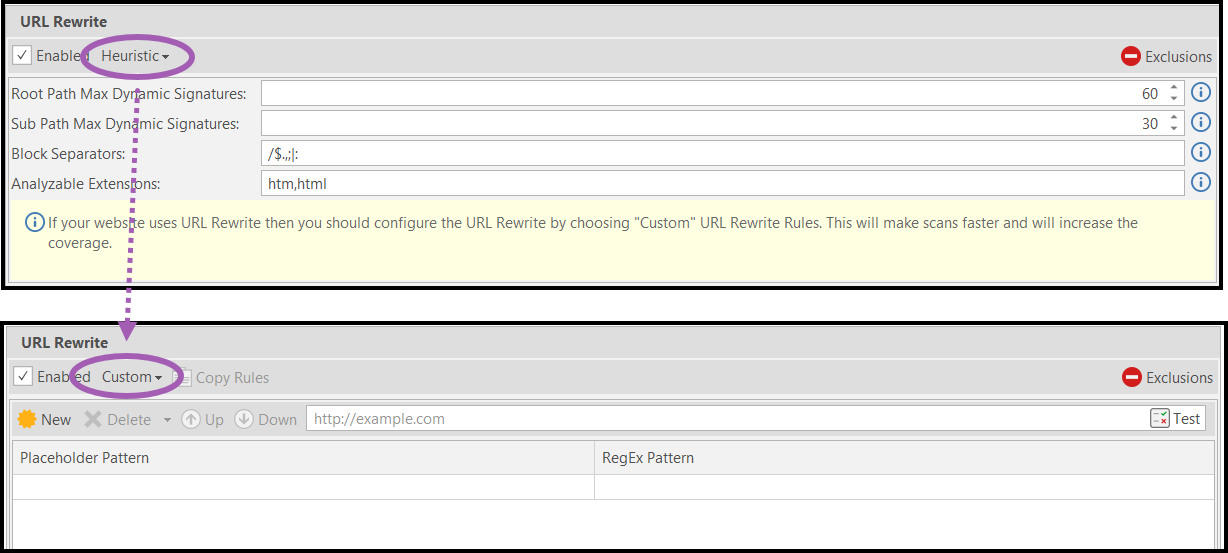
- There are two ways to add new rules:
- a. Manually
- b. Using the build-in wizard
To manually configure the URL Rewrite rules without utilizing the wizard, you can directly populate the Placeholder Pattern and RegEx Pattern input fields by clicking on them.
Adding URL Rewrite Rules manually
- To configure the URL Rewrite rules manually without using the wizard, simply input values directly into the Placeholder Pattern and RegEx Pattern fields by clicking on them.

If your website URLs contain encoded values, it is imperative to specify the decoded values consistently.
For instance, consider a Website URL http://www.example.com/user/john%2dDoe. In this case, the correct URL rewrite rule should reflect the decoded characters, such as http://www.example.com/user/{firstname}-{lastname}.
Conversely, using encoded characters in the rewrite rule, as in http://www.example.com/user/{firstname}%2d{lastname}, is incorrect and should be avoided.
After filling in the required information, proceed to step 10 outlined below.
Adding URL Rewrite Rules using the wizard
- Click New to specify new rules.
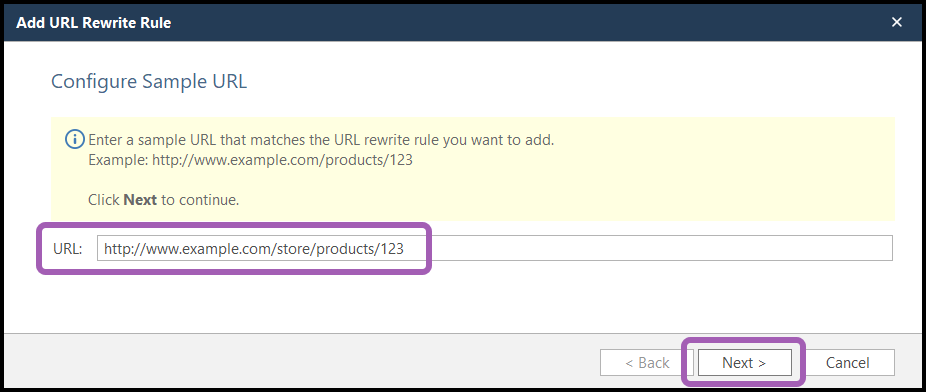
- In the wizard window, fill in the URL and click Next.
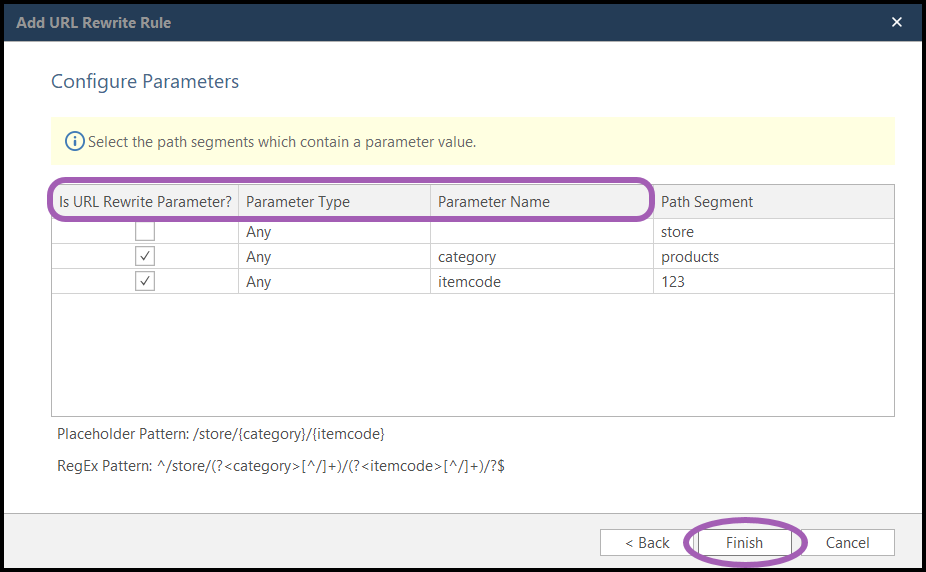
- Using the checkboxes, select the URL Rewrite Parameters, specify the Parameter Type, and type the Parameter Name.
Specifying the correct parameter type enhances scan accuracy. For instance, in the pattern '/{PARAM}/{ID}', '{PARAM}' denotes the parameter and '{ID}' its value. Without specifying a parameter type, defaulting to 'Any', both URLs match:
http://www.example.com/products/18http://www.example.com/products/date.js
However, this broad matching can lead to inaccurate results. For example, '/products/date.js' might be mistaken as a product parameter value, causing some files to be overlooked. Setting the parameter type to 'Integer' resolves this, ensuring Invicti scans only integers. Consequently, anomalies like '/product/date.js' are correctly identified as files.
Click Finish to generate the placeholder pattern and regular expression.
- Select the Enable Heuristic Rule Detection checkbox. The scanner still tries to automatically detect any additional URL Rewrites on the target website and use them in conjunction with the ones you configured.
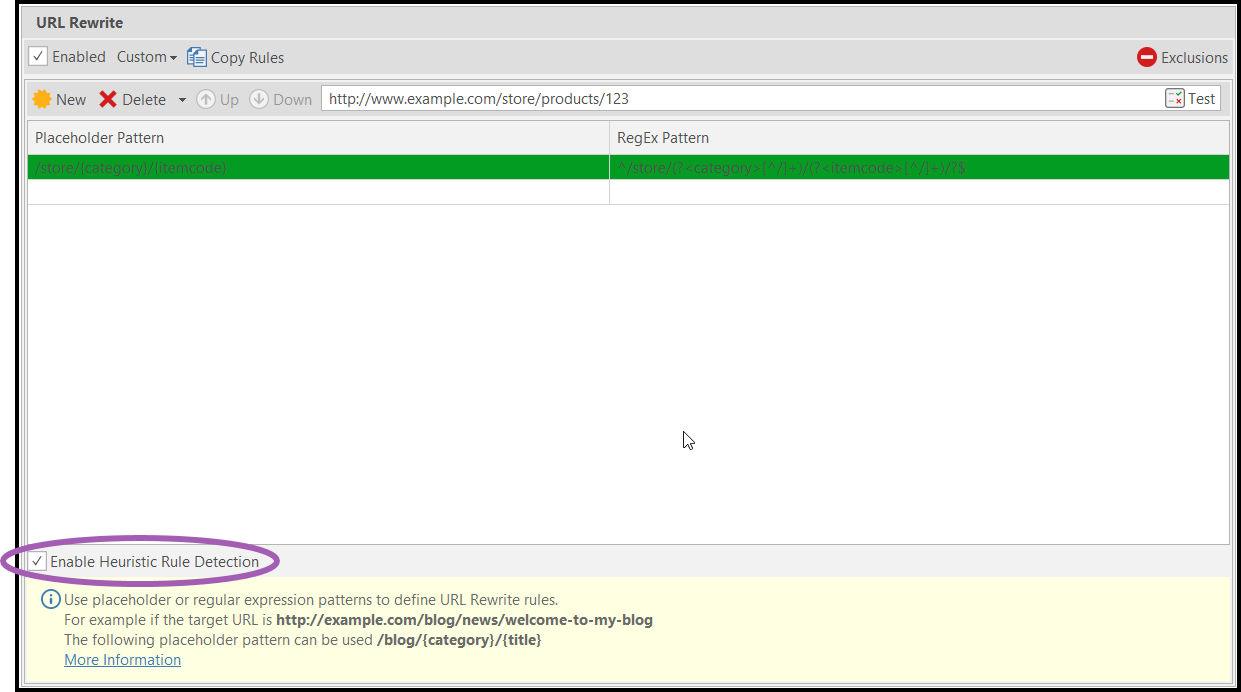
- To exclude certain URLs from the URL Rewrite Detection, select Exclusions.

- The Excluded Paths dialog is displayed. Complete the Excluded Path and click Save on the dialog box.
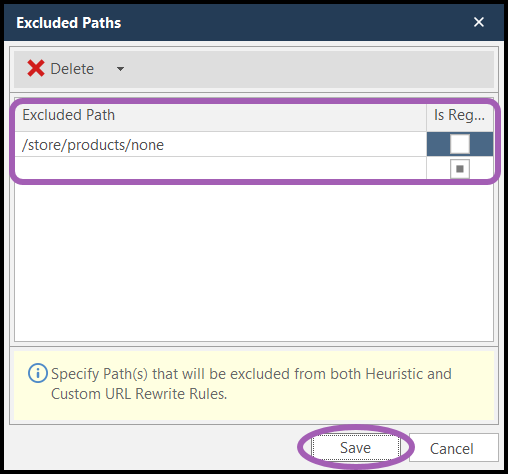
- The Exclusions counter changes to acknowledge the newly added rule exclusion.

- If necessary, click Test to execute the URL Rewrite Rules. During the testing phase, input an example URL in the field adjacent to the Test button.

- Click Start Scan to start the scan immediately, or use the down arrow to schedule the scan.
Challenges Associated with URL Rewrite Rules
This table outlines and elucidates the potential issues encountered by automated web vulnerability scanners when scanning websites utilizing URL Rewrite Rules.
| Issue | Challenge | Context |
|---|---|---|
| Parameters within URLs are overlooked during scanning due to misidentification | Web scanners struggle with URL rewriting, mistaking parameters for directories and leaving them unscanned. | For example, the URL http://www.example.com/tools/hammer/ is misinterpreted, as "tools" and "hammer" are considered directories instead of parameters and values, respectively. |
| Extended scan | Extended scans can lead to inaccurate results and software crashes. For instance, if a web vulnerability scanner fails to recognize parameters and values in URLs, it may treat each item in a tool database as a separate page to crawl and scan. Inadequate handling of memory problems and exceptions may further contribute to crashes, resulting in lost results and wasted time. | Inadequate handling of memory problems and other exceptions in your scanner may lead to crashes, resulting in lost results and wasted time. Failure to configure URL rewrite rules in Invicti leads to heuristic pattern identification, limiting scans to prevent prolonged durations and inaccurate outcomes. |
| Setting up URL rewrite rules presents a challenging task | Commercial web vulnerability scanners often offer configuration options to identify parameters within URLs due to the prevalence of URL rewrite technology in web applications. However, users face challenges such as complex setup processes, the need for knowledge in writing regular expressions, and requiring access to web server configuration files. | Configuring URL rewrite rules is particularly challenging for users without deep understanding of the web application or direct access to configuration files, making it a time-consuming task even for those with expertise. |
| Web applications are not properly scanned for vulnerabilities | After configuring URL rewrite rules in your web vulnerability scanner, additional limitations emerge in scanning the web application. Web applications, as a security measure, reject HTTP requests that are already 'translated', like http://www.example.com/library.php?tools=hammer. This is default behavior for .NET web applications, which worsens the issue when scanning MVC web applications due to their distinct URL rewriting approach. | Invicti scans MVC web applications, but numerous other vulnerability scanners fail to do so, even with configured URL rewrite rules. After setting up URL rewrite rules in your scanner, it sends translated query HTTP requests. Despite the security scanner reporting a successful scan, most HTTP requests are denied, leaving parameters in URLs unscanned and creating a misleading sense of security. |
URL Rewrite Fields
This table lists and describes the fields in the URL Rewrite tab.
| Field | Description |
|---|---|
| Root Path Max Dynamic Signatures | If a URL block in the root path contains more items than this limit, it will be identified as a URL rewrite parameter. It must be between 1 and 10,000. This field is displayed only in the Heuristic tab. Example: - E-commerce site with product categories - URL pattern: http://www.example.com/{category}/{subcategory}/{product}- http://www.example.com/electronics/smartphones/iphone-13- http://www.example.com/clothing/mens/jeans- http://www.example.com/home-garden/furniture/sofaIf Root Path Max Dynamic Signatures is set to 3, and you have more than 3 unique categories (electronics, clothing, home-garden, books, toys, etc.), Invicti will treat the category as a dynamic parameter. |
| Sub Path Dynamic Signatures | If a URL block in the subpath contains more items than this limit, it will be identified as a URL rewrite parameter. It must be between 1 and 10,000. This field is displayed only in the Heuristic tab. Example: - Online library catalog - URL pattern: http://www.library.com/catalog/{genre}/{author}/{book-title}- http://www.library.com/catalog/fiction/rowling/harry-potter-philosophers-stone- http://www.library.com/catalog/non-fiction/hawking/brief-history-of-time- http://www.library.com/catalog/poetry/frost/road-not-takenIf Sub Path Dynamic Signatures is set to 50, and you have more than 50 unique authors or book titles, these will be treated as dynamic parameters. |
| Block Separators | Enter separators to use to split the URL into blocks. This field is displayed only in the Heuristic tab. Example: - Blog with categorized articles - URL pattern: http://www.blog.com/{year}-{month}-{day}_{category}_{article-title}- http://www.blog.com/2023-07-15_technology_new-smartphone-release- http://www.blog.com/2023-07-16_cooking_summer-salad-recipes- http://www.blog.com/2023-07-17_travel_best-european-destinationsIf Block Separators is set to "-_", Invicti will split the URL into blocks: [2023, 07, 15] [technology] [new, smartphone, release]. |
| Analyzable Extensions | If the URL contains a file extension, it will be analyzed only if the respective extension is in this list. This field is displayed only in the Heuristic tab. |
| Enable Heuristic URL Rewrite detection | Invicti will try to automatically detect other URL rewrite rules if this option is set. This field is displayed only in the Custom tab. |
| Placeholder Pattern | This contains the relative path with placeholders for URL rewrite parameters. This field is displayed only in the Custom tab. |
| RegEx Pattern | This is a regular expression used for matching the URL rewrite parameters. This field is displayed only in the Custom tab. |
Need help?
Invicti Support team is ready to provide you with technical help. Go to Help Center