External Frames Node
External frames allow a website to load and display any content from other sources.
Previously, frames were widely used to surf a website without going into another web page. However, this has become obsolete in modern websites. Frames also make indexing more difficult for search engines. And it's difficult for people to bookmark web pages. The World Wide Web Consortium (W3C) recommends that developers do not use frames in their web pages. HTML5, for instance, does not support the <frame> tag.
Frames may pose dangers to the security of web applications. To illustrate, a frame injection attack involves an attacker injecting a frame into a web page. The injected website can be redirected to a different URL, initiating top-level navigation. Users could easily be directed to a compromised website. This is why it is crucial for security professionals to know about all external objects in their web applications.
Once the scan is completed, all external frames are listed under the External Frames node in the Knowledge Base. You can access the same information in the Knowledge Base Report and Knowledge Base Tab.
Invicti forms Knowledge Base Nodes on its findings. If the External Frames node is not listed, it means that Invicti did not find any.
For further information, see Knowledge Base Nodes.
How to View the External Frames Node in Invicti Enterprise
- Log in to Invicti Enterprise.
- From the main menu, click Scans, then Recent Scans. The Recent Scans window is displayed.
- Next to the relevant website, click Report.
- From the Technical Report section, click the Knowledge Base tab.
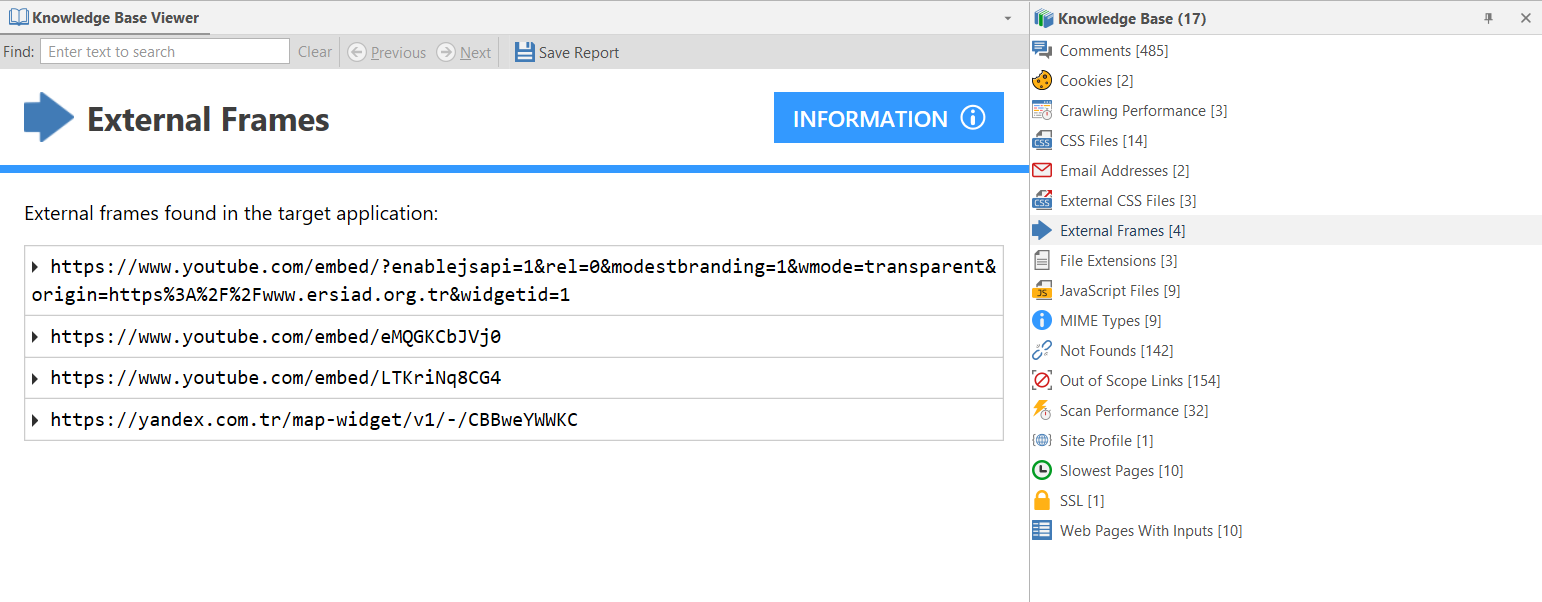
- Click the External Frames node. The information is displayed in an External Frames tab.

How to View the External Frames Node in Invicti Standard
- Open Invicti Standard
- Start a Scan or open a previously saved scan.
- The Knowledge Base is displayed on the right of the Scan Summary Dashboard. (If it is hidden, display it again using the Knowledge Base icon on the View tab on the ribbon. Alternatively, click the Reset Layout icon on the View tab, then close the Activity/Progress/Logs panes to give maximum viewing space.)
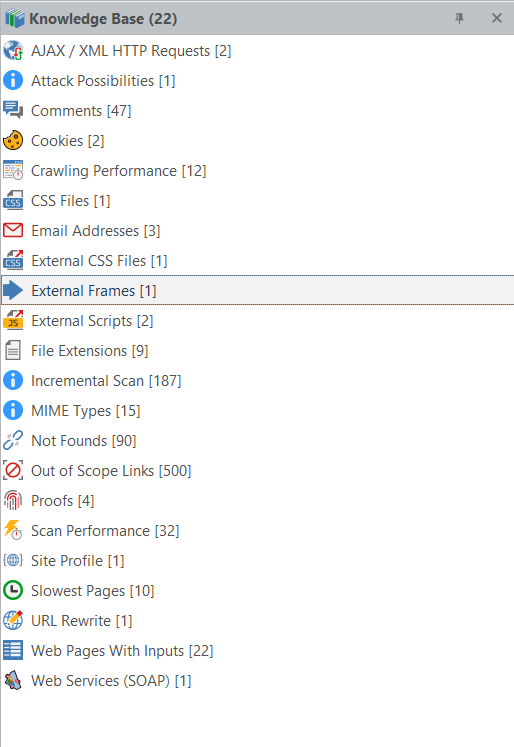
- Ensure that the Knowledge Base Viewer is also displayed. (If it is hidden, you can display it again using the Knowledge Base Viewer button on the View tab. You may also want to close the Activity/Progress/Logs panes.)
- Click the External Frames node in the Knowledge Base. All detected External Frames are displayed in the Knowledge Base Viewer.
Need help?
Invicti Support team is ready to provide you with technical help. Go to Help Center