General
In the General tab in Invicti Standard, you can change the UI language between English and Korean, enable and configure Sounds settings and set the UI Theme colour.
note
You must restart the application to apply these changes.
How to Configure the Language Option in Invicti Standard
- Open Invicti Standard.
- In the Home tab, click Options. The Options dialog is displayed, with the General tab open.
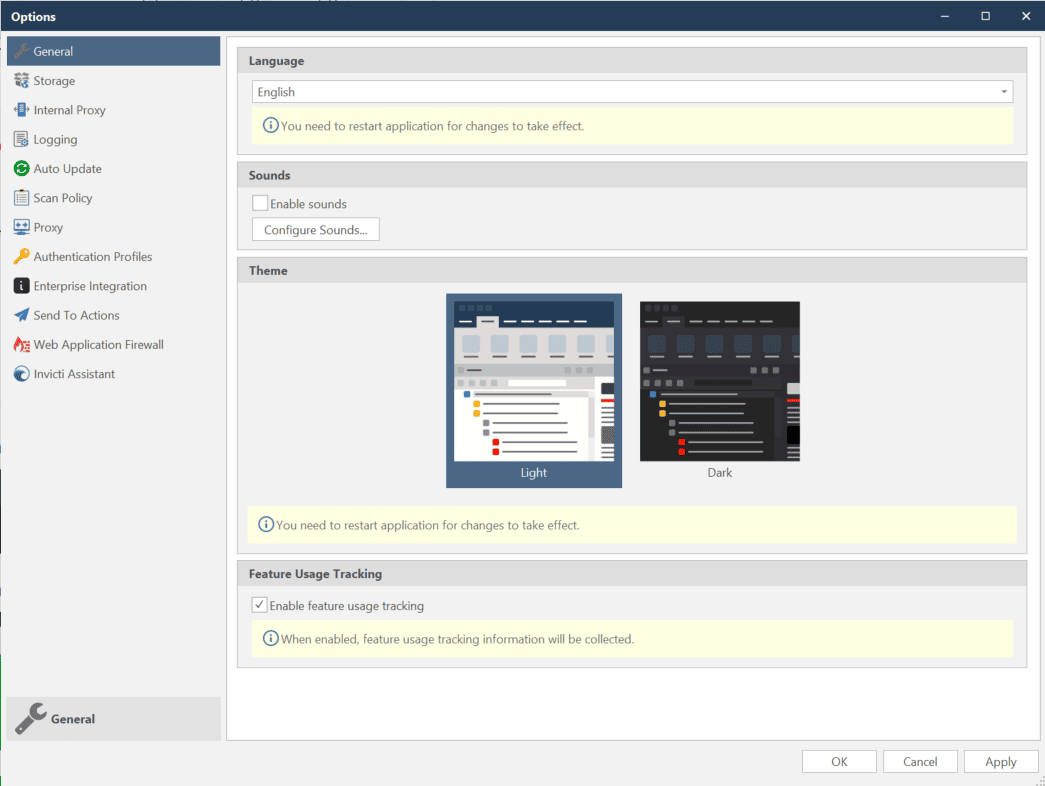
- From the Language drop-down, select English or Korean.

- Click Save.
- Close and reopen Invicti Standard.
How to Enable and Configure Sounds in Invicti Standard
- Open Invicti Standard.
- In the Home tab, click Options. The Options dialog is displayed, with the General tab open.
- Enable the Enable sounds checkbox.

- Click Configure Sounds. The Sound dialog is displayed with the Sounds tab open.

- Configure the settings as required.
- Click OK. You are returned to the Options dialog.
- Click Save.
How to Configure the Theme in Invicti Standard
- Open Invicti Standard.
- In the Home tab, click Options. The Options dialog is displayed, with the General tab open.
- In the Theme section, select an option to change the UI's colour:
- Light
- Dark

- Click Save.
How to Configure the Feature Usage Tracking in Invicti Standard
- Open Invicti Standard.
- In the Home tab, click Options. The Options dialog is displayed, with the General tab open.
- Deselect the Enable feature tracking usage checkbox.

If enabled, Invicti will collect feature usage tracking information. For further information, please see our Privacy Policy.
Need help?
Invicti Support team is ready to provide you with technical help. Go to Help Center
Was this page useful?