Internal Proxy
An Internal Proxy is used to facilitate the manual crawling feature. In cases where automatic crawling does not work as expected, or when users want to run a more controlled scan, this proxy should be started.
In the Internal Proxy tab in Invicti Standard, you can register as the System Proxy and allow Remote Connections. You can also use and export the Custom Root Certificate.
- If it is set as System Proxy, all programs (browsers, for example) that are set to use the system proxy will use Invicti as a proxy.
- If it is not set as System Proxy, programs should be configured specifically to use Invicti proxy.
For intercepting SSL/TLS traffic, a Root Certificate should be used.
How to Register as the Internal Proxy in Invicti Standard
- Open Invicti Standard.
- In the Home tab, select Options > Internal Proxy.
- The Register as the System Proxy checkbox is already enabled.
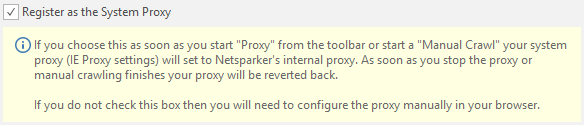
- Select Save.
How to Allow Remote Connections
- Open Invicti Standard.
- In the Home tab, select Options > Internal Proxy.
- Select the Allow Remote Connections checkbox.

- Select Save.
How to Use Custom Root Certificate
- Open Invicti Standard.
- In the Home tab, select Options > Internal Proxy.
- Select the Use Custom Root Certificate checkbox.

- Search for the certificate file name. Click Open.
- Select Save.
How to Export Root Certificate
- Open Invicti Standard.
- In the Home tab, select Options > Internal Proxy.
- Select Export Root Certificate. The Save Certificate As dialog is displayed.
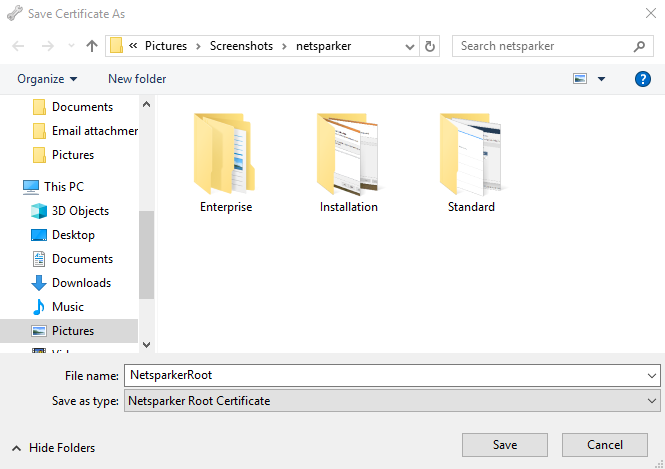
- Select the save location.
- Select Save.
Need help?
Invicti Support team is ready to provide you with technical help. Go to Help Center
Was this page useful?