Lists in Invicti
In Invicti Enterprise and Invicti Standard, you can generate and download different types of lists, based on scan findings, in various file formats.
-
Crawled URLs Lists show the URLs that were crawled by Invicti during the scan (LinkPool). This lets you see the scanner's coverage. It also reveals which URLs were accessible and which were not.
-
Scanned URLs Lists show the URLs that were scanned by Invicti (the process of the attacker). For example, if you expected to find a vulnerability at a certain URL, it is useful to know whether this URL was attacked during scanning and whether expected vulnerabilities were detected.
-
In the Scanned URLs List, a unique URL can be found for the links in the Crawled URLs list. For example:
https://site.com/page.php?section=contactshttps://site.com/page.php?section=aboutus
-
These two sample links can be found in the Crawled URLs list. But, while they are being attacked, only one link will be shown as the attacked URL:
https://site.com/page.php?section=
-
Invicti crawls links with different parameter values to find new links (there is a limit), but in the attacking phase, this is just one unique link.
-
-
Vulnerabilities Lists show all issues that were detected during the scan. This is a concise list that highlights the URL, severity type, parameter type, parameter name, and parameter value. It provides a quick overview of your website following a scan. This list can be used when integrating Invicti scan results with other tools. A more detailed version of the Vulnerabilities List (containing HTTP requests and responses, and proofs) can be exported as an XML file.
This table lists and explains the List options.
| List Option | Description |
|---|---|
| Crawled URLs List (CSV) | This is a list of the crawled URLs in a scan, in CSV file format. |
| Crawled URLs List (JSON) | This is a list of the crawled URLs in a scan, in JSON file format. |
| Crawled URLs List (XML) | This is a list of the crawled URLs in a scan, in XML file format. |
| Scanned URLs List (CSV) | This is a list of the scanned URLs in a scan, in CSV file format. |
| Scanned URLs List (JSON) | This is a list of the scanned URLs in a scan, in JSON file format. |
| Scanned URLs List (XML) | This is a list of the scanned URLs in a scan, in XML file format. |
| Vulnerabilities List (CSV) | This is a list of the vulnerabilities found in a scan, in CSV file format. |
| Vulnerabilities List (JSON) | This is a list of the vulnerabilities found in a scan, in JSON file format. |
| Vulnerabilities List (XML) | This is a list of the vulnerabilities found in a scan, in XML file format. |
| Vulnerabilities List – Detailed (XML) | This is a Invicti Standard only, detailed list of the vulnerabilities found in a scan, in XML file format. |
How to Generate and Download a List in Invicti Enterprise
- Log in to Invicti Enterprise.
- From the main menu, select Scans > Recent Scans.
- Next to the relevant scan, select Report. The Scan Summary window is displayed.
- From the Scan Summary window, select Export.
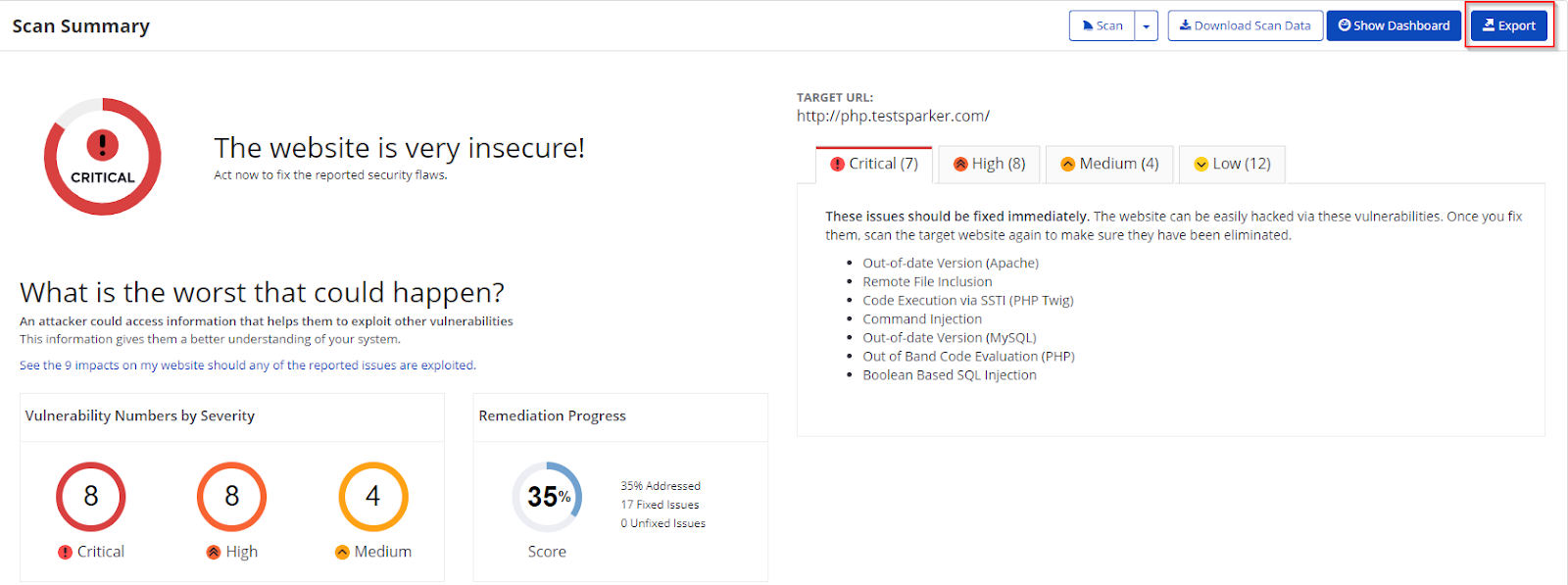
- From the Export Report dialog, select the List you want to export:
- Vulnerabilities List: Provides a list of vulnerable URLs.
- Crawled URLs: Provides a list of crawled URLs by Invicti.
- Scanned URLs: Provides a list of scanned URLs by Invicti.
- From the Format drop-down, select an option.
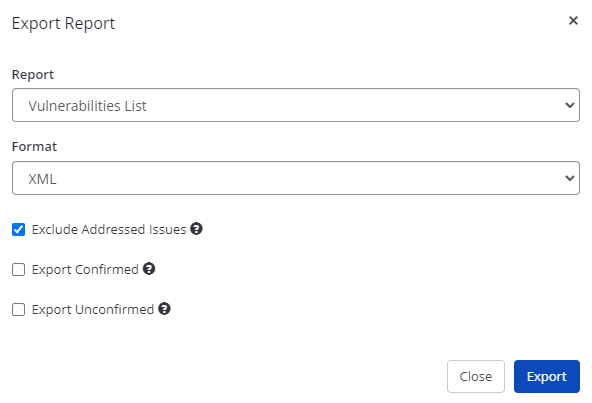
- If required, select one of the following to configure your report:
- Exclude Addressed Issues: Excludes those issues on which you've already taken action.
- Export Confirmed: Includes only those issues that are confirmed.
- Export Unconfirmed: Includes only those issues that are unconfirmed.
- Select Export. You can view the report in the save location.
How to Generate and Download a List in Invicti Standard
- Open Invicti Standard.
- From the ribbon, select the File tab. Recent scans are displayed.
- Select the relevant scan.
- From the ribbon, select the Reporting tab. The Lists are displayed.

- Select the list you want to generate. The Export Report dialog and the Save Report As dialog are displayed.
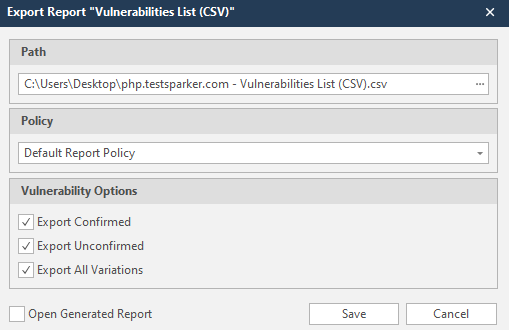
- In the Save Report As dialog:
- In the File name field, change the file if required.
- In the Save as type field, change the file location, if required (this location is used to populate the Path field in the Export Report dialog).
- Click Save.
- The Export Report dialog is also displayed at this point, with the Path field already populated from the previous dialog.
- Policy: Select the default report policy or customized report policy (see Custom Report Policies).
- Vulnerability Options (select one or all):
- Export Confirmed: Includes confirmed vulnerabilities.
- Export Unconfirmed: Includes unconfirmed vulnerabilities.
- Export All Variations: If Invicti identified some passive or Information level issues in more than one page, it does not show all these variations. You can change this by enabling or disabling this option.
- Open Generated Report: When selected, your report(s) will be shown when you select Save.
- Select Save.
Need help?
Invicti Support team is ready to provide you with technical help. Go to Help Center