Built-in reports
Invicti has several built-in reports that provide you with both an overview and an in-depth look at the security state of all your websites and web applications.
- It also has a Reporting tool that allows you to generate your own statistical reports, allowing you to better manage the security of all your web applications.
- You can also export the scan results as either an HTML or PDF Detailed Scan Report, or several other report types such as a list of all identified vulnerabilities in XML format.
For more information, refer to the Chart Reports, Report Templates, and Lists documents.
Generic trend and status security reports
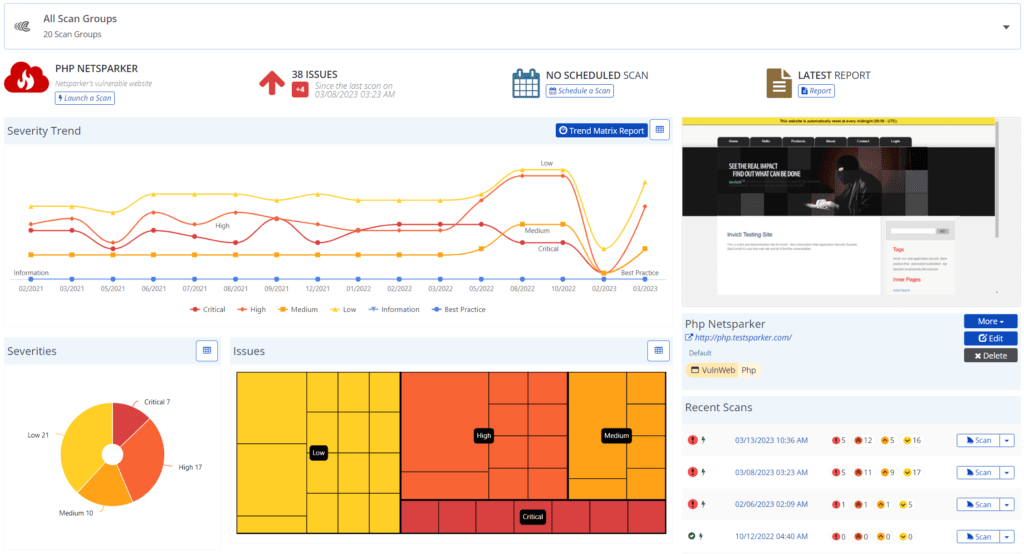
From the global, websites group, or single website dashboard in Invicti Enterprise, you can get a good overview of the security state of all your websites. For more information on reports available on the Dashboard, refer to the Viewing the Global Dashboard in Invicti Enterprise document.
Trend matrix reports
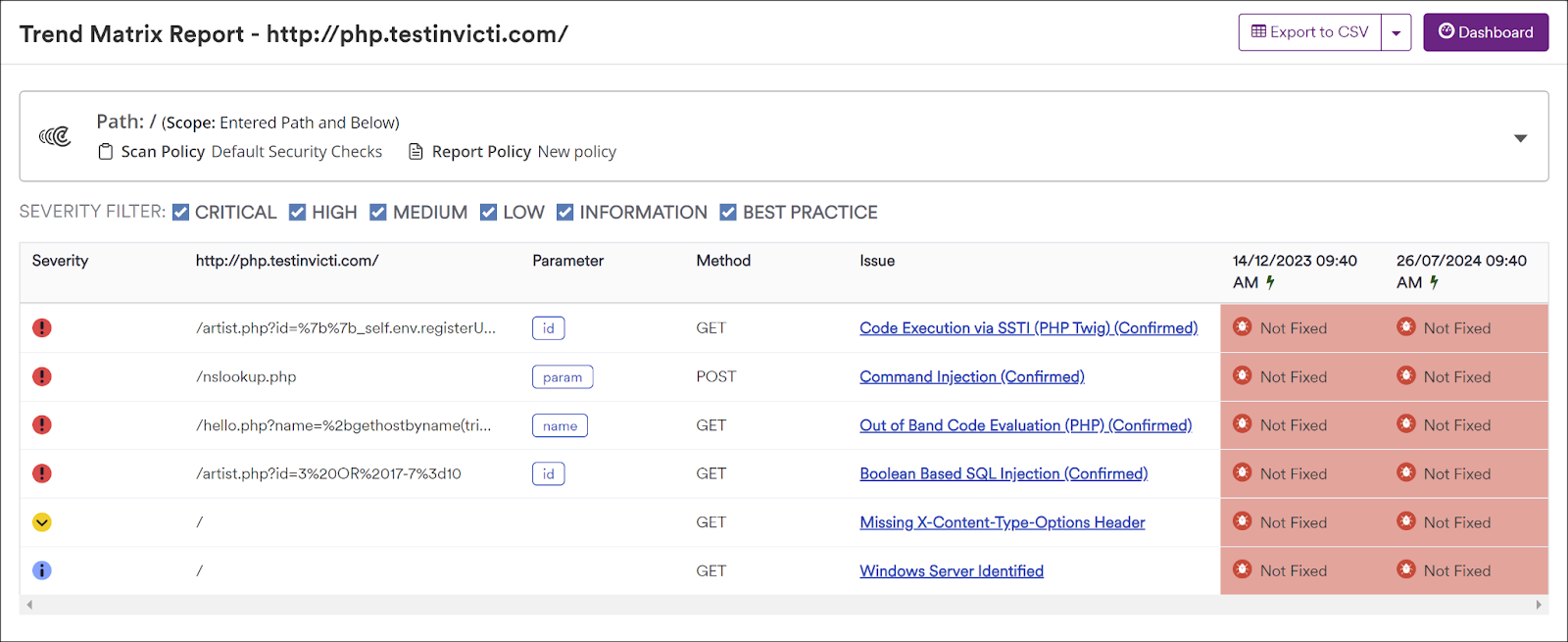
The Trend Matrix Report allows you to see correlated trending data about the status of the identified vulnerabilities throughout several scans. It provides you with detailed information about every vulnerability that was identified on a single website, such as when it was found, fixed, and if it was revived in future scans, etc.
To generate a trend matrix report, you need to scan the website more than once.
You can access the Trend Matrix report from the Scan Summary Dashboard in Invicti Enterprise, which displays scanning information for a single website (refer to the Scan Summary Dashboard in Invicti Enterprise) document.
From the Trend Matrix Report, you can see when a vulnerability was identified, fixed, and maybe even identified again in later scans. Therefore, apart from allowing you to get an overview of the security state of a website, the trending report also allows you to easily track the progress and work of the developers.
Scan report
Once a web security scan is ready, you can also access the report of that scan in both Invicti Enterprise and Invicti Standard. This report allows you to see all the technical details about every identified vulnerability.
In Invicti Enterprise, scan results are generated automatically. The scan report consists of two parts - Scan Summary and Technical Report. While the Scan Summary presents a general overview of the scan, the Technical Report provides detailed information about the scan. For technical details, refer to the Technical Report document.
View the scan report in Invicti Enterprise
Scan results are generated automatically in Invicti Enterprise.
- First, run a scan.
- Select Scans > Recent Scans from the left-side menu.
- Next to the relevant scan, click Report.

The Scan Summary Dashboard is displayed, showing the scan results for that website. For more information, refer to the Viewing the Scan Summary Dashboard in Invicti Enterprise document.
View the scan report in Invicti Standard
- First, run a scan.
- The scan results are displayed in the Central Panel.
For more information, refer to the Scan Summary Dashboard in Invicti Standard document.
Find the scan ID of a report
- Run a report (refer to the Scan Results Report document).
- In the report's URL (which is similar to
https://www.netsparkercloud.com/scans/report/[ScanId]/), find the ScanId, and keep it somewhere safe. You need the value of the ScanId later to identify the base scan of the Incremental Scan.

Need help?
Invicti Support team is ready to provide you with technical help. Go to Help Center