Add dynamic URL target
In CI/CD workflows, you may need to run DAST scans on environments that are created temporarily during pipeline execution. To support this use case more effectively, the Invicti Platform introduces Dynamic URL targets (also known as ephemeral targets)—a streamlined solution for scanning short-lived environments.
Previously, you had to create a new target for each URL, which could lead to unnecessary license usage, a cluttered target list, or even loss of scan results when temporary targets were deleted. With dynamic URL targets, you can initiate scans directly from your CI/CD pipeline without having to configure or manage persistent targets in the UI, making the process simpler and more efficient.
Ephemeral targets are designed specifically for scans triggered from CI/CD workflows and are ideal for integrating seamlessly into temporary environments spun up during pipeline execution.
When you create a target, even if it's ephemeral, it uses a single FQDN. As long as the URL belongs to the same application, you can change it in the script as often as needed without using another FQDN.
This document describes how to create an ephemeral development target in Invicti Platform.
Steps to add an ephemeral target
- Select Inventory > Targets from the left-side menu.
- Select Add new target.
- Enter the name and the URL of the target and enable the Is this an ephemeral (short-lived) development target? checkbox. The URL mustn't contain any whitespace or spaces, as this is going to cause a warning message to appear. If you add a space before or after the URL, it is going to be automatically removed.
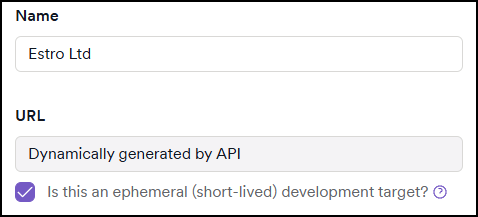
The URL isn't needed for ephemeral targets. Instead, the Dynamically generated by API text is used.
- By default, new targets use the Invicti Cloud Agent, which can scan any publicly available site without additional configuration. Choose the agent that best matches your scan environment and security requirements.
- Invicti Cloud agent (default): This is Invicti’s managed cloud-based agent, suitable for scanning publicly accessible websites. It requires no setup and is ideal for most internet-facing applications.
- Private agent: You can also use your own installed scan agent to scan internal or restricted environments not accessible from the public internet.
- Assign the target to an environment (for example, development, staging, production) to help organize and manage scans. Environments are defined in Settings > Environments and must be created there before use.
- Select a parent application to group the target with related assets. Applications serve as central units for managing vulnerabilities and improving analysis across connected targets.
We recommend always linking an ephemeral target to an application. This ensures you can easily identify which application the CI process is associated with. Associating ephemeral targets with applications adds structure, clarity, and accountability to your security testing process.
- Choose a collection to organize the target based on business context or custom criteria. Collections support tailored security management and reporting.
- Add tags to further group and filter targets. After typing, submit each tag by pressing Enter. Tags assist with quick identification, categorization, and filtering in reports and views.
- Confirm the target creation by pressing Add target.

- The targets page is updated with your new target.

Scans can only be triggered via the API or during CI/CD. They can't be initiated from the UI with the dynamic URL. For information on how to scan dynamic URL targets, refer to the linked document.
Need help?
Invicti Support team is ready to provide you with technical help. Go to Help Center