Package: Invicti API Security Standalone or Bundle
Access requirements: Access to API Security in Invicti Platform requires either an Administrator, Owner, Security Analyst, Security Manager role, or a custom role with the API Security permission.
Create targets from API Discovery
Once API Discovery identifies APIs in your environment, you can create targets from these discovered APIs to enable vulnerability scanning. This document explains both single target creation for individual APIs and bulk target creation when you need to process multiple APIs simultaneously.
When to use each approach
Single target creation is ideal when you:
- Need to carefully configure individual APIs with specific settings
- Have only a few APIs to process
- Want to review each API's baseURL and configuration individually
- Are working with APIs that require different target settings
Bulk target creation is ideal when you:
- Have a large number of APIs (tens, hundreds, or more) to process
- Want to apply consistent settings across multiple APIs
- Need to quickly transition from discovery to active scanning
- Are processing APIs that can use similar configurations
This functionality is only available for Invicti Platform and works with APIs that haven't been linked to targets yet.
Steps to create a single target from API Discovery
For individual API processing, follow these steps:
-
Select Discovery > API Discovery from the left-side menu.
-
In the API discovery table, locate the API you want to create a target for.
-
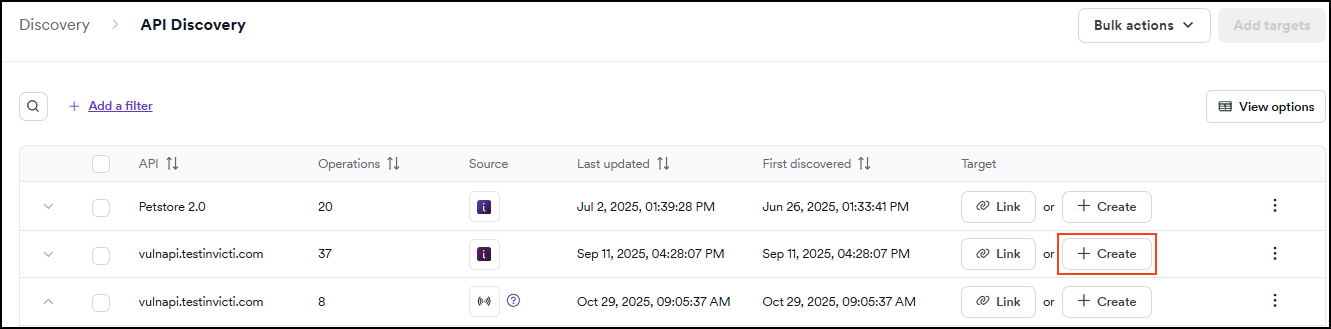
In the Target column for that API, click Create to create a new target for the API.
-
You'll be taken to the target creation form where you can:
- Name: specify a name for your target (defaults to API name)
- URL: the baseURL from the API specification is pre-filled, but you can modify it, select from multiple baseURLs if available, or type a new target URL
- Agent: choose between Invicti Cloud agent or a private agent
- Environment: select the deployment environment
- Parent application: assign to a parent application for grouping
- Collection: organize the target based on business context
- Tags: add labels for categorization and filtering
-
Click Create target to complete the process.
The API is now going to move from API discovery to the API Catalog and be ready for vulnerability scanning.
Steps to bulk create targets
For processing multiple APIs simultaneously:
-
Select Discovery > API Discovery from the left-side menu.
-
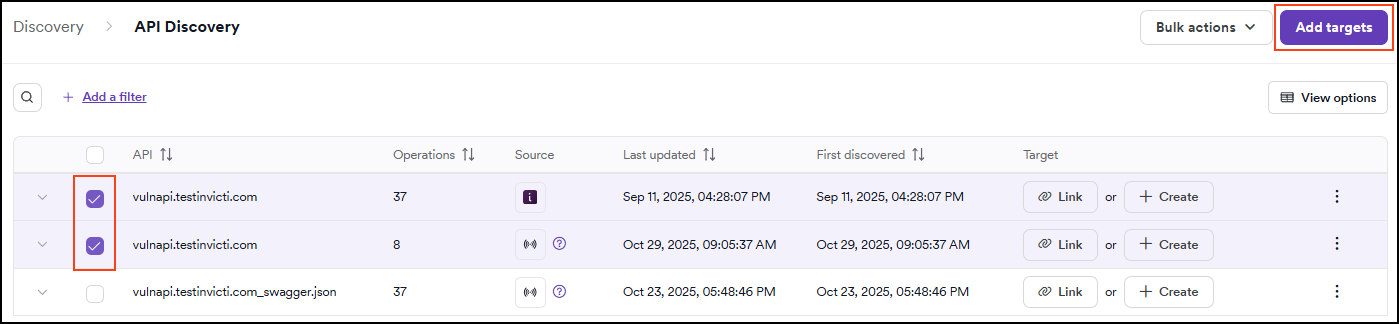
In the API discovery table, identify and pick the APIs you want to create targets for by checking the boxes next to each API.
Use the filters and sorting options to help identify the APIs you want to target. For example, sort by "Operations" to prioritize APIs with the most endpoints, or filter by "Source" to focus on APIs discovered through specific methods.
- With your APIs selected, click Add targets in the upper right-hand corner.
- The multiple target creation page is going to open, showing new assets to be created. For each asset, configure the following:
Refer to Steps to add multiple targets for full description of all fields that you can populate.
- Name: enter the target name.
- URL: this is pre-filled for you.
- Agent: choose between Invicti Cloud agent or a private agent
- Environment: select the deployment environment.
- Application: assign to a parent application for grouping related assets.
- Collection: organize targets based on business context.
- Tags: add labels for categorization and filtering.
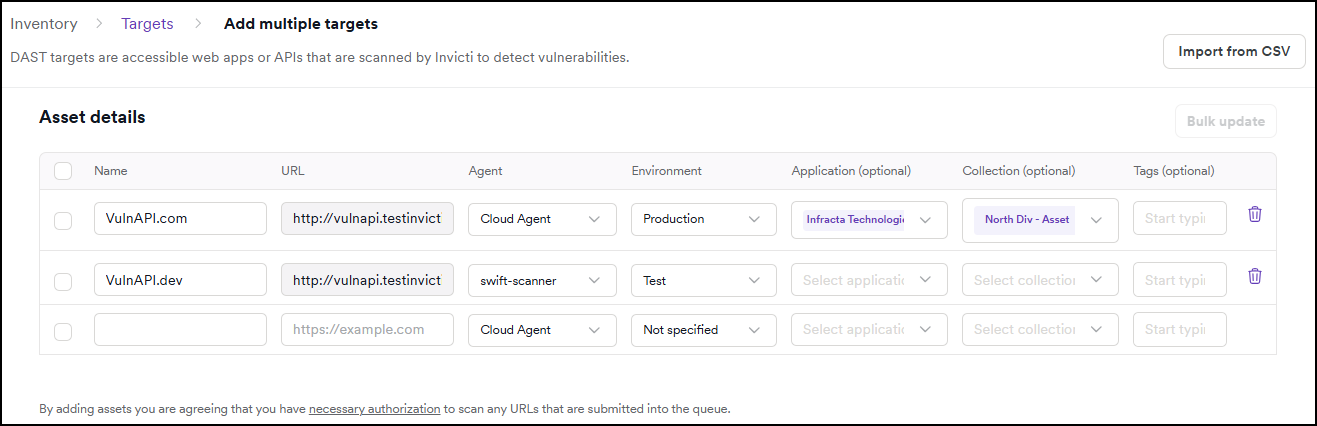
- Click Add targets (X) to proceed with the bulk creation.
How URL handling works
The URL handling differs between single and bulk target creation:
Single target creation
- No baseURL available: you must specify a baseURL manually
- One baseURL available: the baseURL is automatically pre-filled, but you can modify it if needed
- Multiple baseURLs available: you can choose from a dropdown list of available baseURLs or specify your own custom baseURL
Bulk target creation
- No baseURL available: you must specify a baseURL for each API
- One or multiple baseURLs available: the first baseURL is automatically pre-filled and can't be changed during bulk creation
Once a baseURL is set during target creation, it becomes the default baseURL in the API catalog. Other baseURLs from the specification are retained for reference but only one baseURL per target can be active.
After target creation
Once targets are successfully created:
- the APIs move from API discovery to the API catalog
- each API is now linked to its corresponding target
- targets are ready for vulnerability scanning
- you can manage the new targets from Inventory > Targets
Best practices
For single target creation
- Review API specifications: take time to examine the API specification and choose the most appropriate baseURL.
- Use descriptive names: give targets meaningful names that reflect their purpose and environment.
- Verify URL requirements: ensure the API baseURL is a subset of the target URL when linking to existing targets.
- Check licensing: remember that creating a new target uses one of your available FQDNs (licenses).
For bulk operations
- Start with similar APIs: group APIs that are going to use the same settings (agent, environment, etc.) for more efficient bulk processing.
- Review baseURLs carefully: ensure the automatically selected URLs are correct for your intended scanning targets.
- Use consistent naming: establish a naming convention for your targets.
- Use filters effectively: narrow down your API list using source, discovery date, or operations count filters before bulk selection.
- Process in batches: for very large numbers of APIs, consider creating targets in manageable batches.
- Verify target settings: after bulk creation, spot-check a few targets to ensure settings were applied correctly.
Troubleshooting
Common issues
Missing baseURL: if an API specification doesn't contain a baseURL, you must provide one manually. This commonly occurs with:
- incomplete API specifications
- internal APIs with relative paths only
- legacy API documentation
Invalid baseURL format: ensure your baseURLs:
- include the protocol (http:// or https://)
- don't contain trailing spaces
- use valid domain names or IP addresses
Permission errors: verify you have the necessary permissions to:
- create targets in your selected environment
- access the chosen application or collection
- use the selected scanning agent
Related documentation
- API discovery overview
- Add a target
- Add multiple targets
- API catalog overview
- View discovered API endpoints
Need help?
Invicti Support team is ready to provide you with technical help. Go to Help Center