Microsoft ADFS integration with SAML
ADFS is a software solution developed by Microsoft that can run as a component on Windows Server operating systems. It provides SSO to applications that cross organization boundaries by the secure sharing of entitlement rights and digital identity. AD FS can be configured to authenticate users stored in an LDAP directory (for more information, refer to the Microsoft Configure AD FS to authenticate users stored in LDAP directories document.).
These instructions were prepared using Windows Server 2022.
This document explains how to configure Active Directory Federation Services (ADFS) and Invicti Platform for Single Sign-On.
Configure Microsoft AD FS with SAML
There are two parts to this procedure:
- Step 1: Add a Relying Party Trust
- Step 2: Edit the Claim Issuance Policy
Step 1: Add a Relying Party Trust
- Open Microsoft Active Directory Federation Services Management.
- From theADFS node, select Relying Party Trusts.
- In the Actions panel, select Add Relying Party Trust.
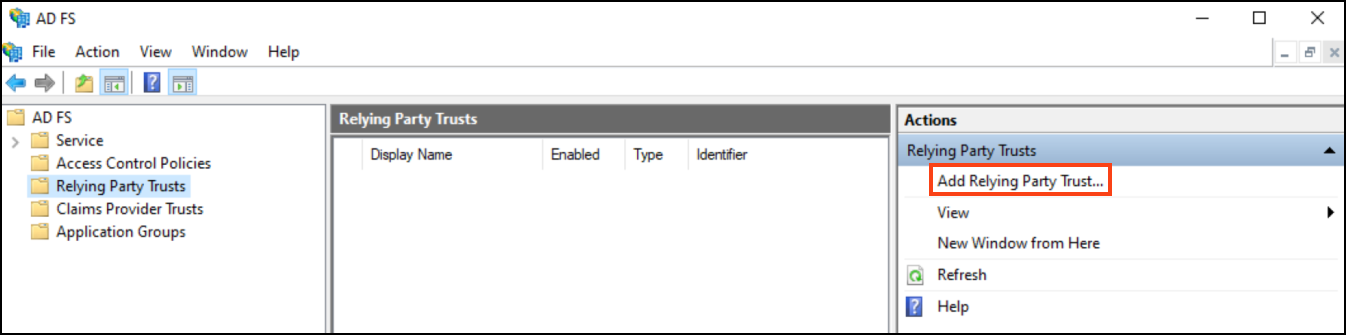
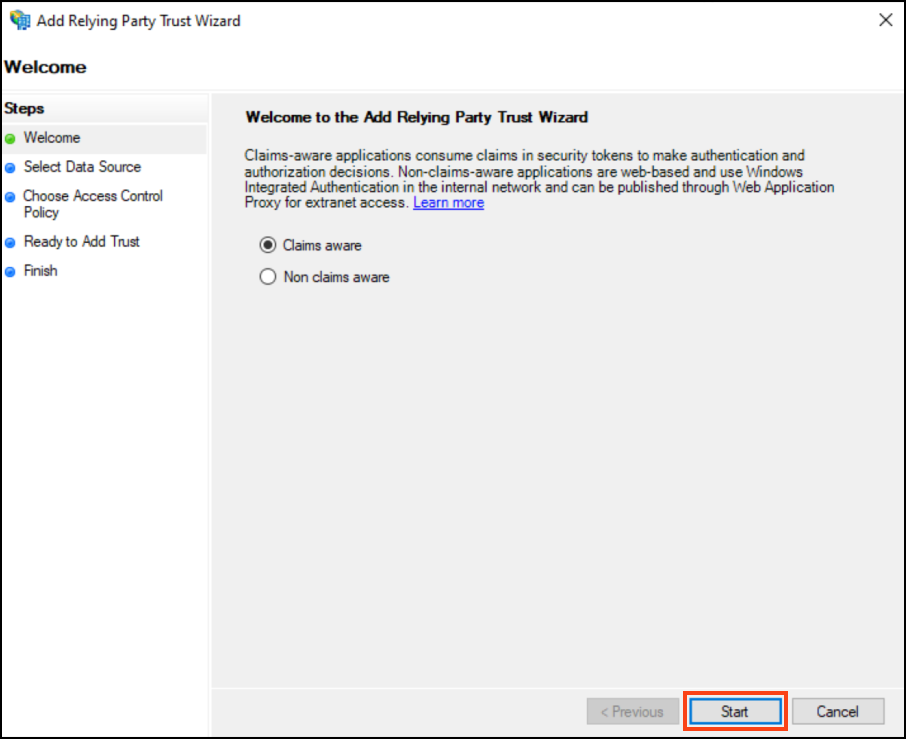
- In the Welcome step, click Start.
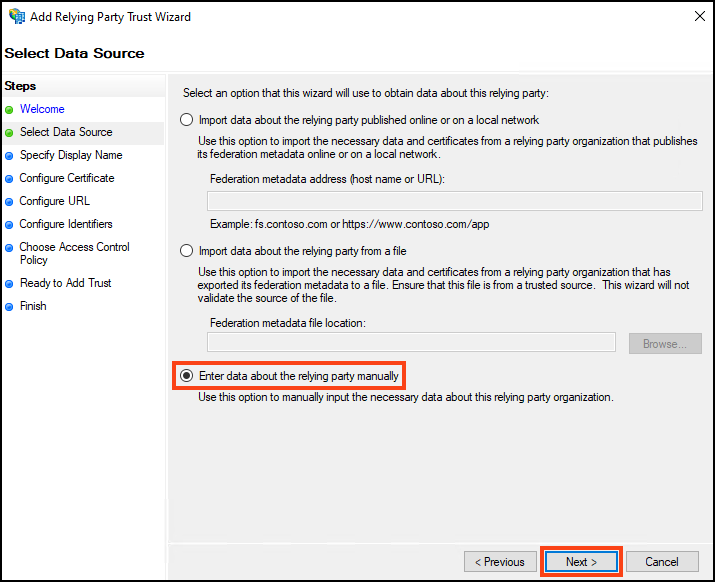
- Select Enter data about the relying party manually, and click Next.
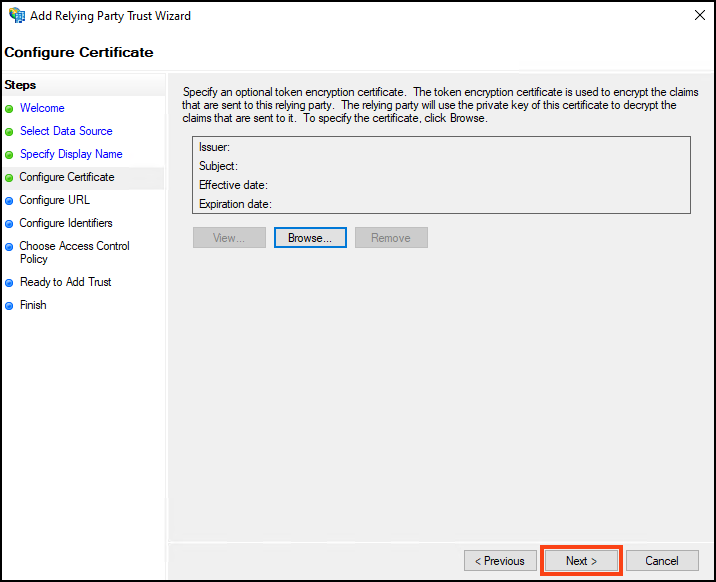
- In the Display Name field, enter a display name, then click Next. The Configure Certificate step is displayed.
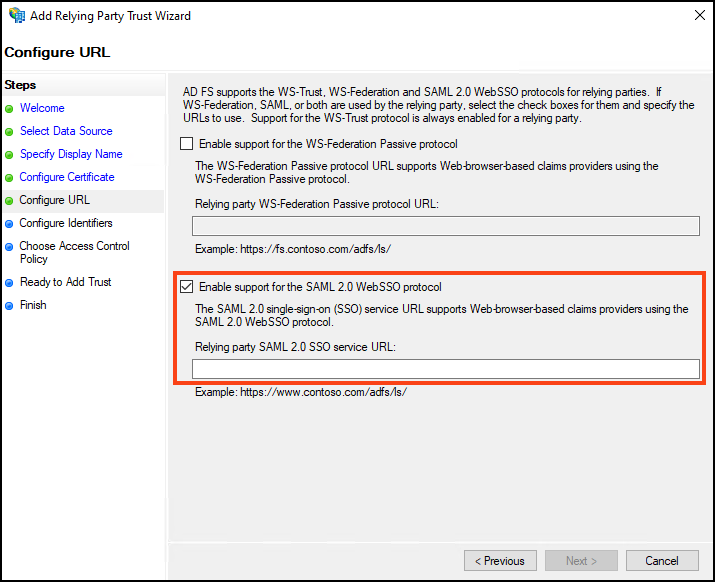
- Accept the defaults by selecting Next. The Configure URL step is displayed.
- Select Enable support for the SAML 2.0 WebSSO protocol.
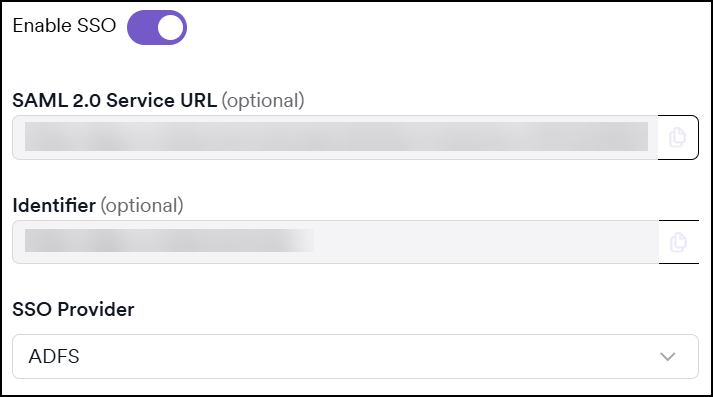
- Log in to Invicti Platform and from the menu, select Settings > Security & access control > SSO & Provisioning.
- Turn on the Enable SSO toggle.
- Select ADFS from the SSO Provider drop-down list.
-
Copy the URL from the SAML 2.0 Service URL field. Then, in the Microsoft ADFS Wizard, paste the URL into the Relying party SAML 2.0 SSO service URL field.
-
In the Microsoft ADFS Wizard, select Next. The Configure Identifiers step is displayed.
-
Copy the URL from the Identifier field in Invicti. Then, in the Microsoft ADFS Wizard, paste the URL into the Relying party trust identifier field.
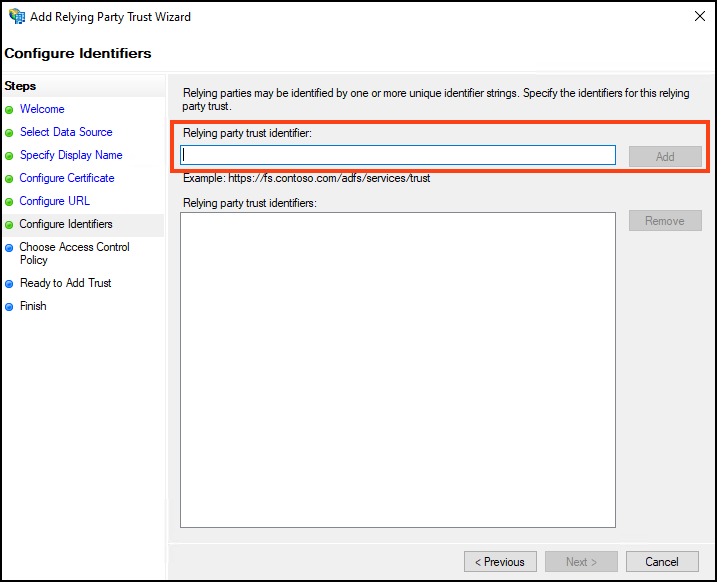
- Select Add, then Next. The Choose Access Control Policy step is displayed.
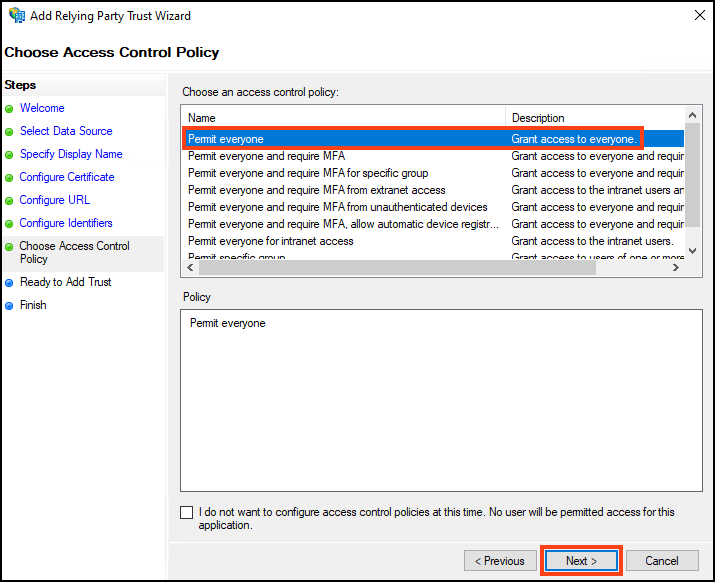
- Select Permit everyone, then click Next. The Ready to Add Trust step is displayed.
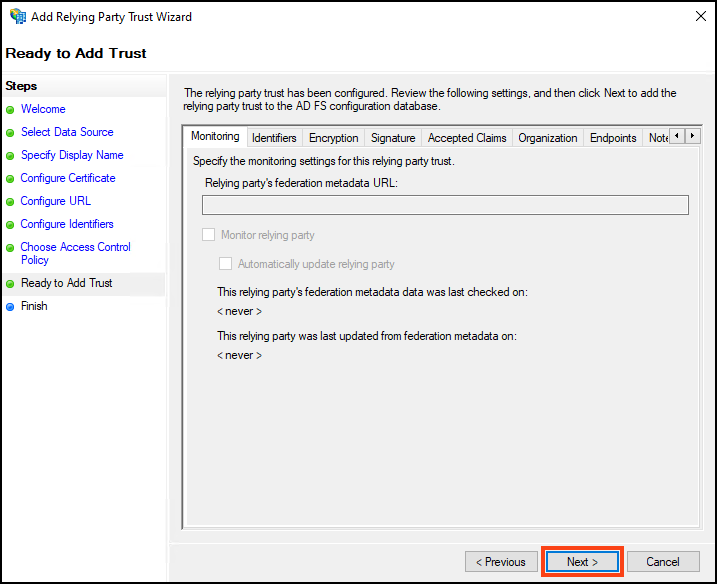
- Review your settings, and select Next. The Finish step is displayed.
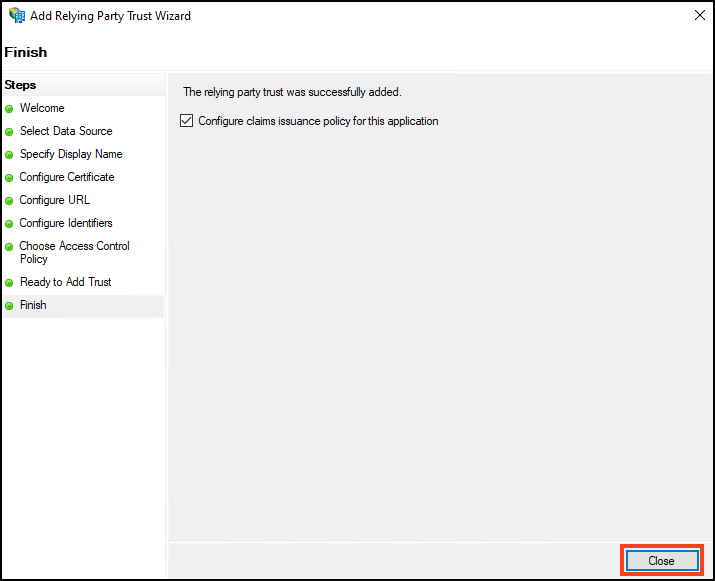
- Click Close.
Step 2: Edit the Claim Issuance Policy
- Open Microsoft Active Directory Federation Services Management.
- From the ADFS node, select Relying Party Trusts. The Relying Party Trust you have just created is listed in the Central Panel.
- Right-click the relying party trust and choose Edit Claim Issuance Policy. The Edit Claim Issuance Policy dialog box is displayed.
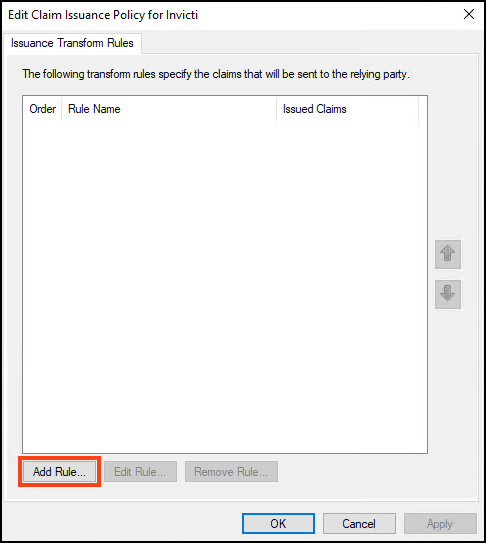
- Click Add Rule. The Add Transform Claim Rule wizard is displayed.
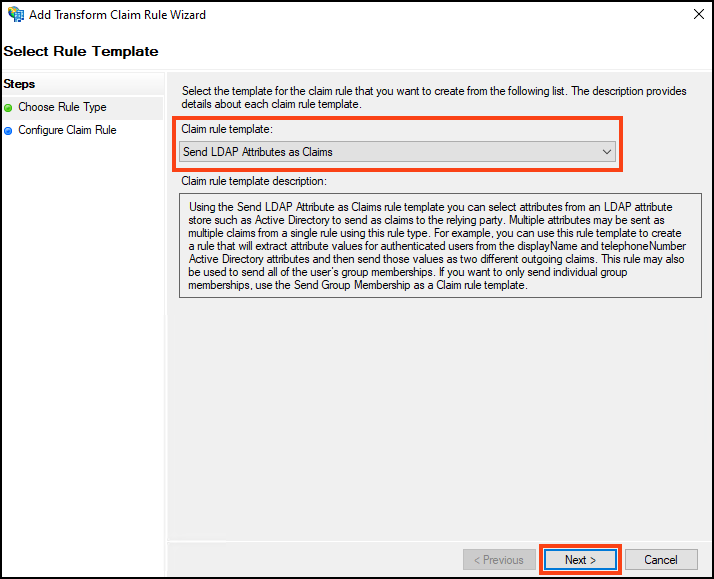
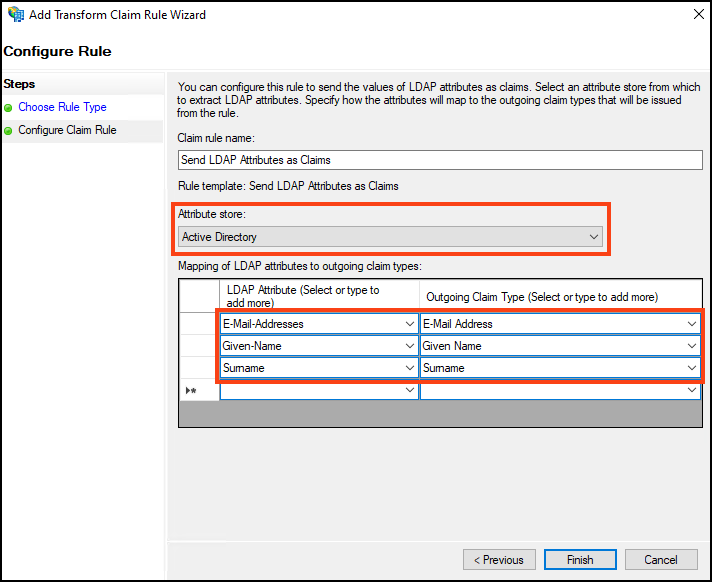
- From the Claim rule template drop-down, select Send LDAP Attributes as Claims.
- Click Next.
-
In the Claim rule name field, enter a name.
-
From the Attribute store drop-down, select Active Directory.
-
In the Mapping of LDAP attributes to outgoing claim types section, select the following attributes from the drop-down lists.
| LDAP Attributes | Outgoing Claim Type |
|---|---|
| E-Mail-Addresses | E-Mail Address |
| Given-Name | Given Name |
| Surname | Surname |
- Click Finish to display the Edit Claim Issuance Policy window.
- Click Add Rule.
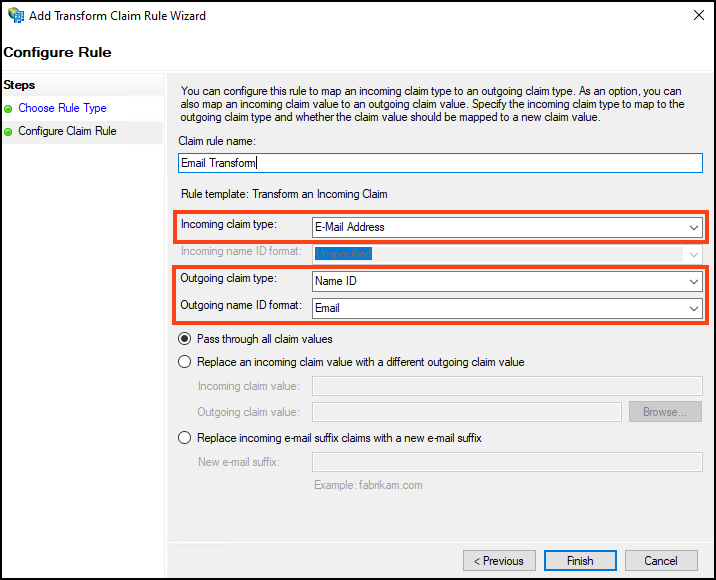
- Select Transform an Incoming Claim as the claim rule template to use and click Next.
- Configure the Transforming an Incoming Claim as shown in the following image:
- Enter Claim rule name. In this example Email Transform is used.
- In Incoming claim type drop-down select: E-Mail Address.
- In Outgoing claim type drop-down select: Name ID.
- In Outgoing name ID format drop-down select: Email.
- Click Finish.
- Download ADFS SAML Metadata from
https://<server-address>/FederationMetadata/2007-06/FederationMetadata.xml - Open the downloaded ADFS SAML metadata file and copy the URL located in the EntityDescriptor node > entityID attribute.
- From Invicti Platform's main menu select Settings > Security & access control > SSO & Provisioning.
- Turn on the Enable SSO toggle.
- Select ADFS from the SSO Provider drop-down list.
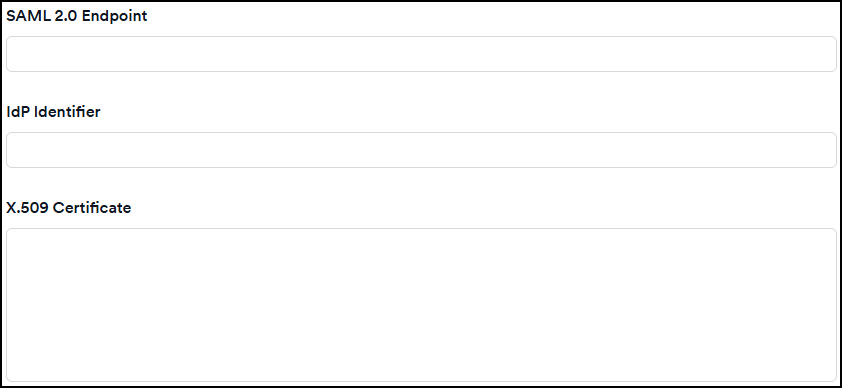
- Paste the URL from Step 16 into the IdP Identifier field.
- Copy the URL from the SingleSignOnService node > Location attribute field in the ADFS SAML metadata file.
- Paste the URL into the SAML 2.0 Endpoint field in Invicti.
- Copy the content of the X509 Certificate node (signing) in the ADFS SAML metadata file.
- Paste it into the X.509 Certificate field in Invicti.
- Select the checkboxes for signed assertions, encrypted assertions, or sign requests as needed.
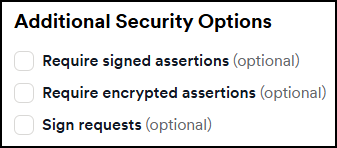
- If you enable any assertions or requests, a new section appears where you can generate a new certificate or upload an existing one.
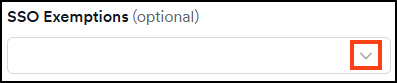
- Use the Invicti's SSO Exemptions drop-down to select users who can log in to Invicti via password.
- Click Save to finish the configuration.
To learn more about the Single Sign-On fields, refer to the Single Sign-On configuration document.
Need help?
Invicti Support team is ready to provide you with technical help. Go to Help Center