Package: Invicti AppSec Core (on-demand)
4me Integration
4me is a cloud-based Enterprise Service Management (ESM) platform designed for collaborative service delivery between internal and external service providers. The Invicti AppSec integration with 4me enables security teams to create and track 4me requests or incidents from discovered vulnerabilities, and map vulnerability lifecycle states to 4me's issue statuses for automated synchronization.
Purpose in Invicti AppSec
4me is used in Invicti AppSec as an Issue Manager — a tool for creating, tracking, and syncing tickets with external service management systems.
| Use Case | Description |
|---|---|
| Ticket creation from vulnerabilities | Create 4me requests directly from vulnerability findings in Invicti AppSec |
| Status synchronization | Map Invicti AppSec vulnerability states (Open, In Progress, Closed, Unassigned, Pending) to 4me's native issue statuses |
| Remediation tracking | Track security issue remediation through 4me's service lifecycle |
Where It Is Used
| Page | Navigation Path | Purpose |
|---|---|---|
| Integrations — Issue Managers | Integrations › Issue Managers | Admin activation and global configuration |
| Project Settings | Project › Settings › Issue Managers | Link 4me to a specific project for automated ticket creation |
| Vulnerability List | Project › Vulnerabilities | Manually create a 4me ticket for a specific vulnerability |
| Team Lead Integrations | Team Lead view › Integrations › Issue Managers | Team leads activate instances delegated by admins |
Prerequisites
Before activating the integration, gather the following credentials from your 4me account:
| Field | Description | Required |
|---|---|---|
| Token | A Personal Access Token or API token generated from your 4me account | Yes |
| URL | Your 4me instance URL (e.g., https://your-company.4me.com) | Yes |
| Insecure | Enable only if your instance uses a self-signed SSL certificate | No |
Obtain Credentials (on the 4me Side)
API Token:
- Log in to your 4me account.
- Click your profile avatar in the top-right corner.
- Go to My Profile › Personal Access Tokens.
- Click New Personal Access Token, give it a name (e.g.,
invicti-aspm), and select the required scopes. - Copy the token — it will not be shown again after this page is closed.
- Ensure the token belongs to an account with access to create and manage requests.
Instance URL:
- Your 4me instance URL is visible in the browser address bar when logged in.
- Use only the base URL (e.g.,
https://acme.4me.com) without any path.
Activation Steps
Step 1: Navigate to Integrations
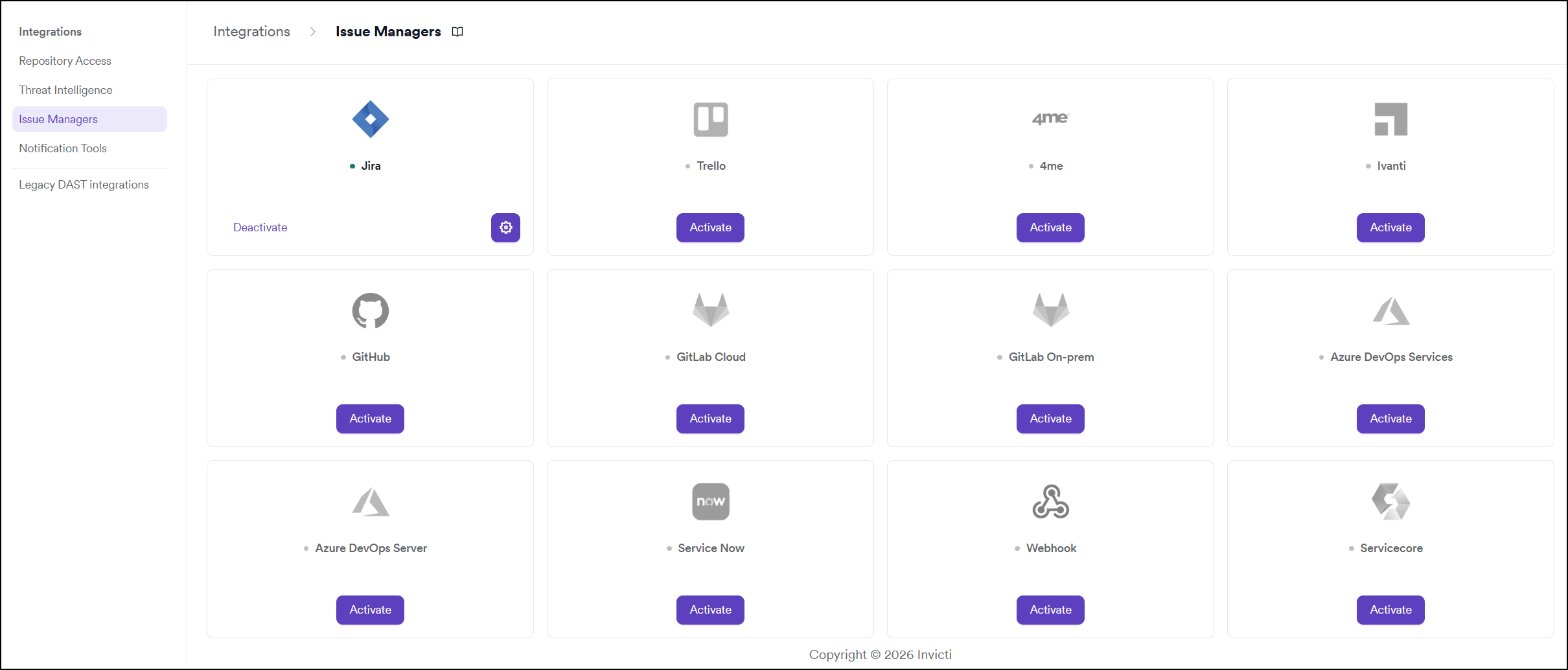
From the left sidebar, click Integrations.
Step 2: Open the Issue Managers Tab
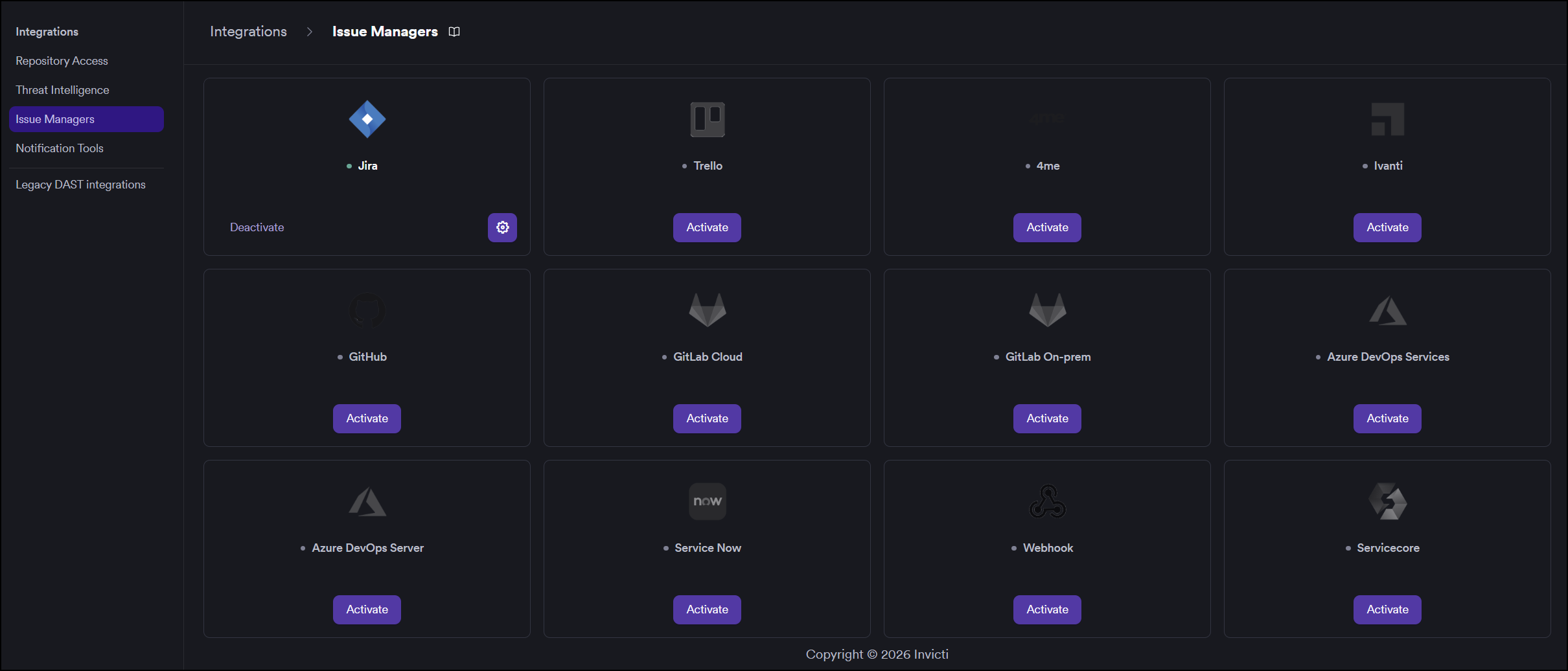
On the Integrations page, click the Issue Managers tab.
Step 3: Find and Activate 4me
Locate the 4me card.
- If it is not yet activated, click Activate to open the settings drawer.
- If it is already activated, click the gear icon to reconfigure.
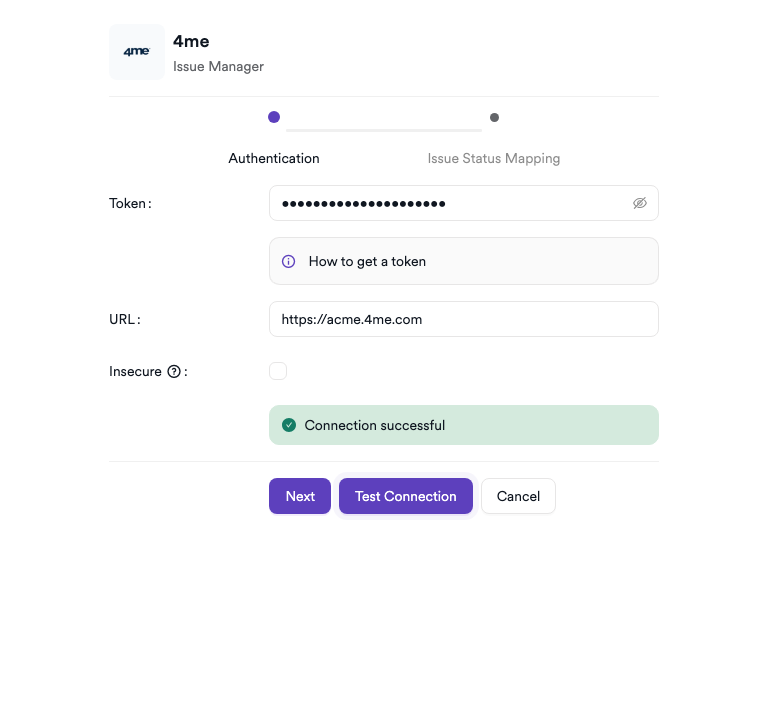
Step 4: Fill In the Required Fields (Step 1 — Authentication)
The 4me integration uses a two-step setup process.
In the first step (Authentication), enter the required credentials:
| Field | Description | Required |
|---|---|---|
| Token | Your 4me Personal Access Token | Yes |
| URL | Your 4me instance base URL | Yes |
| Insecure | Enable for self-signed SSL certificates | No |
Step 5: Test the Connection
Click Test Connection. A green "Connection successful" message confirms that Invicti AppSec can reach your 4me instance.
Step 6: Configure Issue Status Mapping (Step 2)
Click Next to proceed to the Issue Status Mapping step. Map each Invicti AppSec vulnerability state to the corresponding 4me status:
| Invicti AppSec State | Description |
|---|---|
| When Opening | 4me status to set when a vulnerability ticket is first opened |
| When In Progress | 4me status to set when remediation is actively underway |
| When Closing | 4me status to set when the vulnerability is resolved |
| When Unassigned | 4me status for unassigned vulnerabilities |
| When Pending | 4me status for vulnerabilities pending review or action |
The available statuses in each dropdown are loaded from your 4me instance after a successful connection.
Step 7: Save
Click Save to complete the activation.
Summary
| Step | Action |
|---|---|
| 1 | Navigate to Integrations from the sidebar |
| 2 | Select the Issue Managers tab |
| 3 | Find 4me and click Activate (or the gear icon) |
| 4 | Enter Token and URL in the Authentication step |
| 5 | Click Test Connection — verify the success message |
| 6 | Click Next and configure Issue Status Mapping |
| 7 | Click Save |
Troubleshooting
| Issue | Resolution |
|---|---|
| Connection failed | Verify that the Token and URL are correct and that the 4me instance is reachable from the Invicti AppSec network. |
| 401 Unauthorized | The Personal Access Token is invalid or expired. Regenerate the token in 4me and retry. |
| No statuses listed in Issue Status Mapping | The token may lack the required permissions to read 4me statuses. Ensure the token has sufficient API access scopes. |
| URL invalid | Ensure the URL contains the protocol (https://) and no trailing path. Use only the base URL. |
| SSL / certificate error | Enable the Insecure option for self-signed certificates, or add the certificate to your trust store. |
Need help?
Invicti Support team is ready to provide you with technical help. Go to Help Center