Package: Invicti AppSec Core (on-demand)
GitLab Issues
Prerequisites
Before integrating GitLab, it's recommended to create an Invicti AppSec service account as a preparation step and ensure that this user has access to the projects to be issue opened. Creating the user and adding it to the required organizations is sufficient.
If GitLab is used as an ALM, the Issue Manager can be enabled with a single checkbox during the ALM integration. If the Issue Manager is used as a standalone integration, this guide can be followed.
Integration steps
To generate a Personal Access Token in GitLab, the following steps should be followed:
- Sign in to the GitLab account.
- In the upper-right corner, click the avatar and select Preferences.
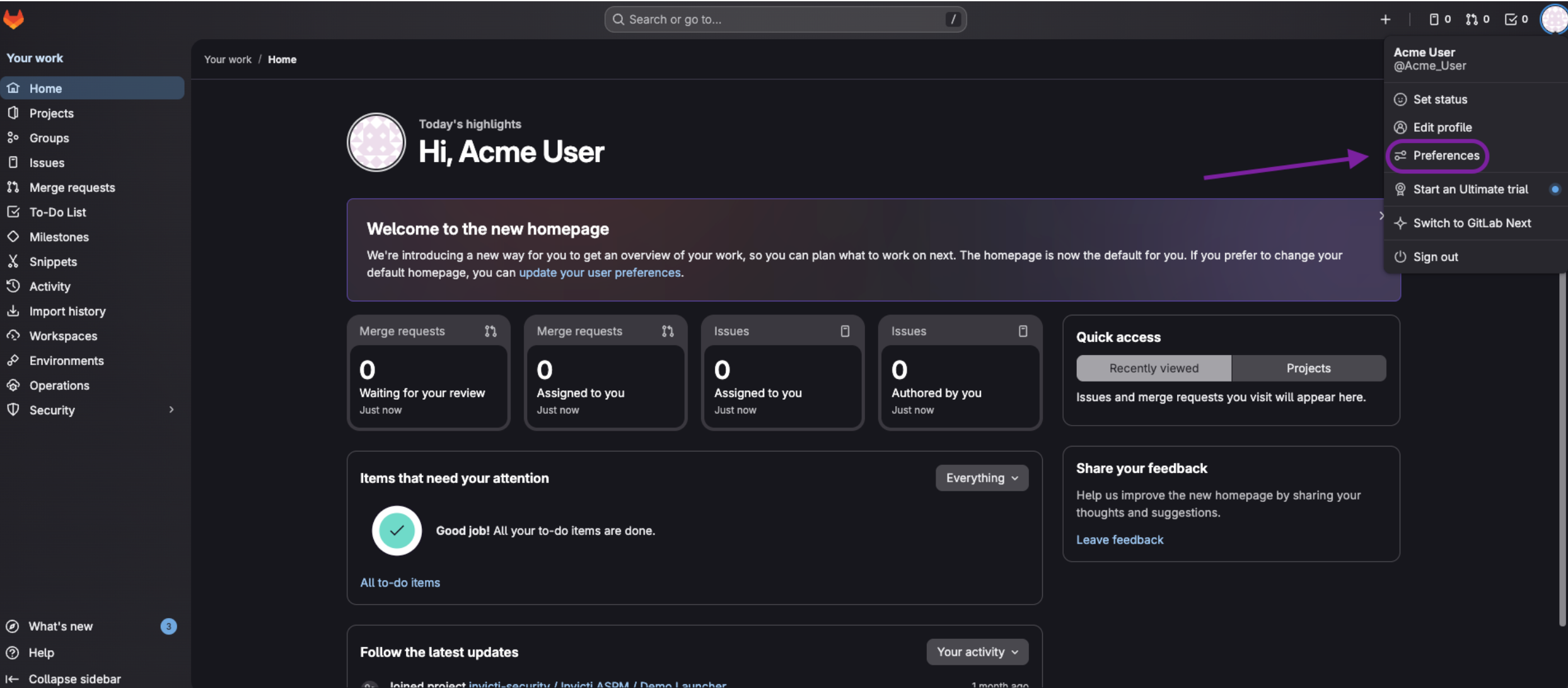
- From the User Settings menu, navigate to Access Tokens.
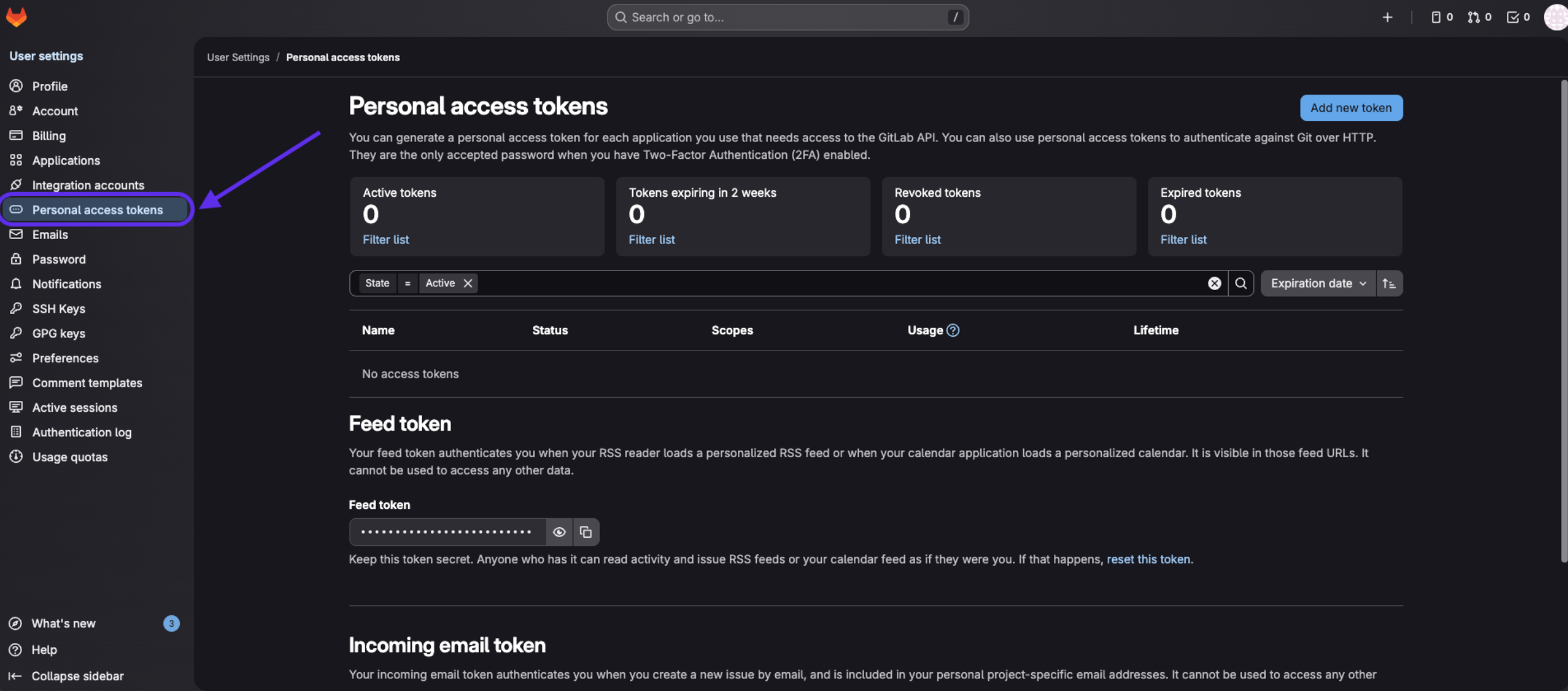
- Provide a name for the token and, if required, define an expiration date.
- Select the required scopes:
- api
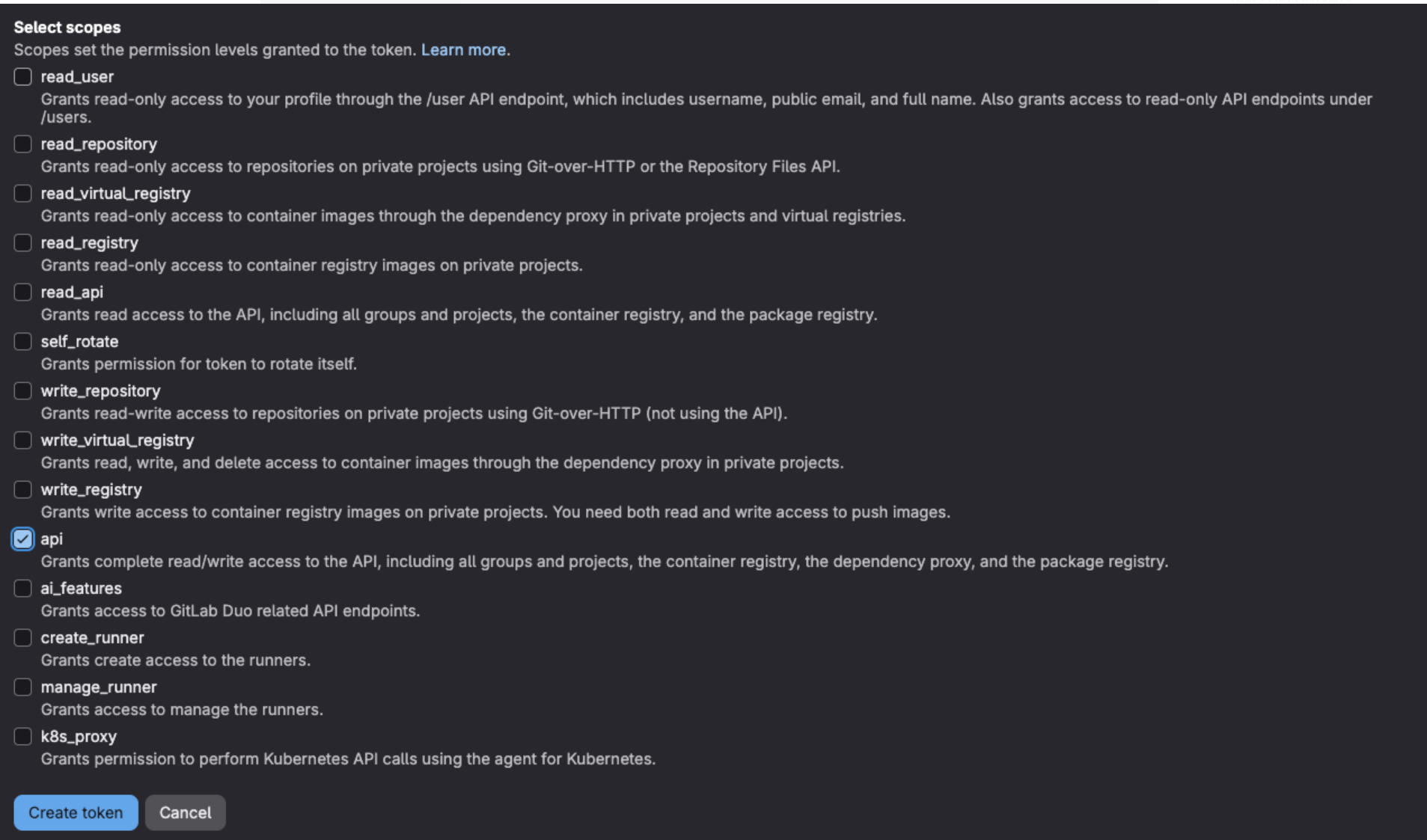
- Click the Create personal access token button.
Once generated, the Personal Access Token must be stored securely. For security reasons, the token isn't displayed again after leaving or refreshing the page. If the token isn't saved at this stage, a new token must be created.
After this step, the process can be continued from the Invicti AppSec UI using the generated token.
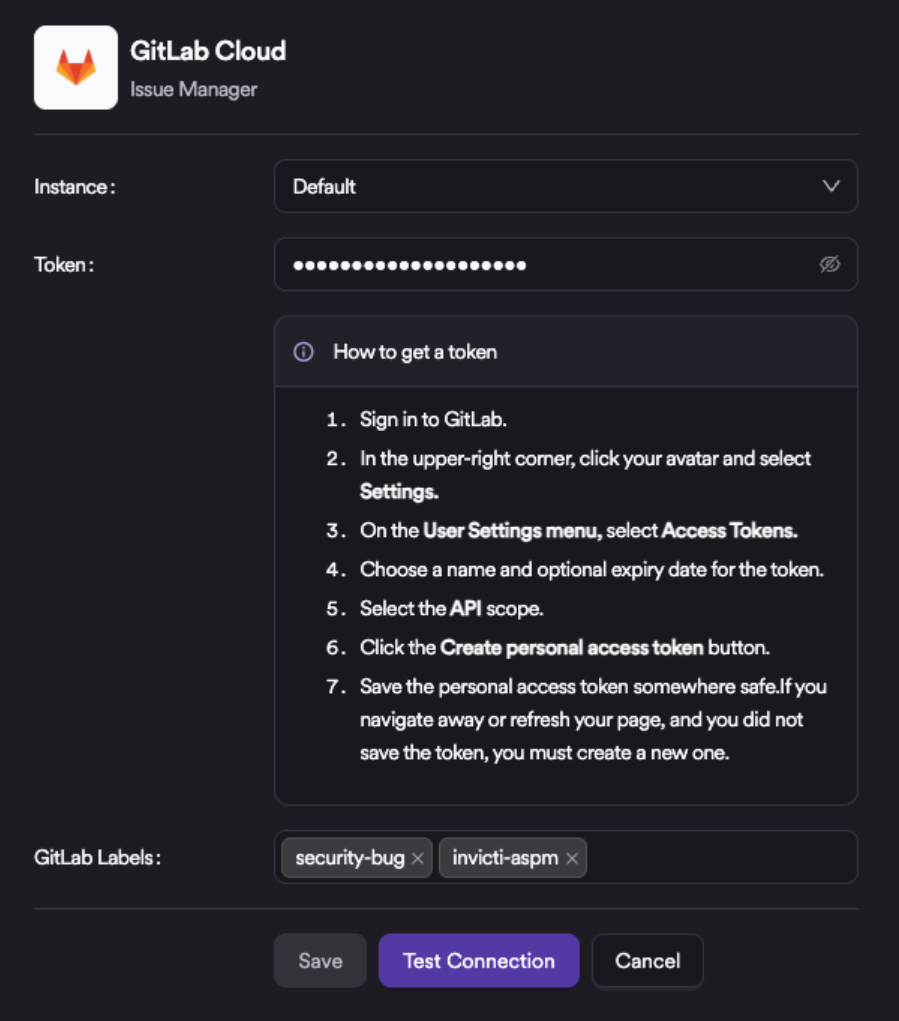
Enter the token created, then define the labels to be used for the issues created in the Label field. All issues generated by the system are created with these labels applied.
Need help?
Invicti Support team is ready to provide you with technical help. Go to Help Center