Package: Invicti AppSec Core (on-demand)
Trello Integration
Trello is a visual project management tool that organizes tasks and workflows using boards, lists, and cards. The Invicti AppSec integration with Trello allows security teams to create Trello cards directly from discovered vulnerabilities, enabling lightweight tracking of security remediation tasks within Trello boards.
Purpose in Invicti AppSec
Trello is used in Invicti AppSec as an Issue Manager — a tool for creating and tracking vulnerability remediation tasks in Trello boards.
| Use Case | Description |
|---|---|
| Card creation from vulnerabilities | Create Trello cards directly from vulnerability findings in Invicti AppSec |
| Remediation tracking | Track security issue remediation using Trello's Kanban-style boards |
| Team collaboration | Assign Trello cards to team members responsible for fixing security vulnerabilities |
Where It Is Used
| Page | Navigation Path | Purpose |
|---|---|---|
| Integrations — Issue Managers | Integrations › Issue Managers | Admin activation and global configuration |
| Project Settings | Project › Settings › Issue Managers | Link Trello to a specific project for ticket creation |
| Vulnerability List | Project › Vulnerabilities | Manually create a Trello card for a specific vulnerability |
| Team Lead Integrations | Team Lead view › Integrations › Issue Managers | Team leads activate instances delegated by admins |
Prerequisites
Before activating the integration, gather the following credentials from your Trello account:
| Field | Description | Required |
|---|---|---|
| API Key | Your Trello Power-Up API key, generated from the Trello developer portal | Yes |
| Token | A Trello user token that grants access to your boards and workspaces | Yes |
| URL | Your Trello API base URL (typically https://api.trello.com) | Yes |
Obtain Credentials (on the Trello Side)
API Key:
- Log in to Trello and go to the Trello Developer Portal at
https://trello.com/power-ups/admin. - Create a new Power-Up (or use an existing one) and navigate to its API Key section.
- Copy the API Key displayed on the page.
Token:
- On the same Power-Up API Key page, click the Token link next to the API key.
- Trello will ask you to authorize the Power-Up and generate a token.
- Copy the generated token — store it securely as it grants access to your Trello workspace.
URL:
- The Trello API base URL is
https://api.trello.com. - Use this URL unless your organization uses a custom Trello deployment.
Use a dedicated Trello account or Power-Up for Invicti AppSec to avoid disruptions if personal credentials change.
Activation Steps
Step 1: Navigate to Integrations
From the left sidebar, click Integrations.
Step 2: Open the Issue Managers Tab
On the Integrations page, click the Issue Managers tab.
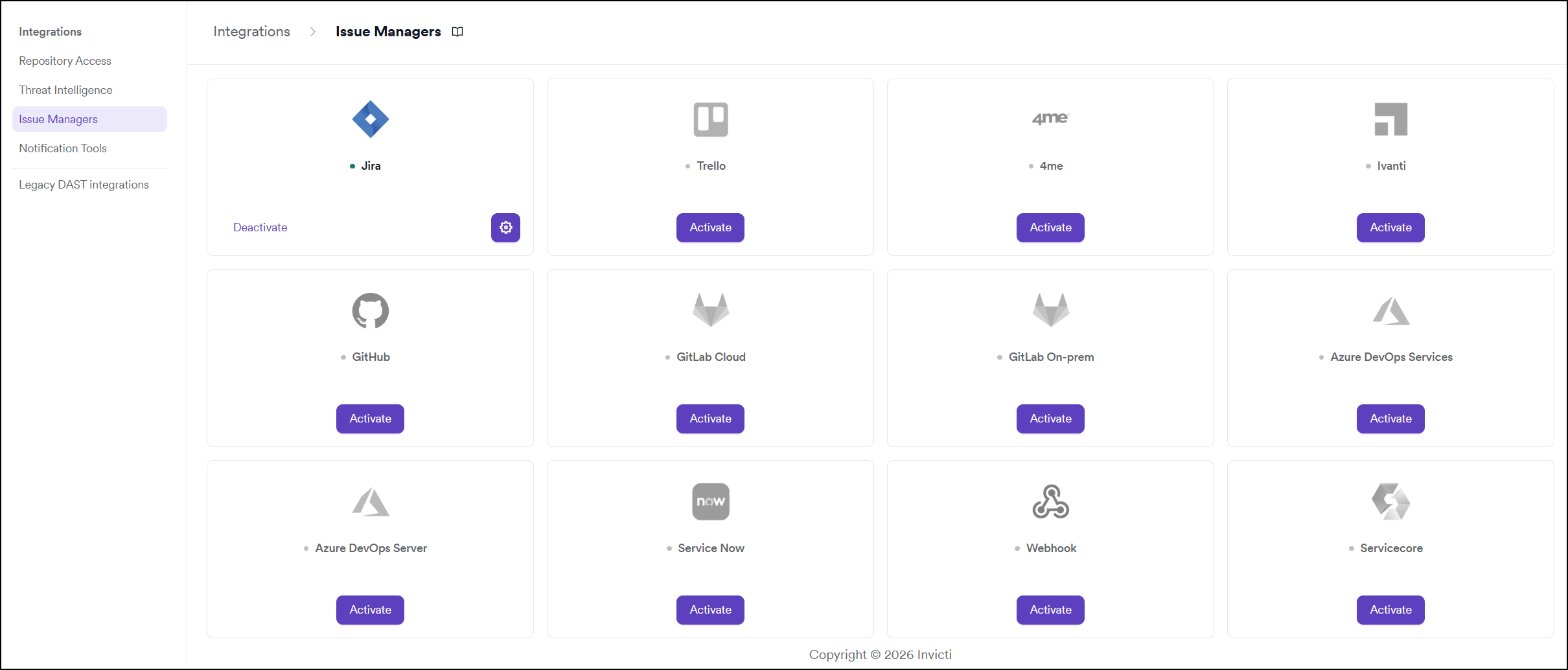
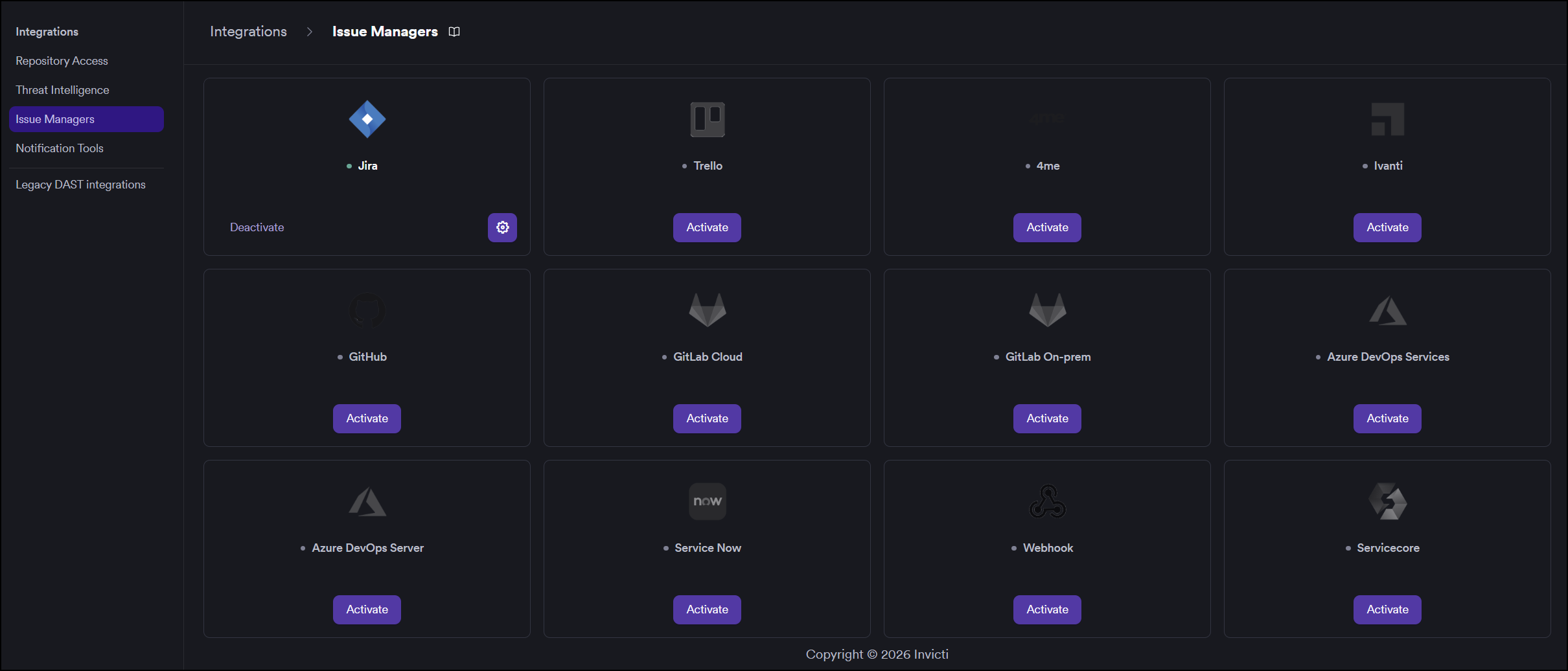
Step 3: Find and Activate Trello
Locate the Trello card.
- If it is not yet activated, click Activate to open the settings drawer.
- If it is already activated, click the gear icon to reconfigure.
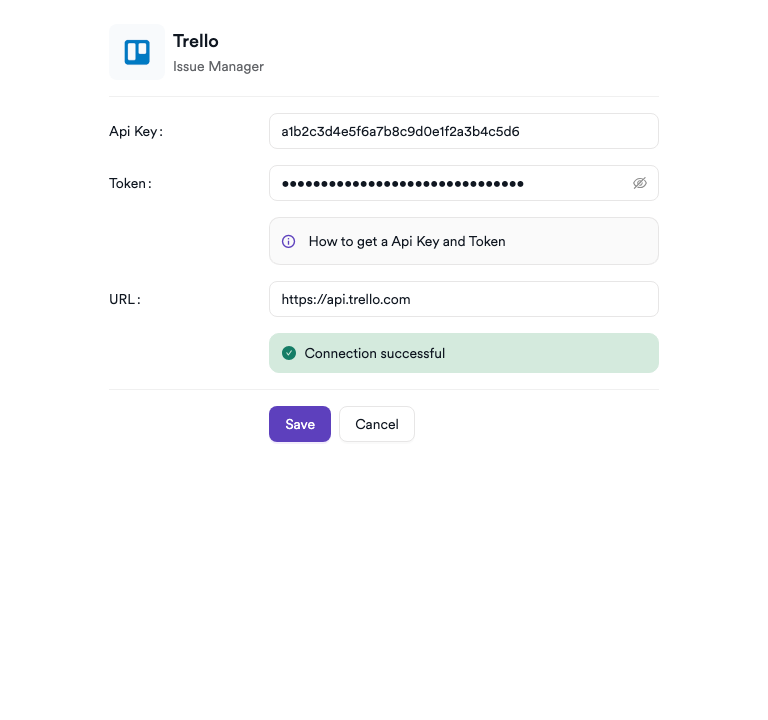
Step 4: Fill In the Required Fields
In the settings drawer, enter the required credentials:
| Field | Description | Required |
|---|---|---|
| API Key | Your Trello Power-Up API key | Yes |
| Token | Your Trello user access token | Yes |
| URL | Trello API base URL (https://api.trello.com) | Yes |
Step 5: Test the Connection
Click Test Connection. A green "Connection successful" message confirms that Invicti AppSec can connect to Trello with the provided credentials.
Step 6: Save
Click Save to complete the activation.
Summary
| Step | Action |
|---|---|
| 1 | Navigate to Integrations from the sidebar |
| 2 | Select the Issue Managers tab |
| 3 | Find Trello and click Activate (or the gear icon) |
| 4 | Enter API Key, Token, and URL |
| 5 | Click Test Connection — verify the success message |
| 6 | Click Save |
Troubleshooting
| Issue | Resolution |
|---|---|
| Connection failed | Verify that the API Key, Token, and URL are correct and that api.trello.com is reachable from the Invicti AppSec network. |
| 401 Unauthorized | The Token is invalid or expired. Regenerate the token from the Trello Power-Up admin page and retry. |
| 403 Forbidden | The token does not have sufficient permissions. Ensure the token was authorized with read/write access to the target workspace and boards. |
| URL invalid | Confirm the URL is https://api.trello.com or the correct custom endpoint for your deployment. |
| Board not available | Ensure the Trello account associated with the API Key and Token has access to the boards you intend to use. |
Need help?
Invicti Support team is ready to provide you with technical help. Go to Help Center