This feature is available with Invicti API Security Standalone or Bundle.
Integrate Azure API Management
Integrating Azure API Management with Invicti Enterprise allows you to fetch Swagger2 and OpenAPI3 specification files from Azure API Management and provide them as inputs to DAST scanners. The imported specification files are used to build an inventory of API endpoints that can be scanned for vulnerabilities.
To integrate Azure API Management with Invicti Enterprise, you need a Microsoft Azure account with the right to set up credentials/permissions.
Integrate Invicti Enterprise with Azure API Management
Before setting up the Azure API Management integration in Invicti Enterprise, you need to register Invicti Enterprise as an app in Microsoft Azure and add permissions and secrets. Follow the steps in each section to prepare your Azure app for integration with Invicti Enterprise.
Only Swagger2 and OpenAPI3 specification files are imported.
Step 1: Register your Invicti Enterprise app in Azure API Management
- In Microsoft Azure, select App registrations.
- Select New registration.
- Enter a name for the application and set who can see this application or access this API in the Supported account types section.
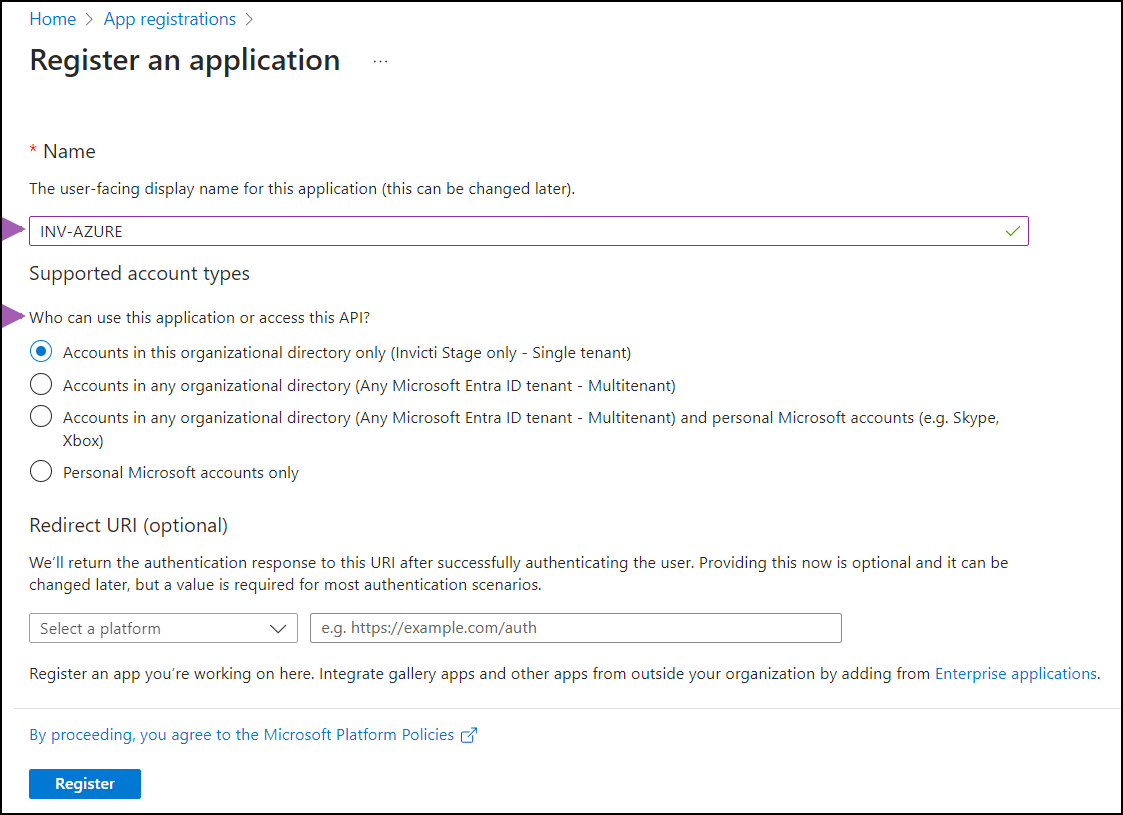
- Select Register to complete the registration.
You have now registered your application. The next step is to add it as a member and assign a role.
Step 2: Add your application as a member and assign a role
- After app registration is completed, go to the home page and select API Management services.
- Select an item from the list of API Management services.
- In the new window, select Access control (IAM).
- Select the Role assignments tab.
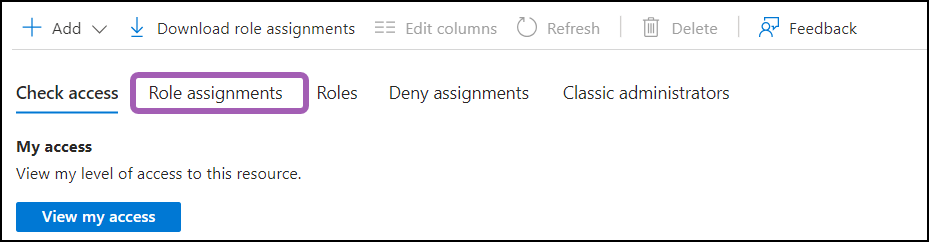
- Use the Add button to add a new role assignment.
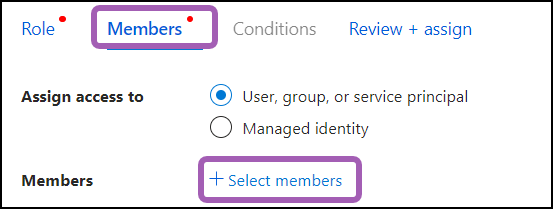
- In the Members tab, click Select members.
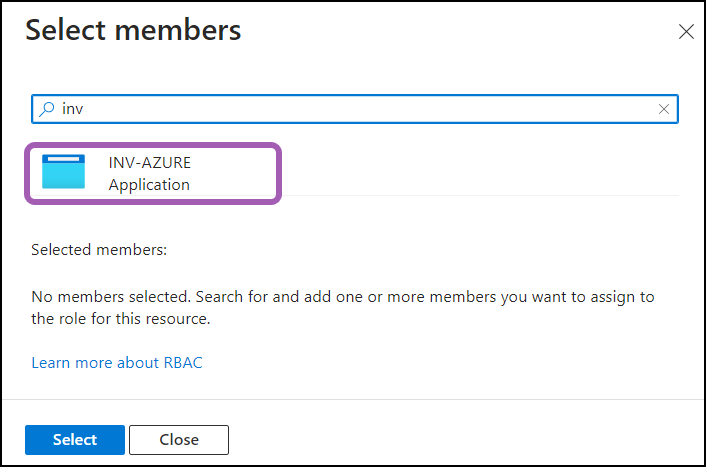
- Search for the application you created earlier, click it to select it, then click Select at the bottom of the page.
- On the Role tab, use the search field to search for
API Management Service Reader Role Read-only access to service and APIs.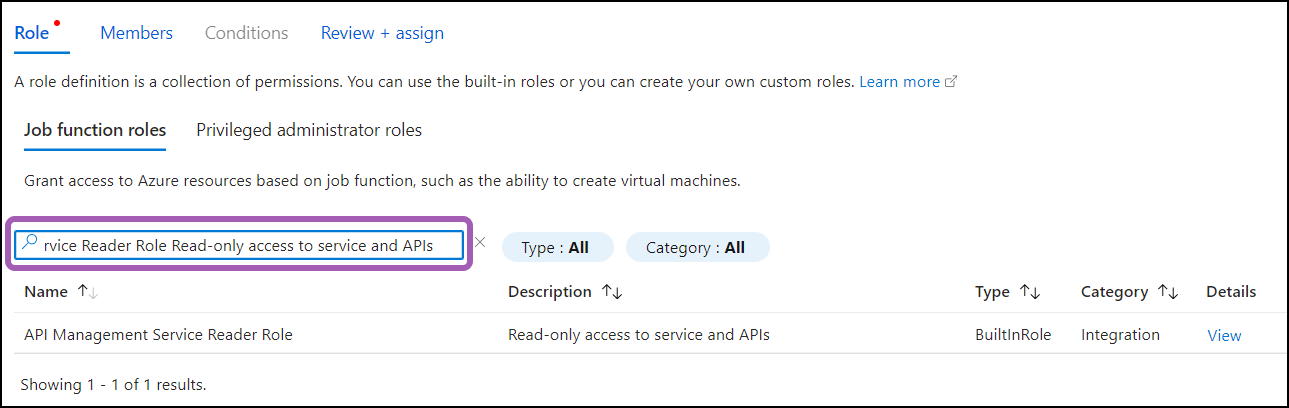
- Select the Job function role of API Management Service Reader Role/Read-only access to service and APIs, and click Review + assign.

- You are taken to the Review + assign tab, click the Review + assign button.
The application has been added to your API Management Service. Continue with the steps in the next section to set permissions.
Step 3: Add permissions
- Return to the home page and select App registrations. Click the All applications tab, then select the app you created earlier.
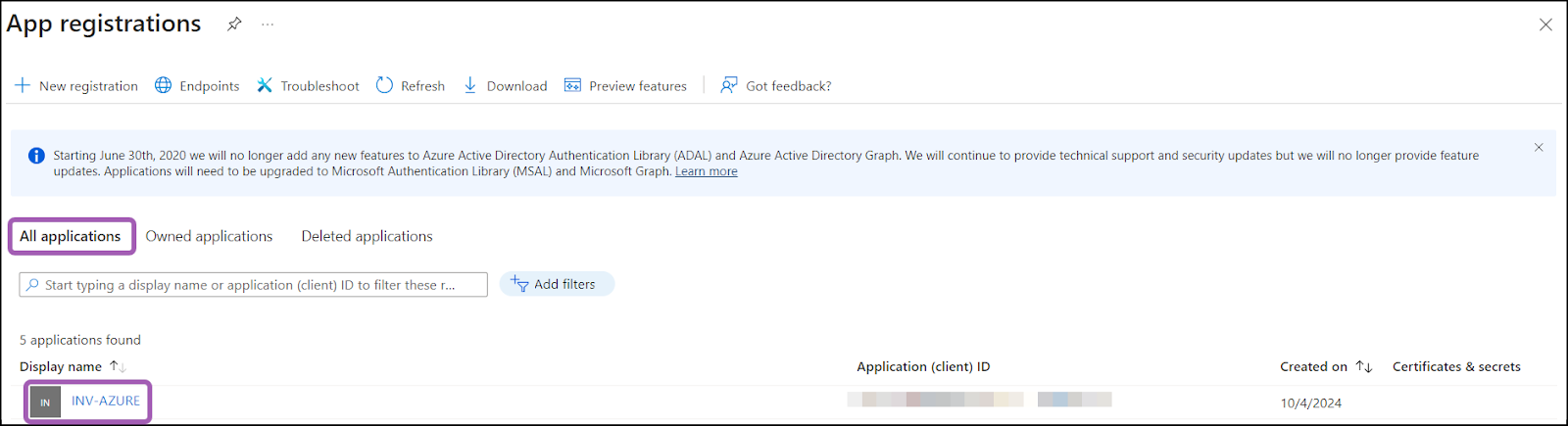
- From the left-side menu, select Manage > API permissions.
- Click Add a permission and select Azure Service Management.
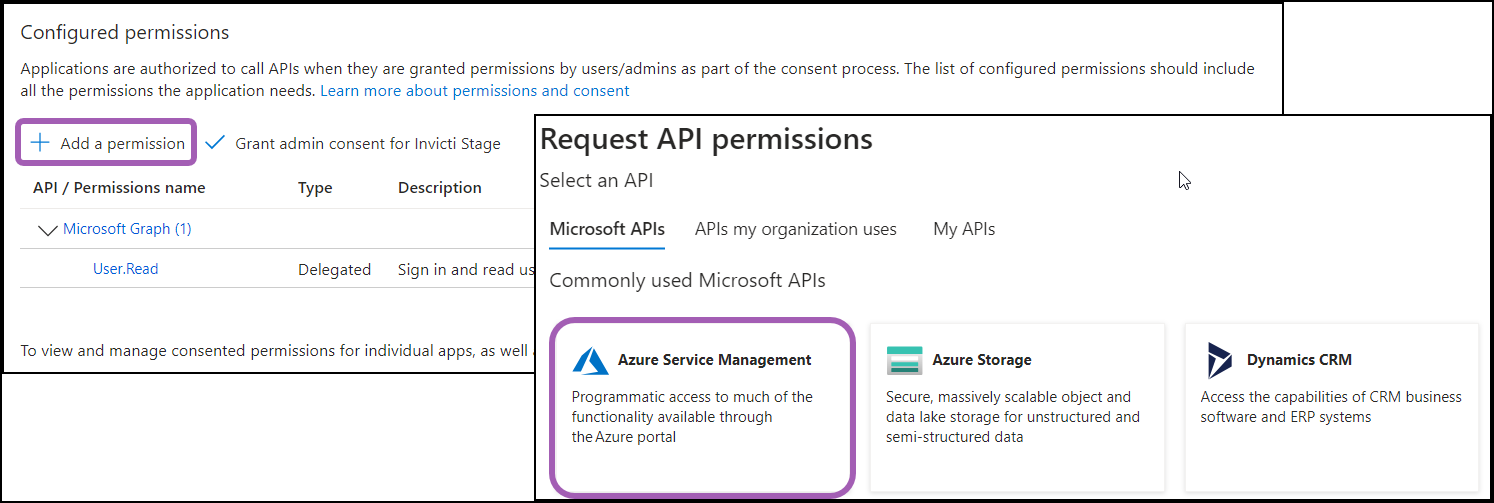
- Under Permissions, enable the user_impersonation checkbox, then click Add permissions.
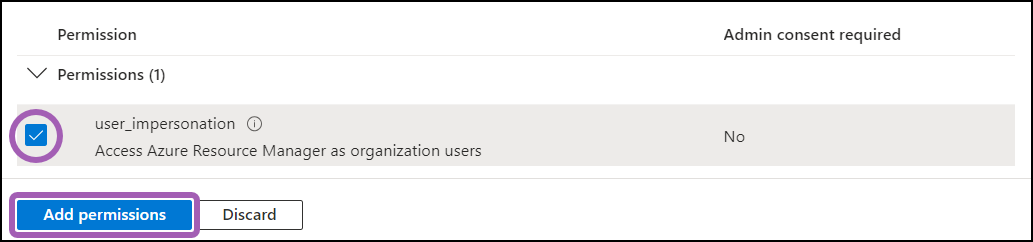
After adding the permissions, you need to create a secret for the app to prove its identity. Continue with the steps listed in the following section.
Step 4: Add a client secret
- Staying within the same application you created earlier (App registrations > All applications > click your app), from the left-side menu, select Manage > Certificates & secrets.
- Select New client secret.
- Enter a description and expiry date, then click Add.
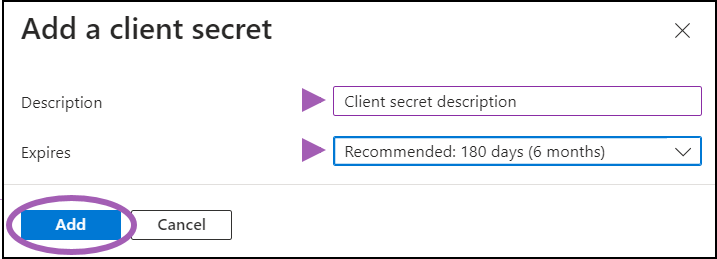
- Use the copy buttons to copy both the Value and the Secret ID of the client secret. Paste the information in a location where you can access them later as you need them in step 5 when configuring the import source in Invicti Enterprise. Copying this information now is important as it can only be viewed at this step.

The Application (client) ID and Directory (tenant) ID can later be found under App registrations > All applications > select your app > Overview.
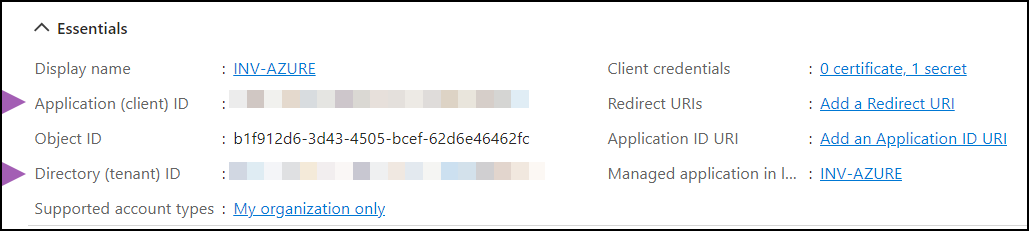
You now have the necessary information to set up the API integration in Invicti Enterprise. Continue with the instructions in the next section.
Step 5: Configure the API import source in Invicti Enterprise
- Select APIs > Sources from the left-side menu.
- Click Add new source.
- Enter a Name for the API integration and select Azure as the source type.
- The Client Id, Client Secret, and Tenant Id can be found in Azure Service Management in App registrations > Overview.
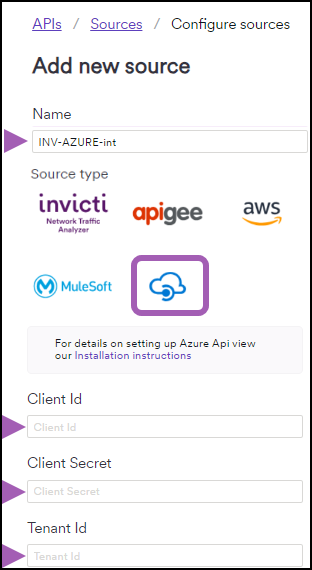
- Click Authenticate and Save.
Your Azure API Management integration is now displayed on the APIs > Sources page.
Step 6: Synchronize the API import
- On the APIs > Sources page in Invicti Enterprise, click the sync icon to start importing your API specification files from Azure API Management into your Invicti Enterprise API Inventory.

- When the sync is complete, your API specification files are displayed on the API Inventory page in Invicti Enterprise. From this page, you can link your API specification files to targets so they can be scanned for vulnerabilities. For more information, refer to the Linking and unlinking discovered APIs to targets document.
Azure is now integrated with Invicti Enterprise. After the initial synchronization, the integration automatically syncs your API specifications once every 24 hours.
To synchronize API specifications on demand, click the sync icon on the APIs > Sources page. To turn off automatic synchronization, click the toggle in the Sync Automatically column on the APIs > Sources page.
Need help?
Invicti Support team is ready to provide you with technical help. Go to Help Center