Configuring the User Profile for Notifications
Providing an email address is mandatory for every Invicti Enterprise user. So, by default, Invicti Enterprise has the email address of every user. Your phone number, however, needs to be added manually. Once added, it will be used by the system to send the SMS notifications.
Only users with Administrator permission have access to this window.
For further information, see Managing Notifications external documentation.
How to Configure a User Profile for Notifications
Follow these steps to set up user profile notifications in Invicti Enterprise:
- Log in to Invicti Enterprise.
- Select [Your Name] (top right of window), then User Settings.
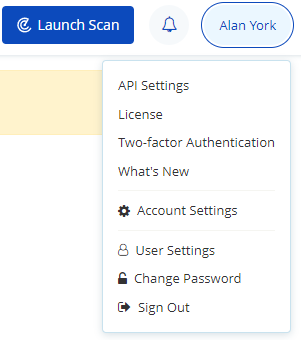
The Change User Settings window is displayed.
- In the Phone Number field, enter the phone number.
- From the drop-down, select a flag for your location
- Enter your phone number
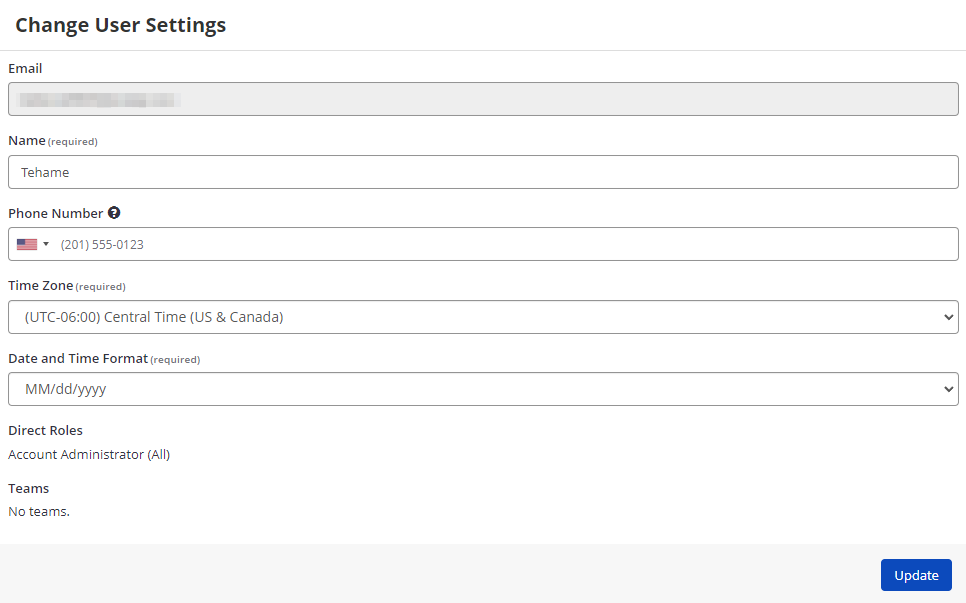
- Select Update.
- Select Confirm in the Phone Number field. The Phone Number Confirmation panel is displayed.
- Select Send Confirmation Code. A six-digit confirmation code is sent to your phone.
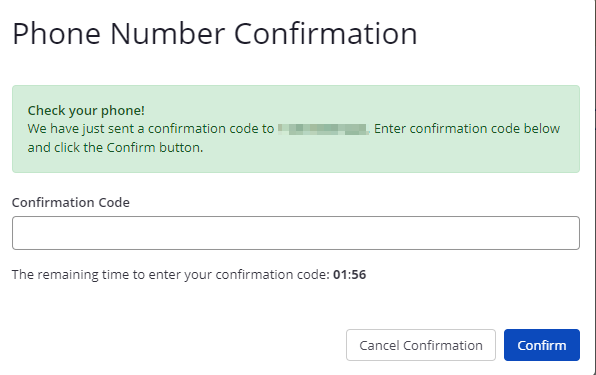
- Retrieve the code from your phone, enter it into the Confirmation Code field and select Confirm.
How to Disable Issue Notifications for a User
To prevent a user from receiving issue notifications:
- From the Settings menu, select General. The General Settings window is displayed.
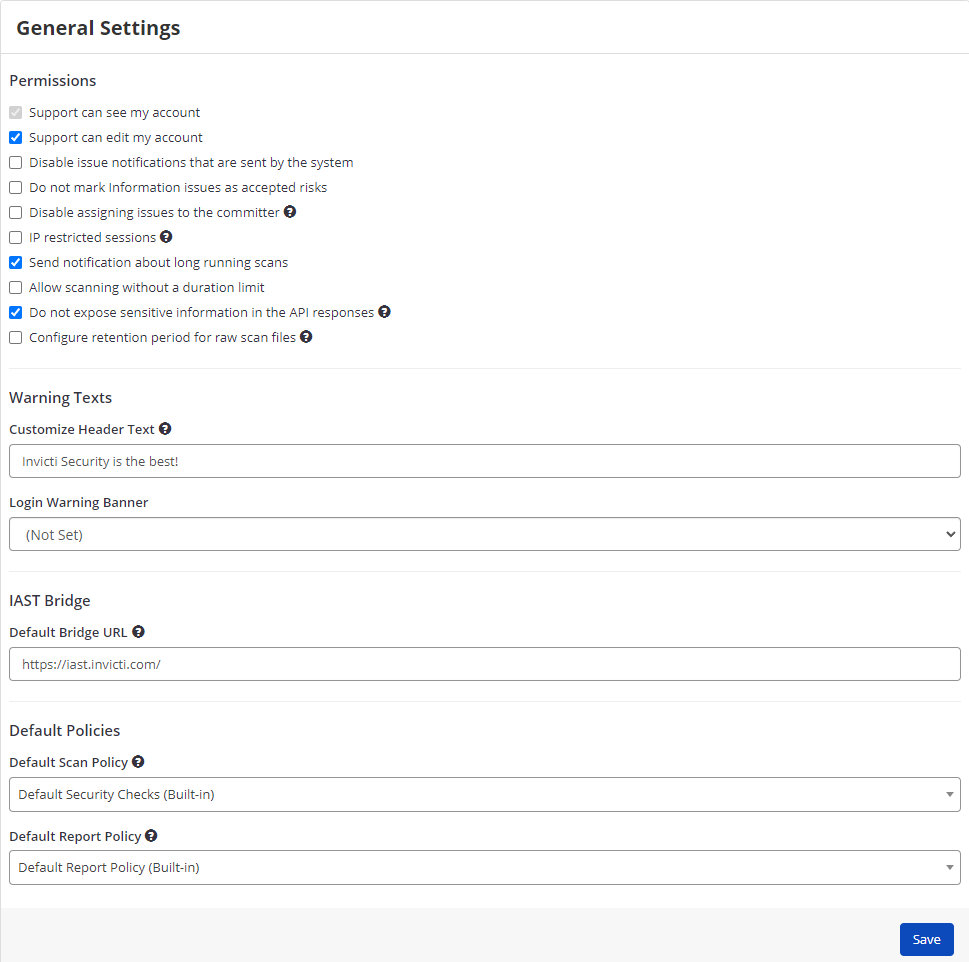
- Check the Disable issue notifications that are sent by the system option.
- Select Save.
Disabling issue notifications will prevent the user from receiving any system-generated alerts about vulnerabilities or scan results via email or SMS.
Need help?
Invicti Support team is ready to provide you with technical help. Go to Help Center