Managing Notification Priorities
Notification priorities can be changed by editing their scope on the Manage Priorities page. This document explains how notification prioritization works in Invicti Enterprise and provides instructions for changing the priority of notifications.
Notification Prioritization
Notifications are grouped by their Event type and then they are prioritized by Scope (what they relate to). Also, the most recently added notification gets the highest priority. The scope priority is as follows:
- Single Target
- Target Group
- Any Target
This means that when a new scan is started, Invicti Enterprise checks all the notifications for the New Scan event in the above-mentioned order. So if for example a target is listed in a New Scan single target scope and a New Scan target group scope notification, once the new scan starts, the single target scope notification is triggered first and the target group scope notification is ignored.
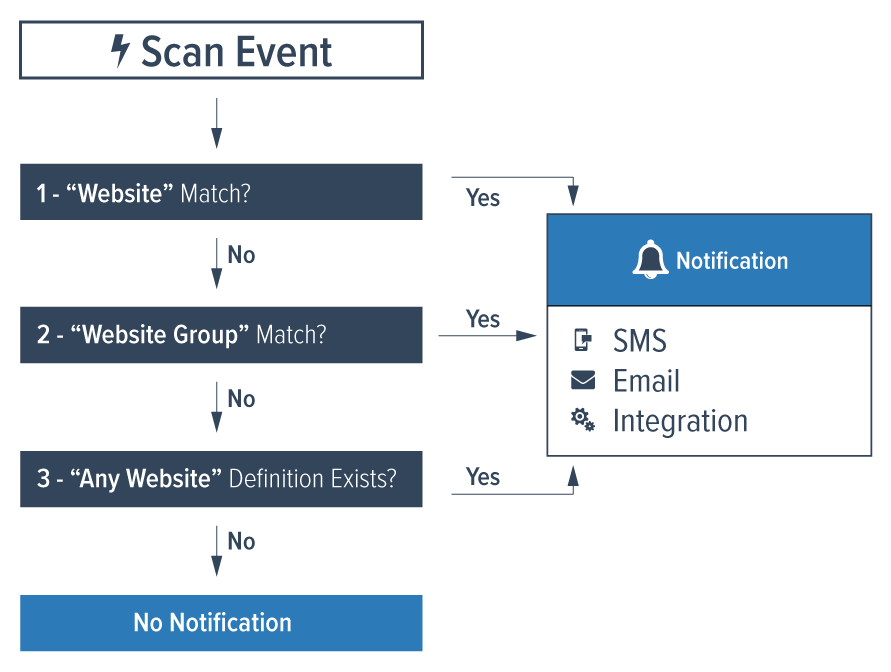
If you have lots of targets, to help remove confusion, you may receive grouped scope notifications.
How to Change the Priority of a Notification
Follow these steps to modify the priority order of your notifications:
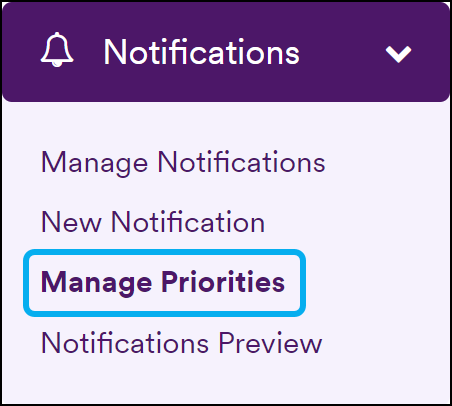
- Select Notifications > Manage Priorities from the left-side menu.
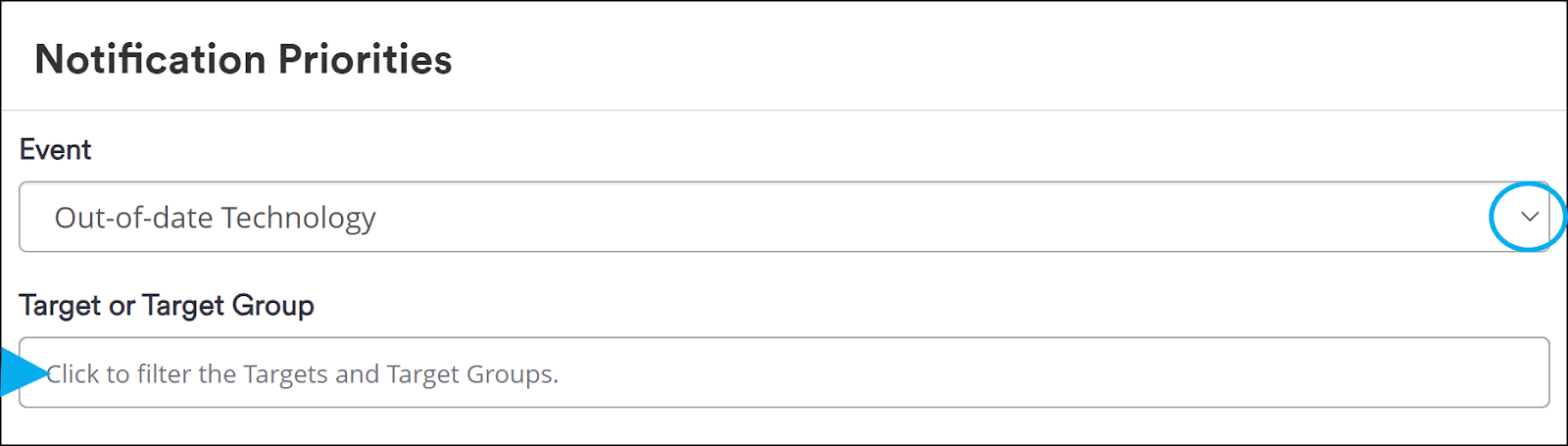
- Use the Event dropdown to select the event for the notification you want to prioritize. You can also filter the results using the Target or Target Group field.
- Once you can see all the notifications that you want to prioritize, click the three lines icon and drag and drop any of the notifications to change their priority order.
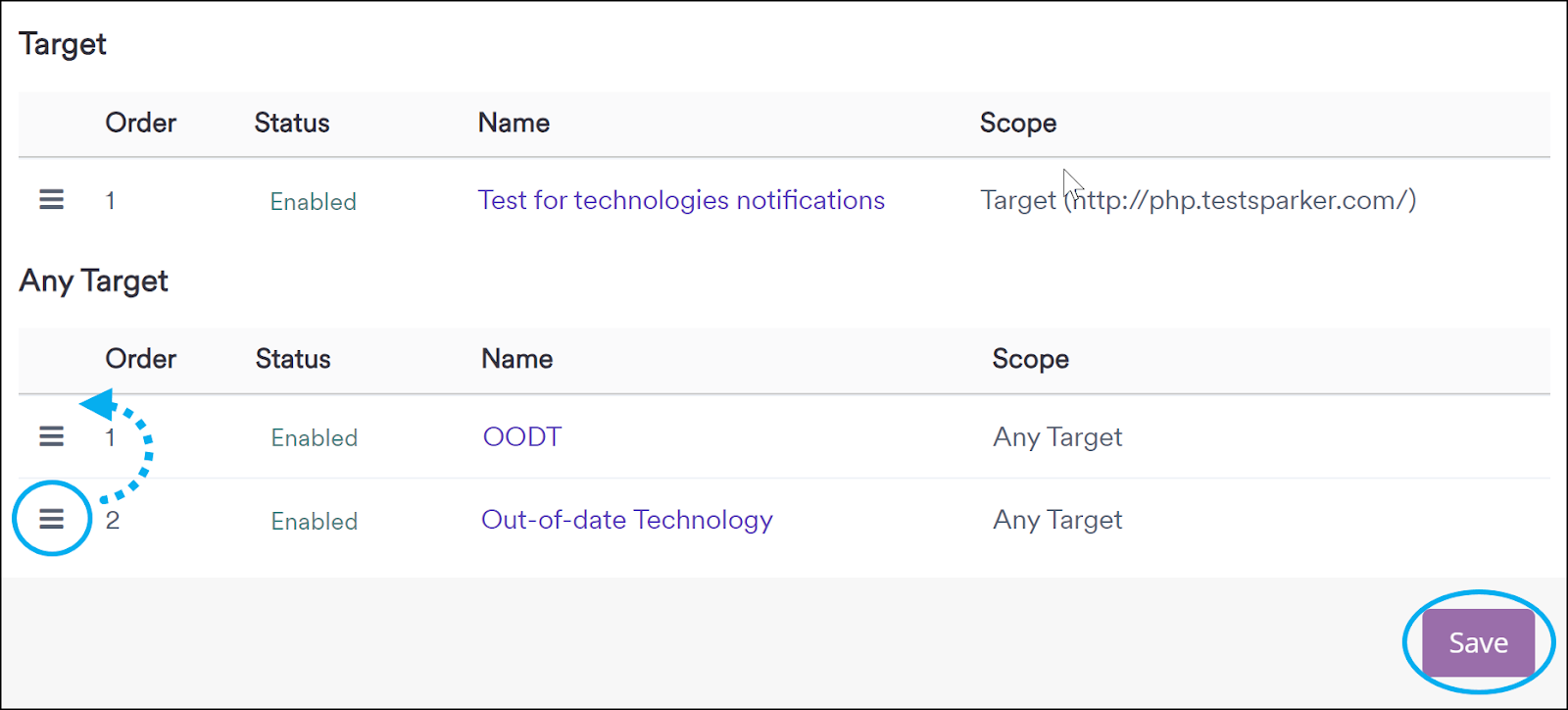
- Click Save when you have finished ordering your notifications.
Need help?
Invicti Support team is ready to provide you with technical help. Go to Help Center