Detailed scan report
The Detailed scan report provides both a summary and an in-depth look at the security state of your scanned website.
Invicti offers comprehensive vulnerability testing on any platform. The scanner crawls and attacks your website or web application to identify vulnerable points. While Invicti scans your web application, it also starts to display its findings. This shows the security state of your system, including how many vulnerabilities there are and how severe they are.
- With a few clicks, you can see all the technical details such as HTTP Request, HTTP Response, and proofs on each identified issue. Moreover, for any issue, Invicti provides additional information on the Impact, Actions to Take, Remedy, References, Classification, and CVSS Score.
- If you want to see all that information within a single document, you can generate the Detailed scan report in HTML or PDF formats. This report presents both general and detailed information about your scan. You can share this report with others, such as support departments or developers so that they can start fixing these vulnerabilities.
- Both Invicti products allow you to generate this Detailed scan report. As the Detailed scan report includes all technical details, it mainly addresses the needs of developers and IT personnel.
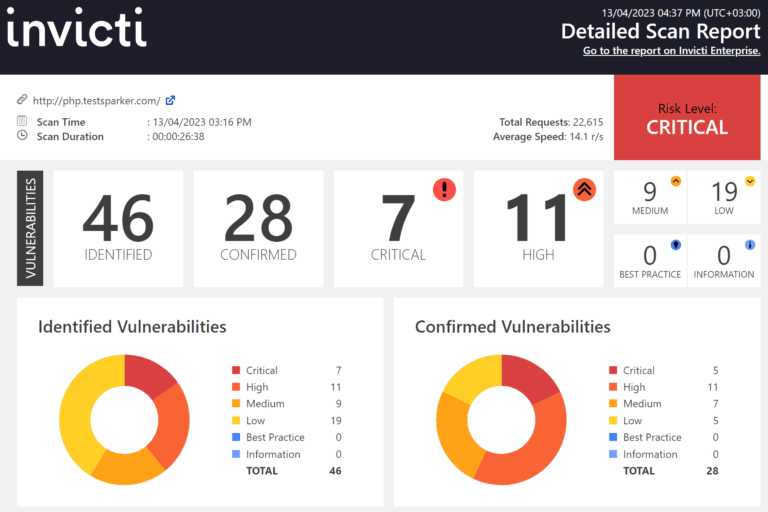
The report primarily presents the Scan Metadata to provide information such as the Target URL and Scan Time/Duration. Following this metadata, you can view your overall security posture. This summary displays numerical information and doughnut charts so that you can easily identify the severity level of your web application and how many of these vulnerabilities are identified and confirmed.
Click to view a sample Detailed scan report.
For more information, refer to the Overview of reports, Report templates, and Built-in reports documents.
Detailed scan report sections
There are five sections in the Detailed scan report:
- Scan metadata
- Vulnerabilities
- Vulnerability summary
- Vulnerability names and details
- Show/hide scan details
Each is explained in the following sections.
Scan metadata
This section provides details on the following items:
- Scan Target: the target URL or web application being scanned.
- Scan Time: when the scan was initiated.
- Scan Duration: how long the scan took to complete.
- Description: additional notes or description of the scan.
- Total Requests: number of HTTP requests made during the scan.
- Average Speed: the average scanning speed.
- Tags: labels applied to the scan for organization.
- Risk Level: the overall risk assessment of the target.
Vulnerabilities
This provides a numerical and graphical overview of:
- Numbers: the numbers of issues detected at various vulnerability severity levels.
- Identified Vulnerabilities: the total number of detected vulnerabilities.
- Confirmed Vulnerabilities: the total number of vulnerabilities that Invicti verified by taking extra steps such as extracting some data from the target.
Vulnerability summary
This section provides a summary of information about each discovered vulnerable URL and categorizes them based on severity. For example, if Invicti determines a vulnerability as Critical, it requires immediate attention.
If you click an identified vulnerability, you access detailed information—such as HTTP request and response codes and body—along with, if available, a Proof of Exploit. If Invicti finds a vulnerability but can't provide a proof of exploit, it presents a certainty score, which reflects how confident the system is that the issue is valid. This score is based on the heuristics built into Invicti's security checks, which evaluate patterns and conditions during the scan to determine the likelihood of a true positive.
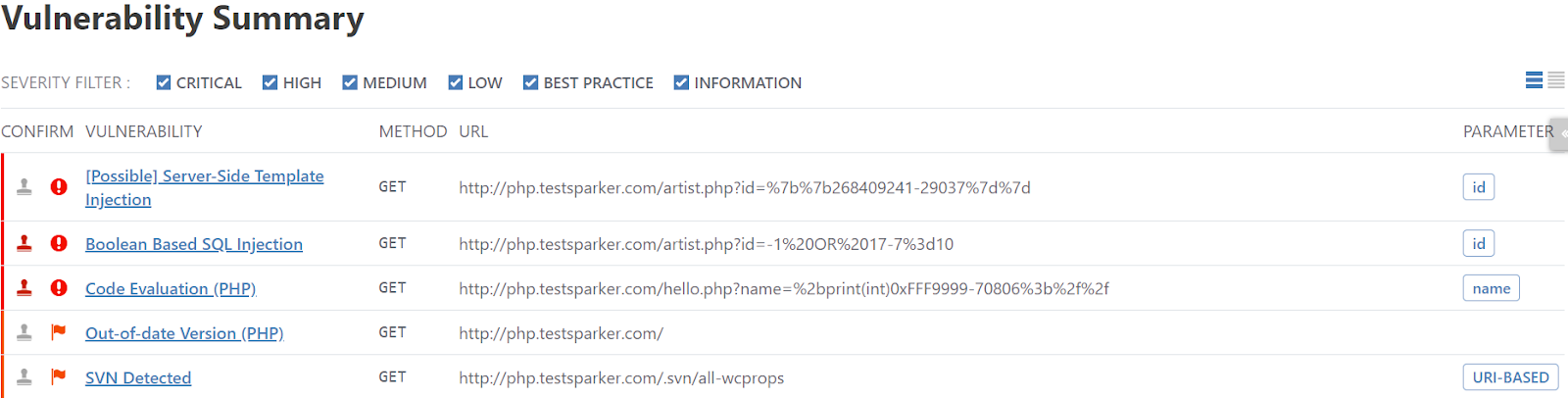
The following list explains the columns in the Vulnerability summary:
- CONFIRM: this shows whether Invicti has verified a vulnerability.
- VULNERABILITY: this displays the name of the issue and provides a link to a detected issue that attackers can exploit.
- METHOD: this is the HTTP method of the request in which Invicti sent the payload. It demonstrates what Invicti deployed to identify an issue.
- URL: this is a reference to a resource that contains the issue.
- PARAMETER: this is the variable used to identify the issue.
For more information, refer to the Vulnerability severity levels document.
Vulnerability names and details
This section describes all identified issues and vulnerabilities, along with their Impact and Proof of Exploit. It also explains what Actions to Take and a Remedy for each one, including External References for more information.
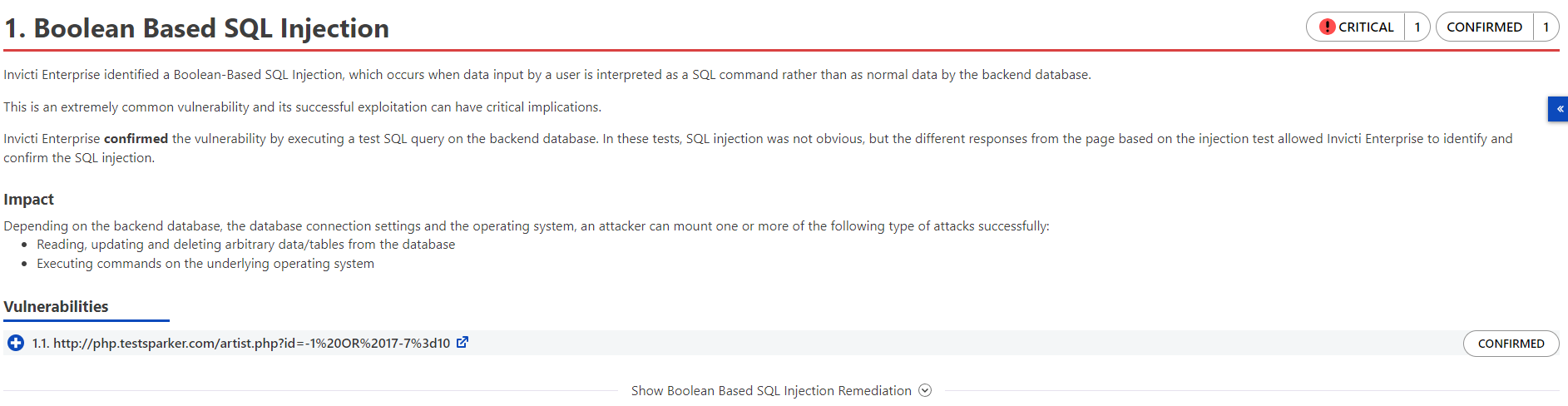
The following list explains the headings in the Vulnerability names and details section:
- Name: this is the name of the identified issue.
- Tag: this is the label to group, organize, and filter issues in the target web application.
- Proof of Exploit: this is a piece of evidence supplied to prove that the vulnerability exists, showing information that's extracted from the target using the vulnerability. For more information, refer to the Benefits of Proof-based scanning™ technology document.
- Vulnerability Details: this displays further details about the vulnerability.
- Certainty Value: this indicates how much Invicti is sure about the identified issue.
- Impact: this shows the effect of the issue or vulnerability on the Target URL.
- Required Skills for Successful Exploitation: this gives details on how malicious hackers could exploit this issue.
- Actions to Take: these are the immediate steps you can take to decrease the impact or prevent exploitation.
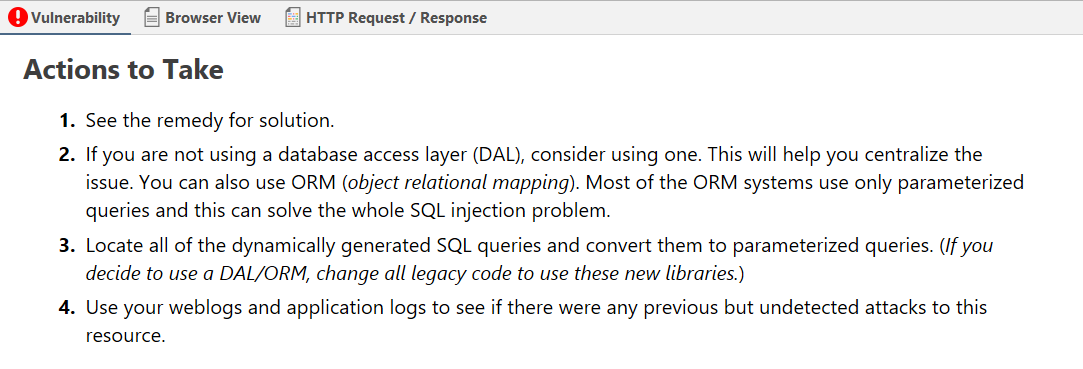
- Remedy: this offers further steps to resolve the identified issue.
- External References: this provides links to other websites where you can find more information.
- Classification: this includes multiple classification standards:
- PCI DSS 3.2: this provides further information to help you comply with the Payment Card Industry Data Saving Standard requirements.
- OWASP 2013: this provides further information about this vulnerability according to the 2013 Edition of the Open Web Application Security Project (OWASP) Top 10 list.
- OWASP 2017: this provides further information about this vulnerability according to the 2017 Edition of the OWASP Top 10 list.
- SANS Top 25: this provides further information on which of Top 25 Software Errors compiled by SANS have been detected.
- CWE: this stands for Common Weakness Enumeration. This information shows under which category of CWE, a community-developed list of common software and hardware weakness, classification this issue can be categorized.
- CAPEC: this stands for the Common Attack Pattern Enumeration and Classification and provides further information about the issue.
- WASC: this stands for the Web Application Security Consortium and provides further information on the issue.
- HIPAA: this set of requirements is determined by the Health Insurance Portability and Accountability Act.
- Remedy References: this provides further information on the solution for identified issues.
- Proof of Concept Notes: these notes demonstrate in principle how a system may be compromised.
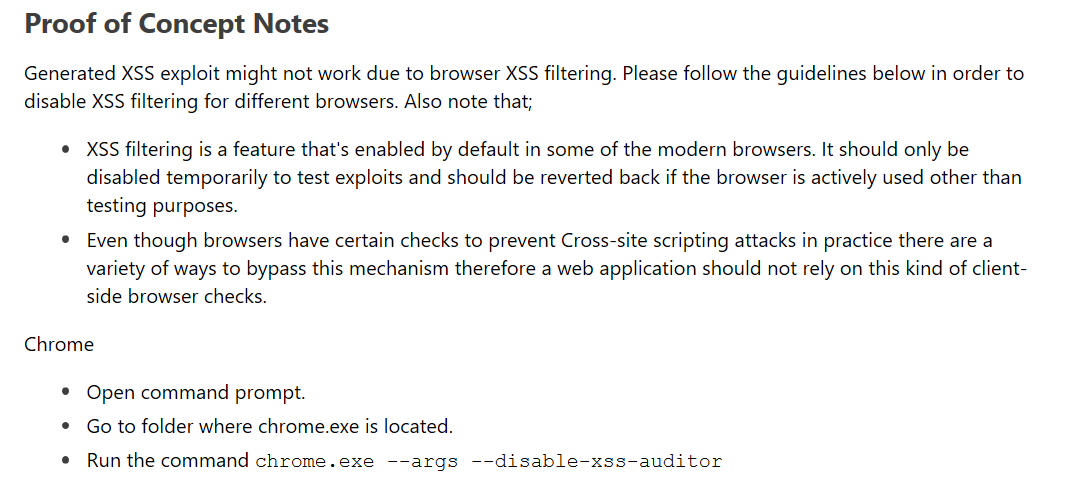
- Request: this is the whole HTTP request that Invicti sent to detect the issue.
- Response: this is the reply from the system against the payload.
Show/hide scan details
This section provides some profile and policy settings that Invicti uses to adjust its scanning to achieve a better scan coverage. For example, it lists all enabled security checks.
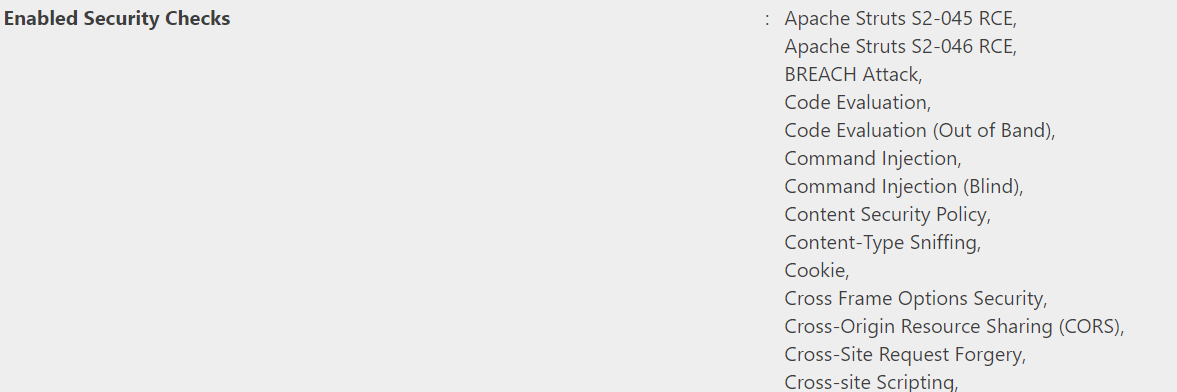
It provides information on your preference in choosing this scan so that developers have more details on how the scan was run.
For more information, refer to the Security checks document.
Generate a detailed scan report in Invicti Enterprise
- Select Scans > Recent Scans from the left-side menu.
- Next to the relevant scan, choose Report.
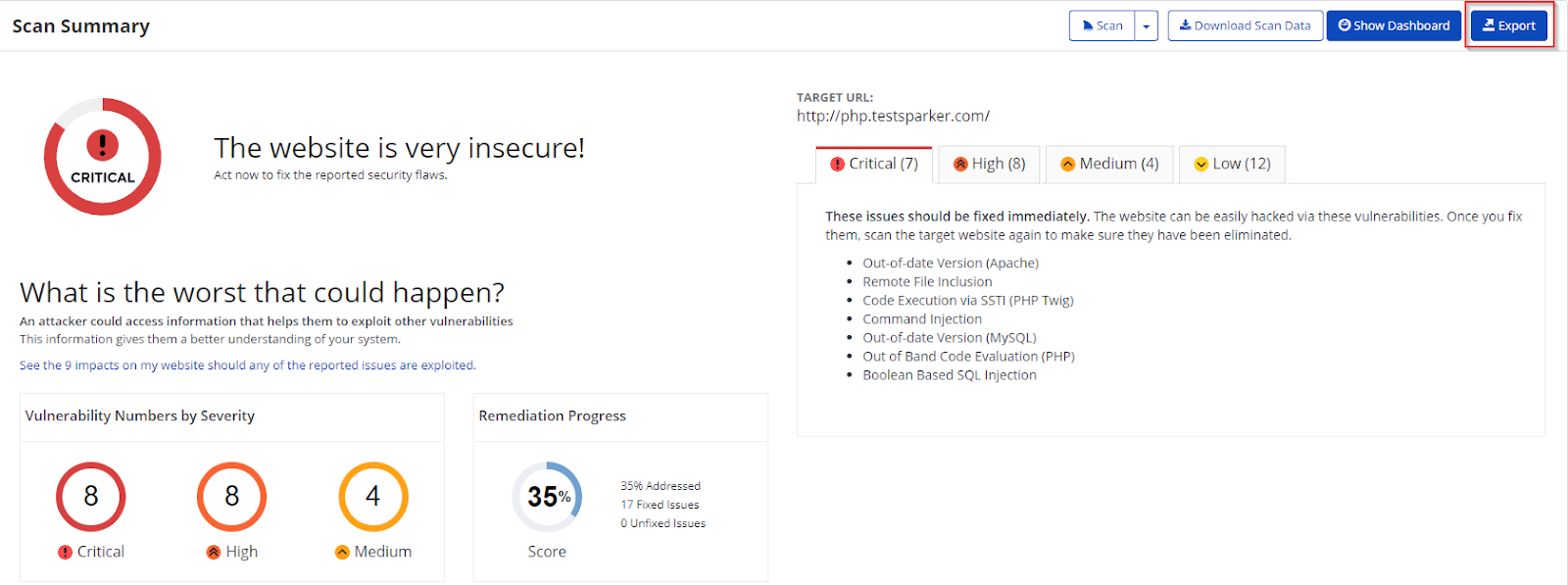
- On the Scan Summary page, choose Export.
- From the Report drop-down, choose Detailed Scan Report.
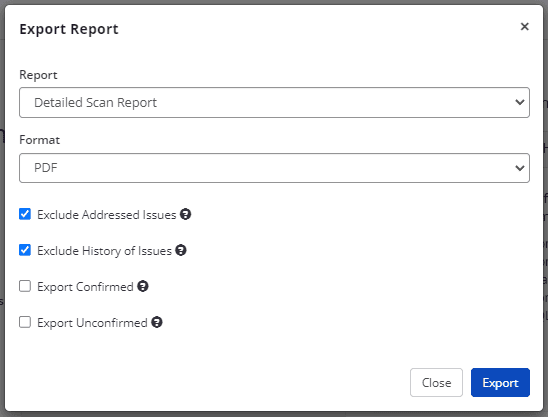
- From the Format drop-down, choose an option.
- If required, choose one of the following to configure your report:
- Exclude Addressed Issues excludes those issues on which you've already taken action. (All Information level findings are marked as Accepted Risk automatically by default. To change this behavior, see Do not mark Information issues as accepted risks in the General Settings document).
- Exclude History of Issues excludes the issue history from the report. If unselected, only the last 10 history items appear in the report. For more information, refer to the Viewing issues in Invicti Enterprise document.
- Export Confirmed includes only those issues that are confirmed.
- Export Unconfirmed includes only those issues that are unconfirmed.
- Choose Export.
You can view the Report in the saved location.
Generate a detailed scan report in Invicti Standard
- Click the File tab in the ribbon. Local Scans are displayed. Double-click the relevant scan to display its results.
- From the Reporting tab, choose Detailed Scan Report. The Save Report As dialog box is displayed.

- Choose a save location, then Save.
- The Export Report dialog is also displayed at this point, with the Path field already populated from the previous dialog.
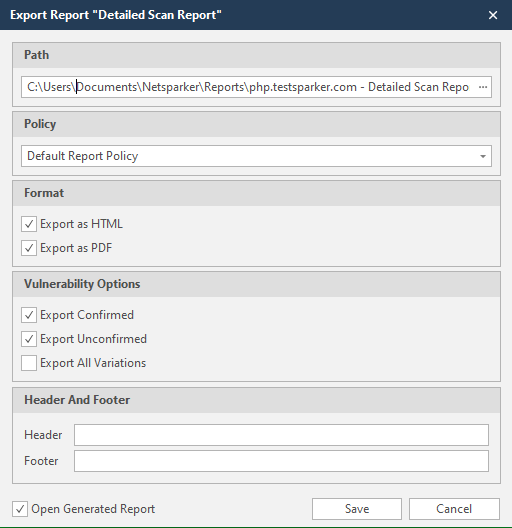
- From the Export Report dialog, you can decide on:
- Policy: choose the default report policy or customized report policy. For more information, refer to the Custom Report Policies document.
- Format: choose HTML and/or PDF format.
- Vulnerability Options (choose one or all):
- Export Confirmed: when selected, the report includes confirmed vulnerabilities.
- Export Unconfirmed: when selected, the report also includes unconfirmed vulnerabilities.
- Export All Variations: variations mean that if Invicti identified some passive or Information level issues in more than one page, it does not show all these variations. However, users can change this by enabling or disabling this option.
- Header and Footer: enter relevant information that appears in the header and footer section of the report.
- Open Generated Report: when selected, your reports are shown when you choose Save.
- Choose Save.
You can view the Report in the saved location.
The HTML Report format is interactive thanks to the Severity Filter. For example, if you prefer not to see Best Practice or Information details, you can deselect them. When you click the plus sign under Vulnerabilities, you can access more information on the issue. Also, you can Hide or Show Remediation.
Need help?
Invicti Support team is ready to provide you with technical help. Go to Help Center