Executive summary report
The Executive summary report provides a summary of the scan results.
- The Executive summary report enables you to view all issues and recommendations within a single document.
- It's useful to executives and managers because it provides an overview of your system's security state, displaying the number, severity, and types of identified vulnerabilities in a quickly digestible format.
- It also provides business impact and suggestions. For example, you can find out the compliance lapses.
- This report contains brief details about your scan, such as Scan Time and Duration.
- It can be exported in HTML or PDF format.
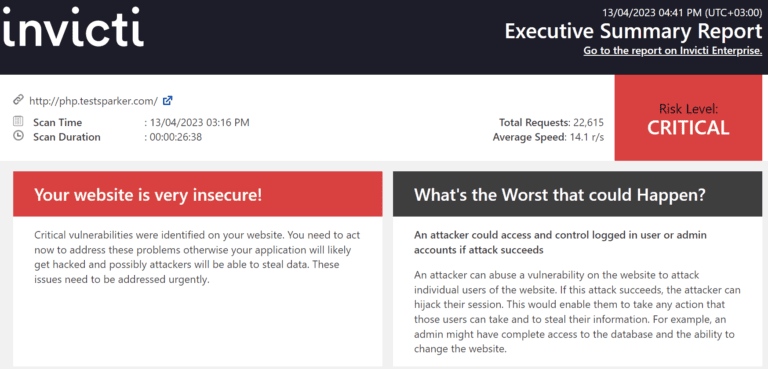
Click to view a sample Executive summary report.
For more information, refer to the Overview of reports, Report templates, and Built-in reports documents.
Executive summary report sections
There are three sections in the Executive summary report:
Scan metadata
The following list describes the headings in the Scan Metadata:
- Scan Target: the target URL or web application being scanned.
- Scan Time: when the scan was initiated.
- Scan Duration: how long the scan took to complete.
- Description: additional notes or description of the scan.
- Total Requests: number of HTTP requests made during the scan.
- Average Speed: the average scanning speed.
- Tags: labels applied to the scan.
- Risk Level: the overall risk assessment of the target.
Vulnerability summary
This section provides a summary of information about each discovered vulnerability in the scan, and categorizes them based on severity. For example, if Invicti determines a vulnerability as Critical, it requires immediate attention.
This list consists of:
- Vulnerability: an issue that malicious hackers can attack.
- Suggested Action: what Invicti recommends.
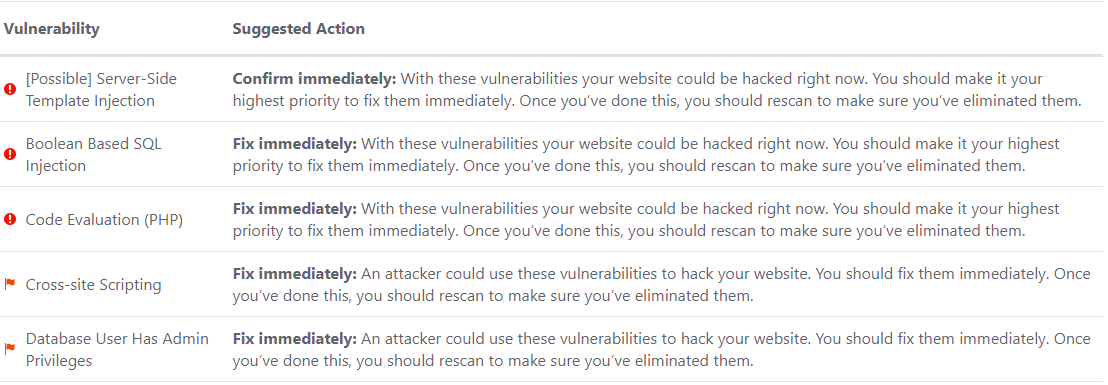
The following list describes the Suggested Actions and their business impact:
- Fix Immediately: this means you should prioritize this vulnerability and act immediately.
- Confirm Immediately: this means you should prioritize this vulnerability and first verify, then start fixing.
- Fix Soon: this means you should start fixing this vulnerability in the shortest possible time.
- Confirmed Soon: this means you should start fixing this vulnerability after verifying it.
- Consider fixing after confirmed: this means you can start working on this vulnerability after confirmation, but it doesn't pose a critical threat to your system.
- Consider fixing: this means you can start working on this vulnerability, but it doesn't pose a critical threat to your system.
- No Action Required: this means if you implement this recommendation, it provides an extra layer of security.
For more information, refer to the Vulnerability Severity Levels document.
Compliance summary
This section categorizes vulnerabilities based on their classification.
The following list describes the classifications:
- PCI DSS v3.2: the PCI DSS (Payment Card Industry Data Saving Standard) sets criteria for companies that rely on payment by credit and/or debit cards.
- OWASP 2013: the OWASP (Open Web Application Security Project) 2013 Top Ten lists the most critical security risks to web applications.
- OWASP 2017: the OWASP (Open Web Application Security Project) 2017 Top Ten lists the most critical security risks to web applications.
- SANS Top 25: the SANS Top 25 lists the most dangerous software errors of the Common Weakness Enumeration (CWE).
- HIPAA: the HIPAA (Health Insurance Portability and Accountability Act) determines criteria for organizations that process health data digitally to comply with the classification.
- ISO27001: ISO 27001 Information Security Management Systems Standard specifies the correct management of data. It lists the controls and objectives to increase, develop, and manage the security of data.
- WASC Threat Classification: WASC provides information about the vulnerability according to the Web Application Security Consortium threat classification.
Generate an executive summary report in Invicti Enterprise
- Select Scans > Recent Scans from the left-side menu.
- Next to the relevant scan, choose Report.
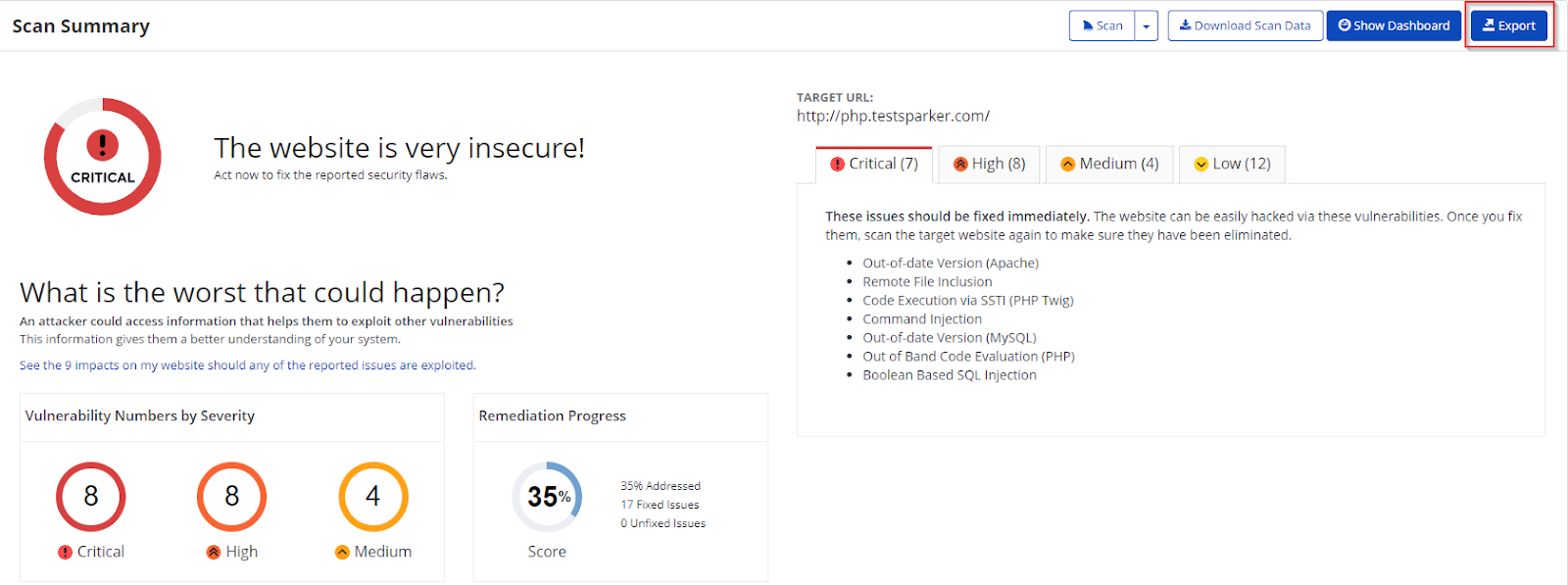
- On the Scan Summary page, choose Export.
- From the Report drop-down, choose Executive Summary.
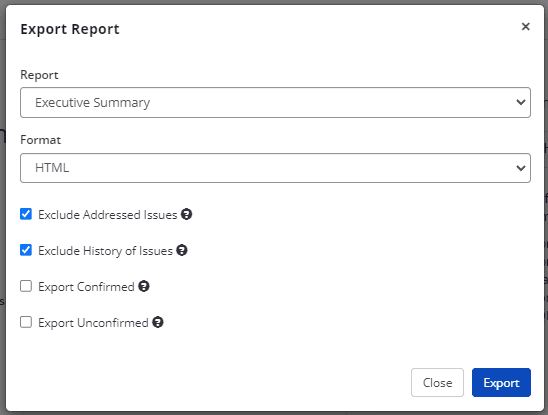
- From the Format drop-down, choose an option.
- If required, choose one of the following to configure your report:
- Exclude Addressed Issues excludes those issues on which you've already taken action.
- Exclude History of Issues excludes the issue history from the report. If unselected, only the last 10 history items appear in the report. For more information, refer to the Viewing Issues in Invicti Enterprise document.
- Export Confirmed includes only those issues that are confirmed.
- Export Unconfirmed includes only those issues that are unconfirmed.
- Choose Export.
You can view the report in the saved location.
Generate an executive summary report in Invicti Standard
- From the ribbon, select the Reporting tab, then Executive Summary Report.

- Choose a save location, then Save.
- The Export Report dialog is also displayed at this point, with the Path field already populated from the previous dialog.
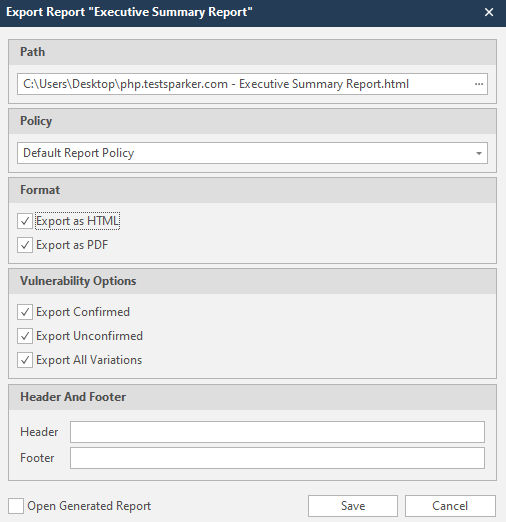
- From the Export Report dialog, you can decide on:
- Policy: choose the default policy or customized policy reports. For more information, refer to the Custom Report Policies document.
- Report Format: choose HTML and/or PDF format.
- Vulnerability Options (choose one or all):
- Export Confirmed: when selected, the report includes confirmed vulnerabilities.
- Export Unconfirmed: when selected, the report also includes unconfirmed vulnerabilities.
- Export All Variations: variations mean that if Invicti identified some passive or Information level issues in more than one page, it doesn't show all these variations. However, users can change this by enabling or disabling this option.
- Header and Footer: enter relevant information that appears in the header and footer section of the report.
- Open Generated Report: when selected, your reports are generated when you choose Save.
- Choose Save.
You can now view the report in the saved location.
Need help?
Invicti Support team is ready to provide you with technical help. Go to Help Center