Editing Vulnerabilities and Adding Security Standards in Invicti Enterprise
The Vulnerability Editor allows you to modify vulnerability details, such as description, name, severity, and impact. You can also edit or assign classifications to vulnerabilities, including CVSS, OWASP, PCI, and other security standards. These changes are applied to custom report policies that you attach when running a scan and they affect your scan result report.
This document explains how to edit vulnerabilities and add security standards to vulnerabilities.
To edit a vulnerability's details in Invicti Enterprise, you need to create a new report policy or clone the default report policy. For more information, refer to Custom Report Policies external.
How to Edit Vulnerability Details with the Vulnerability Editor
- Select Policies > Report Policies from the left-side menu
- Click Edit next to the custom report policy you want to edit

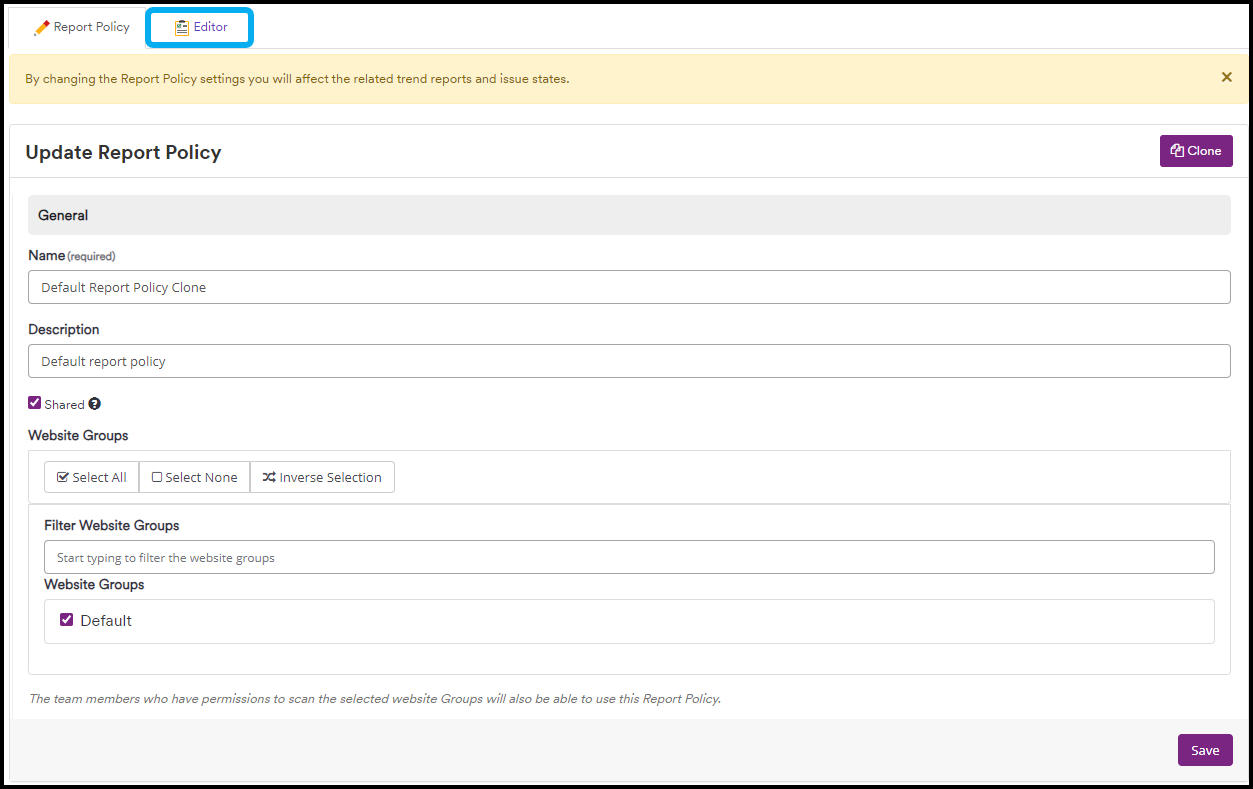
- Select the Editor tab
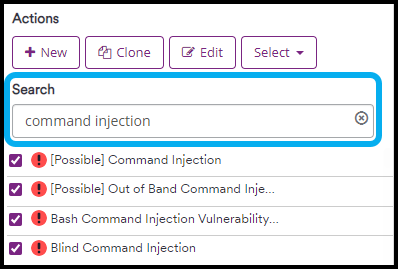
- Use the Search field or scroll down to find the vulnerability you want to edit and select it by clicking on it
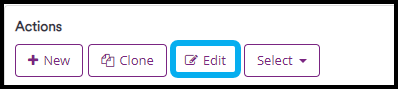
- Click Edit
-
In the Vulnerability Editor window that opens, make changes to any of the following fields:
- Description: Name of the vulnerability
- Type: This field is read-only and identifies the type of vulnerability
- Severity: This defines the importance of the vulnerability. For more information, refer to Vulnerability severity levels external
Changing an SQL injection severity to "Best Practice" might cause you to miss critical issues in your web application.
-
Signature Type: Determines how Invicti reports identified vulnerabilities. The drop-down options are:
- Active: Used for active attacks where Invicti sends an attack payload to identify vulnerabilities. Invicti reports the vulnerability each time it is identified. For example, if an SQL Injection is found on ten different web pages, Invicti reports it on all of those web pages
- Passive: Used for passive attacks where Invicti analyzes responses to identify vulnerabilities. Invicti reports the vulnerability each time it is identified. For example, if a Microsoft Outlook Personal Folders File (.pst) is found on ten different web pages, Invicti reports it on all of those web pages
- Groupable: Limits the number of times a vulnerability is reported. The default value is 1. For example, if SQL Injection is set to Groupable, Invicti reports it only on one web page
- Unique: Reports a vulnerability only once. For example, if SQL Injection is set to Unique, Invicti reports it only one time
-
Order: This sets the priority for listing vulnerabilities identified by Invicti. The drop-down options are:
- Confirmed: Invicti verified the vulnerability with Proof-Based Scanning external
- Probable: There is a high possibility of a vulnerability. Probable vulnerabilities are very rare in Invicti and apply mainly to Probable SQLi and Probable LFI vulnerabilities
- Possible: The vulnerability was identified but not confirmed. In these cases, Invicti assigns a certainty value
- Inactive
-
Impacts: This defines the impact of the vulnerability. You can select one or more built-in impacts for the vulnerability identified by Invicti. The impact message is displayed in scan reports
-
Retestable: This indicates whether the issue is eligible for retesting. For more information, refer to Managing issues external
-
Show Attack Pattern: This determines if Invicti displays the attack pattern within the scan reports
-
Hidden: This determines whether the vulnerability is in your custom report. If selected, Invicti removes the vulnerability from the custom report policy list. So, Invicti does not report this vulnerability
-
Enabled: This determines whether Invicti performs a security check for a vulnerability. When selected, Invicti verifies whether a vulnerability exists in your system
-
Firewall Compatible: This indicates that Invicti can include this vulnerability in the Web Application Firewall Rules report. For additional details, refer to the ModSecurity WAF Rules Report external and F5 BIG-IP ASM WAF Rules Report external
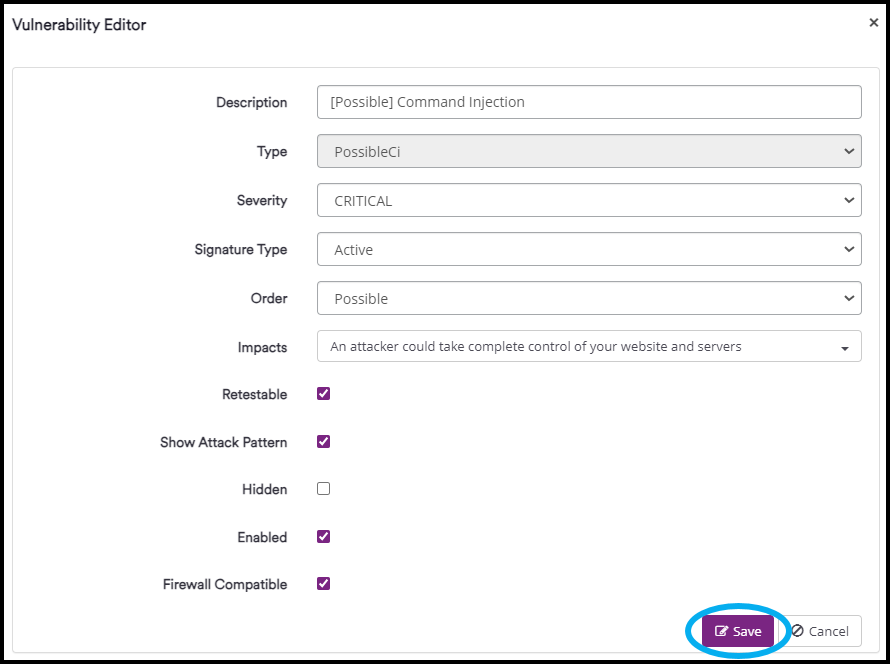
- Click Save
Your changes will only apply to new scans. To see these changes in reports, you must run new scans using the custom report policy you edited.
How to Add Security Standards to Vulnerabilities
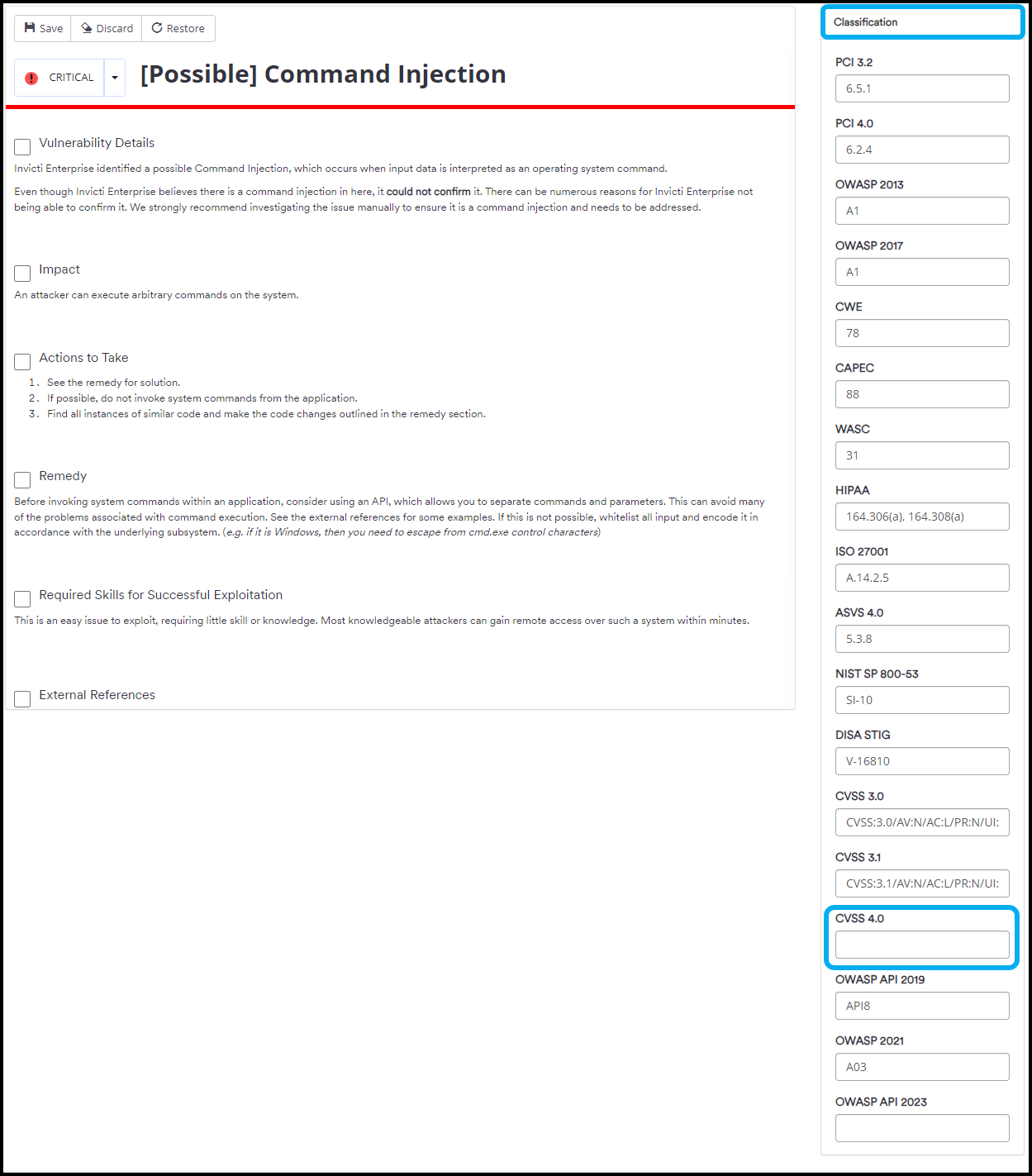
The column on the right-hand side in the Report Policy Editor allows you to edit or add OWASP, PCI, CVSS, and other security standards or classifications. The example below shows how to add the CVSS 4.0 value to a vulnerability.
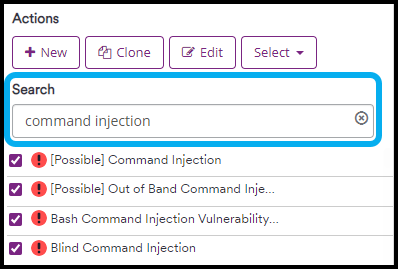
- Use the Search field or scroll down to find the vulnerability you want to edit and select it by clicking on it
- In the Classification column, scroll down to find the CVSS 4.0 field
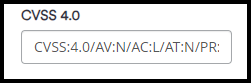
- Enter the vector string
- Click Save. Your changes will only apply to new scans. To view these changes in reports, you must run new scans using the custom report policy you edited

Need help?
Invicti Support team is ready to provide you with technical help. Go to Help Center