Configuring Custom Database Maintenance
Invicti Enterprise performs daily automatic SQL Server Index maintenance every morning at 6 a.m. (RebuildIndexesLongTermQuery) and 7 a.m. (RebuildIndexes). You can disable this automatic database maintenance and instead set your own custom database maintenance schedule using the SQL Server Agent.
How to configure custom database maintenance
info
You will need the SQL Server Agent installed in order to carry out these instructions.
Step 1: Disable automatic database maintenance
- Log in to Invicti Enterprise as an Account Owner or Account Administrator.
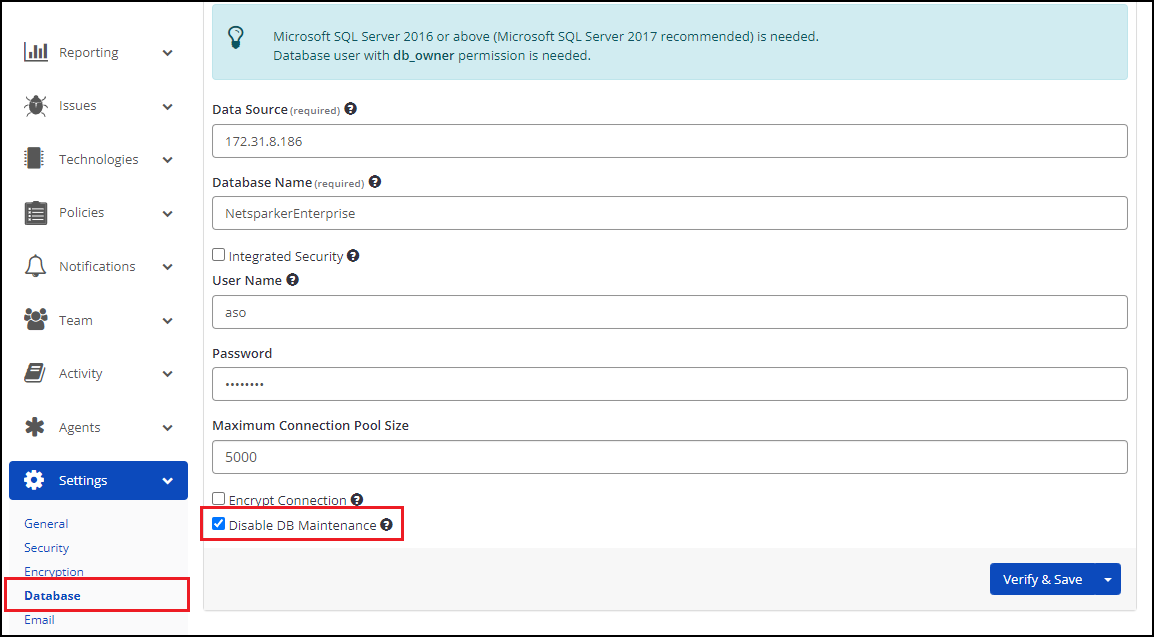
- Select Settings > Database from the left-side menu.
- Click the checkbox next to Disable DB Maintenance.
- Click Verify & Save.
- Restart IIS. (Open Command Prompt and execute the command:
iisreset)
Step 2: Create a new database for maintenance operations
- Create a new SQL Server database using the query below.
USE [master]
GO

CREATE DATABASE [DBAtools]
Step 3: Run stored procedure and table creation operations
- Execute the following "CommandLog" script on the newly created DBAtools database to create a command log table. Information about the operations performed for Index maintenance will be recorded in this table.
SET ANSI_NULLS ON
GO
SET QUOTED_IDENTIFIER ON
GO
IF NOT EXISTS (SELECT * FROM sys.objects WHERE object_id = OBJECT_ID(N'[dbo].[CommandLog]') AND type in (N'U'))
BEGIN
CREATE TABLE [dbo].[CommandLog](
  [ID] [int] IDENTITY(1,1) NOT NULL,
  [DatabaseName] [sysname] NULL,
  [SchemaName] [sysname] NULL,
  [ObjectName] [sysname] NULL,
  [ObjectType] [char](2) NULL,
  [IndexName] [sysname] NULL,
  [IndexType] [tinyint] NULL,
  [StatisticsName] [sysname] NULL,
  [PartitionNumber] [int] NULL,
  [ExtendedInfo] [xml] NULL,
  [Command] [nvarchar](max) NOT NULL,
  [CommandType] [nvarchar](60) NOT NULL,
  [StartTime] [datetime2](7) NOT NULL,
  [EndTime] [datetime2](7) NULL,
  [ErrorNumber] [int] NULL,
  [ErrorMessage] [nvarchar](max) NULL,
 CONSTRAINT [PK_CommandLog] PRIMARY KEY CLUSTERED
(
  [ID] ASC
)WITH (PAD_INDEX = OFF, STATISTICS_NORECOMPUTE = OFF, IGNORE_DUP_KEY = OFF, ALLOW_ROW_LOCKS = ON, ALLOW_PAGE_LOCKS = ON)
)
END
GO
- Execute the following “CommandExecute” script on the DBAtools database. (Click the + (plus) icon below to expand the script)
CommandExecute script
- Execute the following “IndexOptimize” script on the DBAtools database. (Click the + (plus) icon below to expand the script)
IndexOptimize script
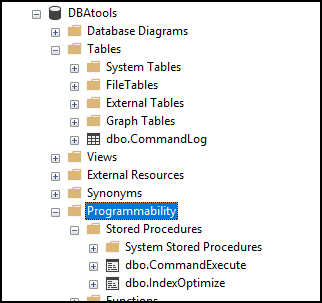
Your database structure will now look like this:
Step 4: Schedule automatic maintenance operations
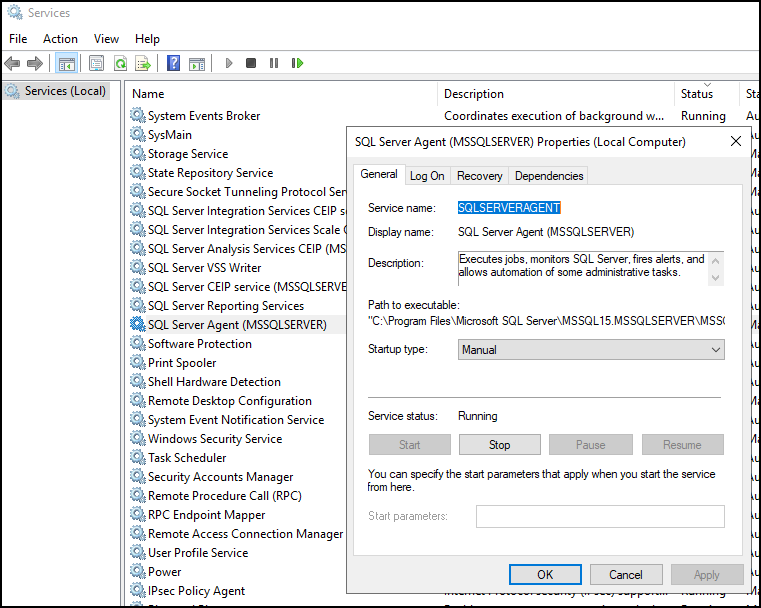
- Ensure that the SQL Server Agent is running. (Open Services to check the status. If it is not running, right-click on SQL Server Agent and select Properties, then click Start.)
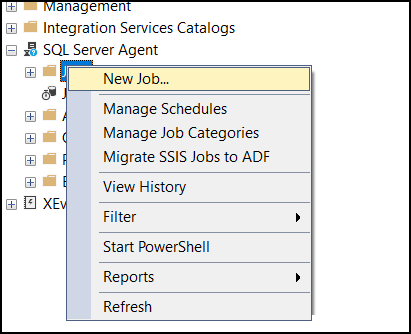
- In Object Explorer, right-click on Jobs (under the SQL Server Agent node) and select New Job… from the context menu.
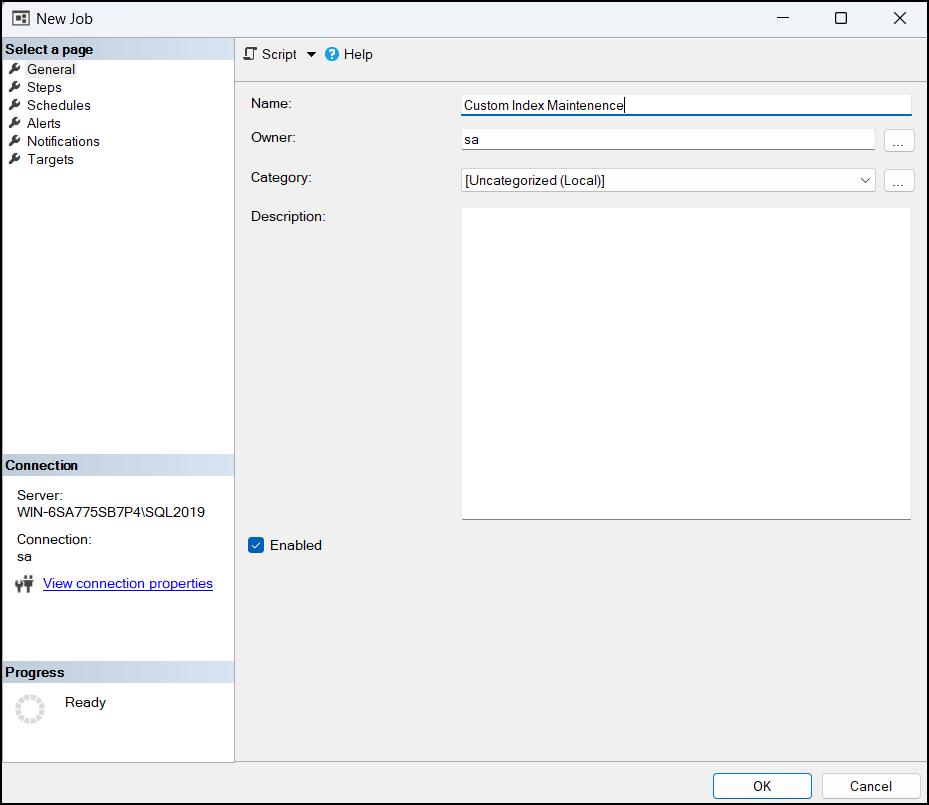
- In the General tab of the New Job form, set the Name, Owner, Category, and Description for the job.
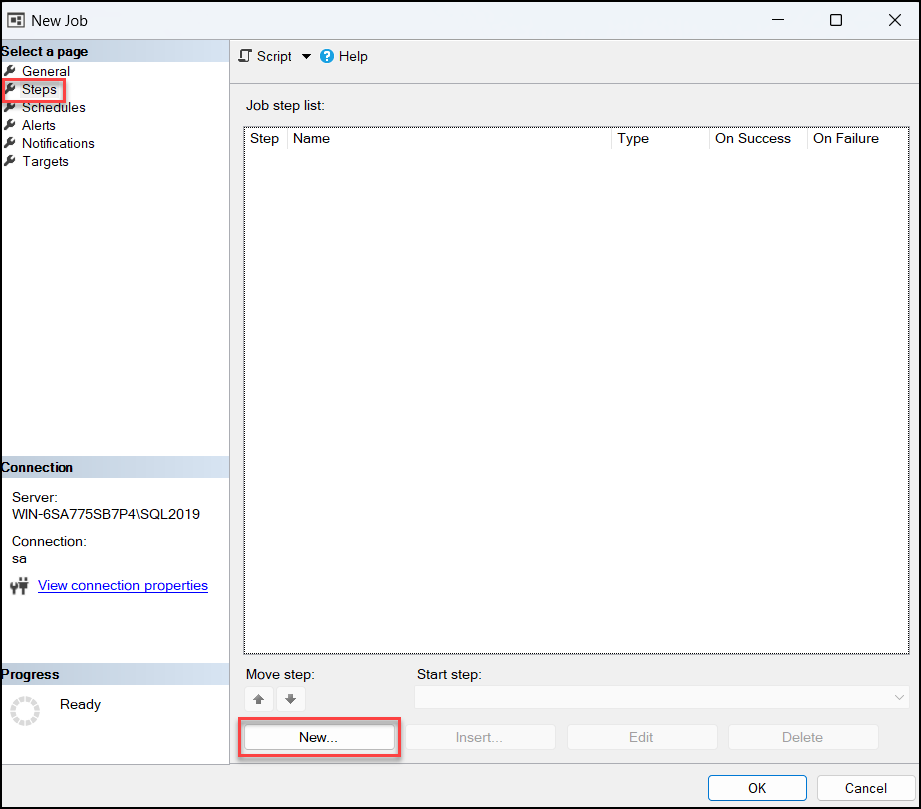
- Select the Steps tab, then click New…
- Specify the Step name. In the Type field, select Transact-SQL script (T-SQL).
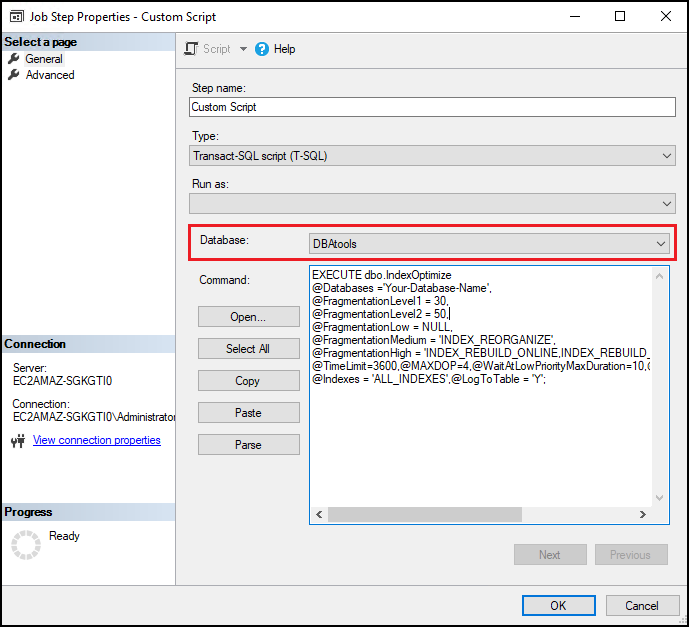
- Ensure the Database field is set to DBAtools. Then enter the custom maintenance script into the Command box. Click OK to save the job step.
EXECUTE dbo.IndexOptimize
@Databases ='Your-Database-Name',
@FragmentationLevel1 = 30,
@FragmentationLevel2 = 50,
@FragmentationLow = NULL,
@FragmentationMedium = 'INDEX_REORGANIZE',
@FragmentationHigh = 'INDEX_REBUILD_ONLINE,INDEX_REBUILD_OFFLINE',
@TimeLimit=3600,@MAXDOP=4,@WaitAtLowPriorityMaxDuration=10,@WaitAtLowPriorityAbortAfterWait=SELF,
@Indexes = 'ALL_INDEXES',@LogToTable = 'Y';
- Select the Schedules tab, then click New…
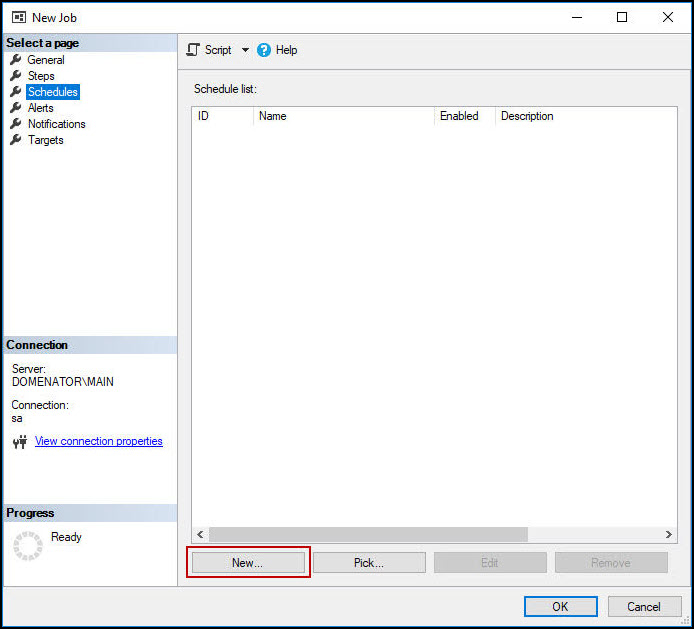
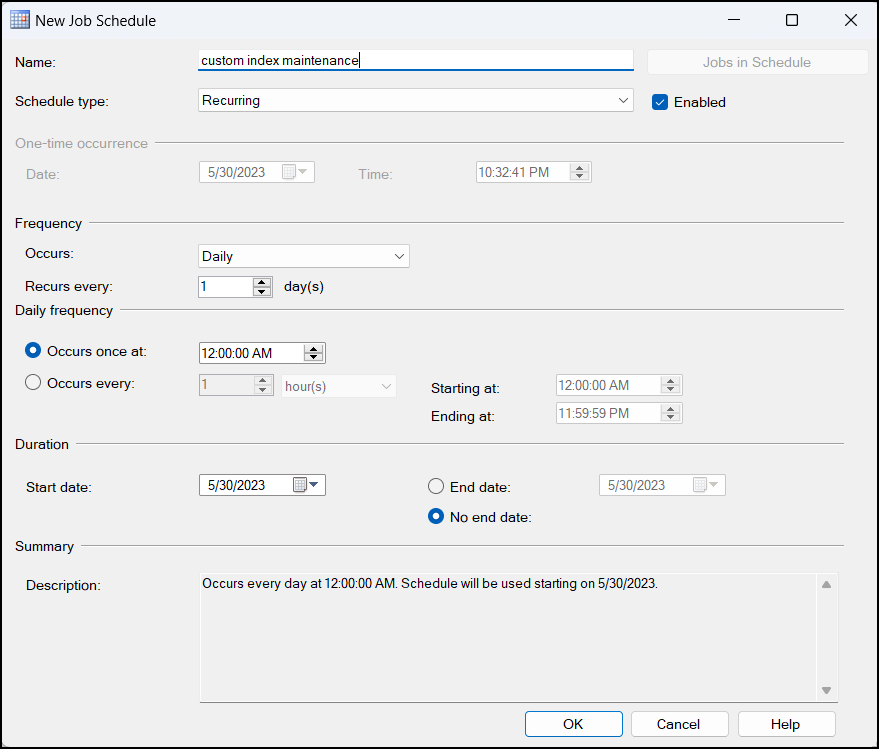
- Enter a Name for the schedule and set the Frequency parameters. Then click OK to save the new schedule.
Step 5: Check the operations run correctly
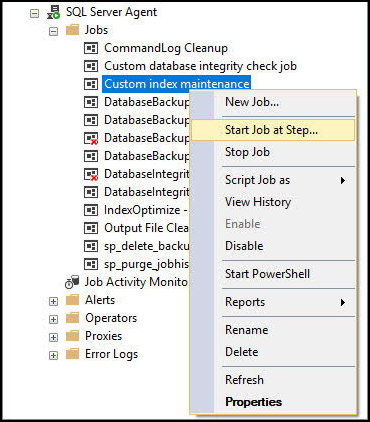
- Locate the newly created job in the Object Explorer under the Jobs node. Right-click on the job and select Start Job at Step… from the context menu.
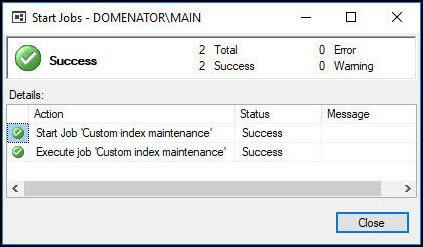
When the job is completed, a success message appears.
info
You can view the operations performed using the following query:
SELECT * FROM [DBAtools].[dbo].[CommandLog]
Need help?
Invicti Support team is ready to provide you with technical help. Go to Help Center
Was this page useful?