Database Settings
On the Database settings page, you can set and verify the database you have connected to. You can also check the credentials, set limits on the Maximum Connection Pool Size, and encrypt the connection.
warning
If you change the database you have connected to, your session is no longer valid and the system signs you out.
note
Database Settings is available in the Invicti Enterprise On-Premises edition only.
For further information, see Invicti Editions.
Database settings fields
This table lists and explains the fields on the Database Settings page.
| Field | Description |
|---|---|
| Data Source | This is the name or network address of the correct instance of the SQL Server to connect. If there is an instance name, specify a name like 'server/instance' or the IP address. |
| Database Name | This is the name of the database associated with the connection. |
| Integrating Security | Select to enable the current Windows identity established on the operating system thread to access the SQL Server database. This is only relevant if your application runs on a Windows-based intranet. You can then use Windows-integrated authentication for database access. |
| User Name | This is the database username. The user needs to have at least db_owner permission for the database. |
| Password | This is the database user's password |
| Maximum Connection Pool Size | This is the maximum number of connections Invicti can open to the database. |
| Encrypt Connection | Select to enable SSL encryption for all data sent between the client and the server. |
How to configure Database settings
- Log in to Invicti Enterprise.
- From the main menu, select Settings > Database.
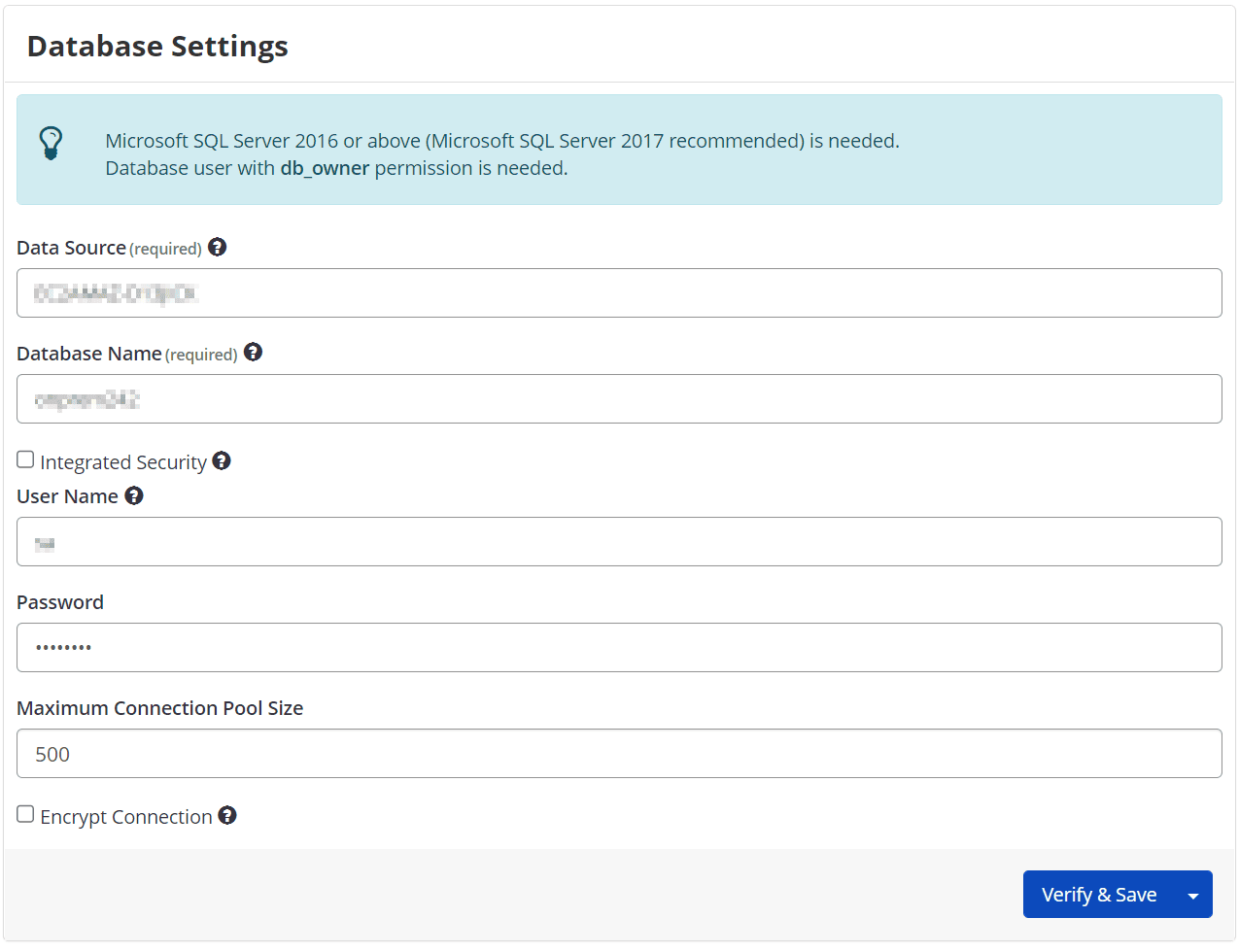
- In the Data Source field, enter the server's name or network address.
- In the Database Name field, enter the name of the database.
- In the Integrated Security field, check the box to enable Windows integrated authentication. Skip to step 7, as the User Name and Password fields will not display.
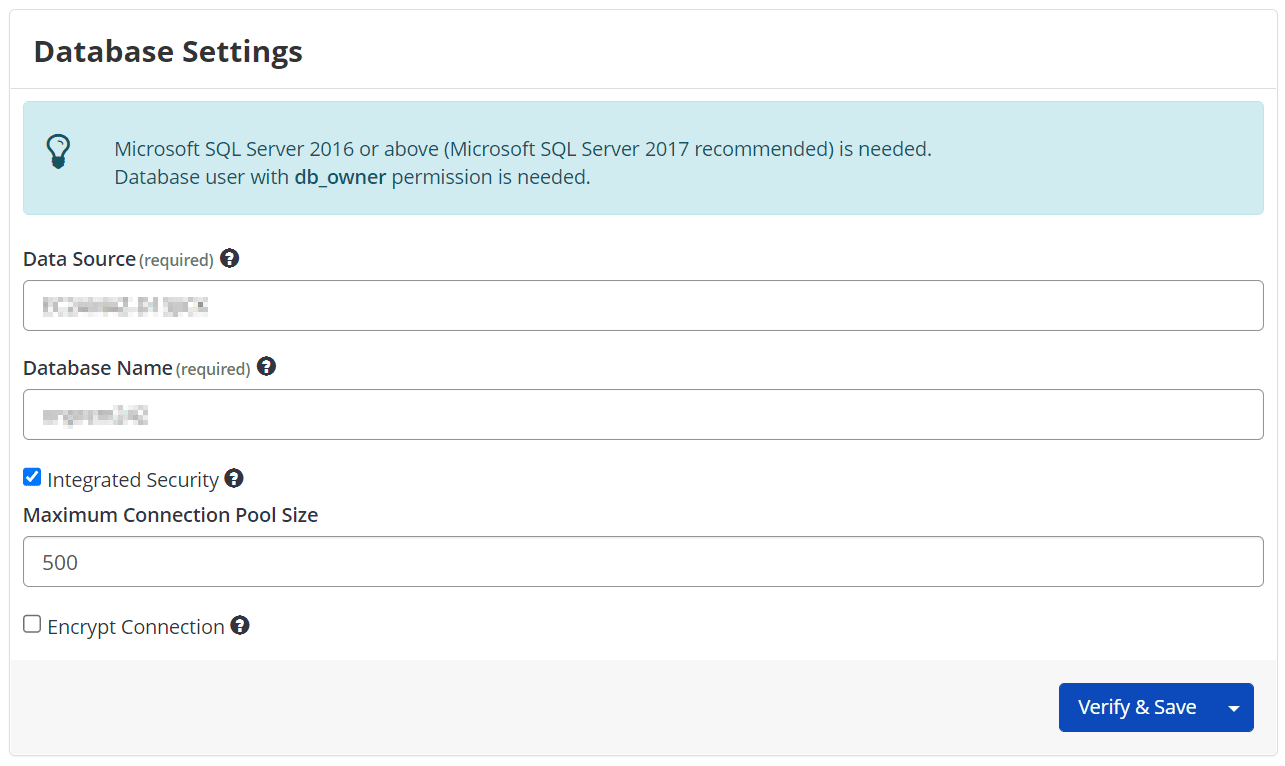
- In the User Name field, enter the user name.
- In the Password field, enter the password.
- In the Maximum Connection Pool Size field, enter a number.
- In the Encrypt Connection field, check the box to enable data encryption.
- Select Verify & Save to proceed with the verification process. Alternatively, select the drop-down and select Save to skip the verification process.
Need help?
Invicti Support team is ready to provide you with technical help. Go to Help Center
Was this page useful?