Security Settings
On the Security Settings page, you can enable, add, and set security measures while scanning. You can also make user sessions IP restricted, prevent internal scanning, enable localhost scanning, and add new authorized IP addresses.
note
Security settings is available in the Invicti Enterprise On-Premises Edition only.
For further information, see Invicti Editions.
Security settings fields
This table lists and explains the fields on the Security settings page.
| Field | Description |
|---|---|
| Prevent Internal Scanning | Enable this option to prevent Invicti from scanning internal IP address blocks. |
| Enable Localhost Scanning | Enable this option to allow Invicti to scan localhost. For example, if you've already built your website on localhost:95, please enable it for scanning. |
| Authorized IP Addresses | This is a list of IP Addresses that have been specifically authorized to access Invicti Enterprise. If you want to serve the application behind a load balancer, you must add its IP address to this list. Otherwise, IP Based Cookies will not work. |
| Name | This is the name of the IP Address. |
| Regex Pattern | This is the Regex Patterns of the IP Address. |
How to enable Security settings
- Log in to Invicti Enterprise.
- From the main menu, select Settings > Security.
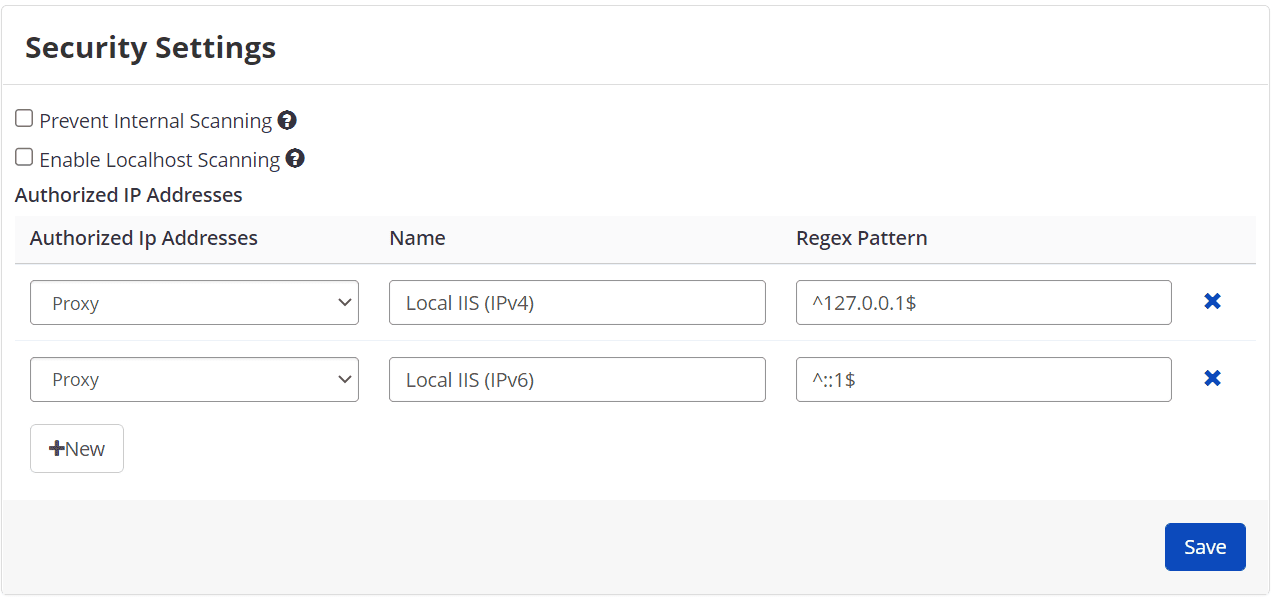
- Enable the Prevent Internal Scanning checkbox.
- Enable the Enable Localhost Scanning checkbox.
- Select Save.
How to add an Authorized IP Address
- From the main menu, select Settings > Security.
- In the Authorized IP Addresses panel, select New.
- Complete the Authorized IP Addresses, Name, and Regex Pattern fields.
- Select Save.
How to delete an Authorized IP Address
- From the main menu, select Settings > Security.
- In the Authorized IP Addresses panel, select the Delete button next to the relevant IP address.
- Select Save.
Need help?
Invicti Support team is ready to provide you with technical help. Go to Help Center
Was this page useful?