Integrating Invicti Enterprise with CircleCI
CircleCI is a continuous integration and delivery system that is used by software teams to allow them to build, test and deploy applications easier and quicker on multiple platforms. With an emphasis on speed and configurability, CircleCI is built to help users test their applications whenever they make changes to it, release it or deploy it.
This topic explains how to configure Invicti Enterprise to send a detected vulnerability to CircleCI.
For further information, see What Systems Does Invicti Integrate With? external documentation.
CircleCI Fields
This table lists and explains the CircleCI fields in the New CircleCI Integration window.
| Button/Section/Field | Description |
|---|---|
| Scan Type | This is the type of scan: Incremental, Full (With primary profile), Full (With selected profile). For further information, see Types of Scans external documentation. |
| Website | Click to select the URL of the website that will be scanned. |
| Scan Profile | Click to select the Scan Profile that will be used. (If you selected Full (With primary profile) as the Scan Type, this is not displayed.) |
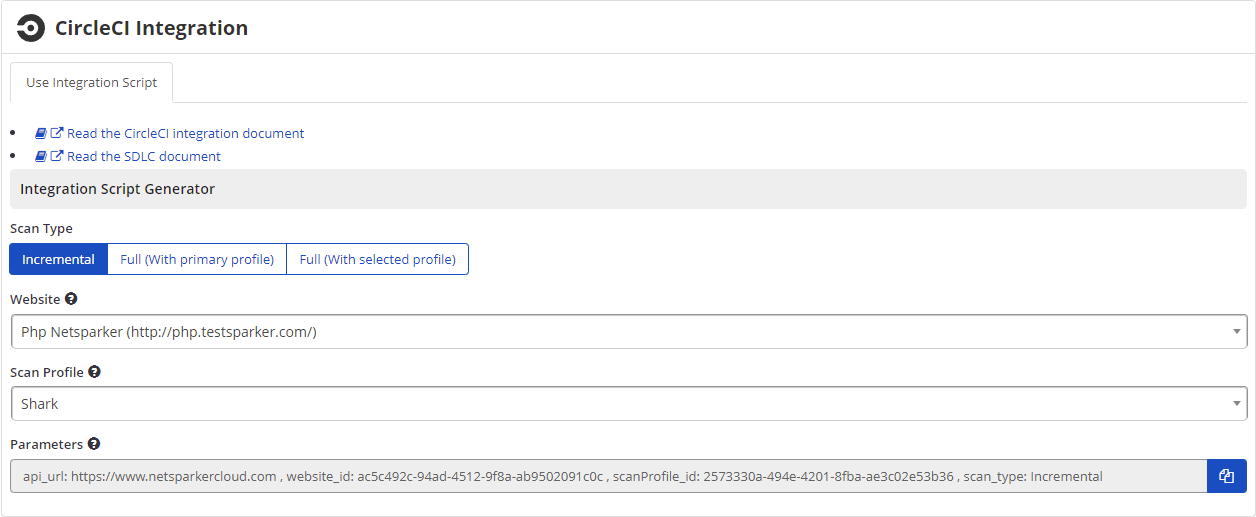
| Parameters | Add the information in this script to the corresponding fields in the config.yml file in your project. Use variables for Invicti Enterprise and API credentials. |
How to Generate and Use Invicti Enterprise's CircleCI Integration Orbs
Invicti Enterprise uses GitHub for integration with CircleCI.
-
Navigate to your GitHub project to integrate CircleCI.
-
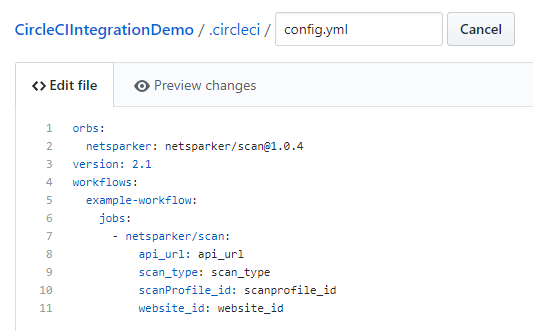
Create a .circleci folder then create a config.yml in it: ".circleci/config.yml".
-
Copy sample yaml code from the Invicti orb on CircleCI external page and paste it into your config.yml. Note that in config.yml, the job name must be 'invicti/scan'.
- Log in to Invicti.
- From the main menu, click Integrations, then New Integration.
- From the Continuous Integration Systems section, click CircleCI.
- In the Scan Type field, select the scan type.
- In the Website field, enter the website.
- If required, from the Scan Profile dropdown, select a scan profile. (This option is displayed only if you have selected Incremental or Full (With selected profile) from the Scan Type.)
- In the Parameters field, click Copy to Clipboard to copy the displayed code.
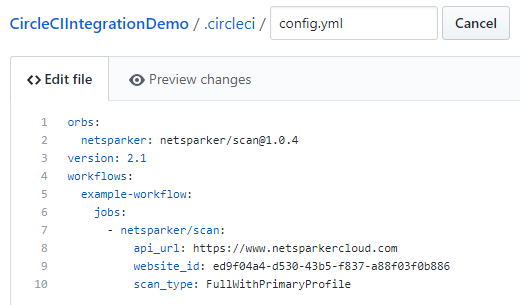
- In CircleCI, replace the related values so that the final result will be as illustrated. Also, CircleCI will read it each time and run a new build when it changes.
- Navigate to your CircleCI projects: https://app.circleci.com/projects/ external.
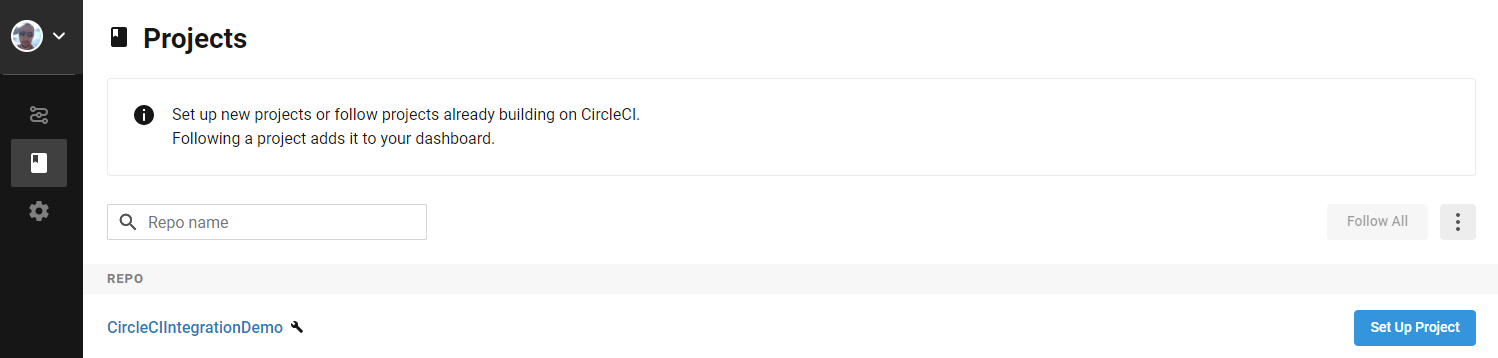
- Click Set Up Project.
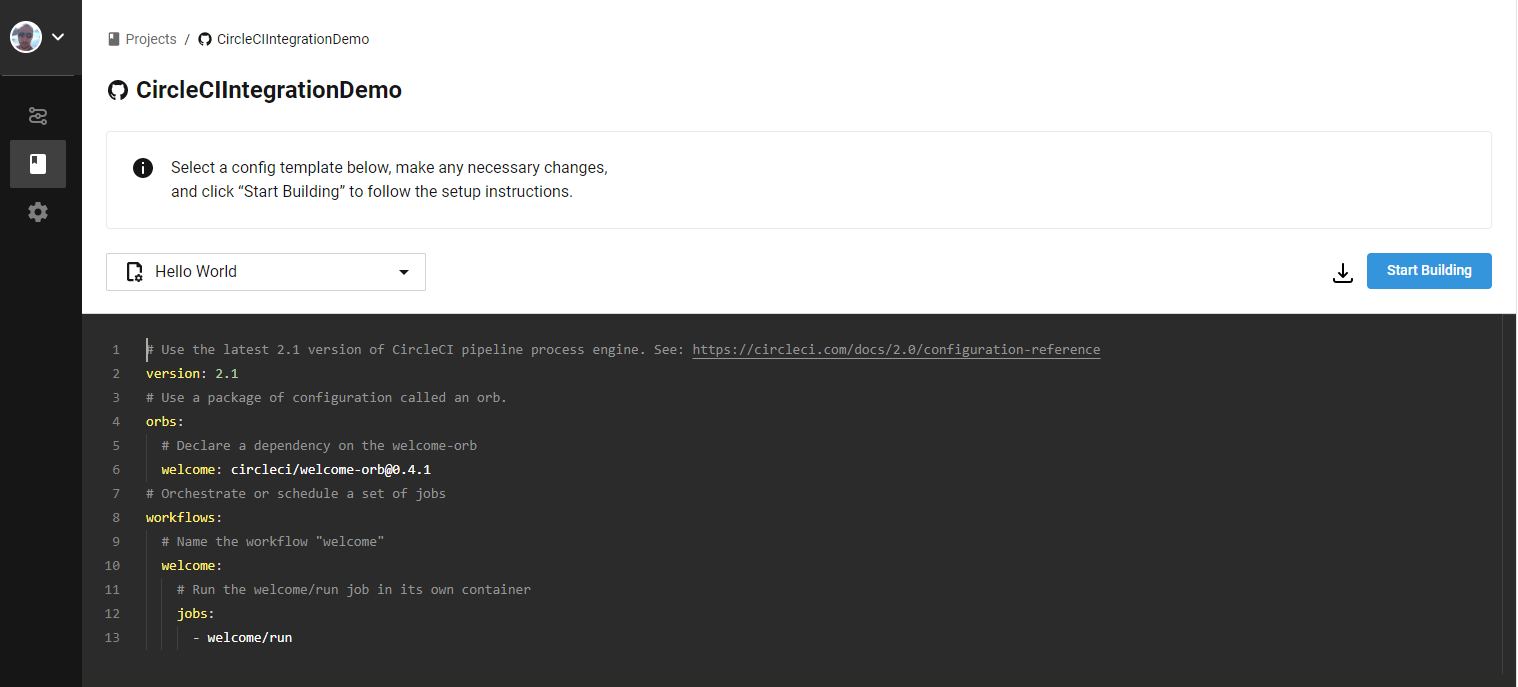
- Click Start Building.
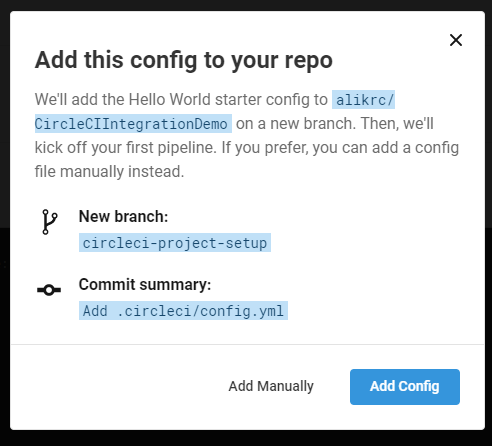
- Click Add Manually.
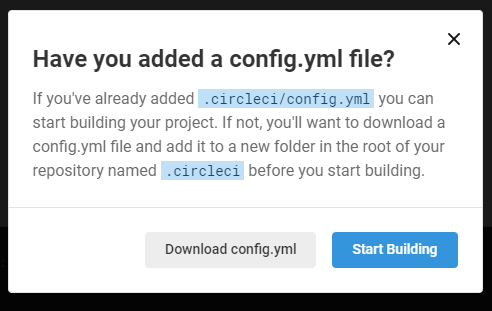
-
Click Start Building.
-
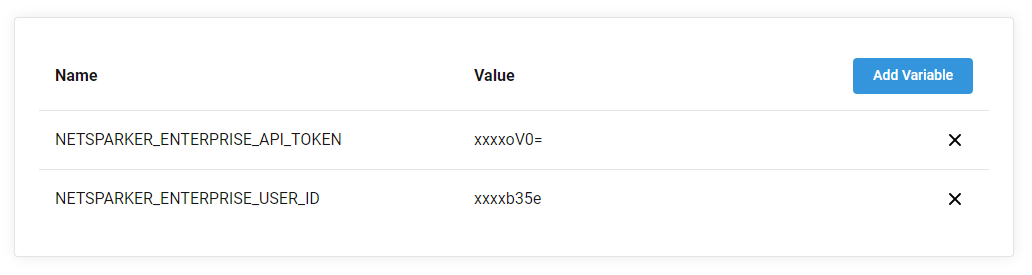
Next, configure these settings in the project environment settings. Navigate to your CircleCI Project Settings: • NETSPARKER_ENTERPRISE_USER_ID • NETSPARKER_ENTERPRISE_API_TOKEN
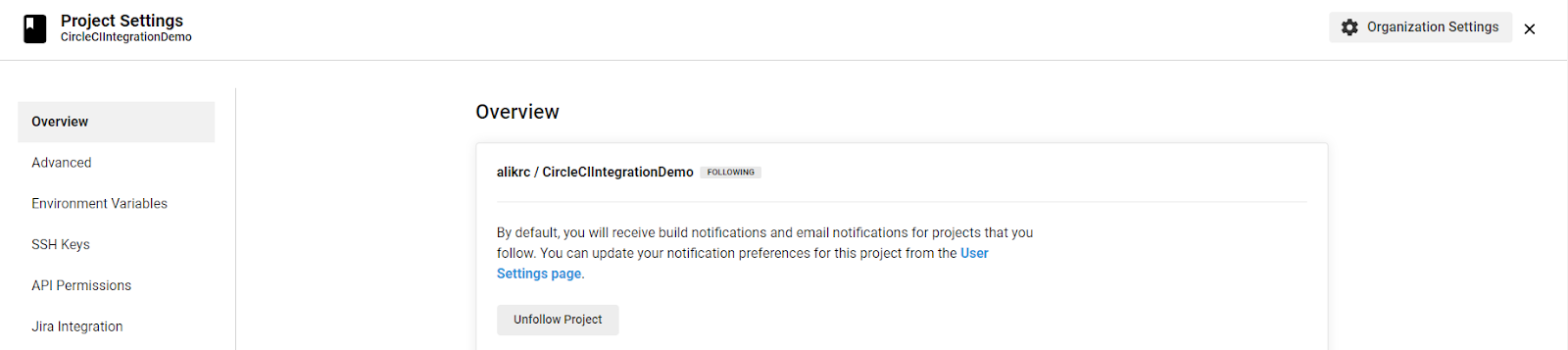
-
Then, add these variables with values into Invicti Enterprise: • In Invicti Enterprise, from the main menu, select YourName, then API Settings. • Use the information from the previous step to complete the User ID and Token fields.
-
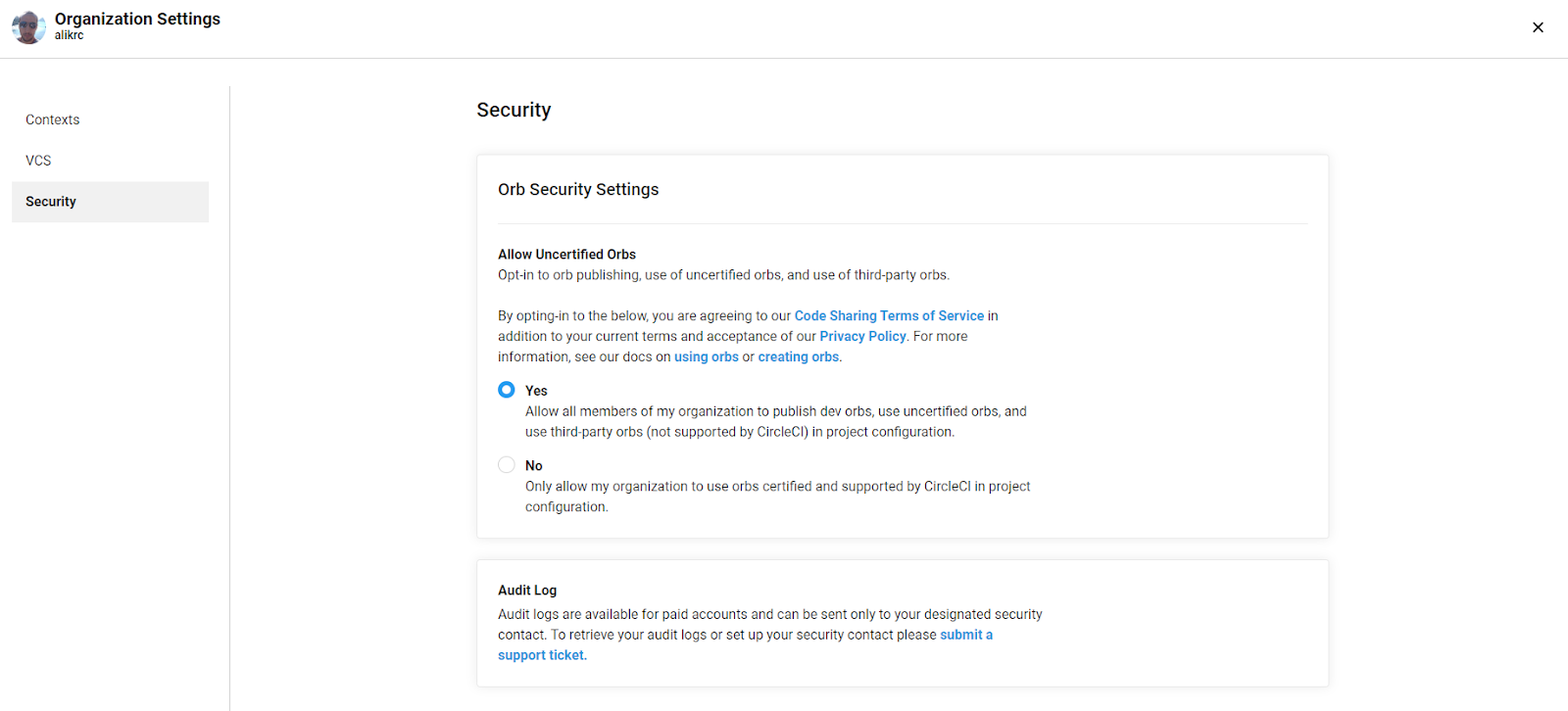
In CircleCI, navigate to Organization Settings. In Orb Security Settings, make sure Allow Uncertified Orbs is set to Yes.
- If everything is set up correctly, the pipeline will succeed and a new scan will start in Invicti Enterprise.
If everything is set up correctly, the pipeline will succeed and a new scan will start in Invicti Enterprise.
Need help?
Invicti Support team is ready to provide you with technical help. Go to Help Center