Viewing Continuous Integration Information in the Status Window
Normally, integrating Invicti Enterprise plugins into your environment is sufficient to establish an Invicti Enterprise-assisted SDLC. However, in some cases, some additional configuration is necessary to take advantage of all the benefits (see Configuring User Mappings).
Continuous Integration (CI) is standard practice in the SDLC, where developers working in a team commit their code changes to a shared repository, meaning lots of integrations each day. Finding inevitable errors rapidly is key to avoiding breaking something else and to helping the SDLC to progress quickly, so each one is automatically verified by a build that includes a test.
When the scan is initiated from the continuous integration (CI) build via Invicti Enterprise's new TeamCity, Jenkins, Bamboo, GitLab, and Azure Pipelines plugins, you can access the CI build details as described in the following sections.
You can access CI information in the Invicti Enterprise scan's Status window.
For further information, see What Systems Does Invicti Integrate With?.
How to View CI Build Information in the Status Window
- Log in to Invicti Enterprise.
- From the main menu, select Scans > Recent Scans. (If scans have been initiated by the CI server, the Website column displays the icon of the particular CI server that initiated the scan, just in front of the name of the Website.)

- For the relevant ongoing or queued scan, click Status. The Status window is displayed. From the Executive Summary panel, the Status field shows a green bar that displays the scan's current Status.

-
In the Continuous Integration Details section, you can view build information.
-
In the Build ID field, click the Build ID link.
Clicking the Build ID link will open different interfaces depending on your CI system:
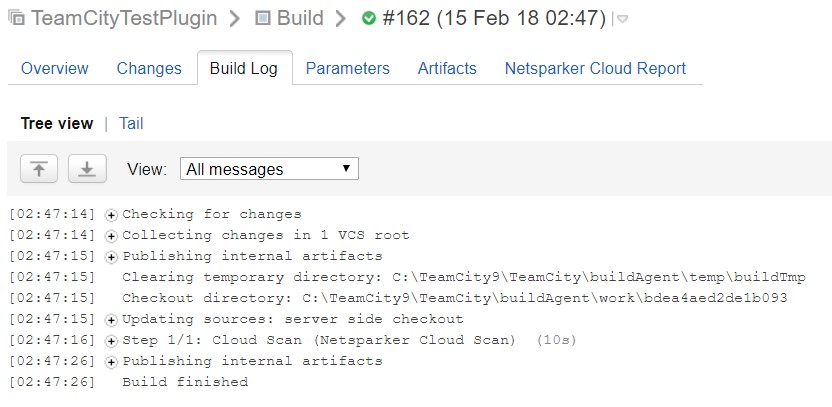
In TeamCity:
- The continuous integration server opens at the Build Log tab.
In Jenkins:
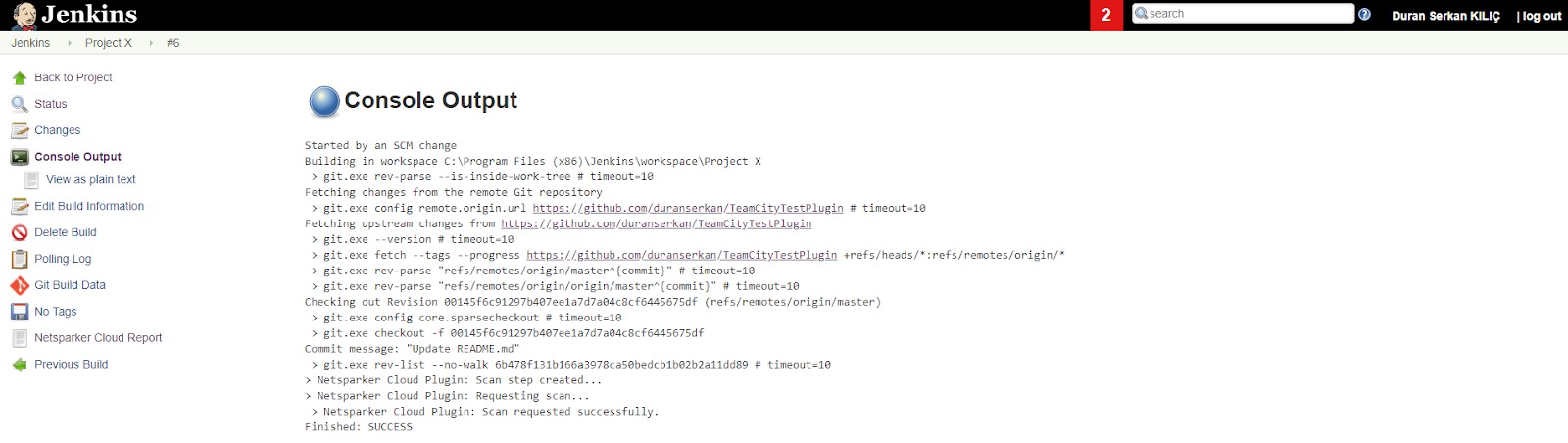
- The continuous integration server opens at the Console Output window
In Bamboo:
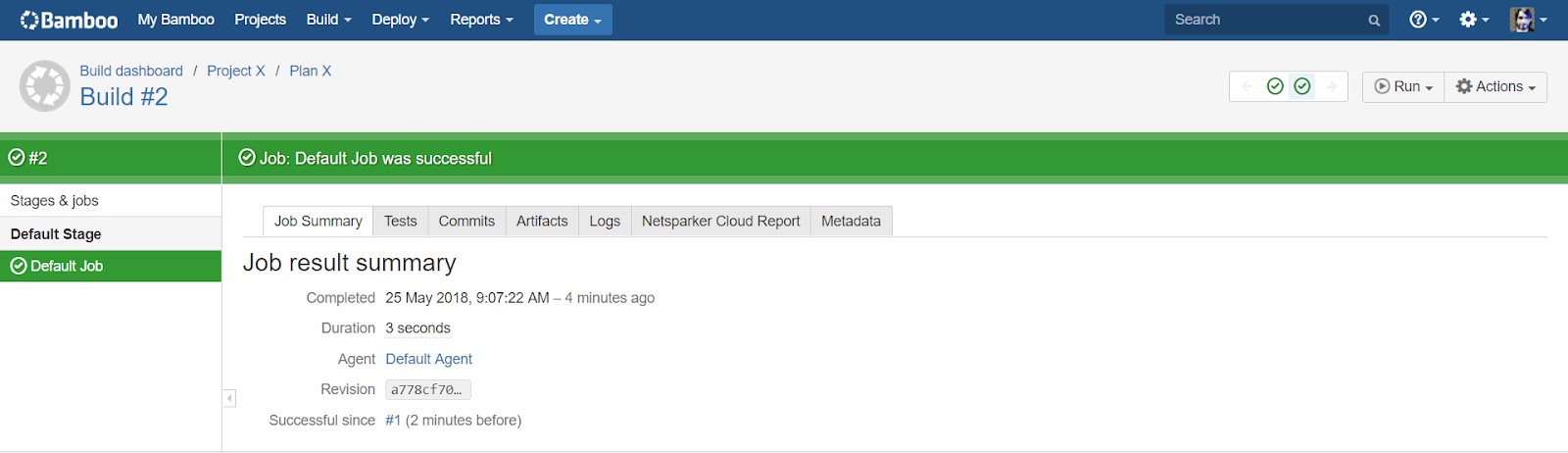
- The continuous integration server opens at the Job Summary tab
- In the Commit/Changeset field, click the Commit/Changeset link.
The Commit/Changeset link provides access to detailed change information for each CI system:
In TeamCity:
- The continuous integration server opens at the Changes tab.

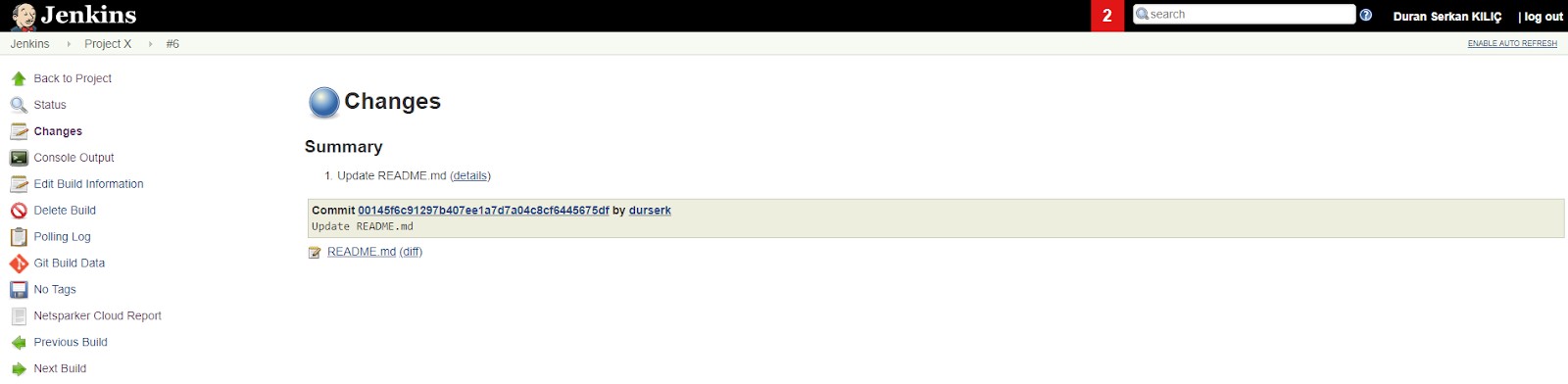
In Jenkins:
- The continuous integration server opens at the Changes window.
In Bamboo:
- The continuous integration server opens at the Commit tab.
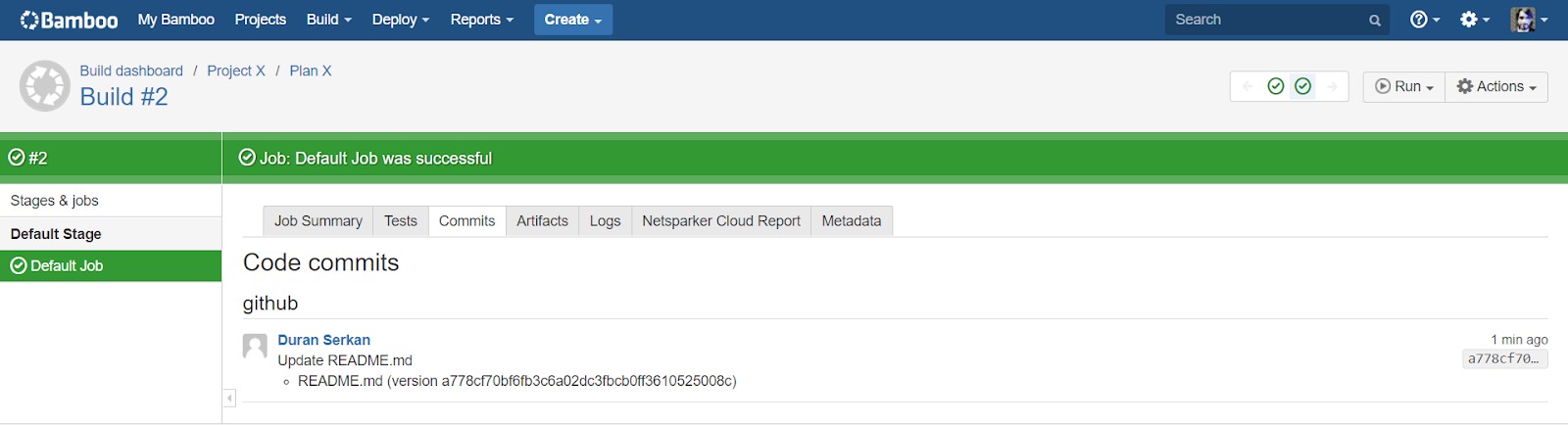
- Click the Invicti Scan Result to view the scan result. The Invicti Enterprise Scan Summary Report is displayed.
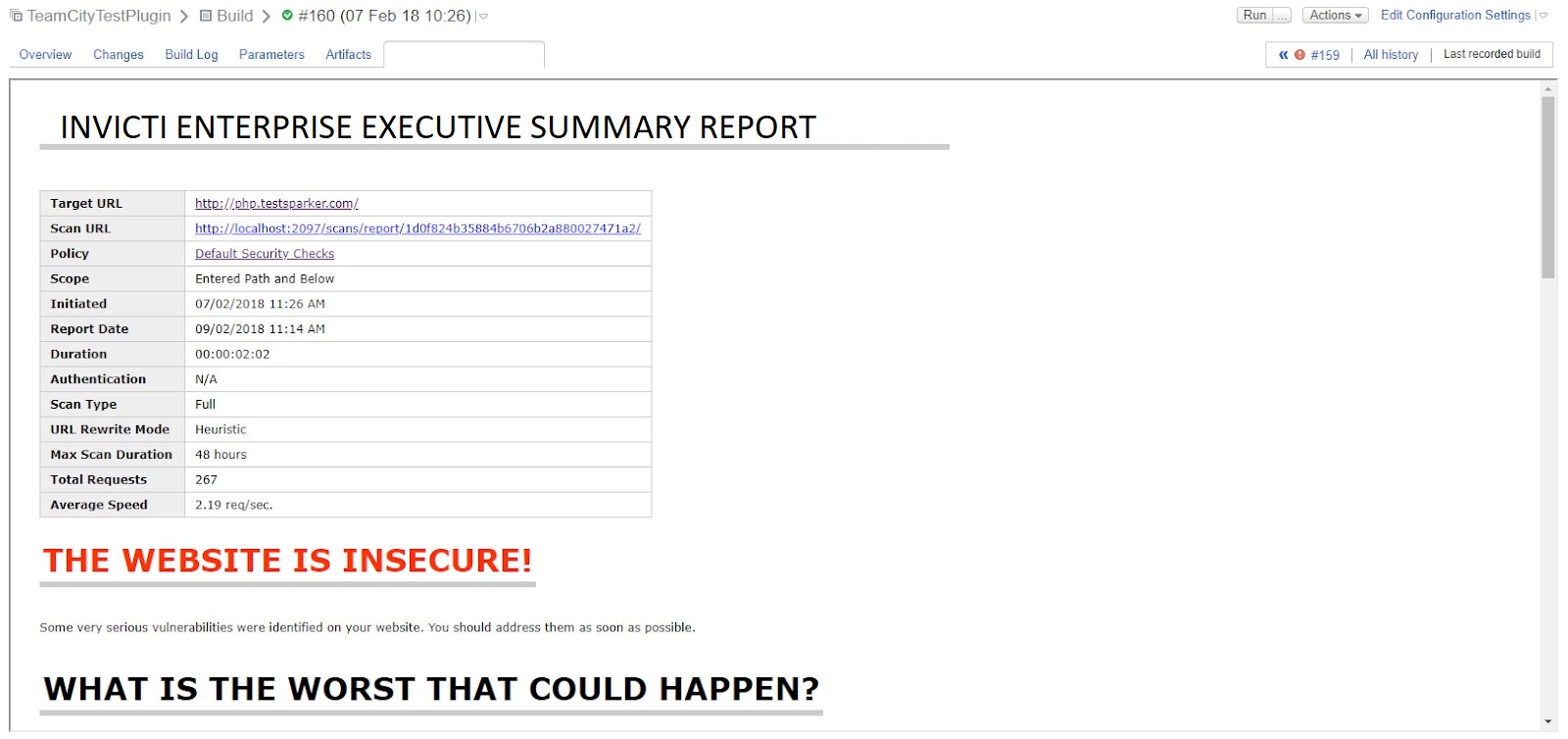
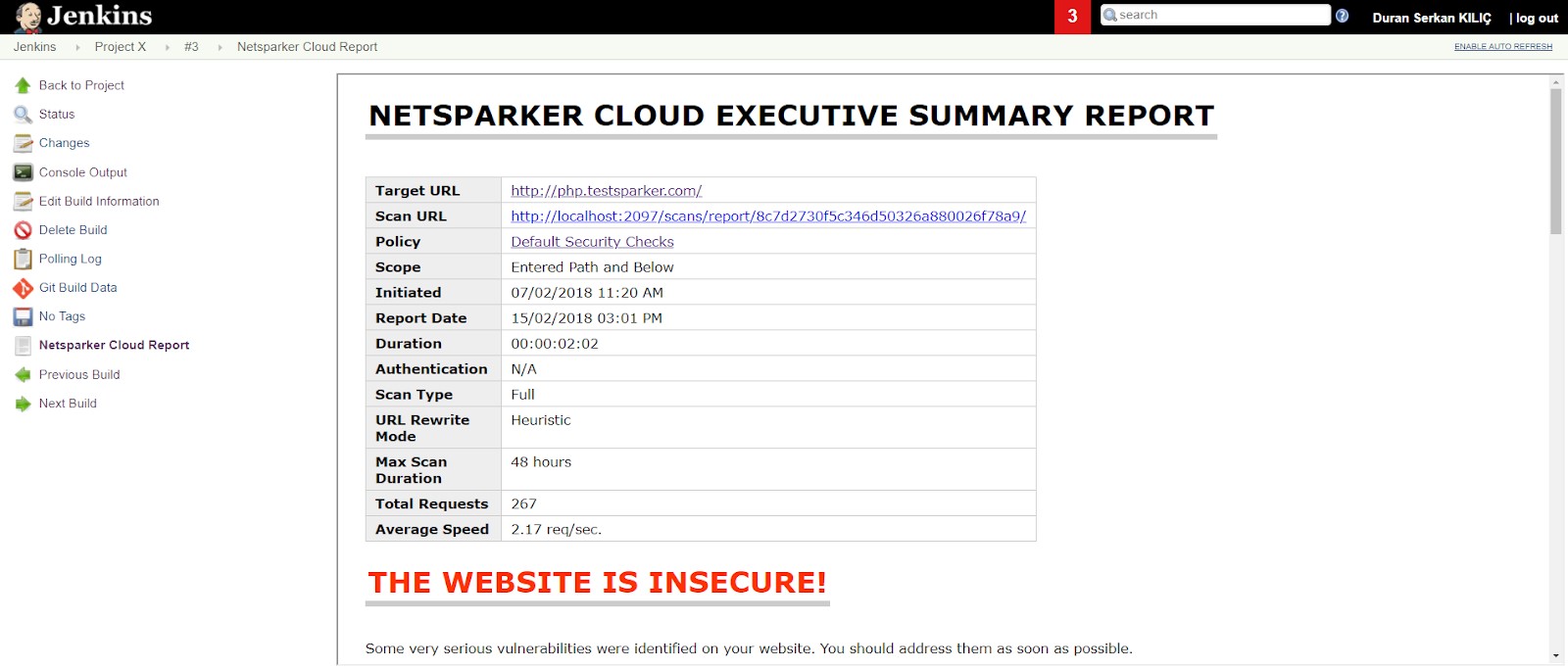
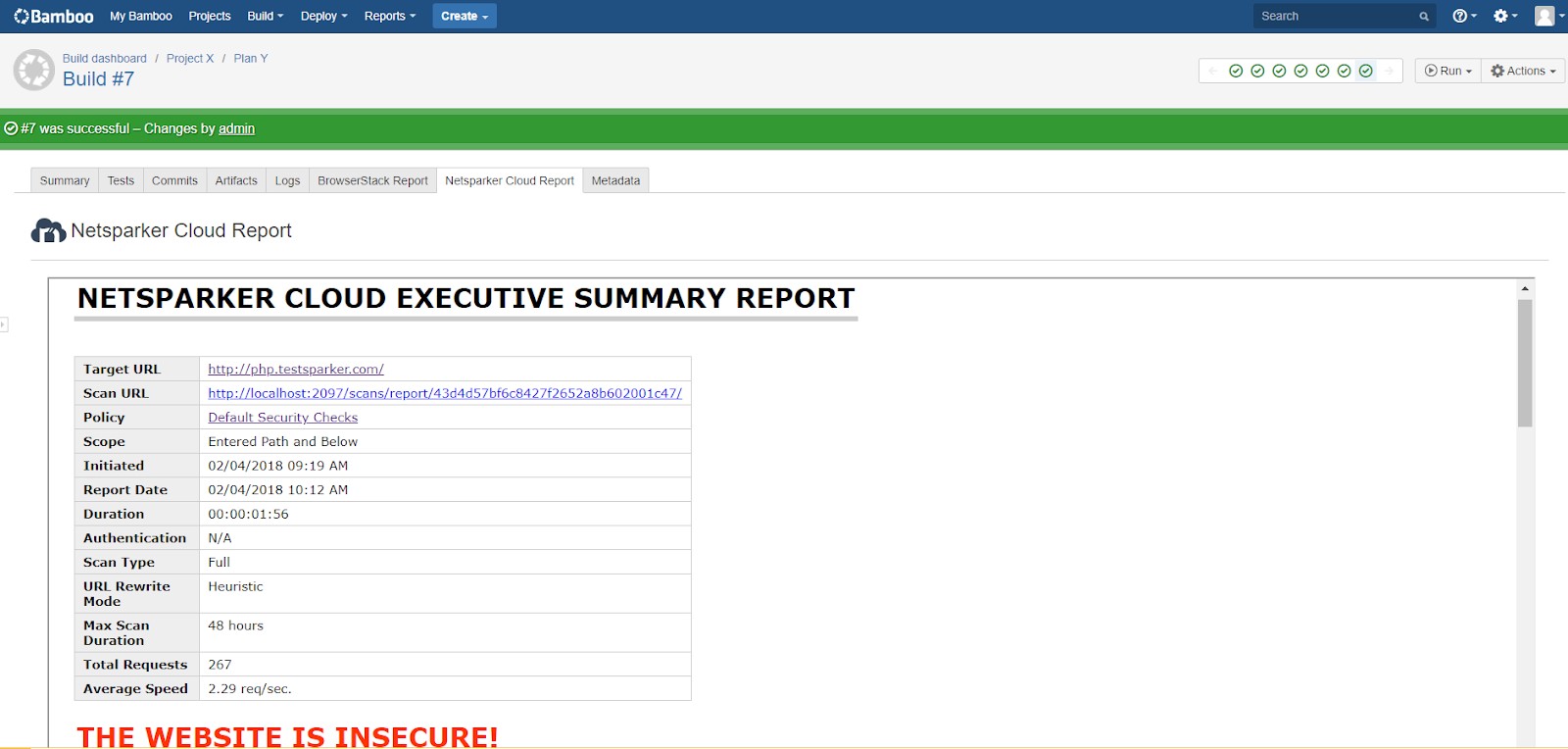
The scan result access varies by CI system but provides consistent access to the Invicti Enterprise Scan Summary Report:
In TeamCity:
In Jenkins:
In Bamboo:
Need help?
Invicti Support team is ready to provide you with technical help. Go to Help Center