Integrating Invicti Enterprise with the Bamboo Plugin
Bamboo is an automation server that enables software developers to build automation into their projects by supplying plugins. Bamboo functionality can be extended using our Netsparker Enterprise Scan Bamboo plugin.
This topic explains how to use the new Netsparker Enterprise Bamboo plugin to integrate Invicti Enterprise with Bamboo to enable our advanced integration functionality.
For further information, see What Systems Does Invicti Integrate With? external documentation.
Downloading and installing the Netsparker Enterprise Scan Bamboo Plugin
The Netsparker Enterprise Scan Bamboo plugin is packaged into a jar file called bamboo-plugin.jar This package has been tested and approved for Bamboo version 6.4.0+.
How to download the Bamboo plugin
- Log in to Invicti Enterprise.
- From the main menu, go to Integrations > New Integration > Bamboo.
- From the Use Plugin tab, select Download the plugin.

- Save the file to a location of your choice.
How to install the Bamboo plugin
- Open Bamboo.
- From the Bamboo Administration drop-down, select Manage Apps.

- From the Manage App panel, select Upload app.
- From the Upload add dialog, select Choose File.
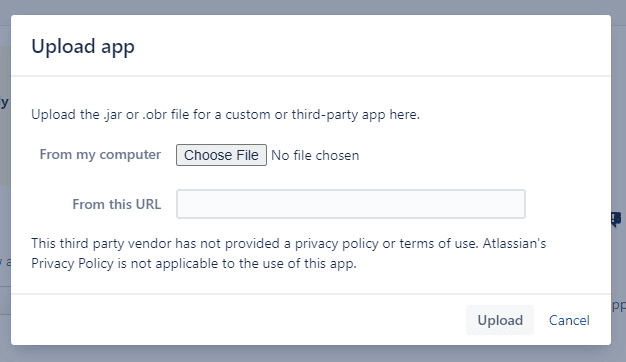
- Select the bamboo-plugin.jar file you downloaded in a previous step, and select Open to upload it.
- Select Upload.
- Refresh the page.
Configuring the Bamboo Project
Each Bamboo project has its own plans. Each plan has its own jobs which contain tasks. To use the Netsparker Enterprise Scan task, it must be added to a job.
How to configure the Bamboo Project
- Open Bamboo.
- On the Administration page, from the Manage Apps section of the main menu, select Netsparker Enterprise Plugin.
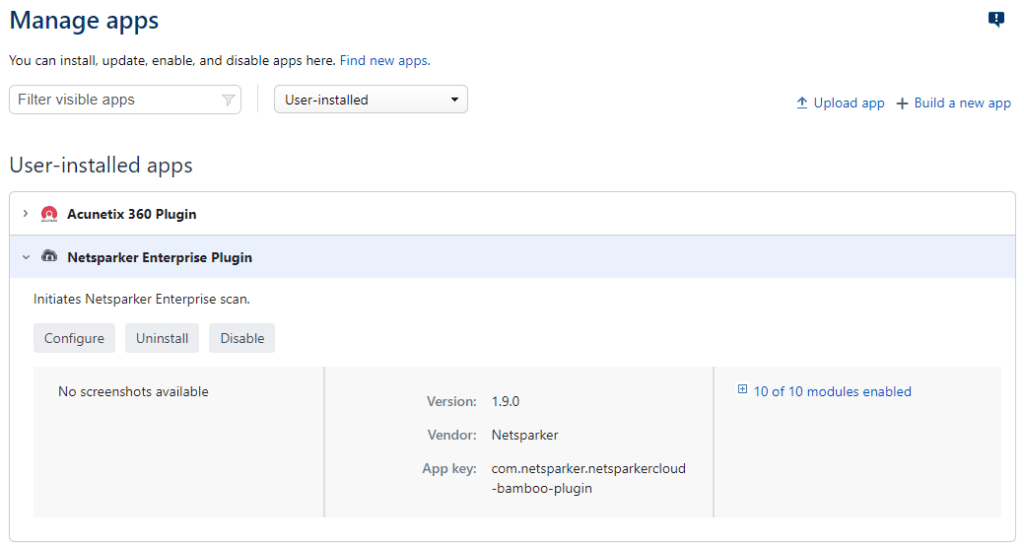
- Select Configure.
- In the API Settings section, enter the API credentials: Server URL and API Token.
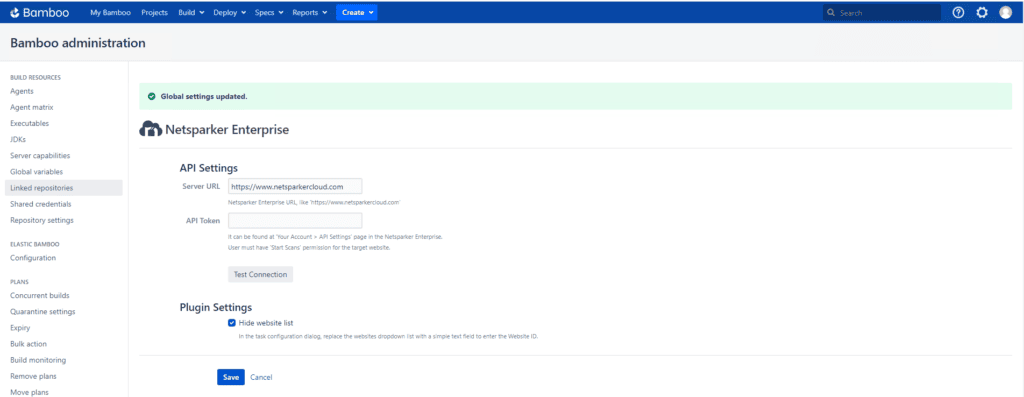
- Select Test Connection.
- In the Plugin Settings section, select Hide website list if you prefer.
The Hide website list, if selected, removes the Website Deploy URL drop-down on the Task page and adds a field, so you can enter the website ID.
To see the website ID, log in to Invicti Enterprise. From the main menu, select Websites > Websites. From the website list, select the website to view its ID in the address bar.
- Select Save.
- From Bamboo's main menu, select Projects.
- Choose the project to which you want to add the Netsparker Enterprise Scan plugin.
- Choose the plan to which you want to add the Netsparker Enterprise Scan plugin.

- Select Actions, then Configure Plan.
- From the Stages tab, select a job to which you want to add the Netsparker Enterprise scan task.
- Select Add task, then Netsparker Enterprise Scan Task.
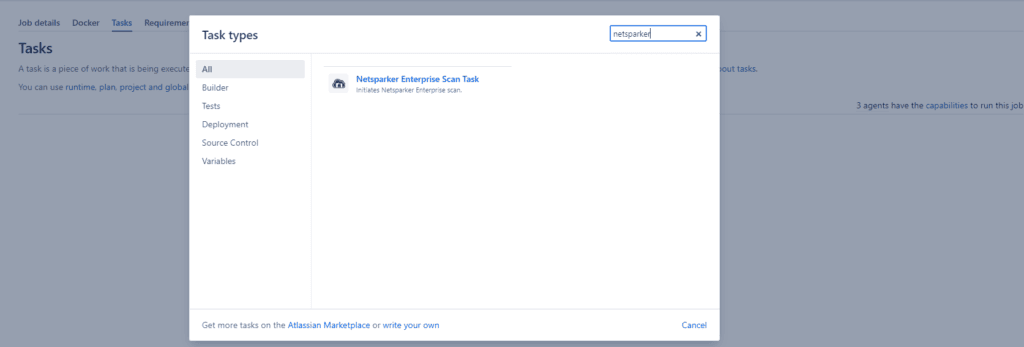
- From the Netsparker Enterprise Scan Task configuration page, select the relevant scan settings. • If the Hide website list checkbox is not selected, the following page appears:
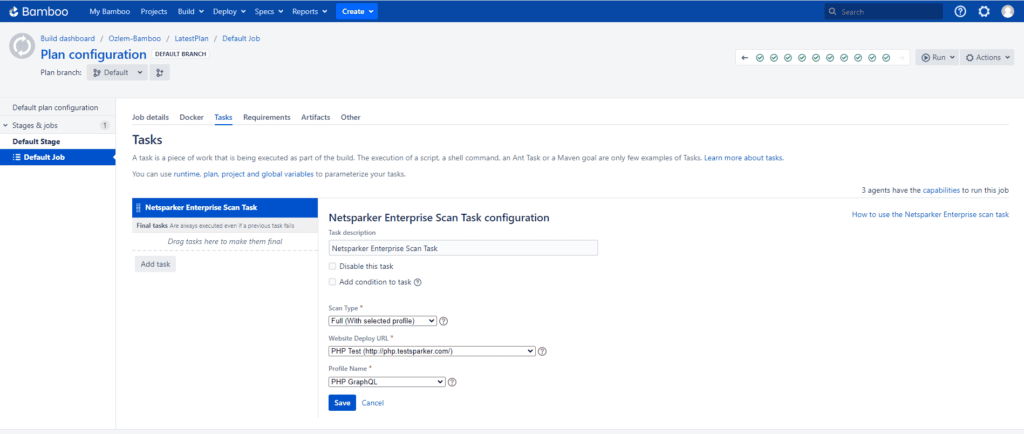
• If the Hide website list checkbox is selected, the following page appears:
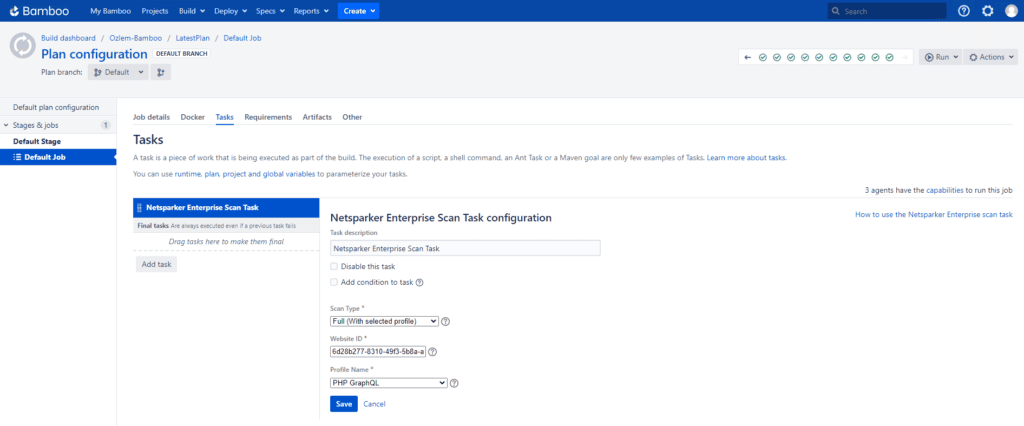
- Select Save.
Viewing scan results in Bamboo
When the build has been triggered, you can view the scan results in both Bamboo and Invicti Enterprise. For further information, see Scan Results Report external documentation.
How to view scan results in Bamboo
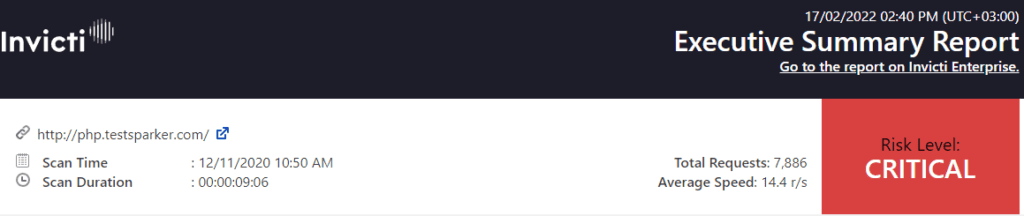
In Bamboo, when the scan is finished, the scan results from the Netsparker Enterprise Scan Summary Report are displayed.
Need help?
Invicti Support team is ready to provide you with technical help. Go to Help Center