Deployment: Invicti Platform on-demand, Invicti Platform on-premises
DAST scans
Use the DAST scans page to track scan activity, review findings, and manage scan-related actions from one place. This document explains what information the page shows and what actions you can take from it.
Why this matters
The DAST scans page helps you confirm which scans are running, queued, scheduled, or complete without opening each target separately. It also gives you quick access to reports, exports, tags, and cleanup actions so you can manage scan activity faster.
Invicti Platform has three scan-related pages. Use the right one depending on the scan type you need to view or launch:
- DAST scans (this page) - lists all DAST scans and lets you launch a new instant scan, future scan, or recurring scan from the New scan button. Active scan schedules also appear here once they're set up, and any scan that has already run stays on this page even if its schedule is later disabled.
- DAST scan schedules - lists existing scan schedules and lets you create a new schedule from the New scan schedule button.
- PCI ASV scans - manages PCI ASV scans separately. PCI ASV scans aren't launched from the New scan button on the DAST scans page.
Overview
The DAST scans page lists each scan with these columns.
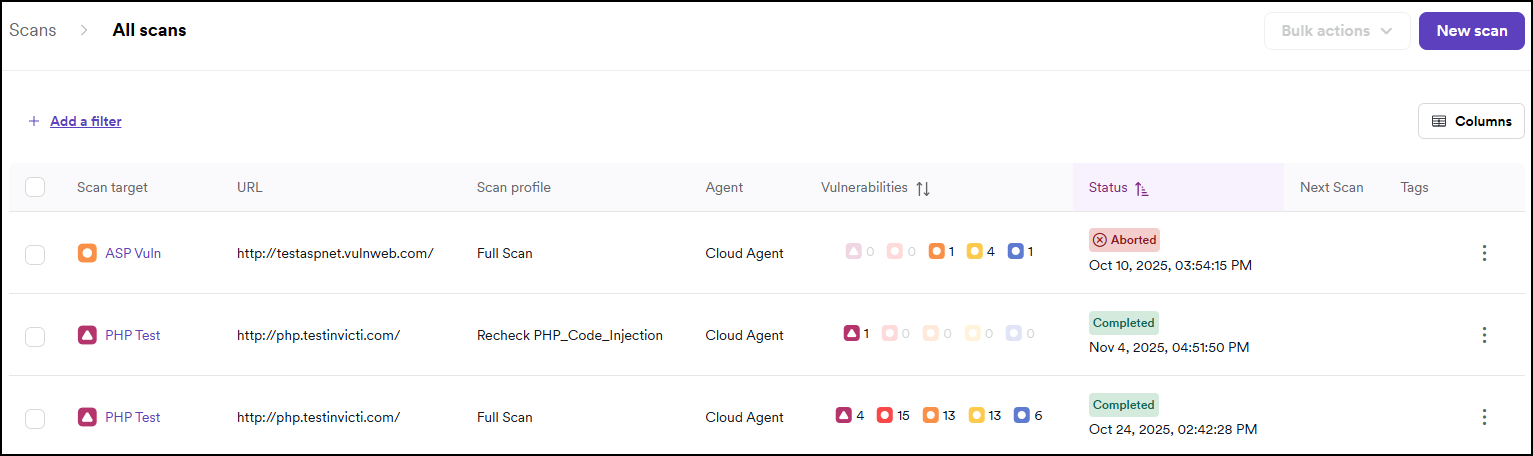
The following information is available.
| Category | Columns | What it tells you |
|---|---|---|
| Identification | Scan owner, Scan target, Scan profile, Scan type, Agent | Who owns the scan, what was scanned, with which profile, and where the scan ran. |
| Status tracking | Status, Next scan, Schedule | Current state of the scan and when it runs next. |
| Findings | Vulnerabilities, Last report | What the scan found and where to read the latest report. |
| Customization | Tags | Labels you've applied for filtering and grouping. |
A few columns have specific value sets worth knowing:
- Scan owner - the user who owns the scan. The column is shown by default, right after Scan date. You can hide it or show it again from the column options of the table.
- Scan profile - the scan profile used (for example, Full scan, Crawl only, Critical/High risk). For the full list of built-in profiles, refer to the default scan profiles document.
- Scan type - Full or Incremental.
- Agent - Cloud agent or internal agent.
- Status - Completed, In progress, Queued, Scheduled, Failed, and others. For the full list, refer to the scan statuses document.
- Schedule - One-time or Recurring; for recurring scans, the Next scan column shows the upcoming run time.
Additionally, you can filter the scans by target, scan owner, agent type, threat, scan status, scan result, and tags. For more information, refer to the filtering document.
The Scan owner filter has a search box where you look up a user by name. It's available only if your role allows you to view users. If you don't see it, ask an administrator to check your role. For more information, refer to the role permissions document.
Actions
You can act on scans one at a time or in bulk. Both modes are available from the DAST scans page once you have the right permissions.
The default Viewer role has read-only access to scans but full access to reports. A Viewer can generate and view reports from the DAST scans page, but can't stop, delete, or tag scans.
Individual actions
Use the three-dot menu (⋮) on the right of any scan row:
- View scan - opens detailed results, including vulnerabilities, site structure, and issues found.
- Stop scan - stops a running scan. Available only while the scan hasn't completed.
- Generate report - creates a report for that single scan. For the available report types, refer to the types of reports document.
- Delete scan - permanently removes the scan from the list.
Bulk actions
Select the checkboxes next to multiple scans, then open the Bulk actions menu:
- Export scans - exports the selected scans. Standard formats: XML, JSON, CSV (Locations), CSV (Vulnerabilities). WAF formats: Imperva SecureSphere, F5 BIG-IP ASM, Fortinet FortiWeb, Citrix Web App Firewall. For WAF setup, refer to the WAF export introduction document.
- Generate reports - creates Standard reports or Compliance reports (for example, OWASP Top 10, PCI-DSS), available in PDF or HTML from Reports & Exports. For full options, refer to the generate reports and types of reports documents.
- Add tags - labels scans for filtering and grouping. For details, refer to the scan tags document.
- Delete scans - permanently removes the selected scans from the scan history.
Common tasks
Quick procedures for the most frequent workflows. The bullets in Bulk actions link to the full reference for each task.
Export scans
- Select the checkboxes next to the scans you want to export.
- Click Bulk actions > Export scans and pick the format. Use CSV for spreadsheet analysis, XML or JSON for machine-readable parsing, and a WAF format for direct integration with your Web Application Firewall.
- Click Export. The file downloads to your device.
Generate reports
- Select the checkboxes next to the scans you want to include.
- Click Bulk actions > Generate reports, pick Standard report (comprehensive findings with remediation guidance) or Compliance report (findings mapped to frameworks like OWASP Top 10 or PCI-DSS), then click Generate.
- Open Reports & Exports to download the report in PDF or HTML.
Generated reports exclude vulnerabilities with False positive or Ignored statuses. Verify vulnerability status before generating if you need specific findings included.
Add tags
- Select the checkboxes next to the scans you want to tag.
- Click Bulk actions > Add tags, enter the tag name or pick from existing tags, and click Add.
Tag scans by environment (Production, Staging) or team (Frontend, API) to make filtering and reporting easier.
Launch a new scan
Click New scan to start a new scan from this page. Invicti opens Scans > New scan, where you can launch one of the following scan types:
- Instant scan - runs immediately.
- Future scan - a one-time scan scheduled to run at a future date and time.
- Recurring scan - runs on a repeating schedule.
The New scan button doesn't create DAST scan schedules or PCI ASV scans. To create those, use the DAST scan schedules or PCI ASV scans page directly.
Troubleshooting
I can't find the scan I need on the DAST scans page
Use the available filters to narrow the list by target, scan owner, agent type, threat, scan status, scan result, or tags. If the scan is scheduled, check the Next scan column to confirm whether it has run yet.
If you still can't find it, check the other scan pages:
- To manage the underlying schedule (enable, disable, edit recurrence), open the DAST scan schedules page. Disabling a schedule there doesn't remove scans that have already run from the DAST scans page.
- PCI ASV scans are listed on the PCI ASV scans page, not on the DAST scans page.
I don't recognize a scan status
The DAST scans page can show many statuses (for example, Completed, In progress, Queued, Scheduled, Failed). For the full list of scan statuses, what each one means, and the error messages that can appear, refer to the scan statuses and error messages document.
An action isn't available for a scan
Some actions depend on the scan status. For example, Stop scan is only available while a scan is still running. A scan in Queued status is waiting for resources to become available and starts automatically.
Need help?
Invicti Support team is ready to provide you with technical help. Go to Help Center