Deployment: Invicti Platform on-demand, Invicti Platform on-premises
Future scan
A future scan lets you schedule a one-time scan to run at a specific date and time. Unlike a scheduled scan, it runs only once - there's no frequency or end date to configure.
This document describes how to schedule a one-time future scan in Invicti Platform.
All scans must comply with the Authorized target scanning policy. Review this document before executing the scans.
Schedule a future scan
After configuring your targets, you're ready to begin scanning.
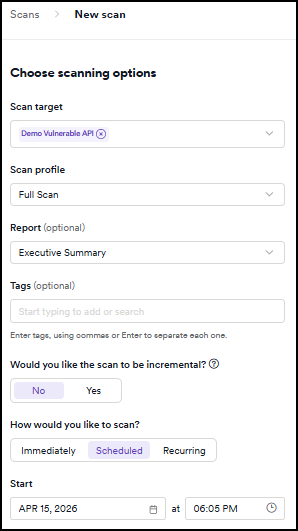
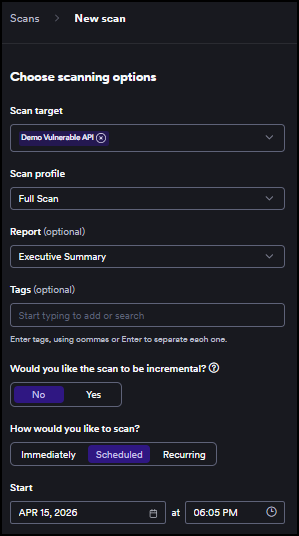
- Select Scans from the left-side menu, then click New scan on the DAST scans page to open the scan settings.
- In the Scan target drop-down, use the checkboxes to select the targets you want to scan.
- Select a Scan profile from the list of available default or custom profiles.
- From the Report drop-down menu, select your preferred report type.
- Optionally, in the Tags field, add tags to label and organize the scan.
- In the Would you like the scan to be incremental? option, select Yes if you want to focus on scanning only the changes. The default is No.
- Select Scheduled in the How would you like to scan? field.
- In the Start fields, specify the date and time when you want the scan to run.
- Click Schedule scan to confirm.
The scan runs once at the scheduled time. You can access the scan results by clicking on the relevant line in the list of scans on the DAST scans page. Refer to the Review scan results document for more information.
Alternative scan options
- Instant scan - starts a scan immediately on the selected target.
- Scheduled scan - sets up recurring scans through DAST scan schedules.
- Recurring scan - sets up automated recurring scans from the DAST scans page.
- Incremental scan - scans only newly discovered or modified pages.
- Scan dynamic URL target - triggers scans on ephemeral targets via API or CI/CD.
- PCI ASV scan - runs official PCI DSS compliance scans through Clone Systems.
Need help?
Invicti Support team is ready to provide you with technical help. Go to Help Center