Targets overview
The Targets page, located under Inventory > Targets, provides a centralized view of all configured scan targets for which you have view permissions. Each target represents a web application or API endpoint that you've added to the system for security testing.
This document describes the columns on the main table overview, available options, and the actions you can perform.
Why this matters
The asset type you choose determines how Invicti scans a target. A webapp target is crawled like a website and can also scan any APIs it finds, while an API-only target is scanned strictly against its API specification. Setting this correctly means each target gets the right coverage - without wasting scan time or missing endpoints.
Target asset types
Each target has an asset type that you set when you create it:
- Webapp: A website or web application that Invicti crawls in a browser before scanning.
- API-only target (asset type API): An API endpoint that Invicti scans only against the operations in its API specification, without browser-based crawling.
You can only create API-only targets when the API discovery add-on is enabled. Without it, every new target is a webapp target.
The following table compares how a webapp target and an API-only target behave:
| Aspect | Webapp target | API-only target |
|---|---|---|
| Scanning method | Browser crawl, plus API scanning when an API is discovered or a specification is added | API specification only - no browser crawl |
| API specification | Optional: auto-discovered during the crawl, or added later by editing the target | Provided when you create the target (file or URL) |
| Default scan profile | Selectable | Selectable |
| Authentication | Simple form, Login sequence recorder, OAuth 2.0, HTTP, Client certificate, Dynamic token configuration | OAuth 2.0, HTTP, Client certificate, Dynamic token configuration, IDOR / BOLA |
| Configuration sections | All available | Crawling options, Allowed hosts, and Business logic recorder hidden |
| Advanced settings | Available when enabled | Available when enabled |
-
Two API-specific scan profiles are available by default: API Full Scan (selected by default for new API targets) and OWASP Top 10 API Security Risks 2023. API-only targets can also use any other default or custom scan profile. For more information, refer to Default scan profiles.
-
IDOR / BOLA testing is available only for API-only targets: it replays the operations defined in an API specification to probe object-level authorization, which a website crawl can't model. For more information, refer to Understanding API access control vulnerabilities and Configure API authorization for access control testing.
-
To add an API-only target and provide its specification file, refer to add an API target. For more information, refer to Overview of scanning APIs and API types and specification formats.
Main table overview
The table displays detailed information for each target across the following columns:
- Name: The name assigned to the target.
- Applications: Lists any applications the target is associated with.
- Collections: Lists any collections the target is associated with.
- Description: A user-provided description of the target.
- URL: The full web address of the target.
- FQDN: Fully Qualified Domain Name of the target.
- Vulnerabilities: Summary of detected vulnerabilities by severity.
- Agent: The scanning agent assigned (if applicable).
- Environment: The environment type (for example, Production or Test).
- Last scanned: Timestamp of the most recent scan.
- Next scan: Timestamp of the next scheduled scan, if set.
- Created: Date the target was added to the system.
- Tags: Custom labels applied to organize or group targets.
Each target entry includes a Scan option for immediate manual scanning.
Available actions
The following actions are available on the Targets page.
Bulk actions
Perform operations on multiple selected targets at once, such as:
- Configure new scan
- Add tags
- Export to file (CSV, JSON)
- Export to WAF
- Generate reports
- Delete
Create new target
Select Create new target to add a new application or API endpoint to be scanned with these options:
Filter and search
Use Add a filter to narrow down the target list by attributes such as:
- Name
- URL
- Threat level
- Tags
- Collection
For more information about using filters in Invicti Platform, refer to the linked document.
Additionally, use the search bar to quickly locate a specific target.
Target detail overview (drawer)
The target drawer provides an at-a-glance view of key details for a selected target in the Inventory > Targets page. It appears when you click anywhere on a row and allows quick access to important data and actions without leaving the page.
From the drawer, you can perform the following actions:
- Scan: the options are:
- Run scan with defaults
- Run previous scan again
- Run custom scan
The scan action you choose determines where the profile comes from:
- Run scan with defaults - uses the scan profile configured in the target's default scan configuration. Invicti doesn't reuse a profile from a previous custom or instant scan.
- Run previous scan again - creates a new scan using the same configuration as the most recent scan for that target, including the scan profile and any custom settings used in that scan.
- Run custom scan - opens the instant scan flow for that target, letting you override the scan profile set in the target's default configuration for this run only. The target's default configuration isn't changed.
To explicitly choose a scan profile outside the target drawer, go to Scans > DAST scans and select New scan. You select the scan profile as part of the scan setup.
- Edit: Opens the full edit form for the target configuration.
- Three-dot menu: the available options are:
- View last scan report
- Run scan with defaults
- Run previous scan again
- Run custom scan
- Edit target
- Generate report
- Delete target
The target drawer contains three tabs:
- Overview: Key information about the target, as described below.
- Recent scans: Information about all recent scans for the selected target.
- Activity: A record of what activity was performed on this target, by whom, and when.
Overview tab
The Overview tab displays key information about the target, organized in the following sections.
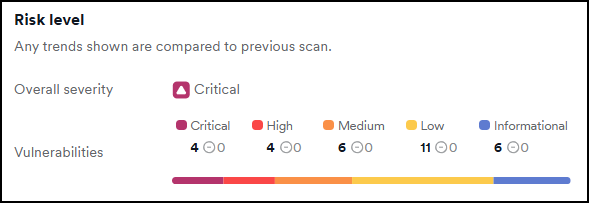
Risk level summary
The Risk level section provides a summary of vulnerabilities detected in the most recent scan, categorized by severity. It also displays any trends by comparing the current findings with the previous scan. To see the full history of each vulnerability's status across all scans, select View trend matrix to open the Trend Matrix.
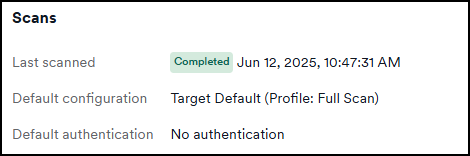
Scans
The scans section provides information about the last scanned date, the default configuration, and the default authentication method used.
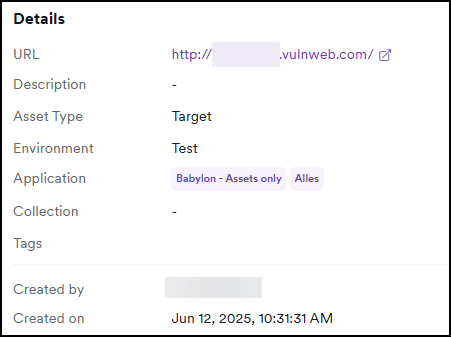
Target details
The target details section contains generic information about the target, such as URL, asset type, environment, application, and collection information. You can also view who created the target and when.
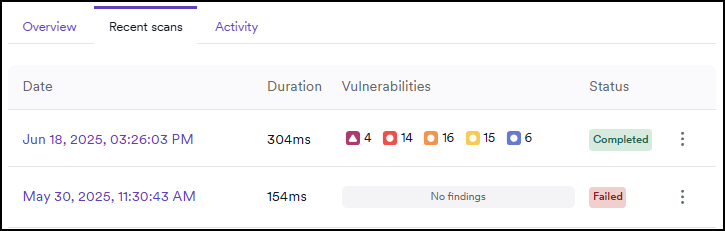
Recent scans tab
The Recent scans tab displays a list of completed and in-progress scans for the selected target, helping you quickly assess scan activity and outcomes over time.
The table includes the following columns:
- Date: When the scan was completed.
- Duration: How long the scan took to complete.
- Vulnerabilities: Total number of vulnerabilities discovered in that scan, categorized by severity.
- Status: The final state of the scan (for example, Completed, In Progress, Failed).
You can click any scan entry to access full scan details, results, and available reports.
Activity tab
The Activity tab logs user actions related to the target, helping maintain an audit trail. It includes:
- What action was taken (for example, scan started or configuration edited)
- Who performed the action
- When the action occurred
This is useful for monitoring changes and ensuring accountability across teams.
Need help?
Invicti Support team is ready to provide you with technical help. Go to Help Center