availability
Package: Invicti AppSec Core (on-demand)
Highlighted vulnerabilities
Highlighted vulnerabilities can be used to create groups of vulnerabilities that need to be quickly brought to the attention of users while they're looking at the vulnerability tables on a project, product or global level.
How to add preset
- Select Automation > Setup from the left-side menu.
- Select Highlighted Vulnerabilities.
- Click Add Preset
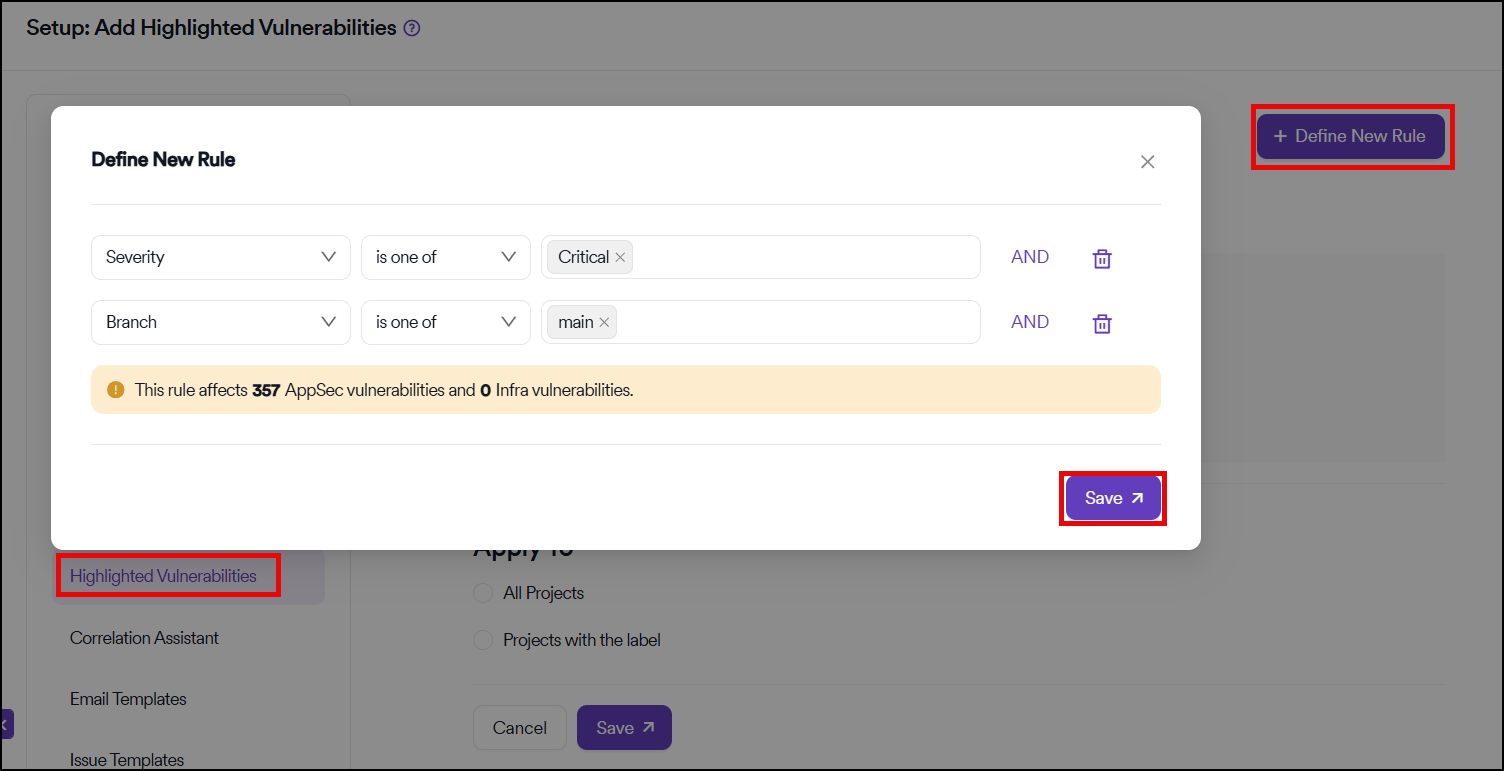
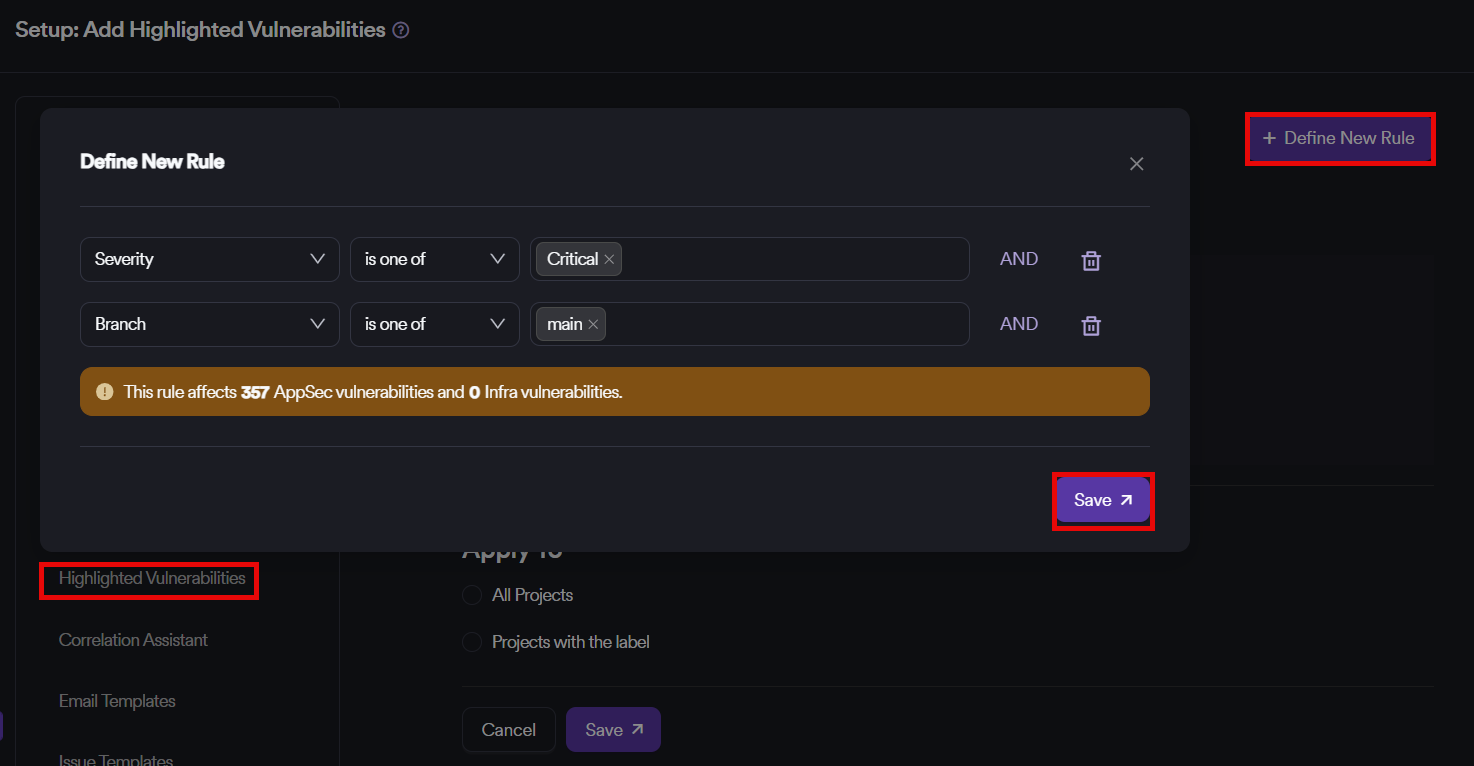
- Click Define New Rule and create a rule.
- Click Save to save new rule.
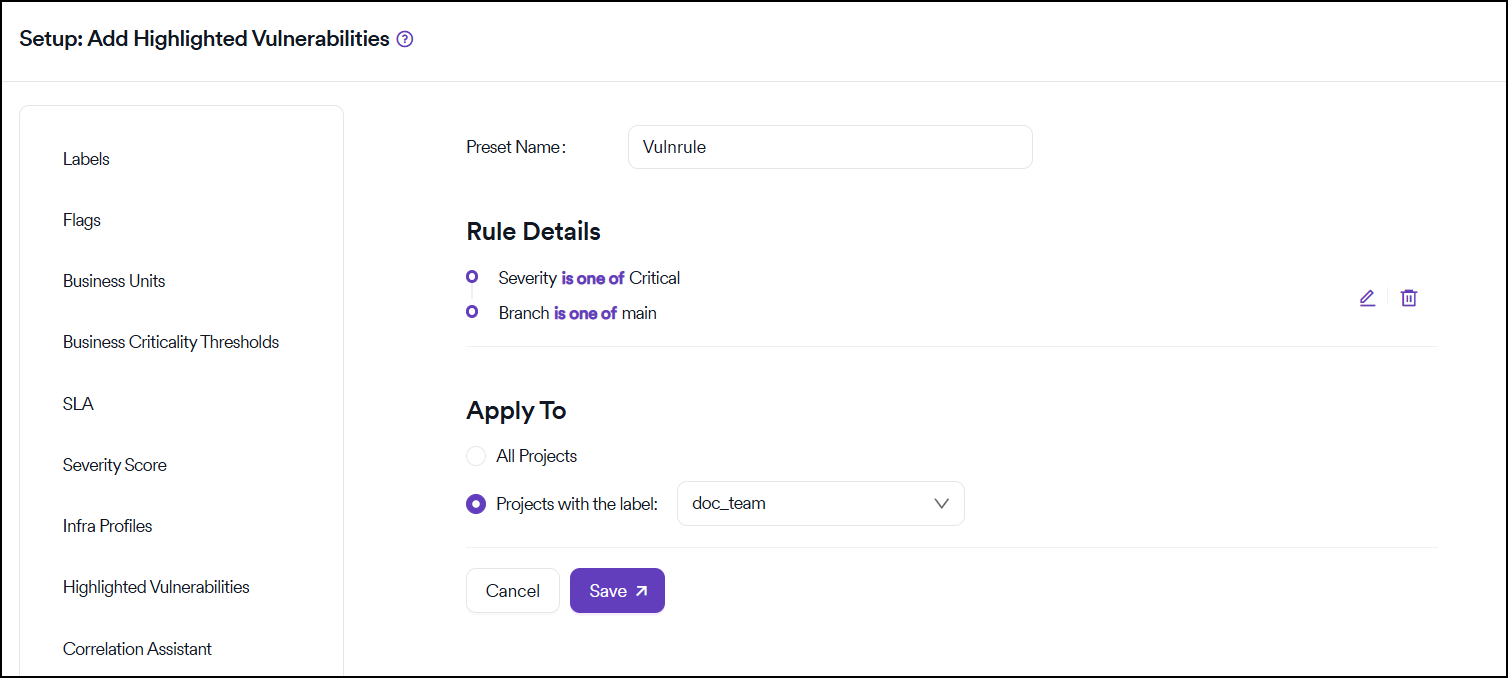
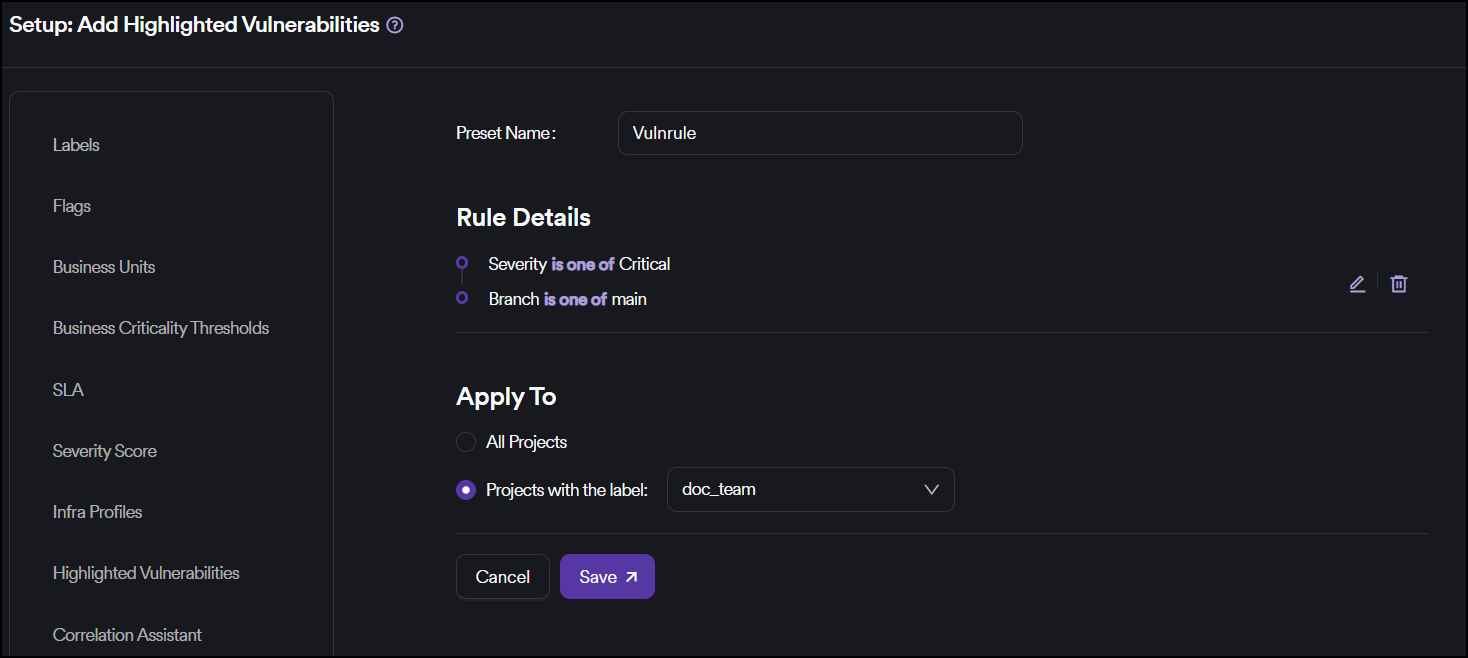
- Select which projects to apply.
- Click Save.
Key features
Label associations
Highlighted vulnerability rules can be associated with certain labels so that if there are certain vulnerabilities that need to be highlighted only in some projects, this can be achieved using labels.
Quick access filters
Highlighted vulnerabilities filters can be found under Quick Filters which is located right above vulnerability tables on a project, product or global level.
How it works
- Create groups: Define groups of vulnerabilities that require immediate attention
- Associate with labels: Link highlighted vulnerability rules to specific labels for targeted highlighting
- Access through filters: Use quick filters above vulnerability tables to view highlighted vulnerabilities
- Multi-level visibility: Apply highlighting at project, product, or global levels
Benefits
- Priority focus: Quickly identify critical vulnerabilities that need immediate attention
- Selective highlighting: Use label associations to highlight vulnerabilities only in relevant projects
- Easy access: Find highlighted vulnerabilities through convenient quick filter options
- Flexible scope: Apply highlighting rules across different organizational levels
Need help?
Invicti Support team is ready to provide you with technical help. Go to Help Center
Was this page useful?