Package: Invicti AppSec Core (on-demand)
SLA rules
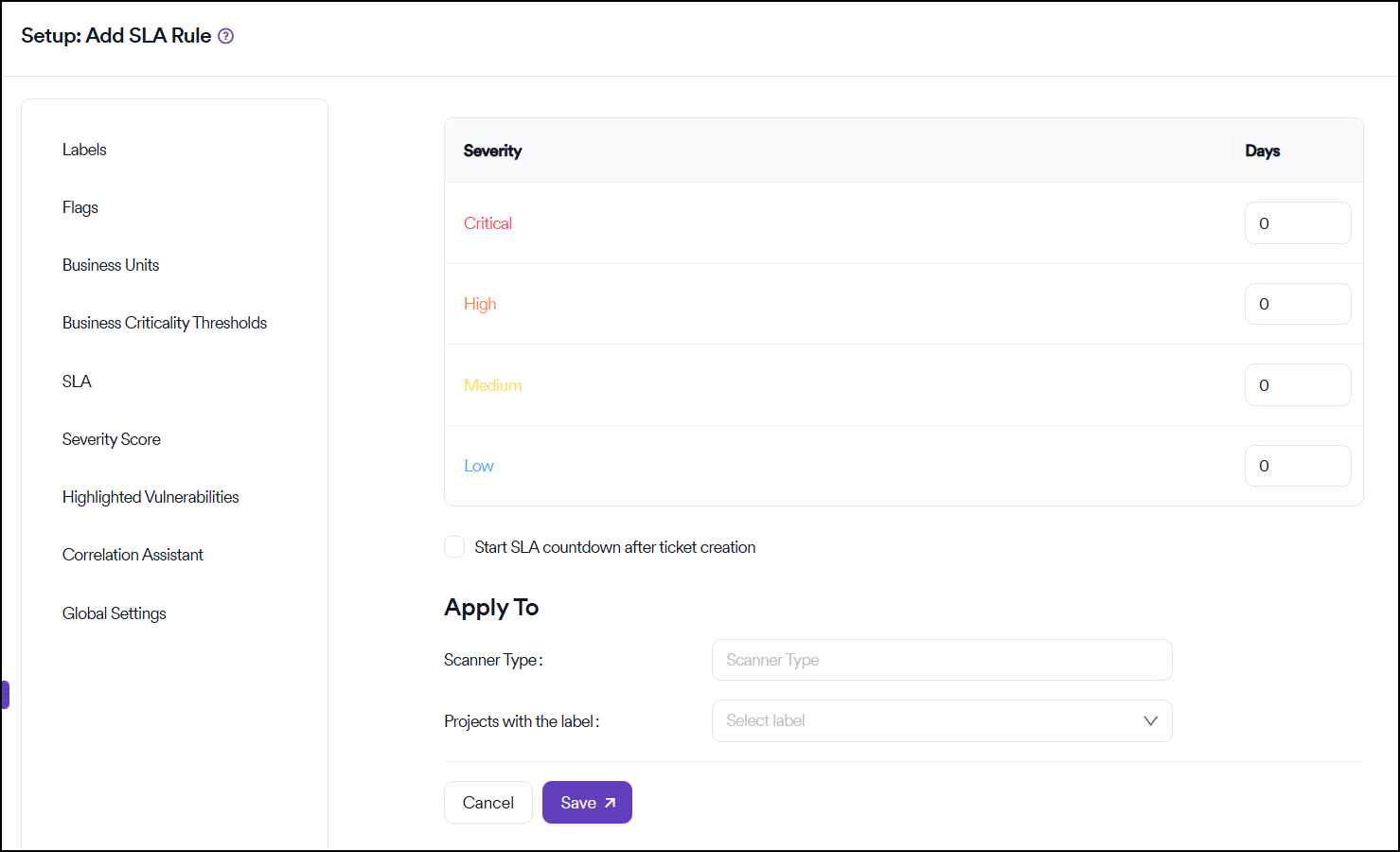
Users can set SLA in days to determine the acceptable time frame to fix vulnerabilities for each severity category in Invicti AppSec. Once the SLA is set, Invicti AppSec reports overdue vulnerabilities that exceed the SLA level specified for their severity category on the dashboards.
How to add sla
- Select Automation > Setup from the left-side menu.
- Select SLA.
- Click Add SLA.
How SLA rules work
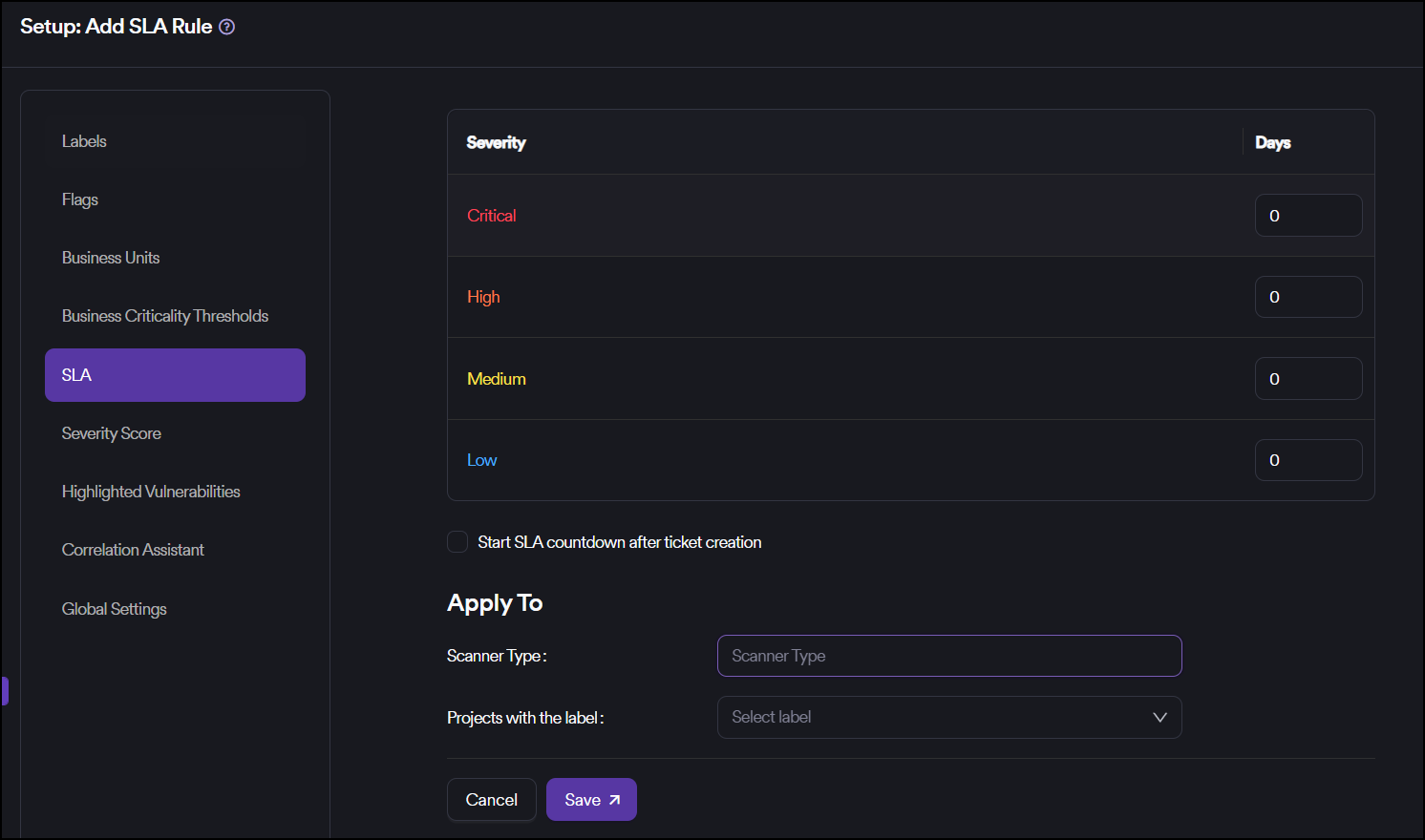
- Set timeframes: Define acceptable remediation timeframes in days for each vulnerability severity category
- Associate with labels: Link SLA rules to specific labels for applications with varying risk profiles
- Monitor compliance: Track overdue vulnerabilities that exceed their SLA thresholds on dashboards
- Apply defaults: Use default SLA rules when projects have multiple conflicting label associations
Key characteristics
Impact of SLA changes
When an SLA is edited, it impacts all vulnerabilities discovered before and after the editing.
Label associations
Labels can be associated with SLA levels to determine different SLA levels for applications with different risk profiles.
Default SLA rule
The default SLA rule is used as a fallback option in case multiple labels with different SLA levels are assigned to a project. If multiple labels with SLA levels are assigned to the same project, then the SLA rule selected as default is used as the applicable SLA level in the project.
Need help?
Invicti Support team is ready to provide you with technical help. Go to Help Center