Package: Invicti AppSec Core (on-demand)
Labels
You can add labels to projects from the settings for more advanced filtering options. For example, you may use the label Payment to filter the projects that have been associated with that label. You can also associate labels with global security criteria presets to automatically apply the global preset in the projects with the specified label.
Steps to add new label
- Select Automation > Setup from the left-side menu.
- Select Labels.
- Select Add Labels
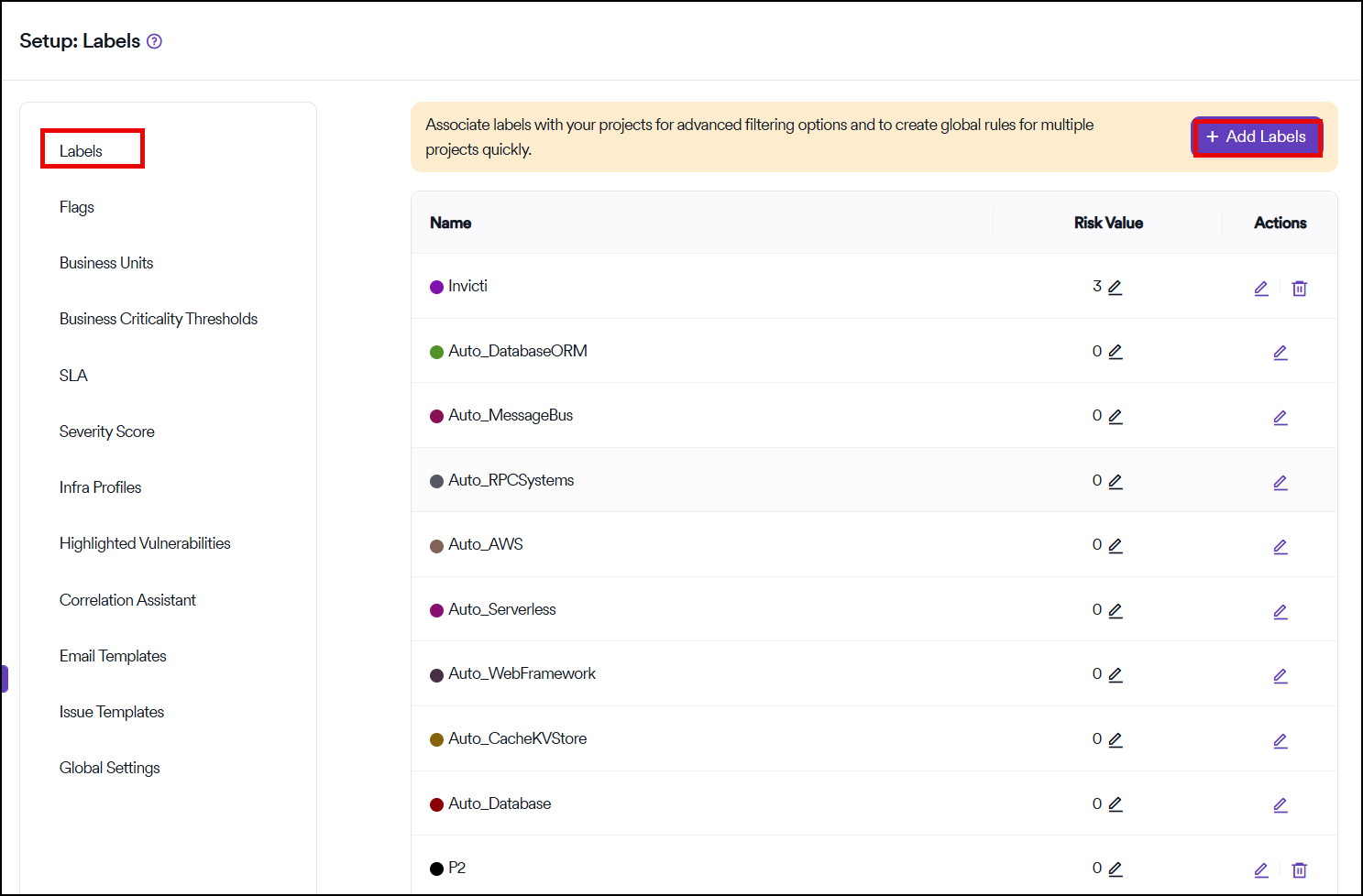
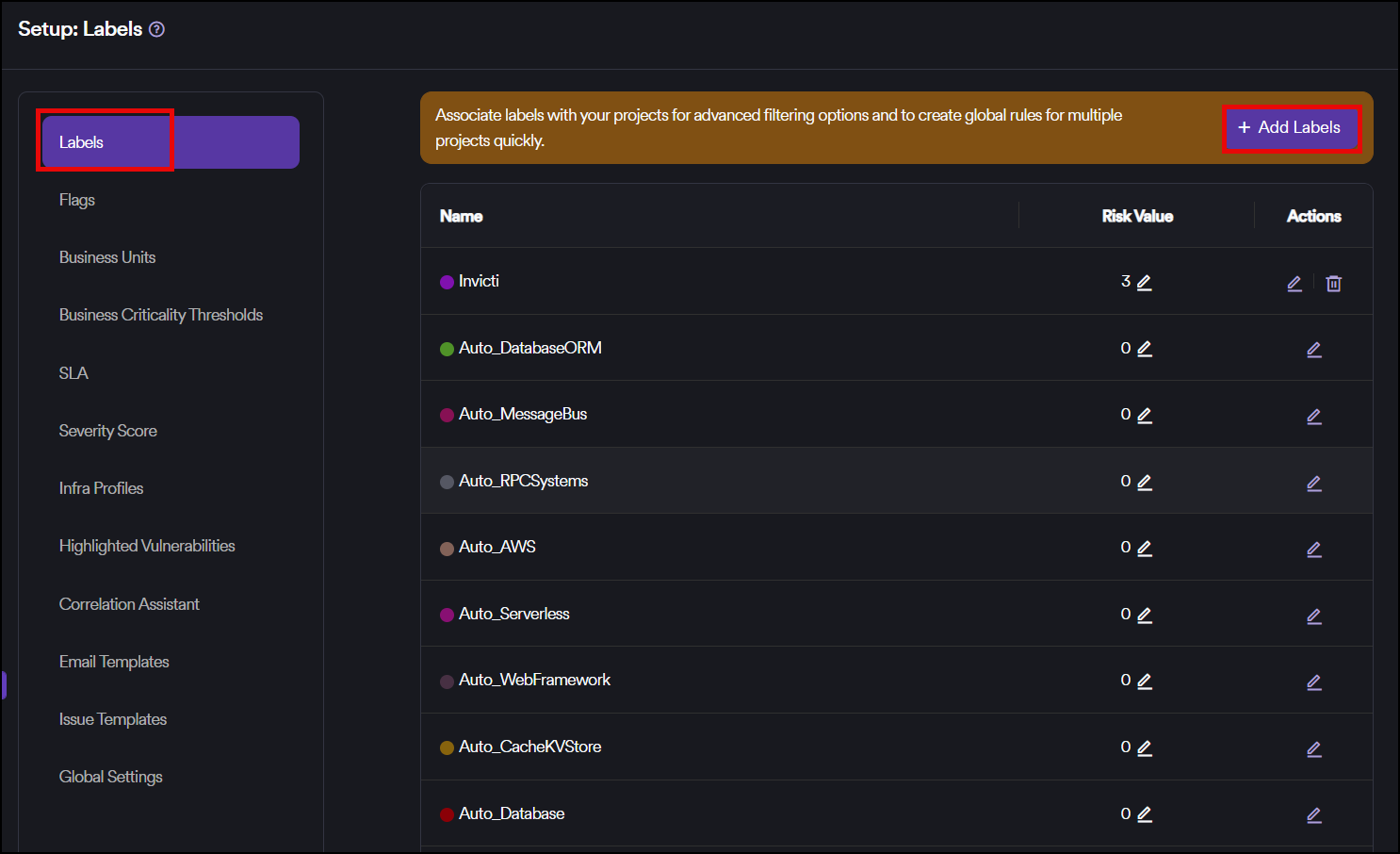
There are eight built-in labels: Severity Plus, Severity Minus, Payment, Secrets, Sensitive Data, GDPR, Internal, and DB Access. You can also create custom labels with custom color codes.
Add labels to projects
You can add labels to projects in the Info step when adding or editing a project.
Risk values for business criticality
You can also assign Risk Values to labels, which can be used while arranging Business Criticality Thresholds structure.
Built-in labels
The eight built-in labels provide common categorization options:
- Severity Plus: For projects requiring enhanced severity handling
- Severity Minus: For projects with reduced severity requirements
- Payment: For projects handling payment processing
- Secrets: For projects managing sensitive credentials
- Sensitive Data: For projects handling confidential information
- GDPR: For projects subject to GDPR compliance requirements
- Internal: For internal-facing projects
- DB Access: For projects with database access requirements
Custom labels
In addition to built-in labels, you can create custom labels with:
- Custom names to match your organization's needs
- Custom color codes for visual differentiation
Need help?
Invicti Support team is ready to provide you with technical help. Go to Help Center