Package: Invicti AppSec Enterprise (on-premise, on-demand)
Semgrep Enterprise SAST
Invicti AppSec supports Semgrep Enterprise SAST as a SAST (Static Application Security Testing) scanner. This guide explains how to activate and configure the Semgrep Enterprise SAST integration.
Semgrep Enterprise is the commercial version of Semgrep that provides advanced SAST capabilities with managed rules, team management, and centralized findings management.
Prerequisites
Before starting the integration, ensure you have the following information from your Semgrep account:
| Field | Description | Required |
|---|---|---|
| Token | API token generated from your Semgrep Cloud Platform account | Yes |
The Semgrep Enterprise API URL is automatically set to https://semgrep.dev/api/v1/ and does not need to be configured.
Get a Token (on Semgrep Side)
- Log in to the Semgrep Cloud Platform at
https://semgrep.dev. - Navigate to Settings > Tokens.
- Click Create new token.
- Select the appropriate scope (e.g., Agent or Web API).
- Copy the generated token and save it securely.
Step 1: Navigate to Integrations
From the left sidebar menu, click on Integrations.
Step 2: Select the SAST Tab
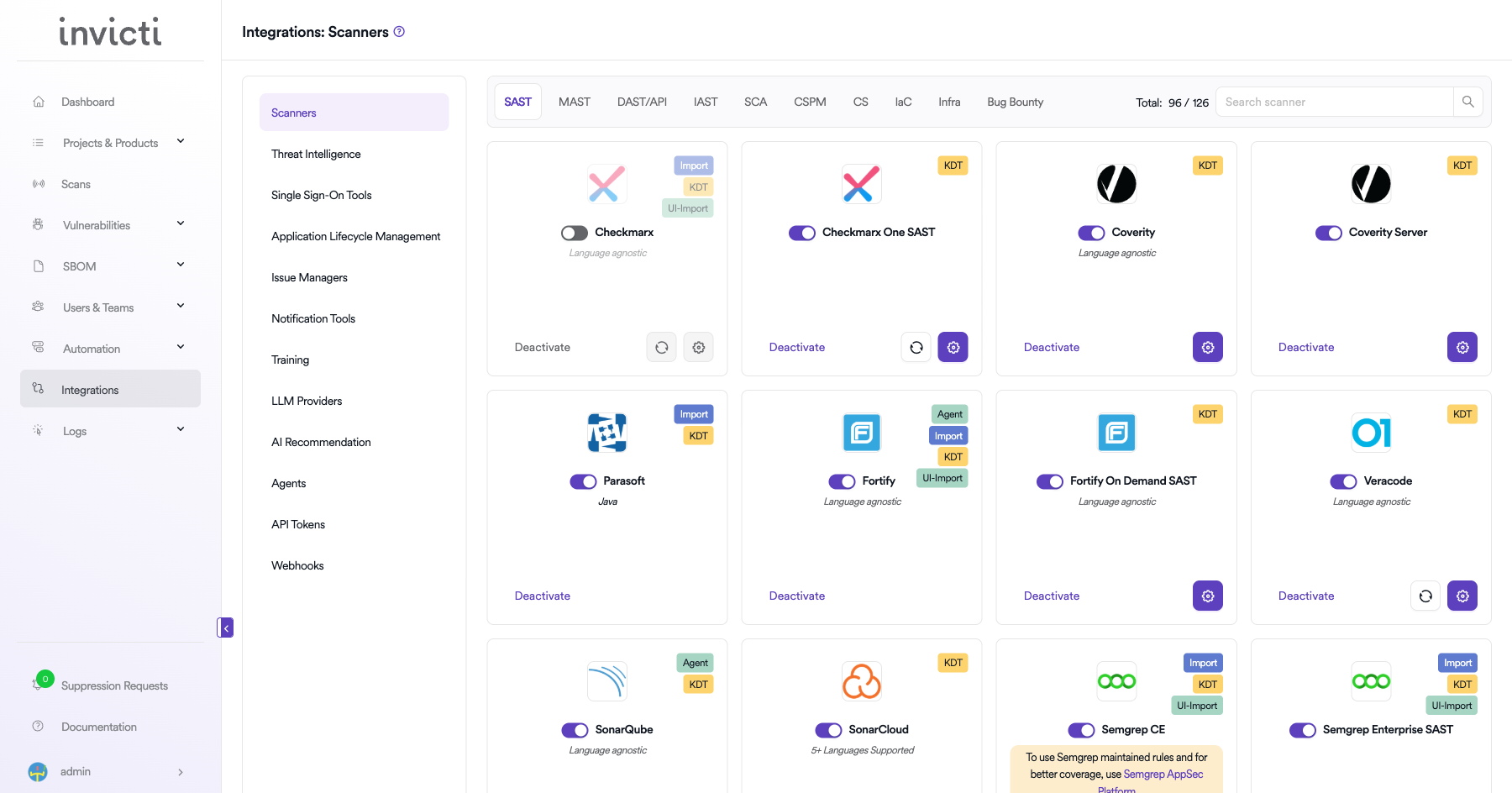
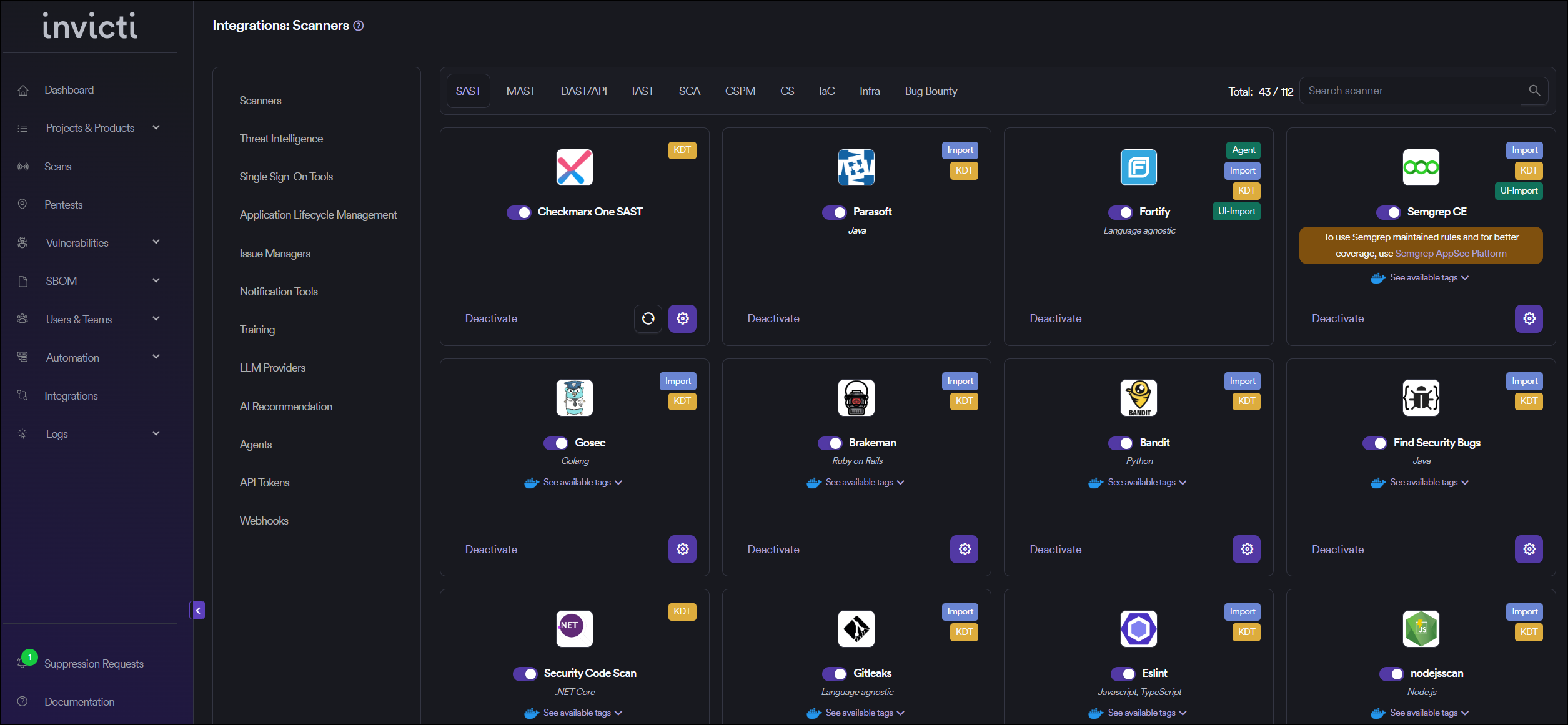
On the Integrations page, you will see the Scanners section with multiple tabs. Click on the SAST tab (it is selected by default).
Step 3: Find and Activate Semgrep Enterprise SAST
Scroll through the list of SAST scanners to find Semgrep Enterprise SAST.
- If Semgrep Enterprise SAST is not activated, you will see an "Activate" button. Click it to enable the integration.
- If Semgrep Enterprise SAST is already activated, you will see a toggle switch in the ON position and a "Deactivate" button, along with a gear icon for configuration.
Note: The scan method badges on the Semgrep Enterprise SAST card show KDT and Import, which means scans can be triggered through the Kondukto CLI tool or imported.
Step 4: Configure Connection Settings
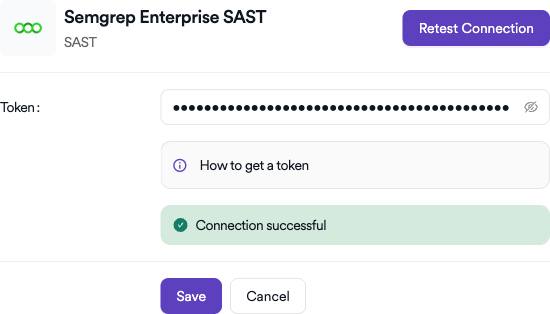
Click on the gear icon on the Semgrep Enterprise SAST card to open the configuration panel. Fill in the required fields:
- Instance: Select or create an instance name from the dropdown. Use "Default" if you have a single Semgrep account.
- Token: Paste the API token you generated from Semgrep Cloud Platform.
Step 5: Test the Connection
Click the "Test Connection" button at the bottom of the configuration panel to verify that the provided credentials are correct.
- If the connection is successful, the integration is ready to use.
- If the connection fails, verify your Token value.
- For existing integrations, you can use the "Retest Connection" button at the top of the panel.
Step 6: Advanced Settings (Optional)
Click on "Advanced Settings" to expand additional options:
| Setting | Description | Default |
|---|---|---|
| Allow team leads to scan this instance | Permits team leads to trigger scans using this Semgrep Enterprise instance | Off |
| Allow team leads to create new instances | Permits team leads to create additional Semgrep Enterprise instances | Off |
After modifying advanced settings, click "Save Advanced Settings" to apply changes.
Summary
| Step | Action |
|---|---|
| 1 | Navigate to Integrations from the sidebar |
| 2 | Select the SAST tab under Scanners |
| 3 | Find Semgrep Enterprise SAST and click Activate (if not already active) |
| 4 | Click the gear icon and fill in Token |
| 5 | Click Test Connection to verify |
| 6 | (Optional) Configure Advanced Settings for team lead permissions |
Create a Scan
After activating and configuring Semgrep Enterprise SAST, you can create scans from your project's scanner settings.
Navigate to Project Scanners
- Go to your Project page.
- Click on the Settings tab.
- Select Scanners from the left sidebar.
Add Semgrep Enterprise SAST Scanner
- In the scanner type dropdown, select SAST.
- In the scanner dropdown, search for and select Semgrep Enterprise SAST.
- Click the Add button to open the scan configuration drawer.
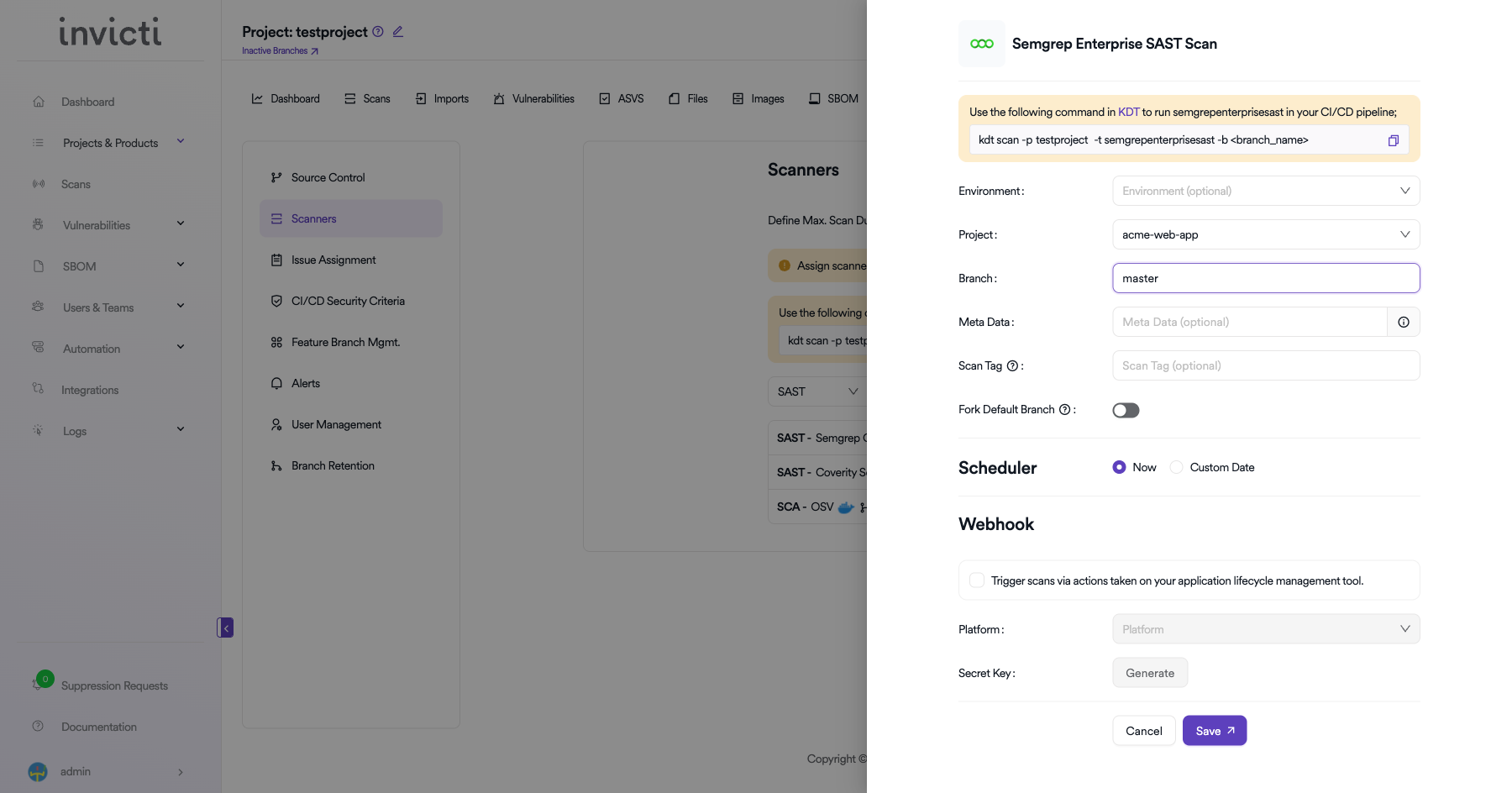
Scan Configuration Fields
| Field | Description | Required |
|---|---|---|
| Environment | Select the environment for the scan (optional) | No |
| Project | Select the Semgrep project to bind to | Yes |
| Branch | Specify the branch to scan | No |
| Meta Data | Additional metadata for the scan (optional) | No |
| Scan Tag | Tag to identify the scan (optional) | No |
| Fork Default Branch | Enable to fork the default branch before scanning | No |
Scheduler
- Now: Run the scan immediately after saving.
- Custom Date: Schedule the scan for a specific date and time.
Webhook (Optional)
Enable webhook to trigger scans via actions taken on your application lifecycle management tool:
- Check the Trigger scans via actions checkbox.
- Select the Platform (e.g., GitHub, GitLab, Bitbucket).
- Click Generate to create a Secret Key for webhook authentication.
KDT Command
You can also trigger Semgrep Enterprise SAST scans from your CI/CD pipeline using KDT:
kdt scan -p <project_name> -t semgrepenterprise -b <branch_name>
Click Save to create the scan configuration.
Troubleshooting
Connection Fails
- Invalid Token: Verify the API token is correct and has the required scopes. Generate a new token from Semgrep Cloud Platform > Settings > Tokens.
- Token Scope: Ensure the token has the Agent or Web API scope for the integration to work correctly.
- Network Issues: Ensure the Invicti AppSec instance can reach
https://semgrep.dev.
Scan Issues
- No Projects Found: Verify the token has access to the organization's projects on the Semgrep Cloud Platform.
- Empty Results: Ensure Semgrep CI has been run on the repository and results are available in the Semgrep Cloud Platform.
- Rule Coverage: Check that the appropriate Semgrep rulesets are enabled for the project.
Best Practices
- Use Dedicated Tokens: Create a separate API token for the Invicti AppSec integration.
- Rotate Tokens Regularly: Regenerate tokens periodically as part of your security practices.
- Select Appropriate Scopes: Grant only the necessary token scopes for the integration.
- Configure Rulesets: Ensure your Semgrep projects use the recommended rulesets for comprehensive coverage.
Limitations
- Cloud Platform Dependency: Results must be available in the Semgrep Cloud Platform. The integration pulls findings from the cloud, not directly from Semgrep CLI.
- Enterprise License: Some features require a Semgrep Enterprise license.
- API Rate Limits: The Semgrep API may enforce rate limits for high-frequency requests.
Need help?
Invicti Support team is ready to provide you with technical help. Go to Help Center