Install Invicti on-premises in silent mode
You can install the Invicti Enterprise web application server and agent using silent mode, which allows for a user interaction-free installation with no interface displayed. By defining the installation configuration once, you can simplify and streamline the process.
This document explains how to install the web application server and the agent in silent mode.
For instructions on how to perform manual installation and configuration, refer to Configuring the Invicti Enterprise Web Application Server using the Installation Wizard.
During the silent installation of the web app, the Auth Verifier Hub is installed automatically without displaying an installation wizard.
Prerequisites
The prerequisites for the silent installation are the same as for the standard installation.
Refer to the Trustlisting requirements and Step 1: Components and architecture, prerequisites, and download to learn more.
Some antivirus or anti-malware software may prevent Invicti Enterprise on-premises from working or cause it to run very slowly. To ensure you can use Invicti on-premises effectively, add Invicti files and folders to your antivirus (or other protection scanning software) exception list (also known as a trustlist). For more information about the Invicti files and folders to exclude from your antivirus software, refer to the Excluding Invicti files from antivirus scans document.
Install the Invicti Enterprise Web Application Server
You can install the web application server in silent mode either by using a JSON file or with a Windows PowerShell Script.
Install the Invicti Enterprise Web Application Server with JSON
Required fields
The following fields are mandatory:
- DatabaseSettings fields
- AccountSettings fields
- GeneralSettings fields:
- ServerRootUrl
- UpdateServerUrl
- RadarRootUrl
- ScanDataPath
- ScreenshotsPath
- MaxUploadedFileSize
- SalesContactMail
The following fields are required only when specific conditions are met:
- CloudSettings - required if
Enabledistrue - ScannerAgentSettings - required if
SkipInstallationisfalse - AuthenticationVerifierSettings - required if
InstallAuthentifieristrue - EmailSettings - required if
Enabledistrue - SmsSettings - required if
SmsEnabledistrue
Installation
- Copy the following script into a text editor and save it as
silent_mode_settings.json.
{
  "DatabaseSettings": {
    "Server": ".",
    "Catalog": "InvictiDatabase",
    "IntegratedSecurity": false,
    "UserId": "DbPass",
    "Password": "user-password",
    "MaxPoolSize": 500,
    "Encrypt": false
  },
  "EncryptionSettings": {
    "SecretKey": ""
  },
  "AccountSettings": {
    "Name": "Invicti Silent Mode User",
    "Email": "silent_installation_user@invicti.com",
    "Password": "p@$$w0rd_2020_Silent_Mode",
    "ConfirmPassword": "p@$$w0rd_2020_Silent_Mode",
    "TimezoneId": "America/New_York",
    "IsAgreementsAccepted": true
  },
  "GeneralSettings": {
    "General": {
      "ServerRootUrl": "http://localhost",
      "UpdateServerUrl": "https://www.netsparker.com/",
      "EnableServiceDiscovery": true,
      "RadarRootUrl": "https://services.netsparker.cloud/",
      "ScanDataPath": "~/App_Data/ScanData/",
      "ScreenshotsPath": "~/Content/images/screenshots/",
      "MaxUploadedFileSize": 10,
      "SalesContactMail": "sales@companydomain.com",
      "SupportContactMail": "support@companydomain.com",
      "BlueGreenDeploymentEnabled": false,
      "IsAgentSelectionEnabled": true,
      "AgentInactivityTimeoutInMinutes": 60,
      "HawkUrlEnabled": false, // if false, the default Hawk URL will be in use. Change false to enabled to add your own Hawk URL
        "HawkUrl": "https://r87.me", // OR enter your custom Hawk URL
        "HawkUrlUpdateAll": true, //If true, both default and custom scan policies are updated with your custom Hawk URL. If false, only the default scan policies are updated with your custom Hawk URL.
        "HawkCheckDelaySecond": 0,
      "DeleteScanDataByRetentionPerBatch": 100,
      "EnableVulnerabilityContentCleanupForOnPrem": false,
      "VulnerabilityContentCleanerCountPerBatch": 10,
      "InitializeScheduledScanCountPerBatch": 500,
      "QueuedScanFailureBatch": 100,
      "QueuedScanFailureTimeRange": 14,
      "ChunkCountForDeleteHttpRequestLogFiles": 25,
      "HttpRequestLogDeletionPeriodInDays": 365,
      "MaxInternalScanCountPerBatch": 500,
      "MaxCloudInstanceCountPerBatch": 20,
      "ChunkCountForDeleteRawScanFiles": 25,
      "MaxTotalUploadedFileSize": 100,
      "UriUtilityDnsTimeout": 4000
    }
  },
  "Security": {
    "AllowedHostControlEnabled": false,
    "LocalhostScanEnabled": false,
    "IpAddresses": [
      {
        "Group": "Infrastructure",
        "Name": "Company Production",
        "Pattern": "^55.86.178.211$"
      },
      {
        "Group": "Proxy",
        "Name": "Local IIS (IPv4)",
        "Pattern": "^127.0.0.1$"
      },
      {
        "Group": "Proxy",
        "Name": "Local IIS (IPv6)",
        "Pattern": "^::1$"
      }
    ]
  },
  "CloudSettings": {
   "Enabled": false,
   "ProviderType": "AWS",
   "AwsAuthMethod": "AccessKey", // or IAMRole (if IAMRole is used, then WebsiteAccessKey, WebsiteSecretKey, AgentAccessKey, AgentSecretKey can be omitted)
   "WebsiteAccessKey": "Your Access Key",
   "WebsiteSecretKey": "Your Website Key",
   "AgentAccessKey": "Agent Access Key",
   "AgentSecretKey": "Agent Secret Key",
   "DeploymentBucketName": "Sample.Bucket.Deployment.Name/Sample.Name",
   "RegionEndpointName": "eu-west-128",
   "ScanDataBucketName": "Sample.Bucket.ScanData.Name",
   "ScreenshotBucketName": "Sample.Bucket.Screenshot.Name",
   "AgentBucketName": "Sample.Bucket.Agent.Name",
   "CustomizationsBucketName": "Sample.Bucket.Customization.Name",
   "Ec2AgentImageId": "ami-1a2b3c4d5e6f7g8h",
   "Ec2LinuxAgentImageId": "ami-1a2b3c4d5e6f7g8h",
   "Ec2AgentInstanceAssignedName": "Agent Service",
   "Ec2AgentInstanceSecurityGroup": "sg-sample123",
   "Ec2AgentInstanceType": "m5.xlarge",
   "Ec2AgentSubnetId": "subnet-123456",
   "Ec2KeyPairName": "SampleKeyPair"
 },
  "ScannerAgentSettings": {
   "SkipInstallation": true,
   "AccessToken": "Your Access Token"
 },
 "AuthenticationVerifierSettings": {
   "InstallAuthVerifier": false,
   "AccessToken": "Your Access Token",
   "AVServiceUrl": "http://localhost:5000/authverificationhub"
},
  "EmailSettings": {
   "Enabled": false,
   "Host": "Host Information",
   "Port": 587,
   "UserName": "Your Username",
   "Password": "Your Password",
   "EnableEncryption": false,
   "AdminNotificationSender": "support@companydomain.com",
   "AdminNotificationRecipients": "support@companydomain.com",
   "ErrorNotificationRecipients": "support@companydomain.com",
   "SupportNotificationRecipients": "support@companydomain.com"
 },
  "SmsSettings": {
   "SmsEnabled": false,
   "AccountId": "Your Account ID",
   "AuthToken": "Your Auth Token",
   "PhoneNumber": "",
   "TestPhoneNumber": ""
 }
}
- Ensure that you have entered the correct information into the JSON file so that the installation proceeds as expected.
- Your password must be between 15 and 256 characters and contain lowercase/uppercase letters, digits, and special characters.
- If an installation is performed using an incorrect password model, any subsequent installations are incomplete unless a fresh database is used and the Settings folder is deleted. This folder is typically located at
C:\Users\NetsparkerAppPool\AppData\Roaming\NetsparkerCloud\Settings, but in some cases, it may appear under the Administrator user path instead. Ensure the Settings folder is deleted before proceeding.
- Open a command prompt window.
- Use
cdto navigate to the directory containingWebAppSetup.exe. - Run
WebAppSetup.exe /exenoui /qn /L*V "silent-install.log". Wait for some time for the installation to complete.
To install the Invicti Enterprise Web Application Server to a different location, for example D:, use the following: WebAppSetup.exe /Q APPDIR="D:\Invicti Enterprise Web Application" /L*V "install-log.log"
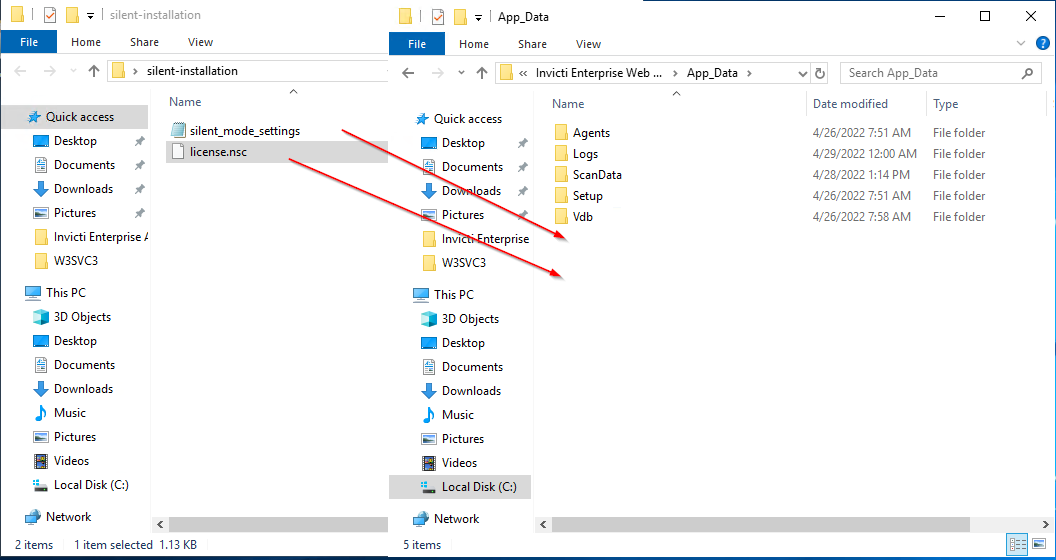
- Copy, paste, and rename files as follows:
- Copy and paste the license file, which you were supplied, to the AppData folder in the Web Application installation folder.
- Rename the license file as
license.nsc. - Copy and paste the silent mode settings file to the AppData folder in the Web Application installation folder.
- Rename the file as
silent_mode_settings.json.
- Open a command prompt window and run the following commands to restart the Invicti Enterprise Web Application:
cd %systemroot%\system32\inetsrv\appcmd stop site /site.name:NetsparkerCloudappcmd start site /site.name:NetsparkerCloud
This installation creates a secret_key.json file in the App_Data folder. After the installation, copy, store your secret key, and then delete the secret_key.json file for your security.
How to install the Invicti Enterprise web application server with PowerShell script
-
Create the
silent_mode_settings.jsonfile as instructed in the preceding section: How to install the Invicti Enterprise web application server with JSON. -
Copy the following script into a text editor and save it as
silent-mode-installation.ps1.
These instructions assume that you installed the Invicti Enterprise Web Application to the default folder. If you didn't install it to the default folder, please change the relevant step in the PowerShell script accordingly.
# Go to the installation file path and run WebAppsetup.exe
$process = Start-Process -FilePath ./WebAppSetup.exe -ArgumentList "/exenoui /qn" -PassThru

for($i = 0; $i -le 100; $i = ($i + 1) % 100){
   Write-Progress -Activity "Invicti Enterprise Installer" -PercentComplete $i -Status "Installing"
   Start-Sleep -Milliseconds 100
   if ($process.HasExited) {
       Write-Progress -Activity "Installer" -Completed
       break
   }
}

Write-Host "Installing finished."

# Go to the license file source path and copy the file destination path
Write-Host "License file copy started."
Copy-Item "license.nsc" "C:\Program Files (x86)\Invicti Enterprise Web Application\App_Data"
Write-Host "License file copy finished."

# Go to the silent mode settings file source path and copy the file destination path
Write-Host "Silent mode settings file copy started."
Copy-Item "silent_mode_settings.json" "C:\Program Files (x86)\Invicti Enterprise Web Application\App_Data"
Write-Host "Silent mode settings file copy finished."

# Site restart on IIS
Stop-WebSite 'NetsparkerCloud'
Start-WebSite 'NetsparkerCloud'
- Open a Windows PowerShell window.
- Use
cdto navigate to the directory containing thesilent-mode-installation.ps1file. - Run
.\silent-mode-installation.ps1
The PowerShell script installs the web application server and restarts the Invicti Enterprise Web Application.
This installation creates a secret_key.json file in the App_Data folder. After the installation, copy, store your secret key, and then delete the secret_key.json file for your security.
Install the Invicti Enterprise Agent in silent mode
Silent mode installation in Invicti Enterprise on-premises helps you to install the Agent. For the manual installation instructions, refer to the Installing the Invicti Enterprise Agent document.
This table explains the parameters used in the silent mode installation for the Invicti Enterprise Agent.
| Parameter | Description |
|---|---|
| /exenoui /qn | This parameter performs the silent installation without the user interface. |
| APPDIR | This parameter shows the location of the Agent. |
| APP_URL_PROP | This parameter shows the URL of the Web Application Server. |
| API_TOKEN_PROP | This parameter displays the API Token. |
| AGENT_NAME_PROP | This parameter displays the name of the Agent. |
How to install the Invicti Enterprise Agent in silent mode
- Open a command prompt window.
- Run the following command:
AgentSetup.exe /exenoui /qn APPDIR="C:\Invicti Enterprise Agent" APP_URL_PROP="https://localhost/" APP_TOKEN_PROP="YOUR_TOKEN" AGENT_NAME_PROP="YOUR_AGENT_NAME"
Update the Invicti Enterprise Web Application Server and Agent
To update the web application server or agent using silent installation mode, follow the installation instructions contained in this document.
To update, there is no need to create a new database or user. Before proceeding, ensure you enter the Secret Key, if applicable, into the JSON file.
Troubleshooting
If you encounter any problems during silent mode installation, review the log files in the AppData folder.
Need help?
Invicti Support team is ready to provide you with technical help. Go to Help Center