Step 4: Install and configure the authentication verifier agent
Use the setup wizard to install the Authentication Verifier Agent and connect it to the Authentication Verifier Service. After the wizard completes, configure the agent's appsettings.json and verify the connection.
The Authentication Verifier Agent communicates with the Authentication Verifier Service to verify logins. The agent works correctly only if the service is installed and its IIS bindings are configured first. For instructions, see the Authentication verifier settings document.
This document explains how to install and configure the Authentication Verifier Agent.
Install the authentication verifier agent
Starting from Invicti Enterprise On-Premises 2.3, the Authentication Verifier Agent communicates with the Authentication Verifier Service. You must uninstall any older agent versions before proceeding.
- Run the
AuthVerifierAgentSetup.exefile. - On the Welcome to the Invicti Enterprise Authentication Verifier Agent Setup Wizard window, select Next.
- Select Browse if you want to install to a different folder than the default. Then select Next.
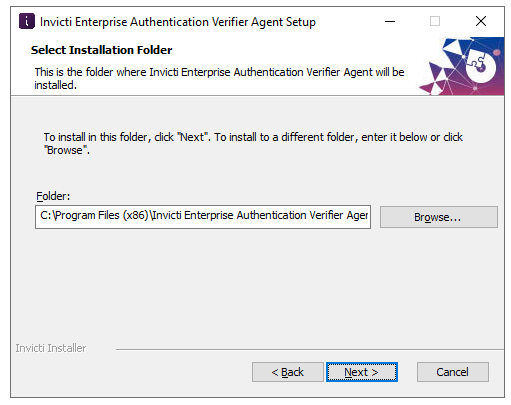
-
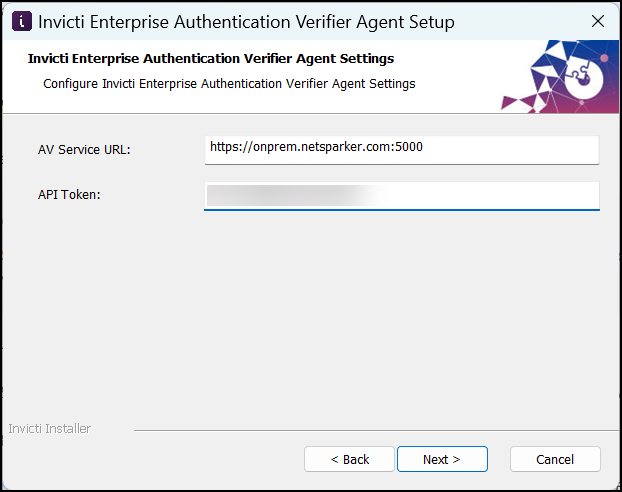
On the Invicti Enterprise Authentication Verifier Agent settings step, enter the following values and select Next:
- AV Service URL: Enter your AV Service URL in the format
https://yourdomain:5000(for example:https://onprem.netsparker.com:5000) - API Token: Paste the Access Token from Settings > Authentication Verifier
Find the Access Token on the Authentication Verifier settings page:
- AV Service URL: Enter your AV Service URL in the format
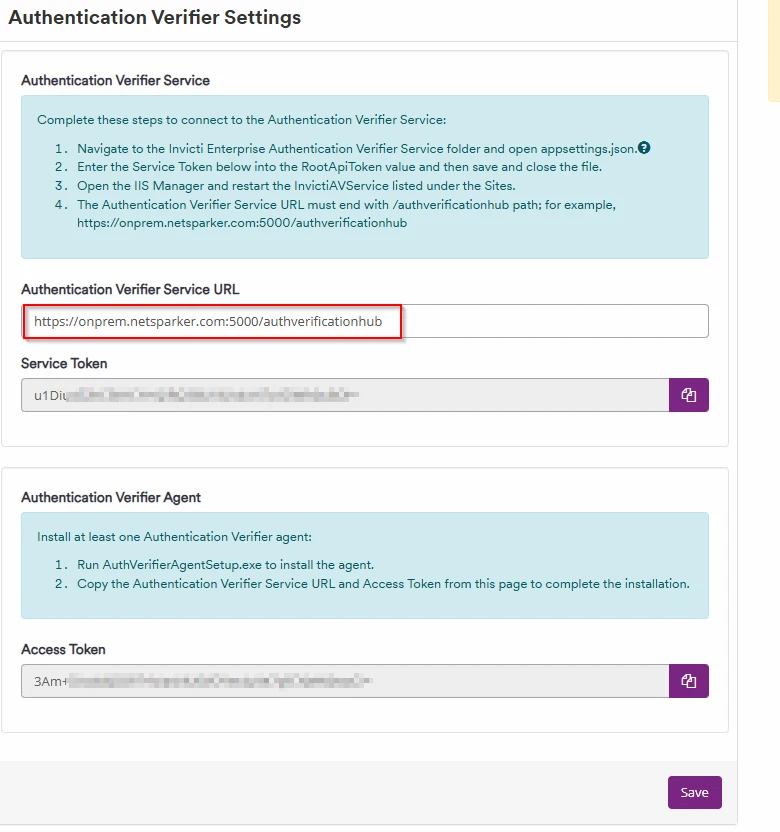
Enter both values in the setup wizard:
- Select Install.
After the installation completes, configure the agent's appsettings.json:
- Navigate to the Authentication Verifier Agent folder. By default:
C:\Program Files (x86)\Invicti Enterprise Authentication Verifier Agent. - Open
appsettings.jsonwith a text editor. - Update the following fields, replacing
onprem.netsparker.comwith your domain and pasting the Access Token intoApiToken:
"AgentName": "<your agent name>",
"ApiRootUrl": "https://onprem.netsparker.com:5000",
"ApiToken": "<Access Token>",
- Save and close the file.
- Open Services (
services.msc), locate the Invicti-Verifier-1 service, and restart it. - Select Agents > Manage Verifiers from the left-side menu to confirm your agent appears in the list.
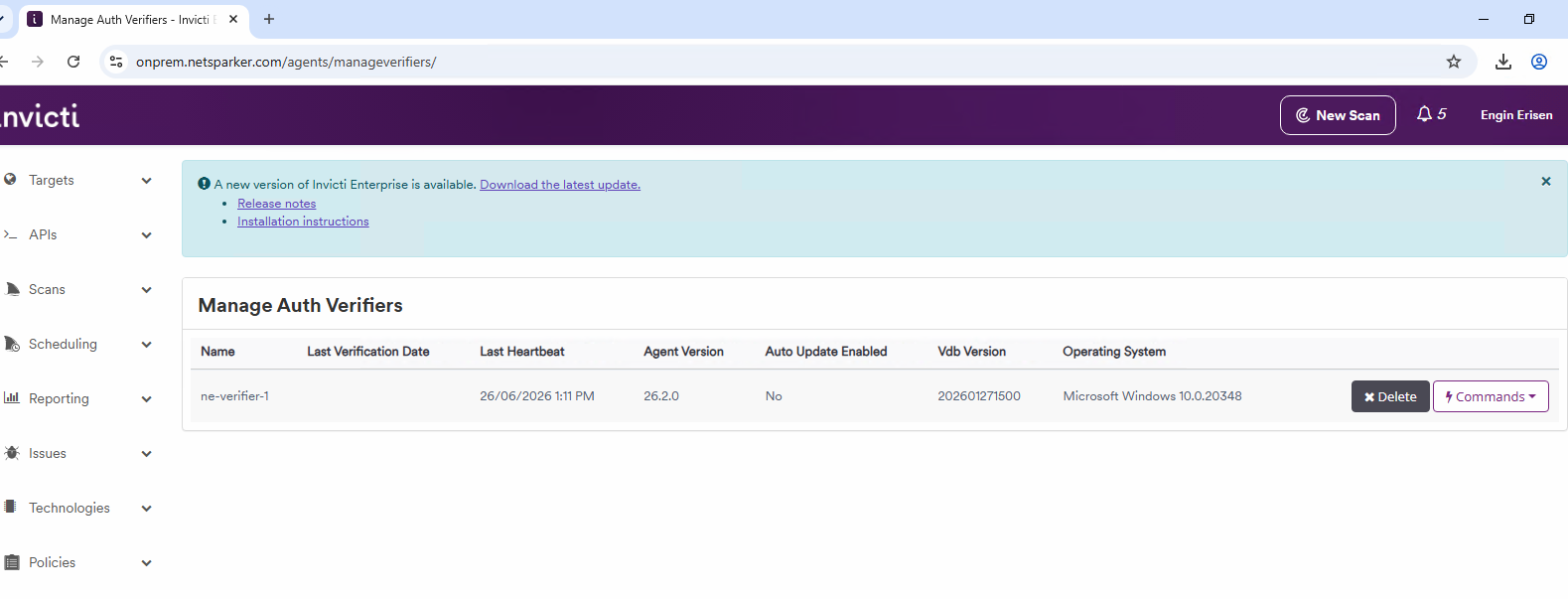
- If the agent doesn't appear even after a successful connection, clear your browser cache with a hard reload (Ctrl+Shift+R, or right-click the browser refresh button and select Empty cache and hard reload).
- If you configured the agent mode as cloud on the website settings page, set
"AgentType": "Cloud"inappsettings.json. Use"AgentType": "Standard"for the internal agent mode. - For information about installing multiple verifier agents on the same machine, see Authentication verifier settings.
Need help?
Invicti Support team is ready to provide you with technical help. Go to Help Center