Step 3: Install and configure the agent
Use the setup wizard to install the Invicti Enterprise Agent. This document explains how to install the agent and run multiple agents on the same operating system.
You can also install the Invicti Enterprise Agent in silent mode. For more information, see Install the Invicti Enterprise Agent in silent mode.
Install the Invicti Enterprise Agent
- Run the
AgentSetup.exefile. - On the Invicti Enterprise Agent Setup window, select Next.
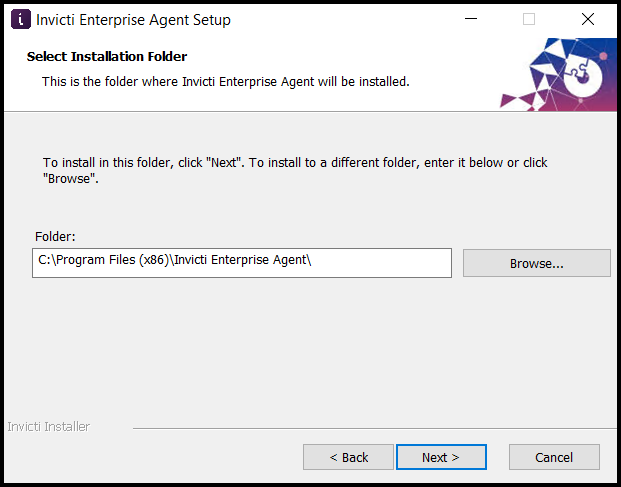
- On the Select Installation Folder step, select Next to install to the default folder. Alternatively, select Browse to choose a different installation folder, then select Next.
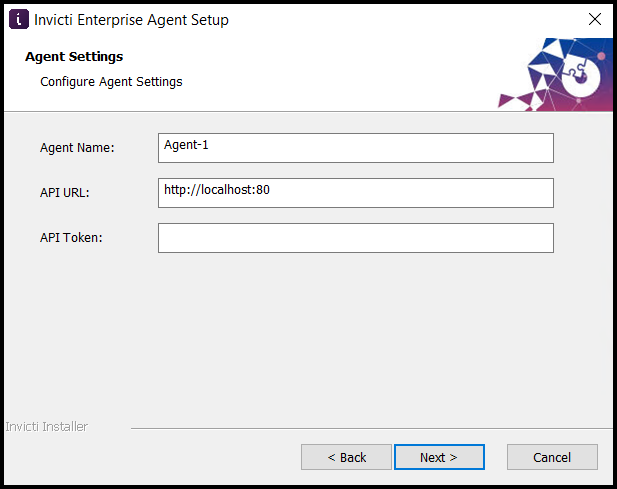
- On the Agent Setup step, enter the following values and select Next:
- Agent Name: any value you choose to identify this agent
- API URL: your Web App URL
- API Token: the Access Token from step 8 of the web app configuration wizard. If you didn't copy it during the wizard, find it in Agents > Manage Agents > + Configure New Agent.
If you configured SSL/TLS for your Invicti Enterprise Application Server, enter an HTTPS URL (for example: https://ncserver/).
- On the Ready to Install step, select Install.
- Select Finish to complete the installation.
Prevent the agent from starting automatically
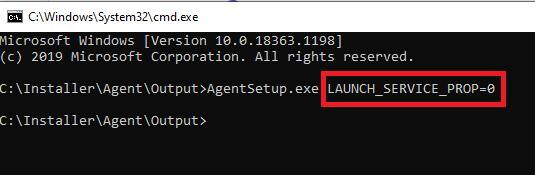
Once installed, the agent starts automatically. To prevent this:
- Open a Command Prompt as administrator.
- Navigate to the folder containing
AgentSetup.exe. - Run
AgentSetup.exe LAUNCH_SERVICE_PROP = 0
To start the agent later, use either method:
Method 1:
- Open a Command Prompt as administrator.
- Navigate to the folder containing
AgentSetup.exe. - Run
AgentSetup.exe -s
Method 2:
- Press Windows+R, type
services.msc, and press Enter. - Find
Netsparker Enterprise Scanning Service - [YOUR_AGENT_NAME]. - Right-click it and select Properties.
- Set Startup type to Automatic, then select Start.
For more information, see Configuring agent selection.
Install multiple agents on the same operating system
If you want to install more than one agent on the same system, first install the Invicti Enterprise Agent using the AgentSetup.exe file. Then follow these steps to add more agents.
-
Copy all files from the default agent's folder to a new folder for the new agent. The default installation path is:
C:\Program Files (x86)\Invicti Enterprise Agent.For example, if you decided to use Agent-2 as the new agent name:
xcopy "C:\Program Files (x86)\Invicti Enterprise Agent\*.*" "C:\Program Files (x86)\Invicti Enterprise Agent-2" /yieThis creates
C:\Program Files (x86)\Invicti Enterprise Agent-2and copies all the required files. -
Open
appsettings.jsonin the new agent's folder with a text editor. Set the new agent's name. -
Open a Command Prompt as administrator and run the following commands:
- Navigate to the new agent's folder:
cd C:\Program Files (x86)\Invicti Enterprise Agent-2
- Install the new agent as a Windows Service:
Netsparker.Cloud.Agent.exe /i
- Start the new agent's Windows Service:
Netsparker.Cloud.Agent.exe /s
- Navigate to the new agent's folder:
Need help?
Invicti Support team is ready to provide you with technical help. Go to Help Center