Update Invicti Enterprise on-premises
Invicti Enterprise on-premises runs on your servers and network. New versions require manual updates. To see what items are included in each of the updates, refer to the Release notes.
This document explains how to download and install the latest version.
Important update instructions for Invicti Enterprise on-premises
To ensure a smooth update of Invicti Enterprise on-premises:
- Pause any active scans before updating.
- Back up your database before starting (refer to Microsoft documentation for guidance).
- Restart the system if prompted during installation.
- Add Invicti files and folders to your antivirus/anti-malware exception list to prevent performance issues. For more information, refer to the Excluding Invicti files from antivirus scans document.
The db_owner role is required for initial installation and updates. For ongoing operations, maintain db_owner permissions to allow the application's automated daily database maintenance job (for example, index rebuilding) to run successfully. This is critical for ensuring the long-term performance and stability of the application. If persistent db_owner permissions aren't feasible, please be aware that manual database maintenance is required to prevent performance degradation. For all other application functions, db_datareader, and db_datawriter roles are sufficient.
How to update Invicti Enterprise on-premises
The update process involves several steps:
- Download the .zip file and extract the content
- Update the Invicti Enterprise web app and Authentication Verifier service
- Update the Invicti Enterprise agent
- Update the Authentication Verifier agent
- Update the IAST Bridge (optional)
- Update Invicti API Security (optional)
Invicti Enterprise must not be running during the installation process.
Step 1: Download the zip file
- When a new version of Invicti Enterprise on-premises is available, a notification is displayed with the option to download the latest update. Select the linked text in the notification to download the zip file.

To manually check for updates, select Settings > Licensing from the left-side menu. Then, select Check for Updates. If an update is available, a notification appears.
-
From the download location, extract the .zip file to a directory. Ensure the following files appear in the extracted folder:
- AgentSetup.exe (Invicti Enterprise Agent installer)
- ApiHubServiceSetup.exe (API Security installer)
- AuthVerifierAgentSetup.exe (Invicti Enterprise Authentication Verifier Agent installer)
- AuthVerifierServiceSetup.exe (Invicti Enterprise Authentication Verifier Service installer)
- IASTBridgeSetup.exe (Invicti IAST Bridge installer)
- WebAppSetup.exe (Invicti Enterprise Application Server installer)
Step 2: Update the Web App and Authentication Verifier service
The Authentication Verifier Service requires .NET 8.0. If it's not available on the target system, the installer prompts you to install it.
- Run the
WebAppSetup.exefile. This runs the Web Application Setup and the Authentication Verifier Service Setup. - Review the End-User License Agreement, and if you agree, enable I accept the terms in the License Agreement checkbox. Selecting I do not accept the terms in the Licence Agreement cancels the installation. Click Next.
- On the Ready to Install window, click Install. Wait for the Installing Invicti Enterprise Web Application step to be displayed.
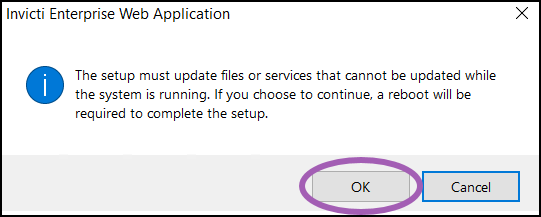
- When you receive the warning that a system reboot is needed to update files, choose OK to continue the installation, or choose Cancel to exit the entire process. The message appears several times.
- The Authentication Verifier Service Setup Wizard is initiated. Click Next to continue.
- On the Ready to Install page, click Install to initiate the installation.
- Wait for the installation to complete, then click Finish on the Authentication Verifier Service Setup Wizard.
- You are now returned to the Invicti Enterprise Web Application Setup window. If desired, clear the Launch Invicti Enterprise Web Application checkbox, then click Finish.
You need to restart the system now. After the restart, the web application is updated and ready to use.
Step 3: Update the Invicti Enterprise agent
There are two options for updating the Invicti Enterprise agent. Choose your preferred method:
- Option A: Run the
AgentSetup.exefile from the extracted folder. - Option B: Use the Update Agent command in the Invicti Enterprise user interface.
Option A: Update the agent using the AgentSetup.exe file
- Run the
AgentSetup.exefile. - Click Next to continue.
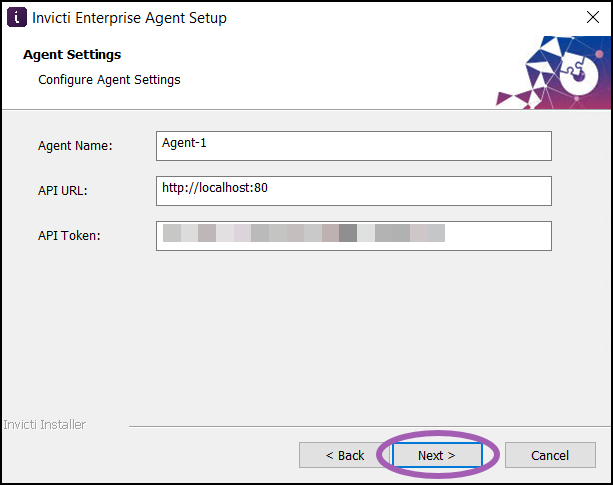
- Review the pre-populated information and click Next.
- Click Install to begin the installation.
- Click Finish to complete the installation.
Option B: Update the agent using the Update Agent command
- Select Agents > Manage Agents from the left-side menu.
- Locate the agent and on the right, select Commands > Update Agent. The installation is completed as a background task. You can't see the process.

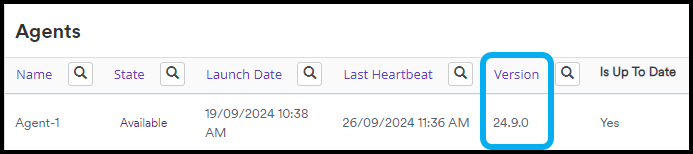
- After a few minutes, manually refresh the Agents > Manage Agents page. The Agent Version number has been updated.
Step 4: Update the Authentication Verifier agent
There are two options for updating the Authentication Verifier agent. Choose your preferred method:
- Option A: Run the
AuthVerifierAgentSetup.exefile from the extracted folder. - Option B: Use the Update Agent command in the Invicti Enterprise user interface.
The agent can auto-update itself if you enable the Enable Auto Update option in the Commands drop-down. For more information, refer to the Agents in Invicti Enterprise on-premises document.
Option A: Update the agent using the AuthVerifierAgentSetup.exe file
- Run the
AuthVerifierAgentSetup.exefile. - Click Next to continue.
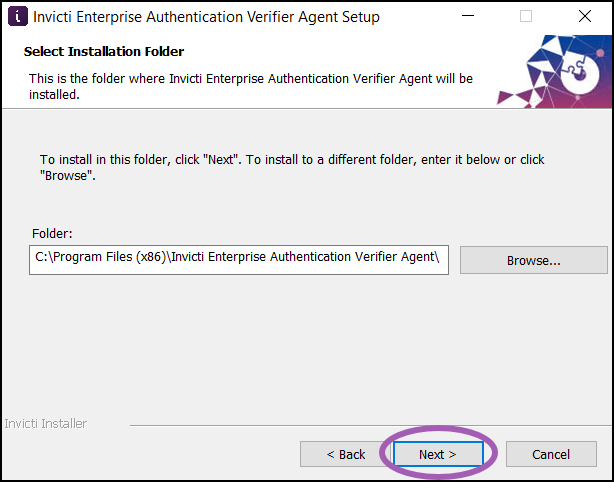
- Verify that the installation folder is correct. If you need to change it, click Browse and choose a different folder location. After that, click Next.
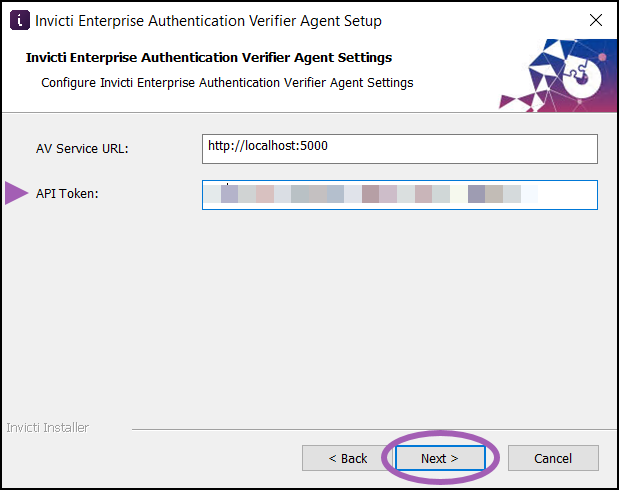
- Enter the API Token and click Next.
The API Token can be found using these steps:
- Select Agents > Manage Agents from the left-side menu.
- Click + Configure New Agents.
- Scroll down and copy the Agent Token.
-
Click Install to begin the installation of the authentication verifier agent.
-
Click Finish to complete the installation.
Option B: Update the agent using the Update Agent command
- Select Agents > Manage Verifiers from the left-side menu.
- Locate the verifier and on the right, select Commands > Update Agent. The installation is completed as a background task. You don't see the process.
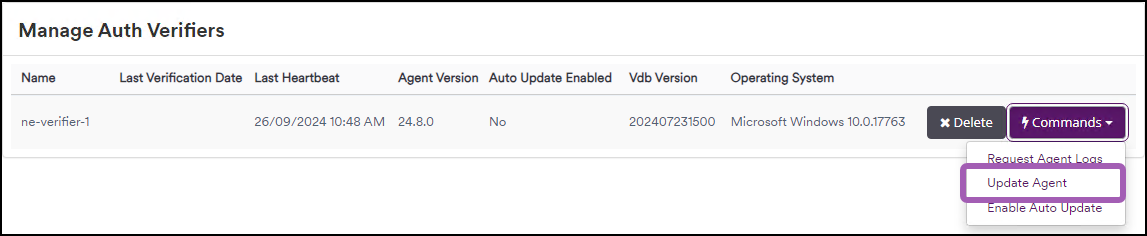
- After a few minutes, manually refresh the Agents > Manage Auth Verifiers page. The Agent Version number has been updated.

Step 5: Update the IAST Bridge (optional)
- Run the
IASTBridgeSetup.exefile. - Click Next to continue.
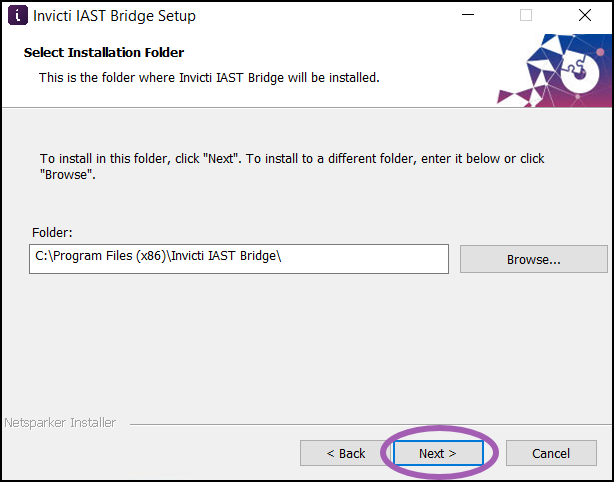
- Verify that the installation folder is correct. If you need to change it, click Browse and choose a different folder location. After that, click Next.
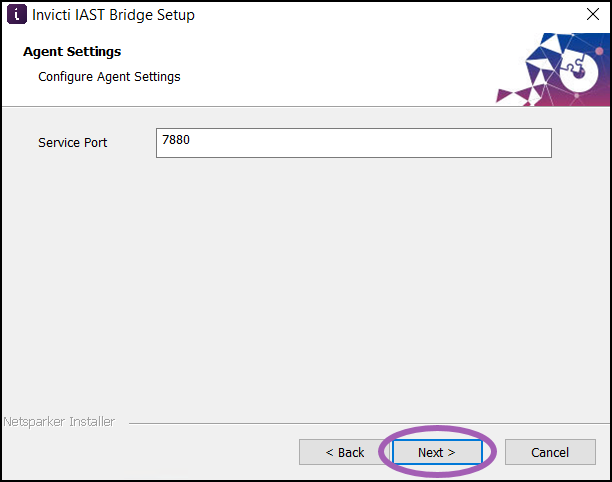
- Review the Service Port number and click Next.
- Click Install to begin the installation of the IAST Bridge.
- Click Finish to complete the installation.
If you also use Invicti API Security, you need to perform an additional step to run the API Hub Service Setup file. For instructions, refer to the Updating Invicti API Security on-premises document.
Need help?
Invicti Support team is ready to provide you with technical help. Go to Help Center